ARM Help

Adding and Editing Employees

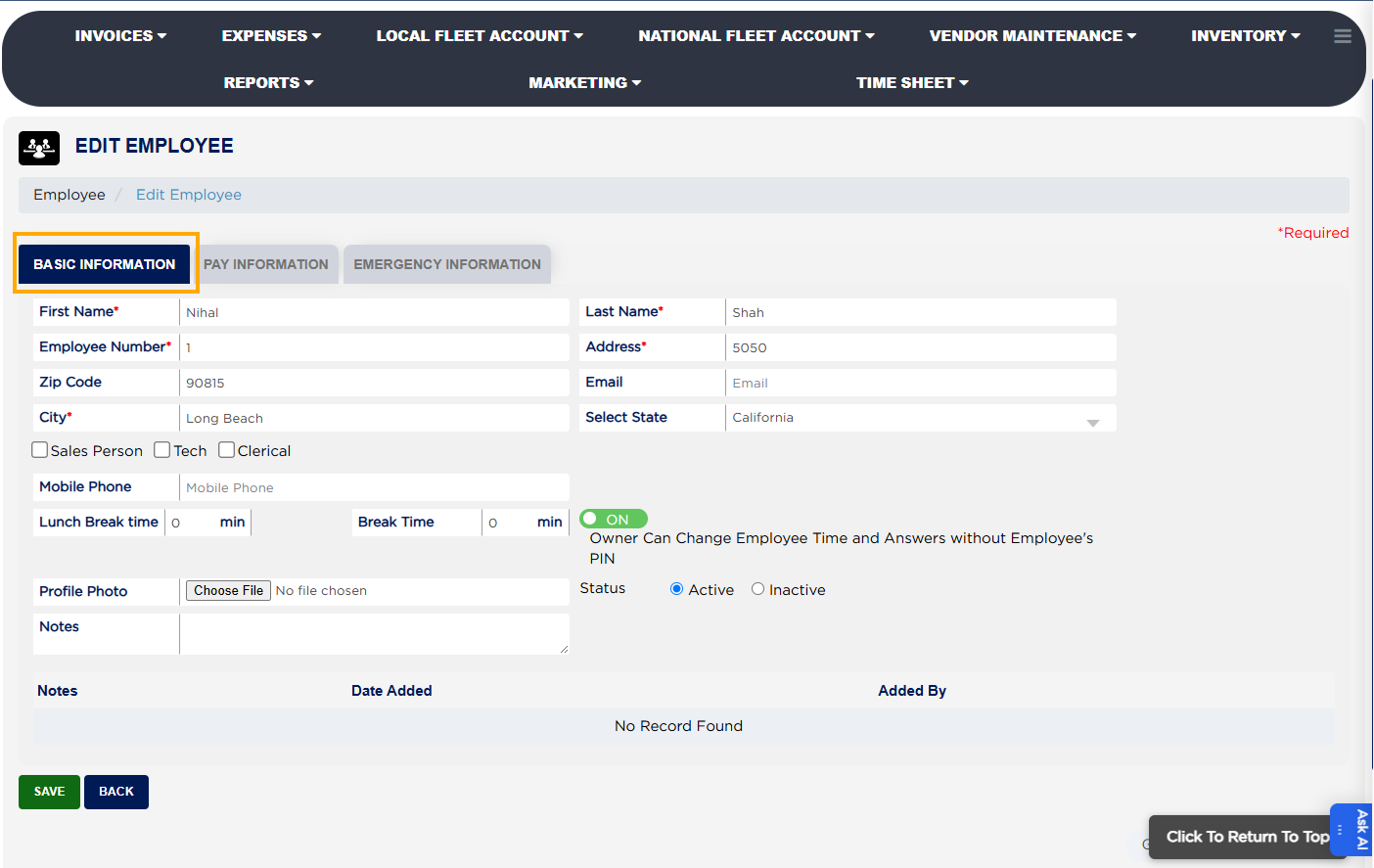
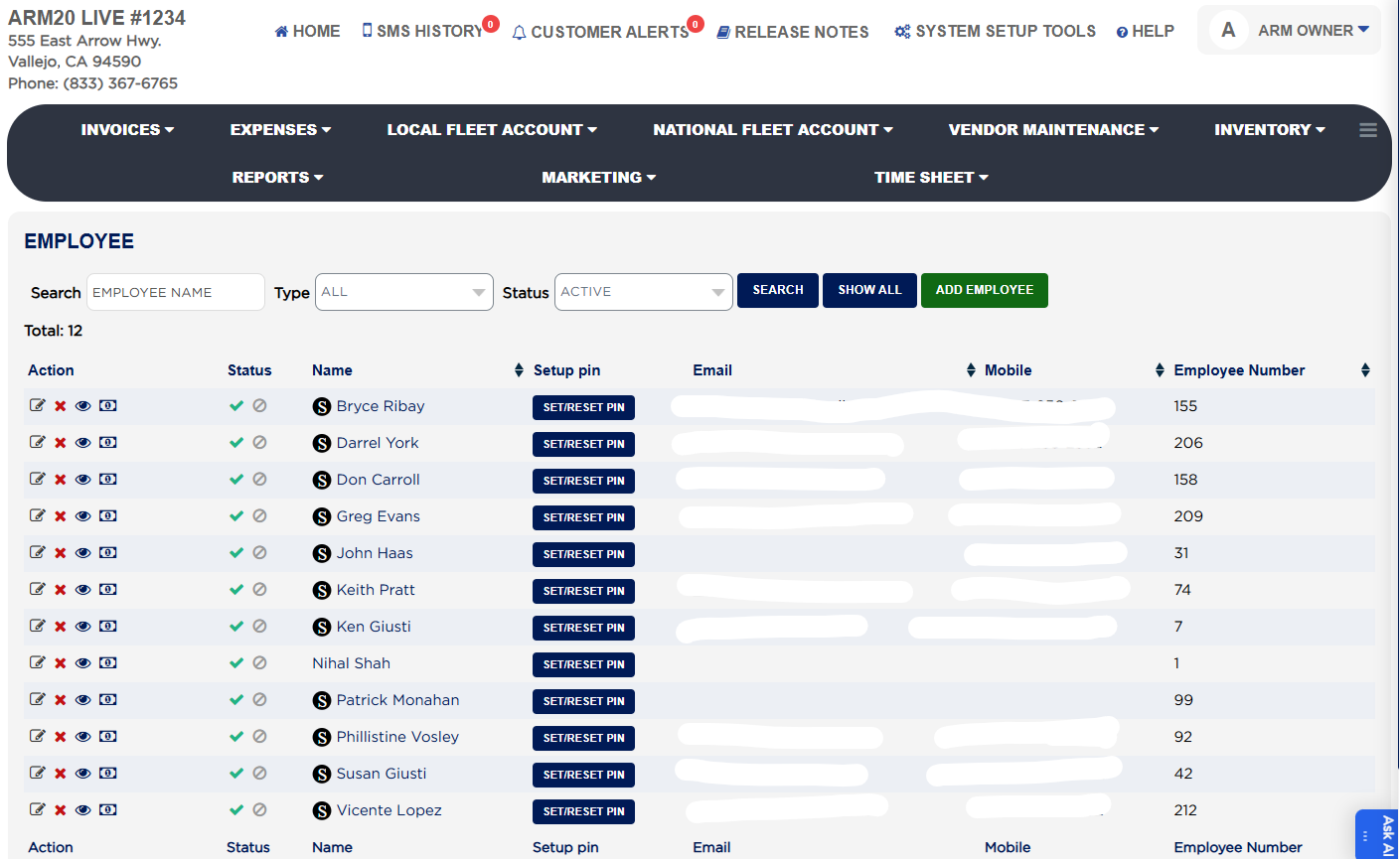
Add employees through the Add/Edit Employees section. Enter first/last name, contact info, email (for PIN resets), designation, phone, lunch/break rules, and emergency contact details.

1 how-to answer 3 screenshots Open in ARM Markdown

How do I add or edit employees? #

  1. Access the Add/Edit Employees section.
  2. Enter first and last name.
  3. Input contact information.
  4. Provide email address for PIN resets.
  5. Specify designation.
  6. Record phone number.
  7. Set lunch/break rules.
  8. Enter emergency contact details.
  9. Upload employee photos.
  10. Record hire dates.
  11. Configure Owner PIN override permissions.
  12. Input pay details including hourly/salary rate, overtime rates, and pay period.
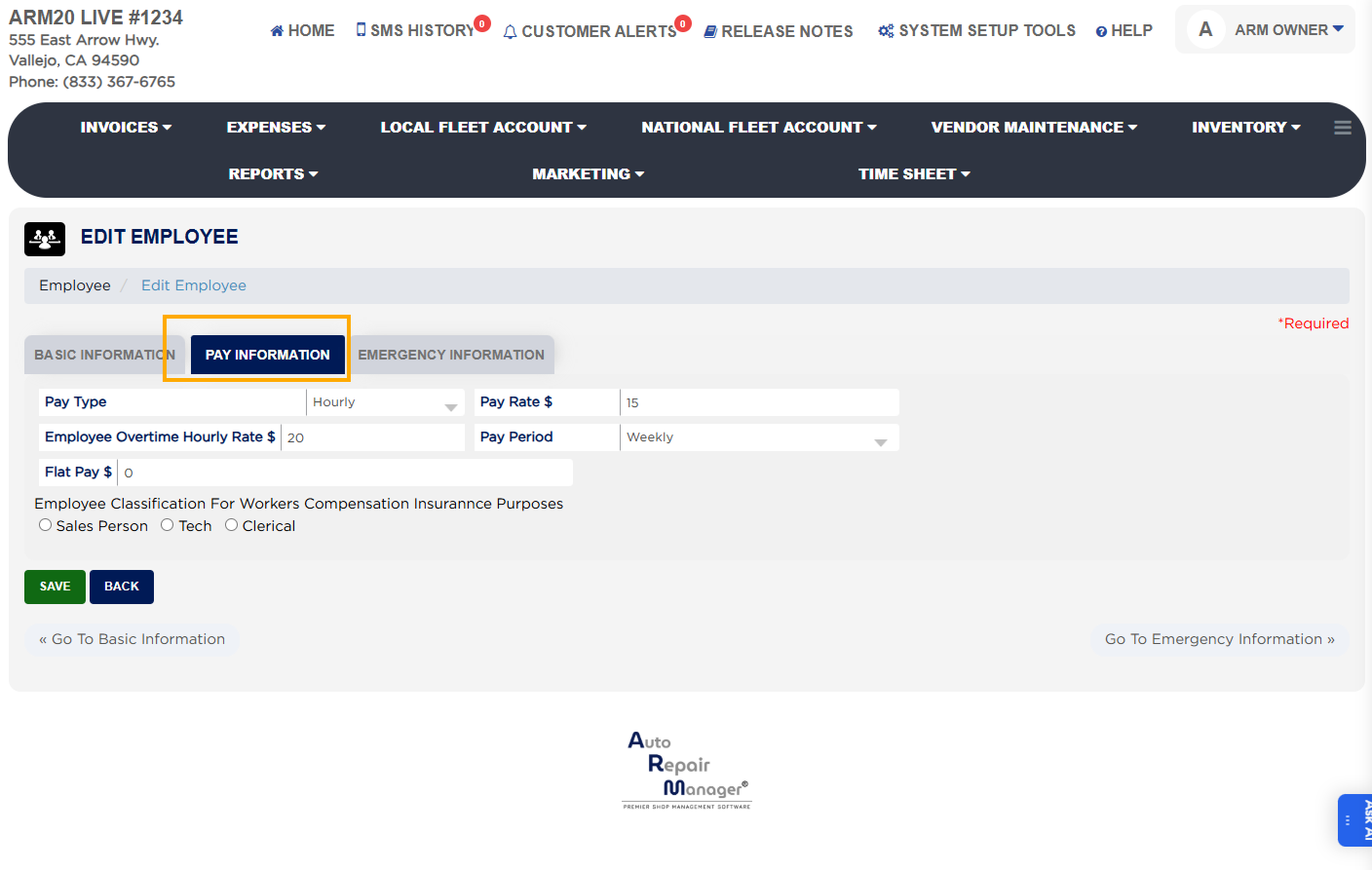
Employee form with salary, overtime, and pay period fields
Employee profile with photo and pay details
Add Edit Employees from
About this screen

Employee payroll details (salary/hourly rate, overtime, pay periods) flow directly into Estimated P&L reports, ensuring accurate labor cost tracking. Employee designations also control system access, linking timesheet functions to security permissions.

Upload employee photos, record hire dates, and configure whether Owner PIN override is allowed for changes. Pay details (hourly/salary, overtime rates, pay period) can also be recorded.

Ask AI