ARM Help

Employee Safety Questions

Enable and customize safety questions in Employee Master. Employees are prompted when clocking out to confirm conditions such as injuries, harassment, or hazards.

1 how-to answer 3 screenshots Open in ARM Markdown

How do I enable and customize safety questions for employee safety? #

  1. Open Employee Master Settings.
  2. Navigate to the End of Day Employee Reps screen.
  3. Enable safety questions.
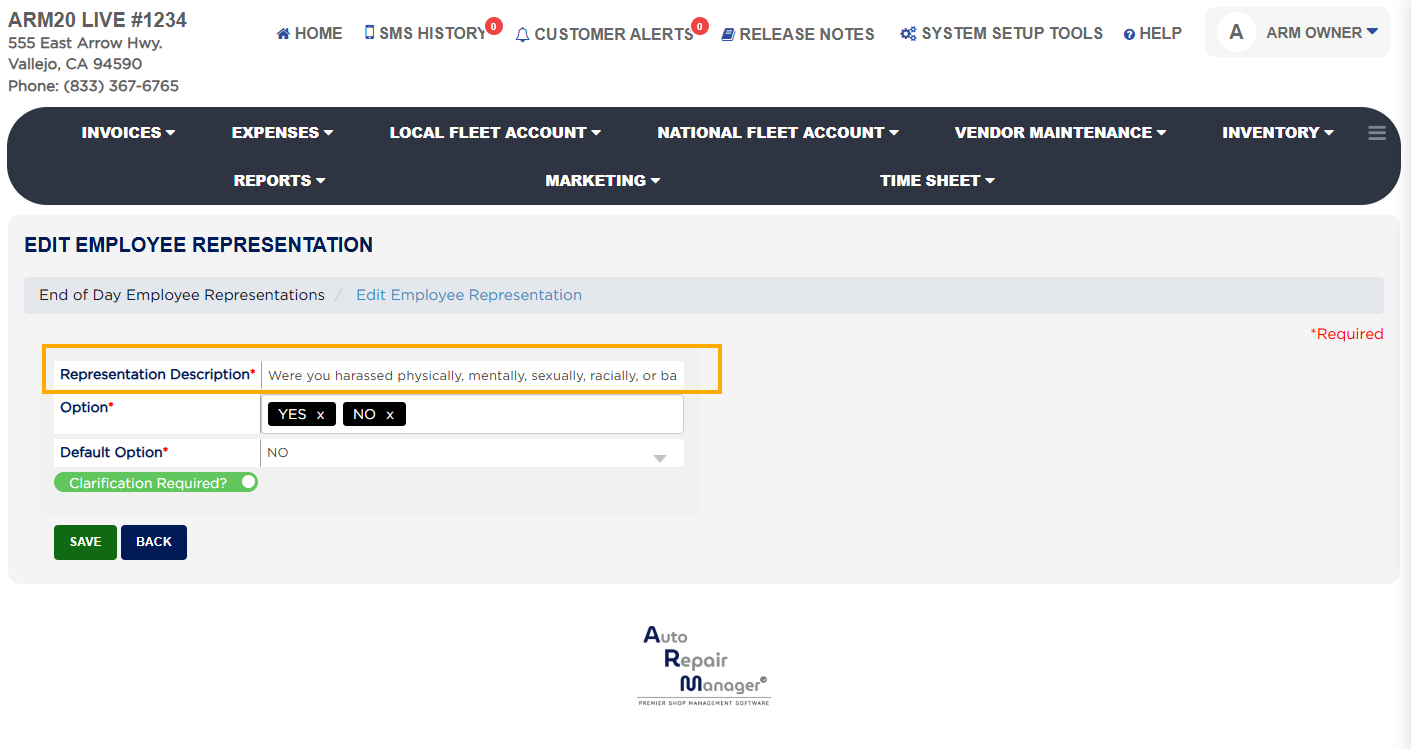
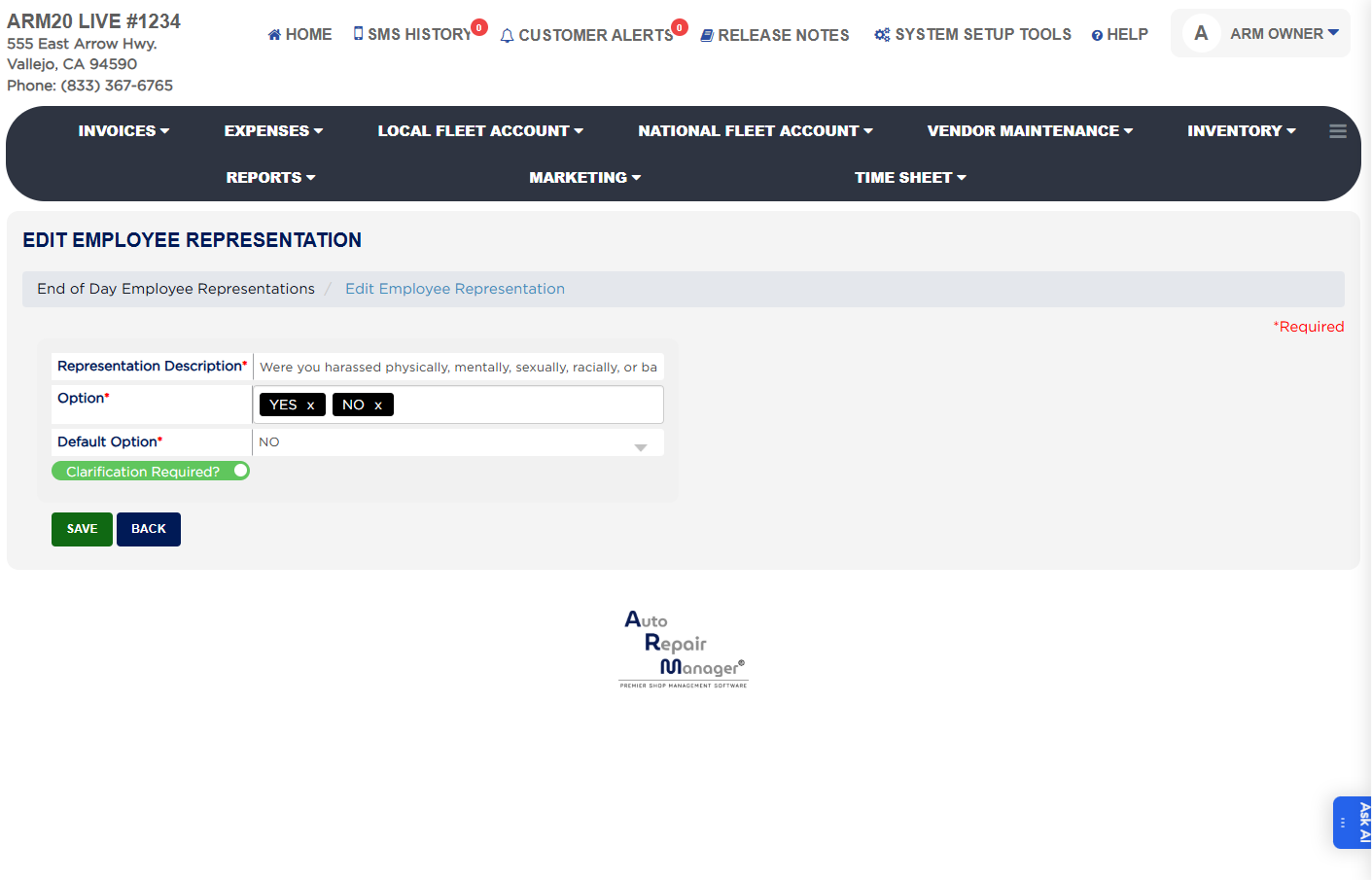
  4. Customize the questions as needed by clicking on the Edit Icon Next to the Representation Description.
  5. Set default answers for each question in the Option box. You can type an answer and press Enter.
  6. If you have multiple answers such as YES/NO, you can set up the Default Option and make the Clarification toggle required.
  7. If Clarification toggle is on, then the user have to enter why their answer is not the default answer.
  8. Mark questions as 'Clarification Required' to force employees to provide explanations for unusual responses.
  9. Configure email alerts in Employer Master for non-default responses.
  10. Save the changes.
  11. You can add or remove questions based on your requirements.
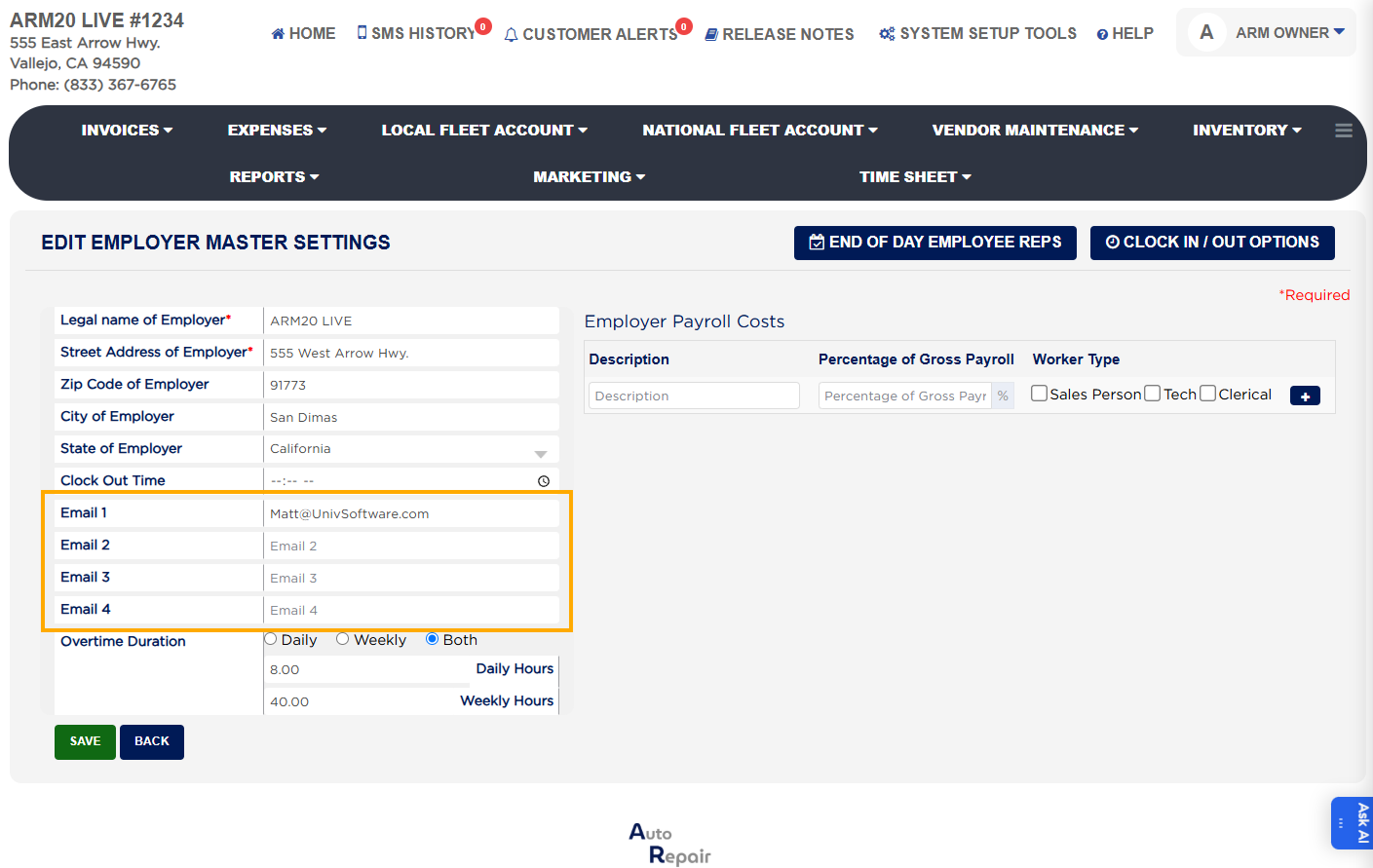
End-of-Day Safety Question alert email setup
End-of-Day Questions example
Customizing Employee Safety Questions
About this screen

Non-default responses trigger immediate email alerts, which can be sent to multiple addresses configured in the Employer Master. Shops can mark questions as 'Clarification Required,' forcing technicians to enter an explanation. Reports log both the original answer and who corrected it if changes are made later.

Default answers are provided, but employees can change responses and provide explanations. Non-default answers trigger alerts to designated emails from the Employer Master.

Ask AI