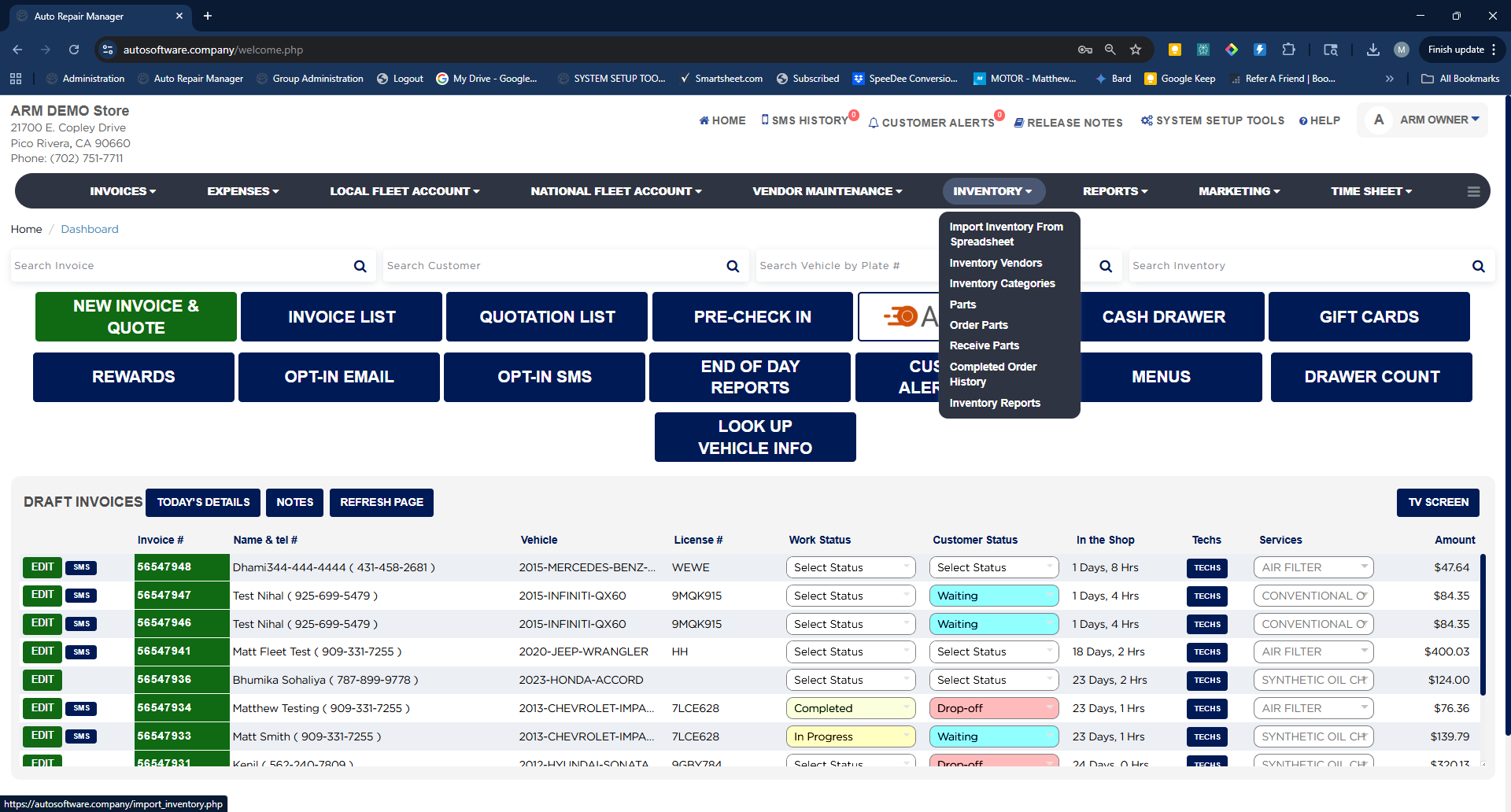
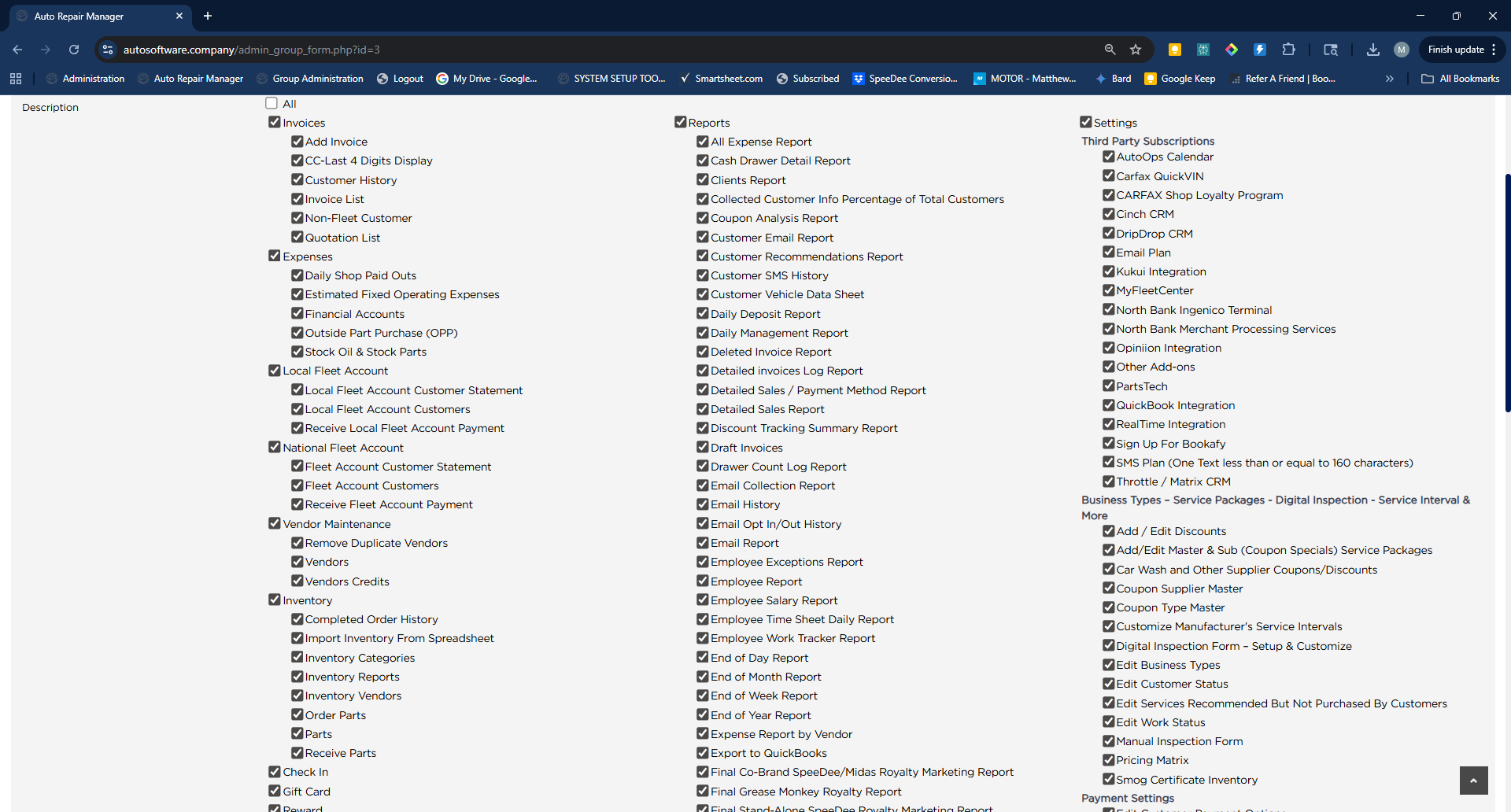
Everything in the inventory workflow is reached from the Inventory menu on the ARM navigation bar: Import Inventory From Spreadsheet, Inventory Vendors, Inventory Categories, Parts, Order Parts, Receive Parts, Completed Order History, and Inventory Reports. Who can open each of these is controlled in two places under System Setup Tools: Password Management sets the password level required for an individual inventory action, and Groups controls which modules appear in a user's menu at all.
From the Home Screen, click Inventory on the navigation bar.
Select the screen you need — Import Inventory From Spreadsheet, Inventory Vendors, Inventory Categories, Parts, Order Parts, Receive Parts, Completed Order History, or Inventory Reports.
Accessing the Inventory Module
How do I control who can access an Inventory feature?
#
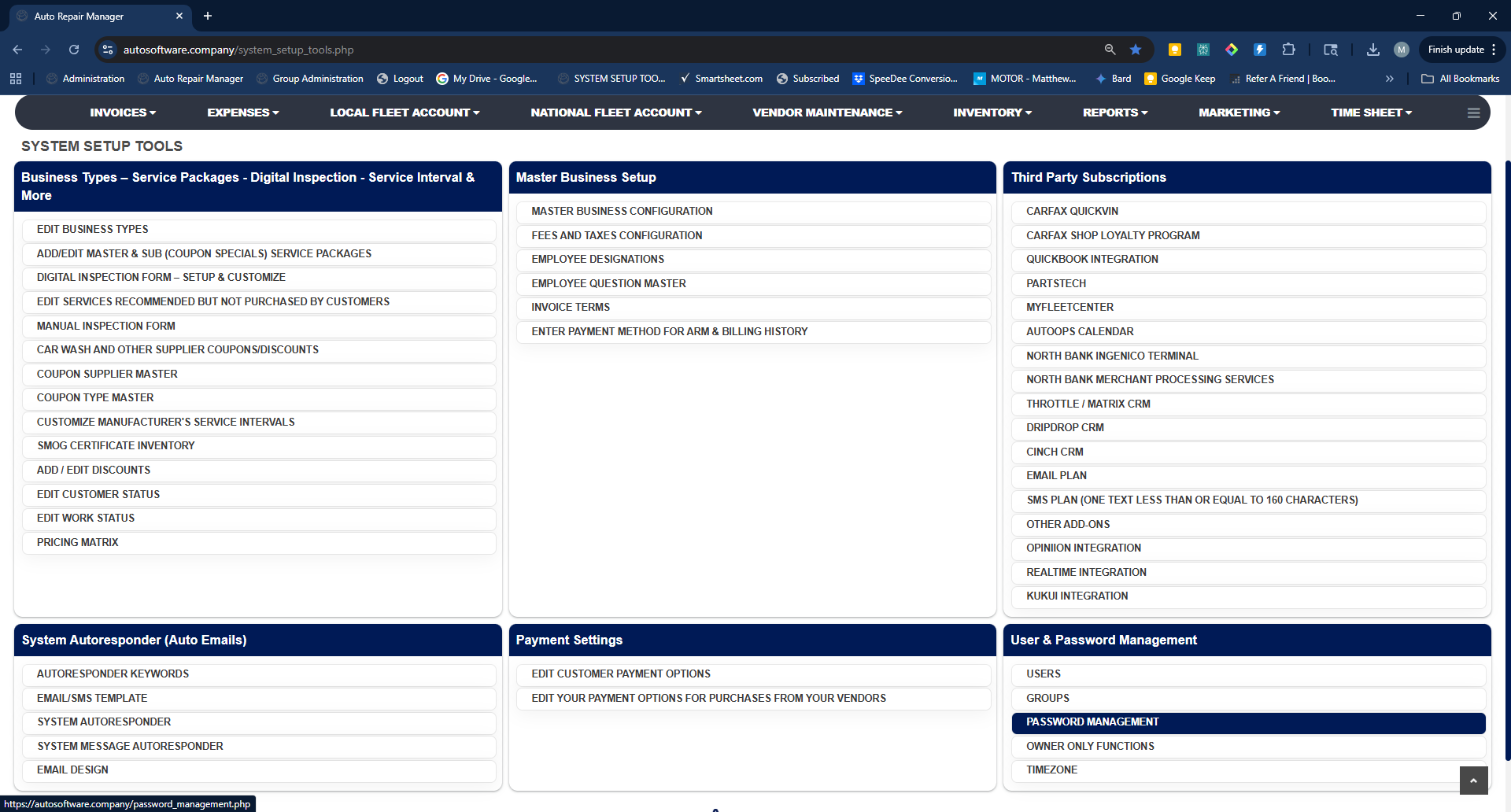
From the Home Screen, click System Setup Tools.
In the User & Password Management panel, click Password Management.
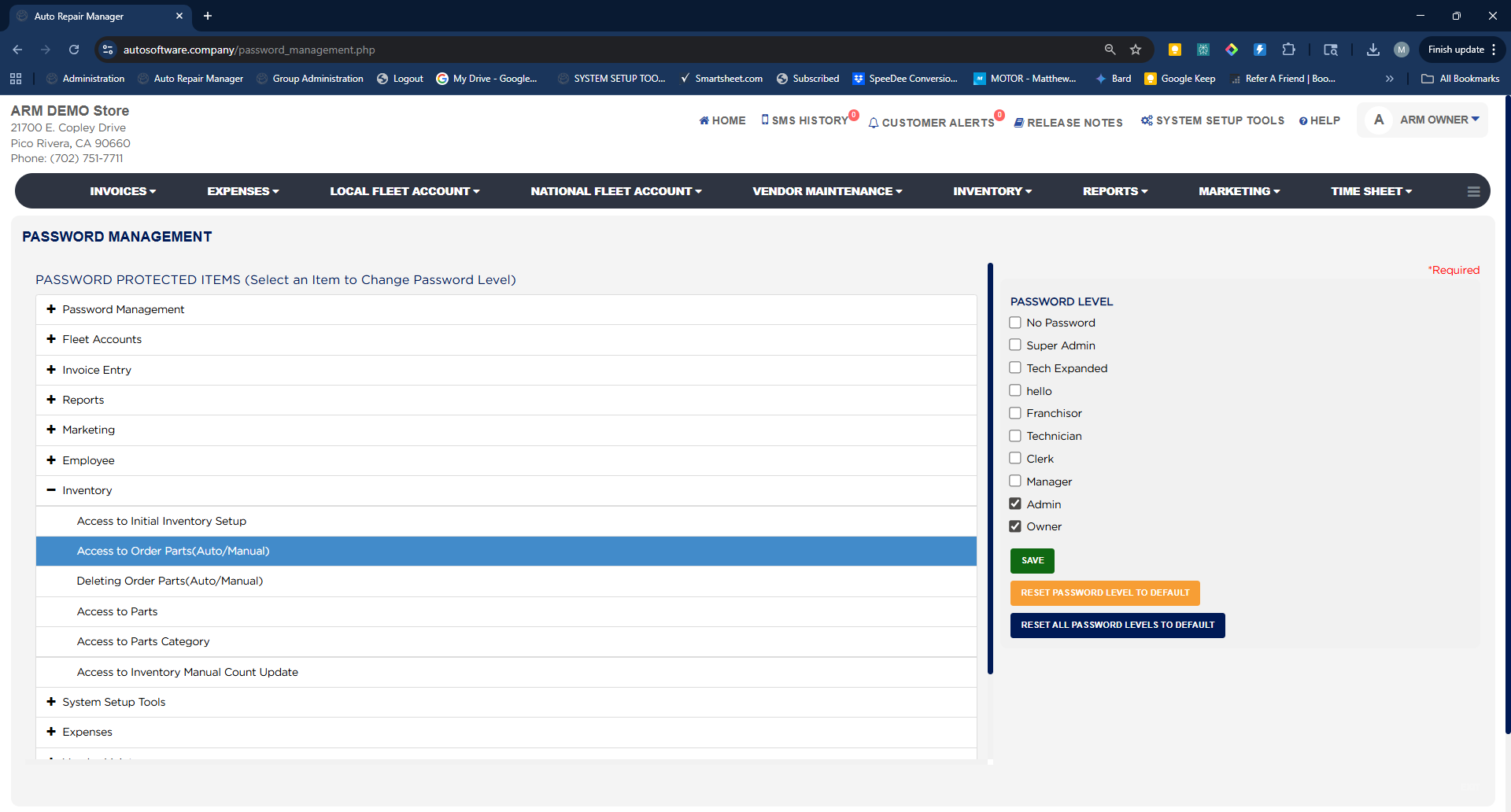
Under Password Protected Items, click the + beside Inventory to expand it.
Select the item you want to control: Access to Initial Inventory Setup, Access to Order Parts(Auto/Manual), Deleting Order Parts(Auto/Manual), Access to Parts, Access to Parts Category, or Access to Inventory Manual Count Update.
On the right, under Password Level, check each role that may use that item — for example Owner, Admin, Manager, Clerk, or Technician. Check No Password if the item should never prompt for a password.
Click Save.
To undo changes, click Reset Password Level To Default for the selected item, or Reset All Password Levels To Default for every item in the list.
System Setup Tools → Access to Password ManagementPassword Management for Inventory ModuleGroup Management (Access by Role)
How do I hide Inventory screens from a group of users?
#
From the Home Screen, click System Setup Tools.
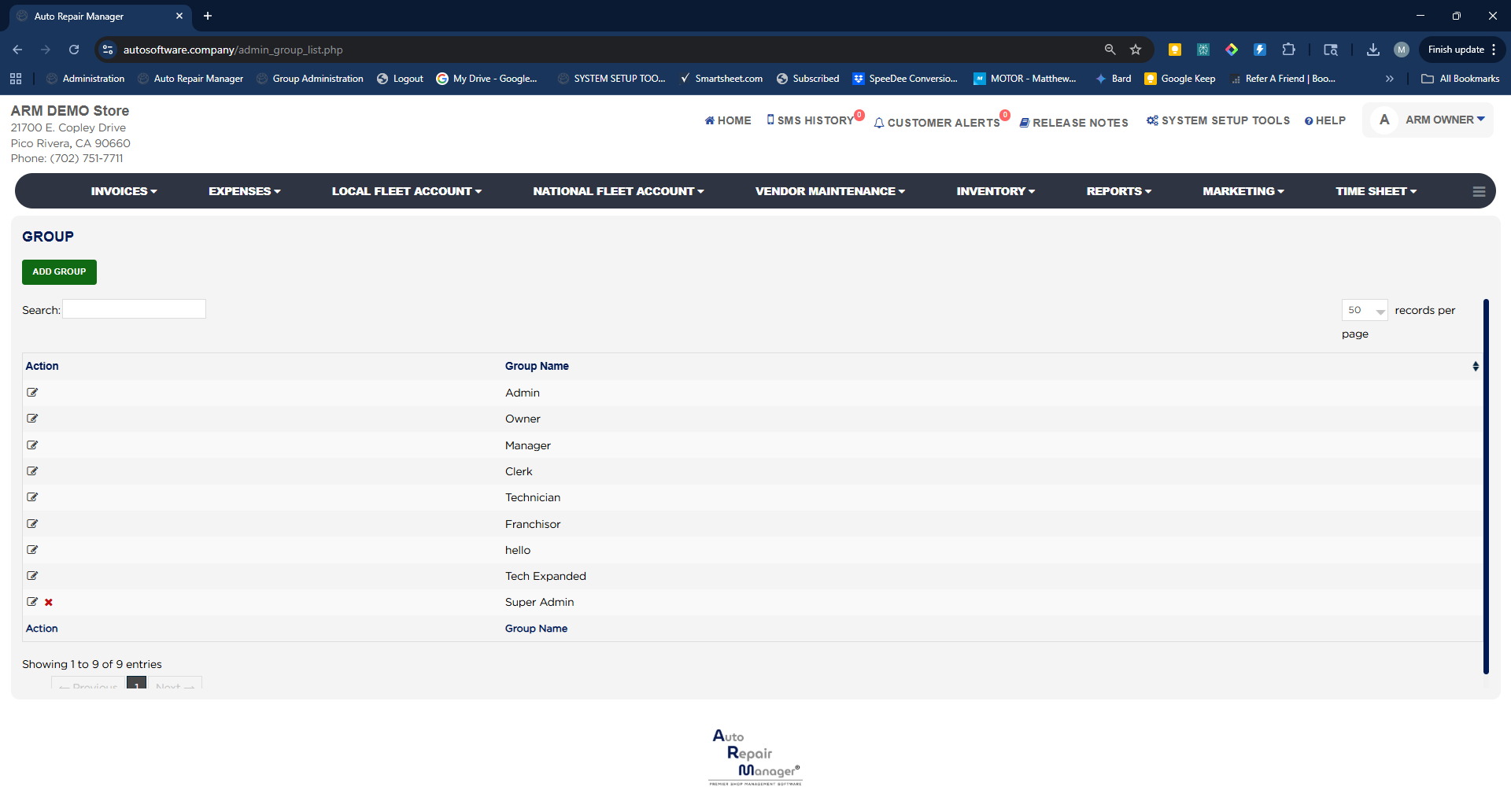
In the User & Password Management panel, click Groups.
Find the group in the Group Name list — for example Manager, Clerk, or Technician — and click the edit icon in the Action column. Click Add Group to create a new group instead.
In the permissions list, use the Inventory checkboxes to set what the group sees: Completed Order History, Import Inventory From Spreadsheet, Inventory Categories, Inventory Reports, Inventory Vendors, Order Parts, Parts, and Receive Parts. Clearing a checkbox removes that screen from the group's Inventory menu.
Save the group. The new permissions apply the next time a member of that group logs in.