How do I start an invoice for a returning customer? #
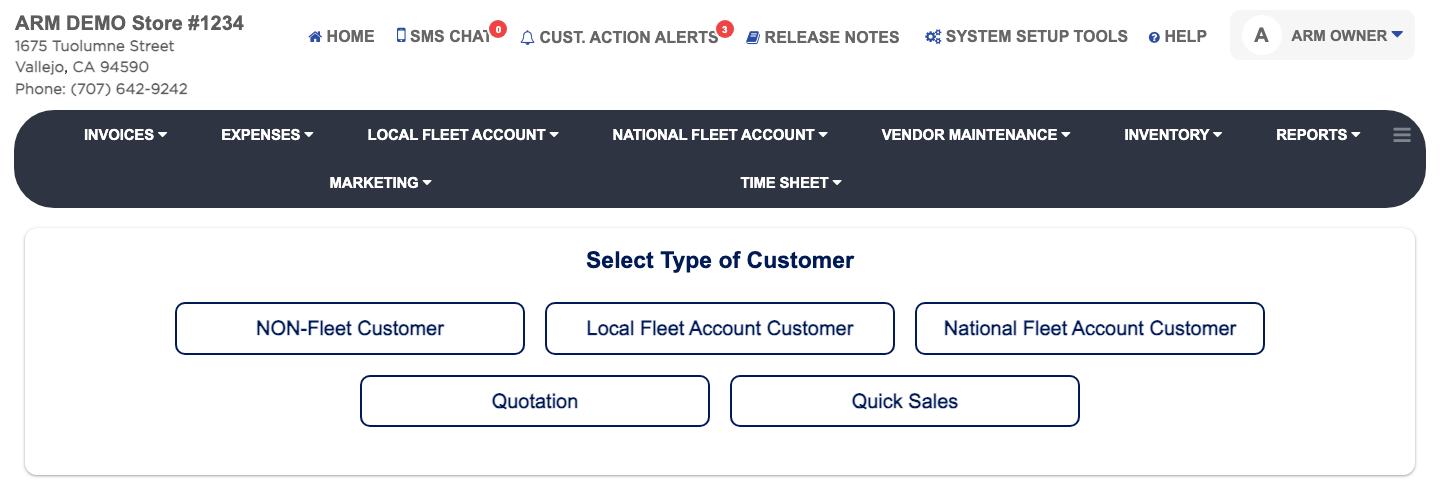
- From the Home Screen, click Invoices → Add Invoice.
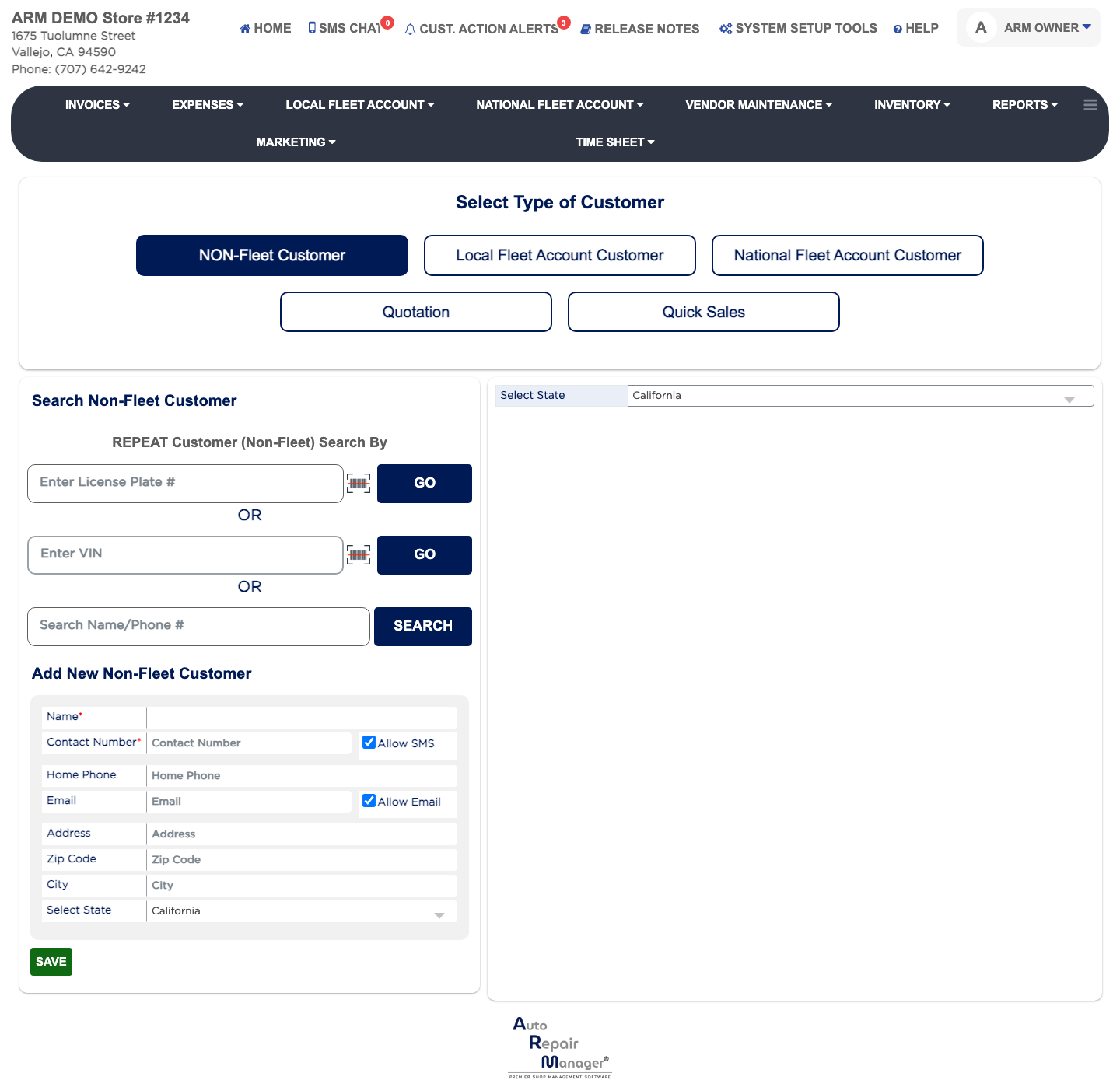
- Click NON-Fleet Customer.
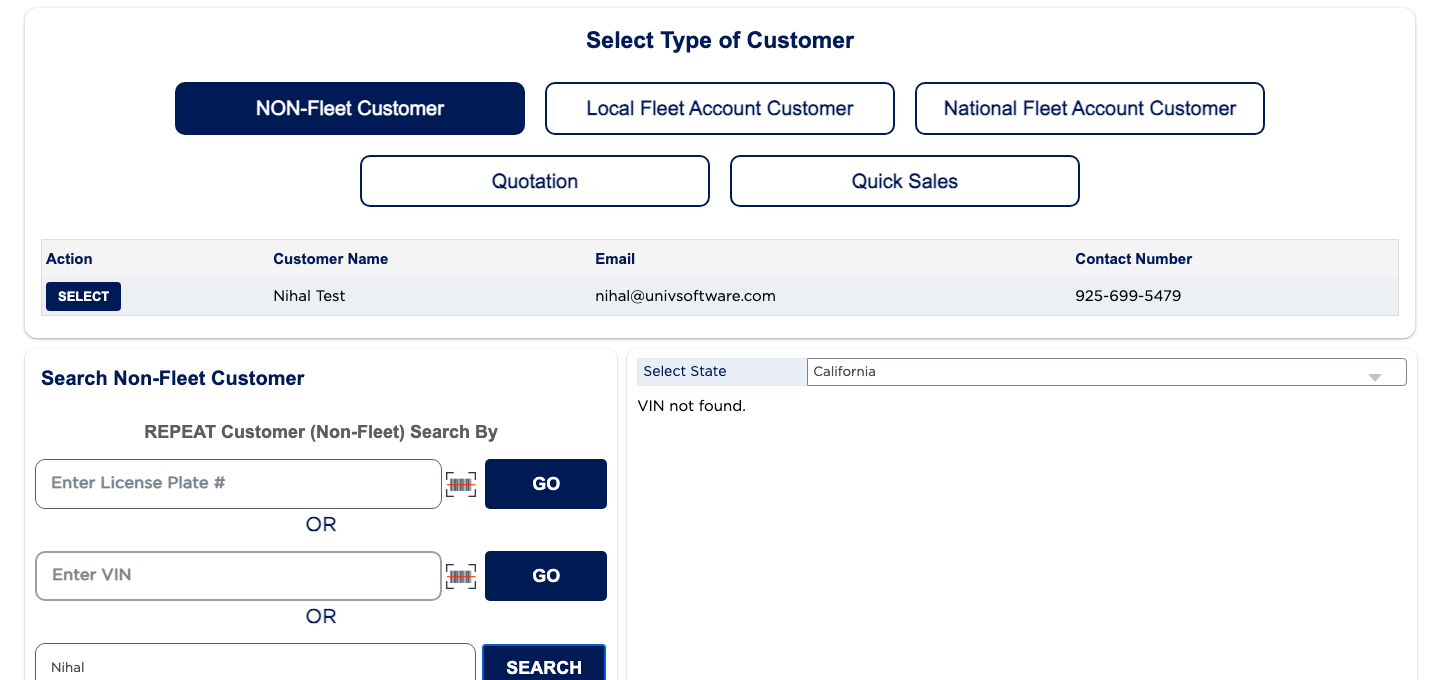
- Under REPEAT Customer (Non-Fleet) Search By, type the License Plate # and click GO. You can instead type the VIN and click GO, or type part of the name or phone number in Search Name/Phone # and click SEARCH.
- Click SELECT beside the customer. Searching by License Plate # takes you straight to that vehicle; the other searches show the customer's list of vehicles.
- Click SELECT beside the vehicle being serviced.
- In the Odometer window, enter the Odometer reading and choose the Writeup Employee.
- Click SAVE & GO TO INVOICE. The invoice screen opens with the customer and vehicle filled in.