ARM Help

Changing a Finalized Invoice

A finalized invoice is locked, so the numbers you have reported cannot change by accident. Some things can still be done without unlocking it: taking a payment, adding Invoice Notes, printing and sending, adding a signature, and changing the employees with Edit Employee. To change the work or the prices, click EDIT; this needs the Editing Finalized Invoices password. If the total changes, the invoice goes back to a Draft and must be finalized again.

3 how-to answers 2 screenshots Open in ARM Markdown

How do I change the technicians on a finalized invoice? #

  1. From the Home Screen, click Invoices → Invoice List, click FINALIZED and open the invoice.
  2. Click EDIT EMPLOYEE.
  3. Change the Odometer, Writeup Employee, Cashout Employee, or the technicians and salespeople on each labor and part line.
  4. Click Save Changes. Your shop may ask for a password.
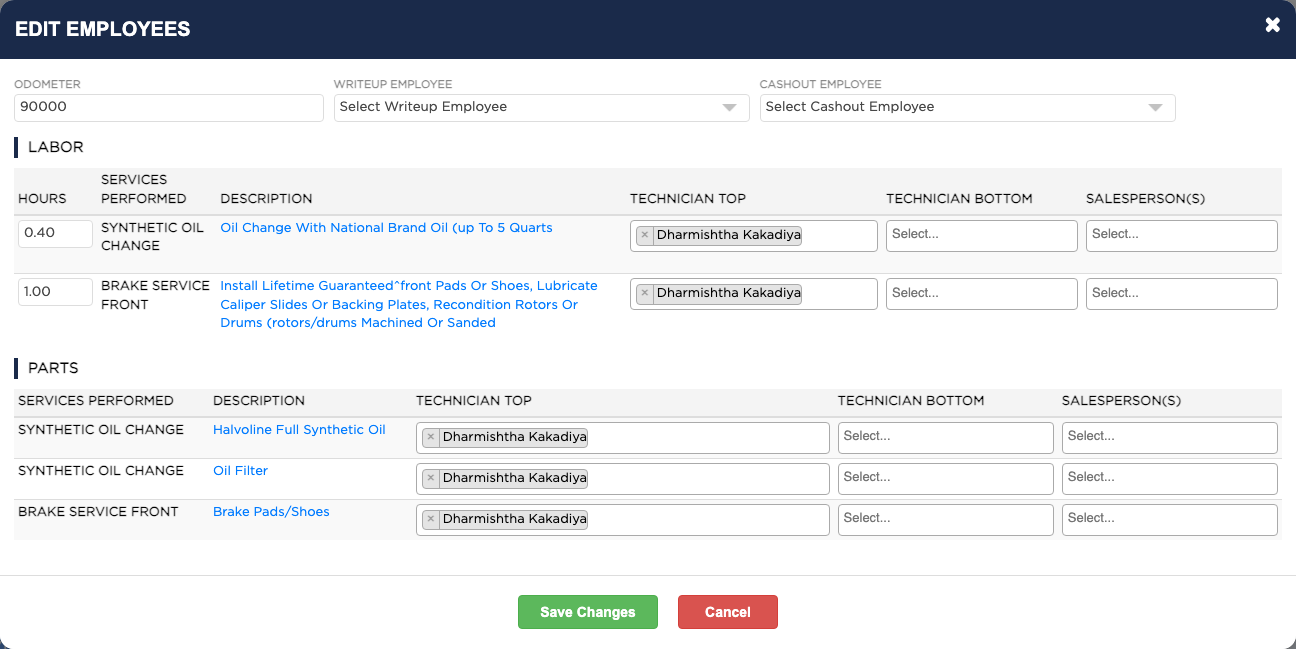
Edit Employees on a finalized invoice

How do I change the date an invoice was finalized? #

  1. From the Home Screen, click Invoices → Invoice List, click FINALIZED and open the invoice.
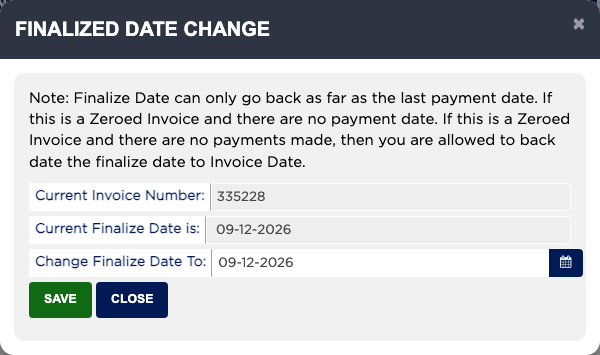
  2. At the bottom, beside Finalized, click Change Finalized Date. Your shop may ask for a password.
  3. Pick the new date in Change Finalize Date To and click Save. The date can only go back as far as the last payment date, or to the invoice date if no payment was taken.
Finalized Date Change

How do I correct the work on a finalized invoice? #

  1. From the Home Screen, click Invoices → Invoice List, click FINALIZED and open the invoice.
  2. Click EDIT and enter the password for editing finalized invoices.
  3. Make the change and click SAVE.
  4. If the total changed, the invoice is a Draft again. Take any extra payment and finalize it again from PRINT / CASH OUT.

People also ask

  • asked 1×
  • asked 1×

Ask AI