ARM Help

Print / Cash Out, Estimates and Signatures

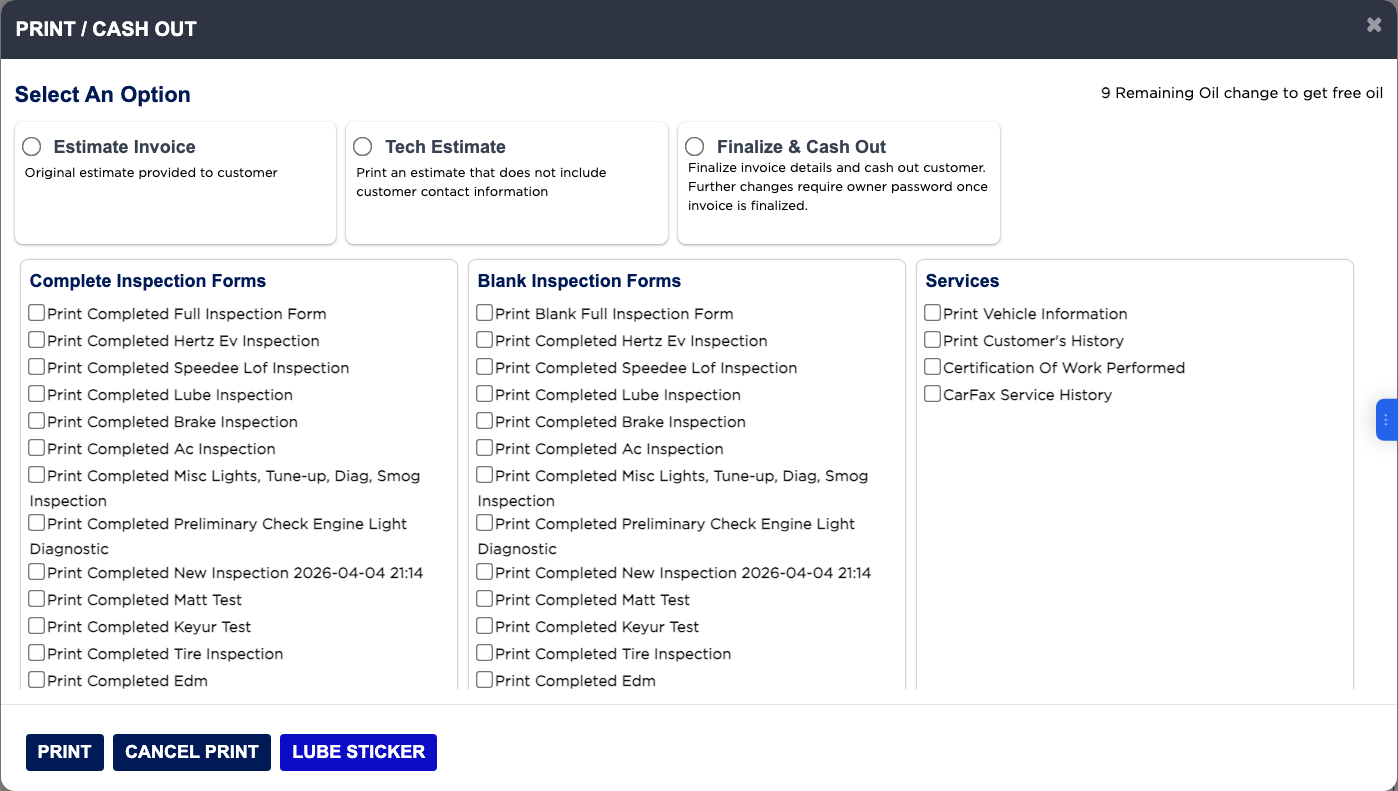
PRINT / CASH OUT is where you print for the customer and where you close the job. Under Select An Option you choose Estimate Invoice (the original estimate), Tech Estimate (for the technician, without the customer's contact details) or Finalize & Cash Out. You can also tick inspection forms, blank inspection forms, and extras such as Print Vehicle Information, Print Customer's History and CarFax Service History to print at the same time. Your shop can require the customer's signature on the estimate, on the finalized invoice, or both; when it does, the Print and Send buttons stay grey until you click GET CUSTOMER SIGNATURE.
3 how-to answers 2 screenshots Open in ARM Markdown

How do I print an estimate for the customer to approve? #

  1. From the Home Screen, click Invoices → Invoice List and open the invoice.
  2. Click PRINT / CASH OUT.
  3. Select Estimate Invoice.
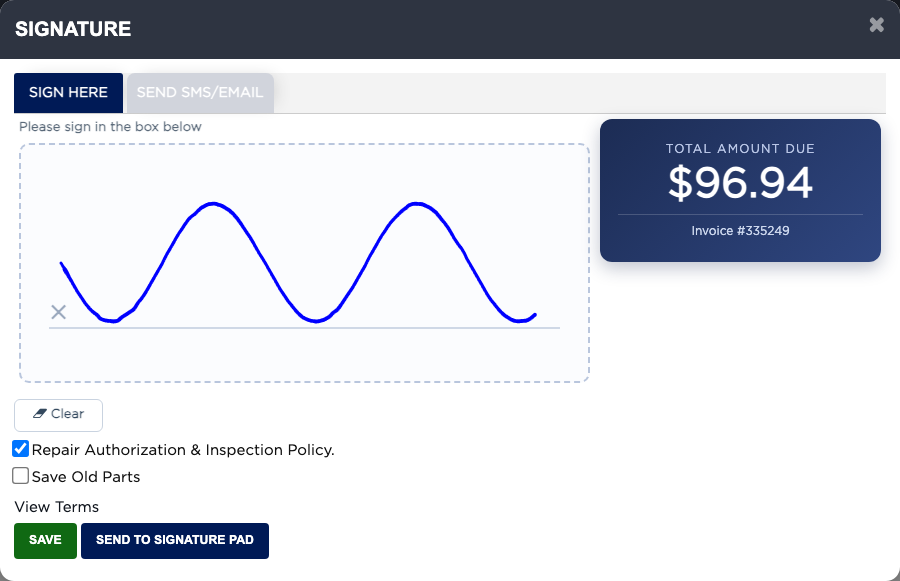
  4. If GET CUSTOMER SIGNATURE is red, the customer must sign first. Click it, have the customer sign in the box, leave Repair Authorization & Inspection Policy ticked, tick Save Old Parts if they want their old parts, and click SAVE.
  5. Tick any inspection forms you want to print with it.
  6. Click PRINT ESTIMATE, or SEND ESTIMATE INVOICE BY SMS/EMAIL to send it.
Print / Cash Out
Print / Cash Out
Customer signature
Customer signature

How do I get the customer to sign remotely? #

  1. From the Home Screen, click Invoices → Invoice List and open the invoice.
  2. Click PRINT / CASH OUT, select the option, and click GET CUSTOMER SIGNATURE.
  3. Click the SEND SMS/EMAIL tab.
  4. Click Send Email or Send SMS, or copy the link and send it yourself. The customer signs on their phone.
  5. To sign on a signature pad at the counter, click SEND TO SIGNATURE PAD on the SIGN HERE tab instead.

What happens when the estimate goes up? #

  1. From the Home Screen, click Invoices → Invoice List and open the invoice.
  2. When the total has gone up since the estimate was printed, ARM records a revision by itself when you print or finalize.
  3. Once there are revisions, the Estimate Invoice option becomes Revised Estimate, so you can print the revised estimate and have the customer sign it.
  4. Click ESTIMATE REVISIONS in the toolbar to see each revision, its date, the added cost, the new total and its signature, and to print them.

Ask AI