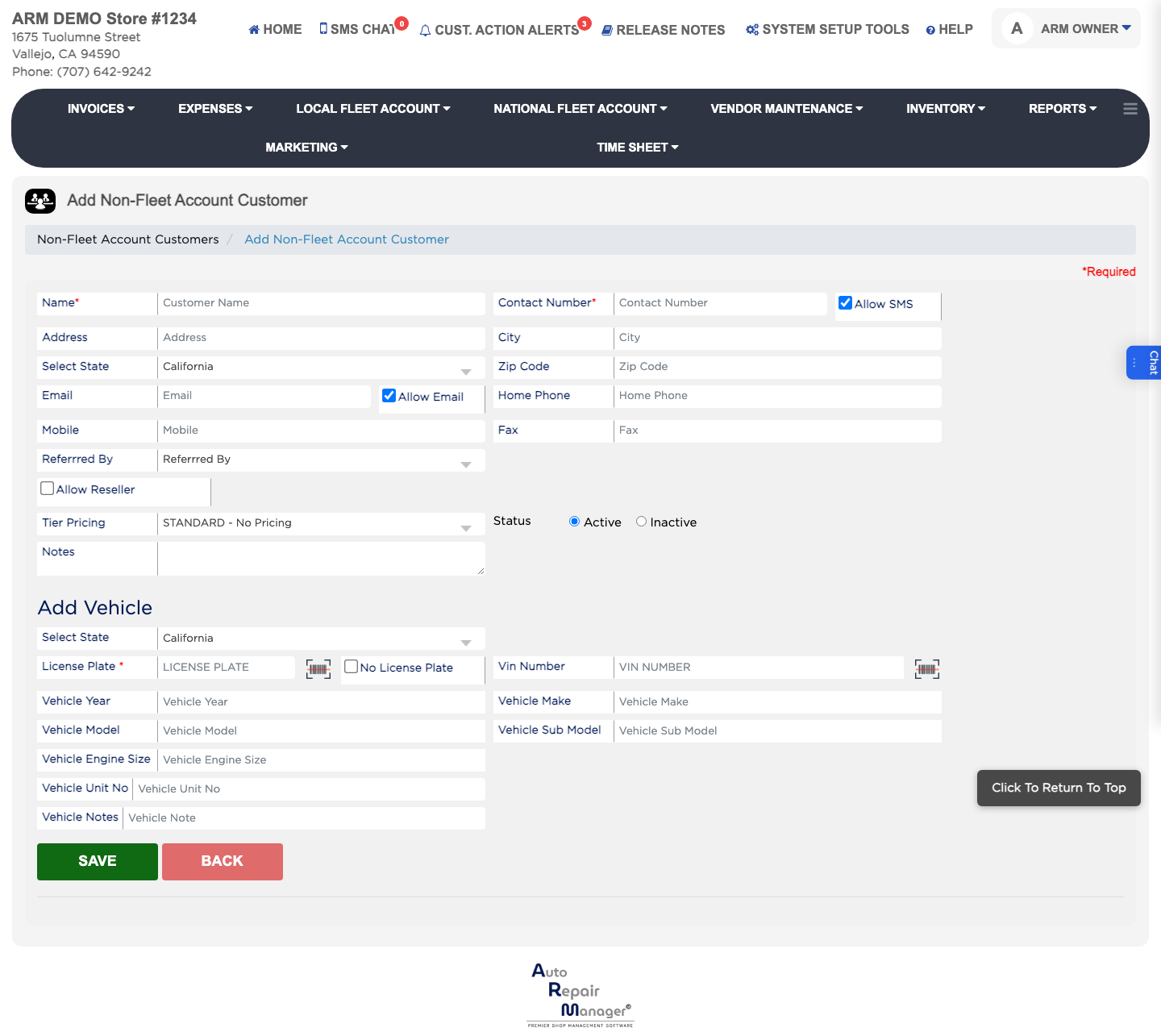
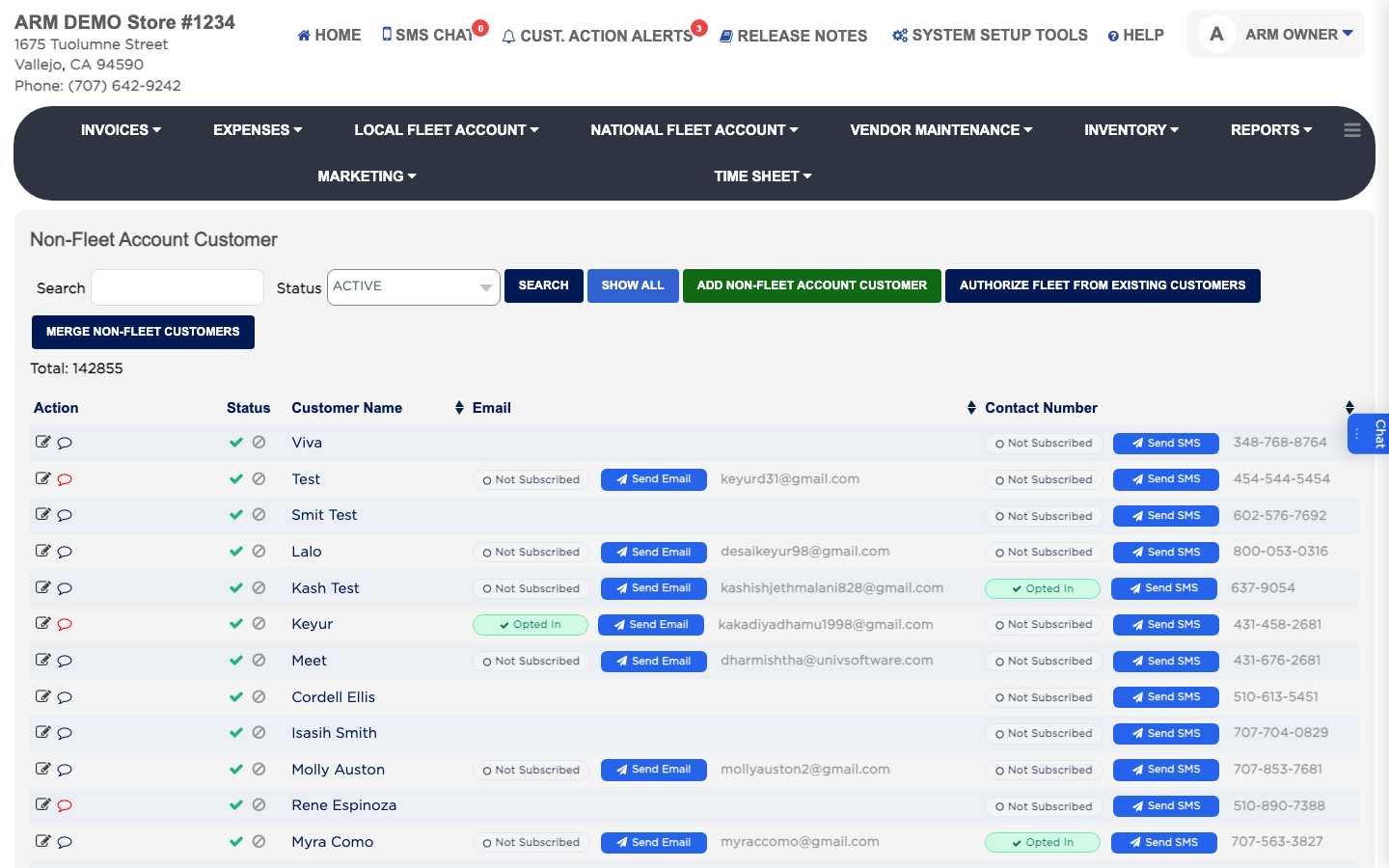
Non-Fleet Customer is your list of everyday retail customers, the ones who are not on a fleet account. It shows each customer's Status, Customer Name, Email and Contact Number, with badges showing whether they have Opted In, Opted Out or are Not Subscribed to email and texts. From here you can add or edit a customer and their vehicles, make a customer inactive, send a one-off email or text, and merge duplicate customers.
From the Home Screen, click Invoices → Non-Fleet Customer.
Find the customer with Search, which matches the start of the name, contact number or email, or an exact plate.
Click the edit icon in the Action column.
Change the details and click Save. Anything typed in Notes is added as a new note; earlier notes are listed further down, where you can edit or delete them.
Under Vehicles, click Add Vehicles to add one, or the edit or delete icon beside a vehicle. Deleting a vehicle cannot be undone.
Non-Fleet Customer list
How do I set a customer as a reseller or give them tier pricing?
#
From the Home Screen, click Invoices → Non-Fleet Customer and click the edit icon beside the customer.
Tick Allow Reseller and enter the Resale Number. Attach the reseller document. Your shop may ask for a password.
Or choose TIER A to TIER E in Tier Pricing to give the customer that price level. Your shop may ask for a password.
Choose the customer to keep on the left and the duplicates on the right.
Click Change Selected Names from right list the one on the left. The duplicates' vehicles, invoices and payments move to the customer you kept, and the duplicates are removed. This cannot be undone.