Preview
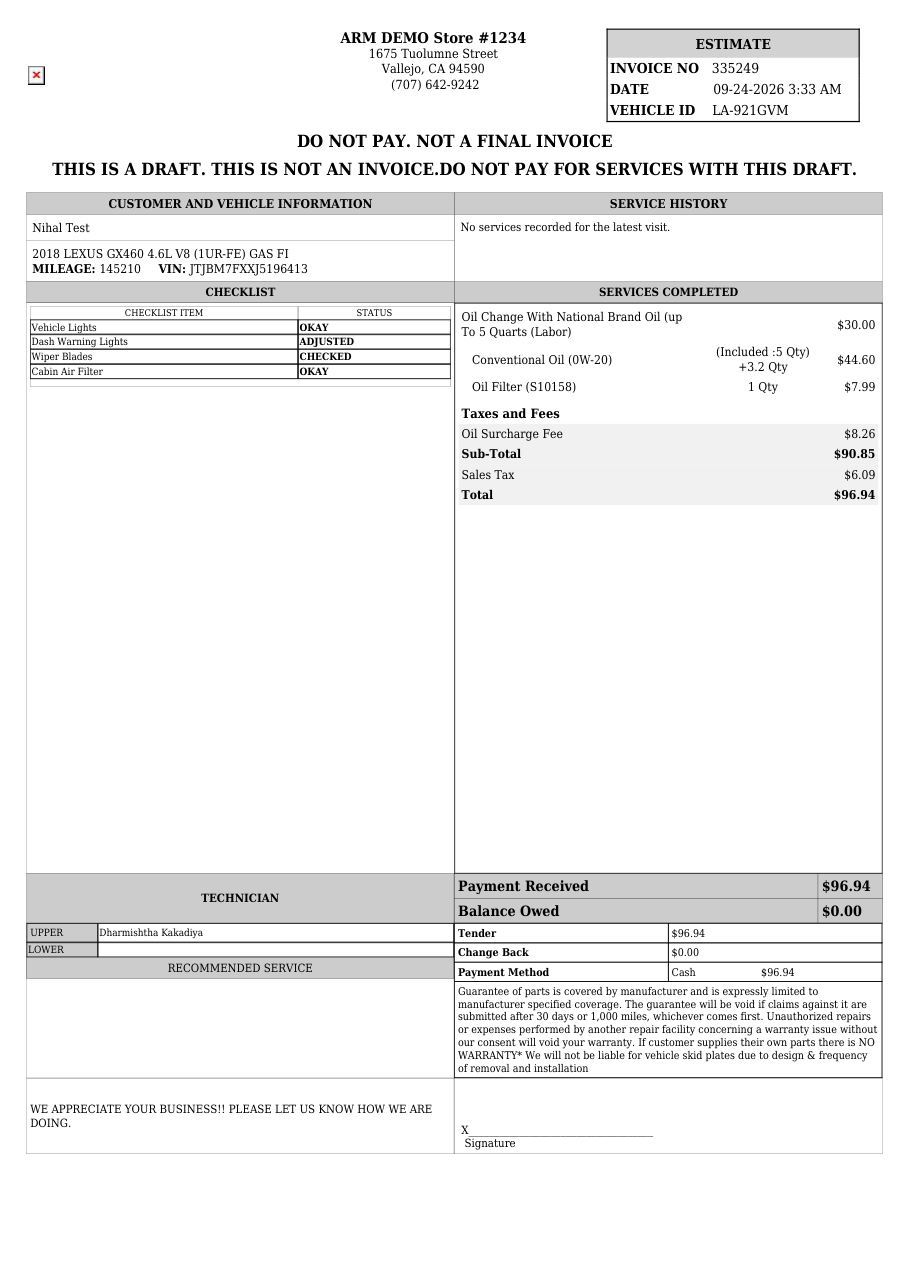
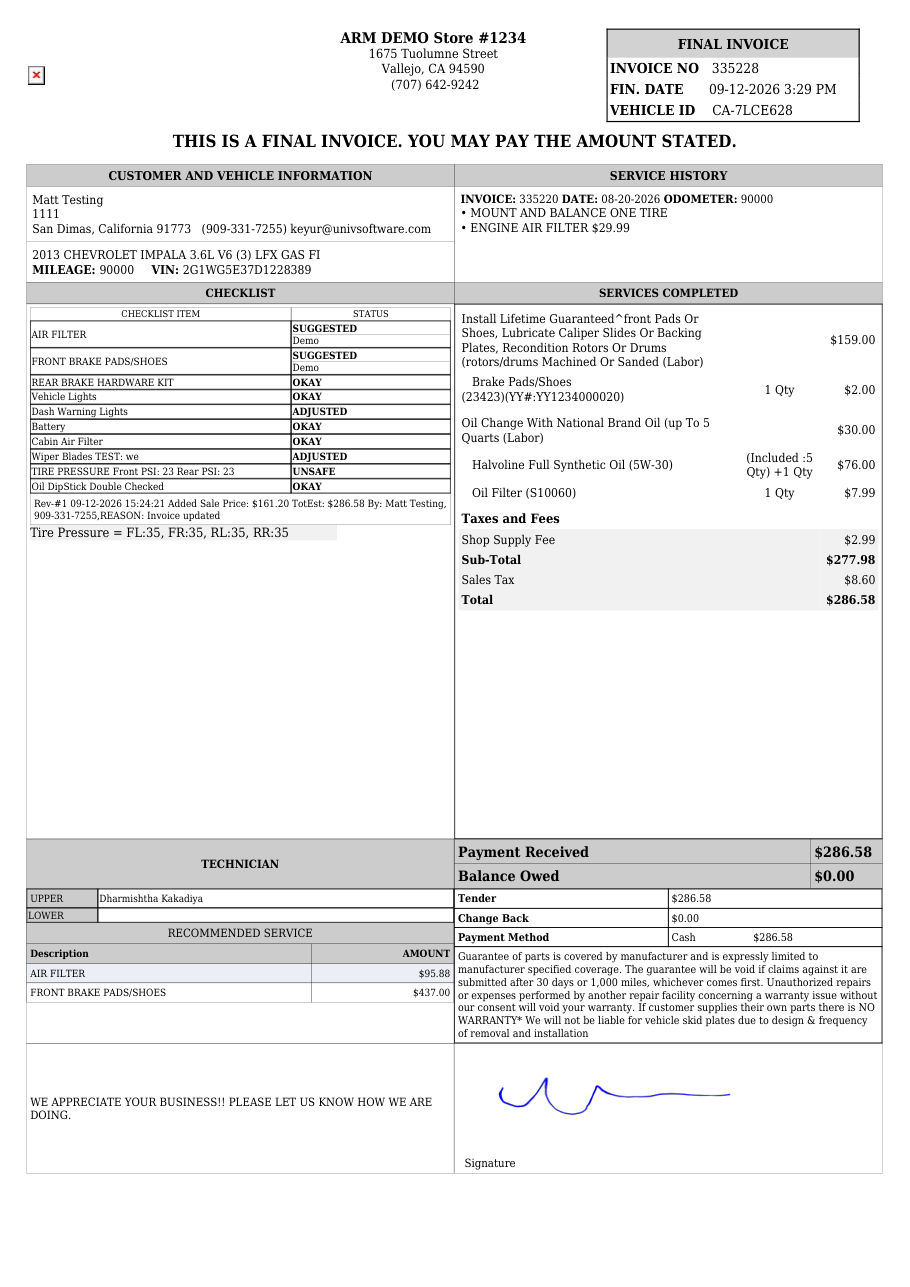
PREVIEW opens the invoice as a PDF in a new browser tab, exactly as it will print, and opens the print window straight away. A draft prints with "THIS IS A DRAFT. THIS IS NOT AN INVOICE.", a quotation with "THIS IS A QUOTATION. THIS IS NOT AN INVOICE." and a voided invoice with VOID and "DO NOT PAY". A finalized invoice prints as the final invoice, with the customer and vehicle, the services performed with labor and parts, recommendations, fees, taxes, payments received and the balance owed. On a new invoice that has not been saved, PREVIEW shows a shorter draft from what is on the screen.