ARM Help

Payment History

PAYMENT HISTORY lists every payment taken on the invoice, with its Date, Amount, Payment Method, Check Number, Transaction Id, CC Number, Payment Notes and who received it, and the Total Payment. The buttons at the bottom print the history, print the payment log, which records every payment added, changed or deleted, and clear the log. Your shop may ask for a password to see or clear the log, or to change a payment method.

3 how-to answers 1 screenshot Open in ARM Markdown

How do I print the payments for an invoice? #

  1. From the Home Screen, click Invoices → Invoice List and open the invoice.
  2. Click PAYMENT HISTORY.
  3. Click PRINT HISTORY for the payment history report, or PAYMENT LOG for the record of every change to the payments.
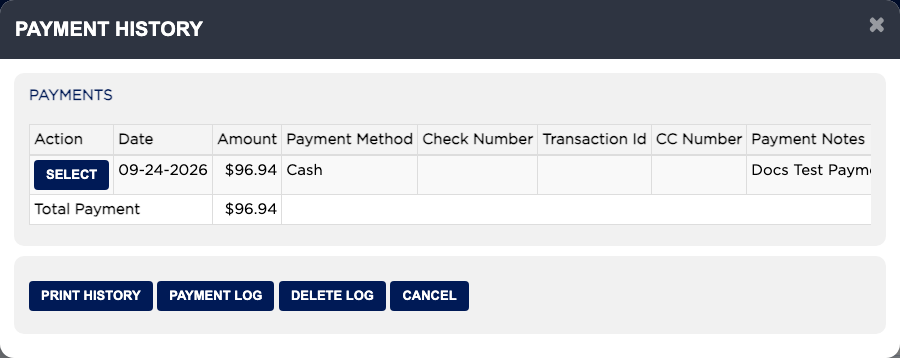
Payment History
Payment History

How do I change the payment method on a payment? #

  1. From the Home Screen, click Invoices → Invoice List and open the invoice.
  2. Click PAYMENT HISTORY.
  3. Click SELECT beside the payment.
  4. Choose the new method in Change Payment Method and save. Your shop may ask for a password.

How do I clear the payment log? #

  1. From the Home Screen, click Invoices → Invoice List and open the invoice.
  2. Click PAYMENT HISTORY, then DELETE LOG. Your shop may ask for a password.
  3. ARM first asks "Do you want to clear the payment log for all the Invoices". Clicking OK clears the payment log for every invoice in your shop.
  4. To clear this invoice's log only, click cancel at that first question. ARM then asks "Clear the payment log for the current Invoice only?"; click OK.

Ask AI