ARM Help

Finalizing an Invoice

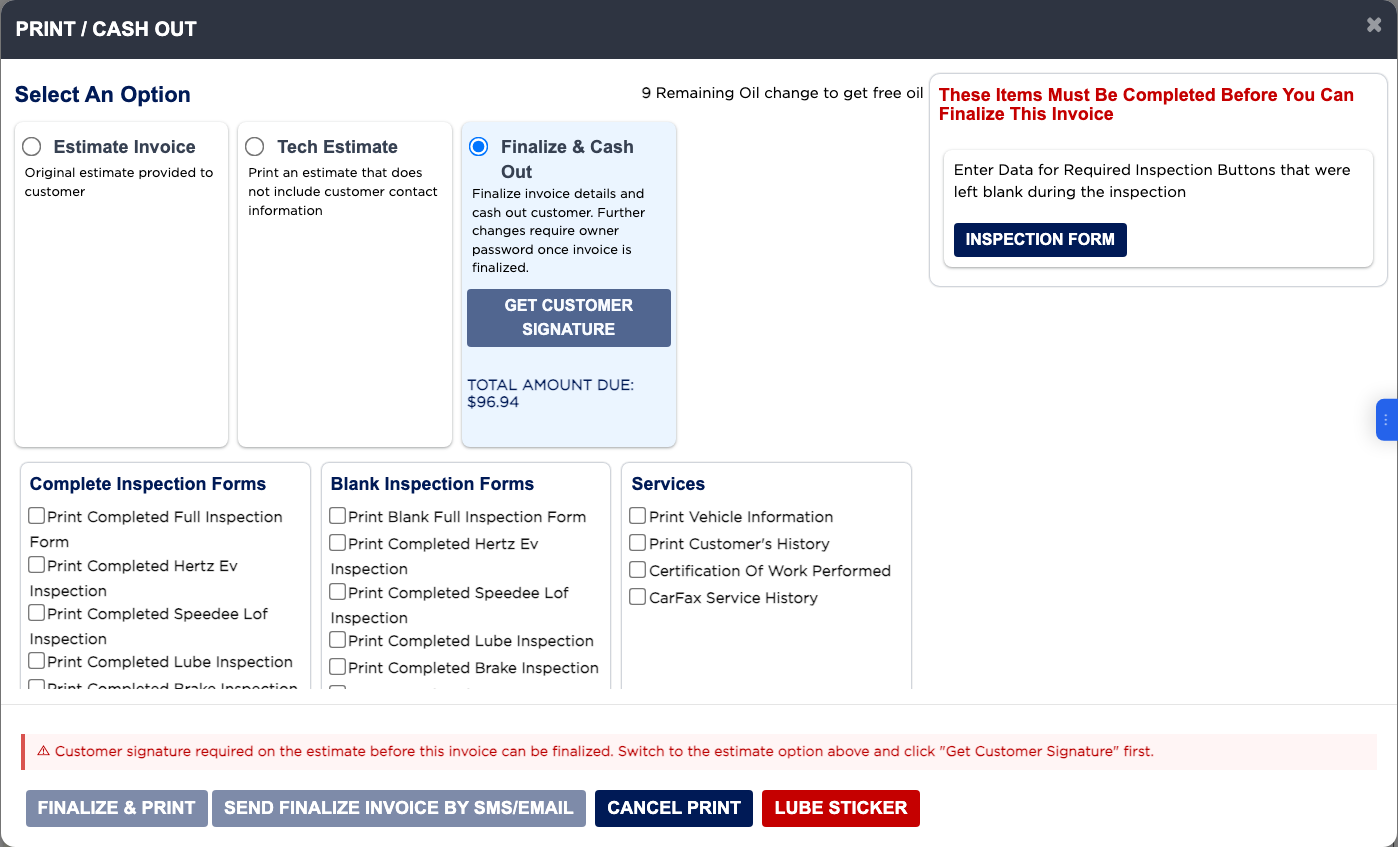
Finalizing closes the invoice: it is marked Finalized Invoice with the date and time, reward points are earned, any service timer is stopped, and the customer can be sent the invoice and a review request. When you choose Finalize & Cash Out, ARM checks the invoice first. Anything still to be done is listed in red under These Items Must Be Completed Before You Can Finalize This Invoice, with a button beside each one to fix it. The most common is Total Payment Applied does not match the Gross Sale. You must correct it; the payments must add up to the Total Gross Invoice. After finalizing, changes need the owner's password.
3 how-to answers 2 screenshots Open in ARM Markdown

How do I finalize and cash out an invoice? #

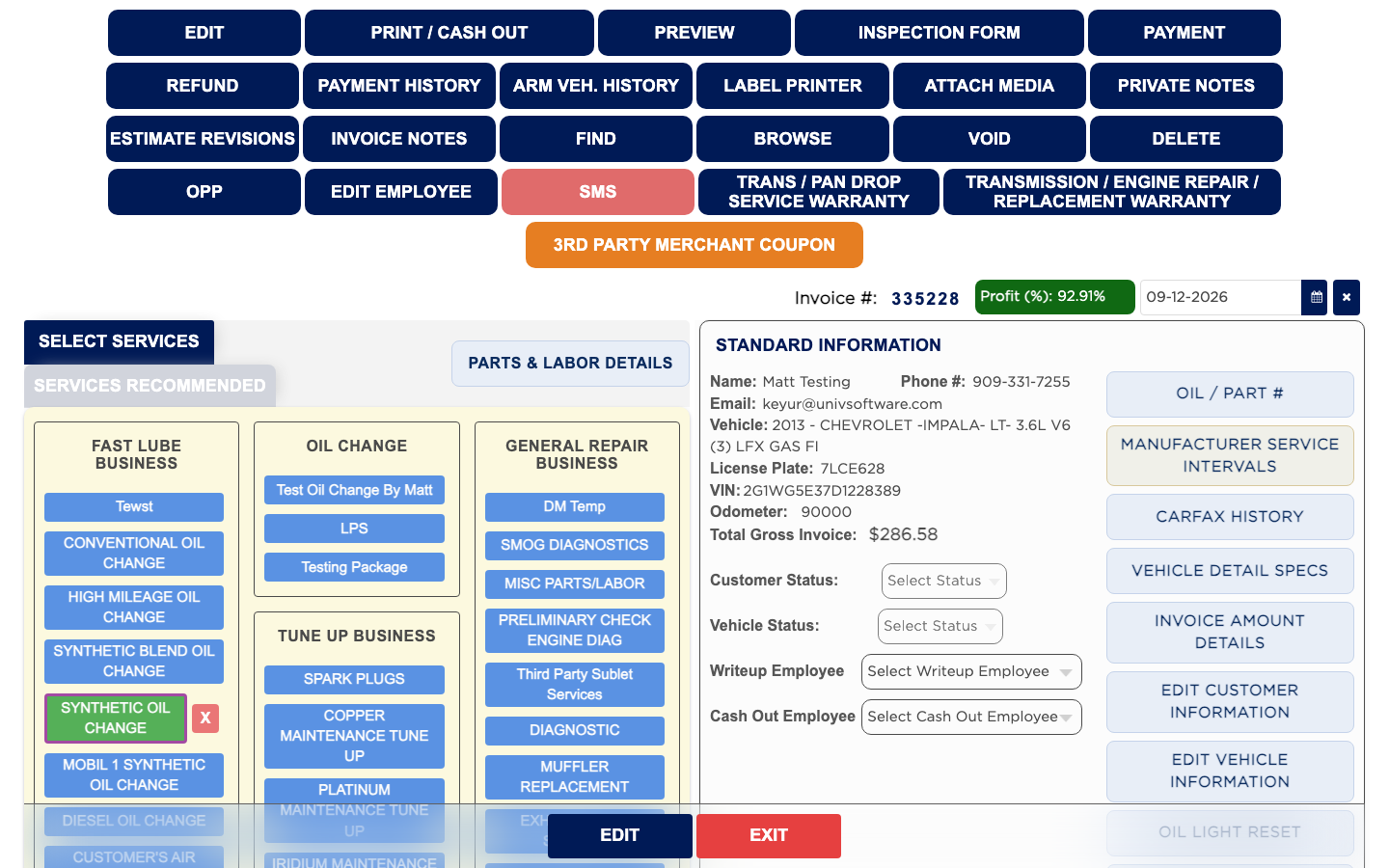
  1. From the Home Screen, click Invoices → Invoice List and open the invoice.
  2. Click PRINT / CASH OUT.
  3. Select Finalize & Cash Out.
  4. Work through anything listed under These Items Must Be Completed Before You Can Finalize This Invoice. For a missing payment click APPLY PAYMENTS; for inspection items click INSPECTION FORM; for missing technicians click Select Technician; for measurements click the button shown.
  5. If the customer must sign the finalized invoice, click GET CUSTOMER SIGNATURE and have them sign.
  6. Check the Writeup Employee and Cash Out Employee.
  7. Click FINALIZE & PRINT to finalize and print, FINALIZE & DON'T PRINT to finalize only, or SEND FINALIZE INVOICE BY SMS/EMAIL to finalize and send it. All three finalize the invoice.
  8. ARM goes back to the Home Screen. The invoice now shows Finalized Invoice.
Items to complete before finalizing
A finalized invoice
A finalized invoice

Why can't I click Finalize & Print? #

  1. From the Home Screen, click Invoices → Invoice List, open the invoice and click PRINT / CASH OUT.
  2. Select Finalize & Cash Out and read the list on the right.
  3. "Total Payment Applied does not match the Gross Sale" means the payments do not add up to the total. Click APPLY PAYMENTS and take the rest.
  4. "Enter Data for Required Inspection Buttons that were left blank during the inspection" means required inspection items are not filled in. Click INSPECTION FORM and complete them.
  5. "Some of the Services Performed are missing the names of technicians" means a line has no technician. Click Select Technician.
  6. "You are missing some Outside Parts Purchase Vendor & Cost Details" means a part that was not in stock needs its outside purchase entered.
  7. A red message at the bottom starting "Customer signature required" means a signature is still needed. Click GET CUSTOMER SIGNATURE. If it asks for the signature on the estimate, select Estimate Invoice first, sign there, then come back to Finalize & Cash Out.

How do I print a finalized invoice again? #

  1. From the Home Screen, click Invoices → Invoice List and click FINALIZED.
  2. Click the black F in the Action column to open the PDF. For an older invoice your shop may ask for the owner's password.
  3. Or open the invoice and click PRINT / CASH OUT. Tick Print Estimate, Print Finalized Invoice or Print Revisions, and click Print, or Send by SMS/Email.

Ask AI