ARM Help

Saving an Invoice

SAVE writes the invoice and keeps it open; SAVE & EXIT saves and returns to the Home Screen. The first time you save a new invoice, ARM gives it its number and asks whether you want to print an estimate, inspection form, draft or final invoice. Parts with a part number come out of inventory when the invoice is saved, including a draft, and go back if the part is removed or the invoice is voided or deleted. Quotations never take parts out of stock.

2 how-to answers 2 screenshots Open in ARM Markdown

How do I save a new invoice? #

  1. From the Home Screen, click Invoices → Add Invoice and open the new invoice.
  2. Add the services, and check the customer, vehicle and odometer.
  3. Click SAVE.
  4. ARM asks "Do you want to Print an Estimate, Inspection form, Draft Invoice or Final Invoice?" Click YES to open PRINT / CASH OUT straight away, or NO to just save.
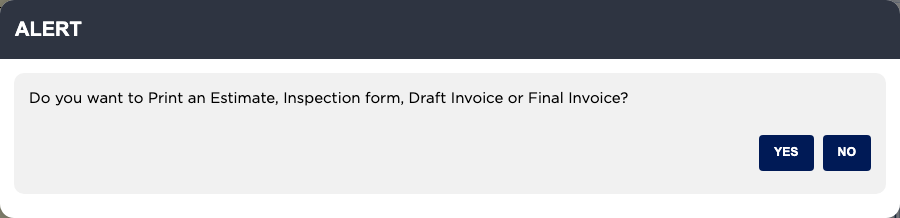
Print prompt after saving a new invoice

What do the messages when I save mean? #

  1. From the Home Screen, click Invoices → Invoice List, open the invoice and click EDIT, then SAVE.
  2. "Please Enter Invoice Date", "Please Enter Customer Name" and "Please Enter Customer Phone Number" mean a required field on the invoice is empty.
  3. "Please Enter Vehicle Year", "Please Enter Vehicle Make" and "Please Enter Vehicle Model" mean the vehicle details are incomplete.
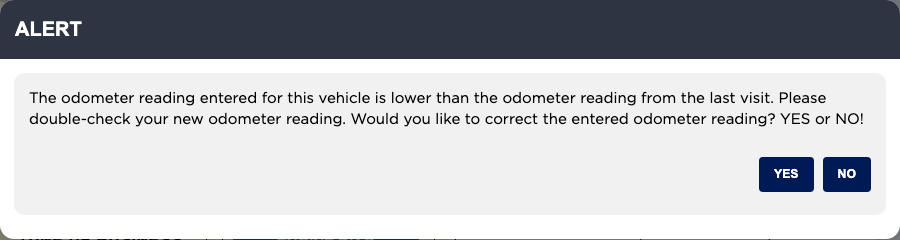
  4. "Please enter odometer reading. Record cannot be saved without odometer reading." means your shop requires an odometer. Enter it, or tick No Functional Odometer.
  5. "Please Enter Valid Email Address." means the email is not a working address. Correct it, or clear the box.
  6. "Invoice already exists for the same customer and vehicle on the same day." means there is already an invoice for this customer and vehicle today. Open that one instead.

Ask AI