ARM Help

Add / Edit Discounts

A discount here is a reusable promotion your staff can apply to an invoice, rather than typing a one-off reduction. A discount can take a percentage off, a fixed amount off, a tiered amount that grows with the bill, or a variable amount, and you can cap how much it ever takes off. Each can carry a Promotion ID and a barcode so it can be printed on a coupon and scanned in.

4 how-to answers 2 screenshots Open in ARM Markdown

How do I create a percentage discount? #

  1. From the Home Screen, click System Setup Tools → Add / Edit Discounts.
  2. Click ADD NEW DISCOUNT.
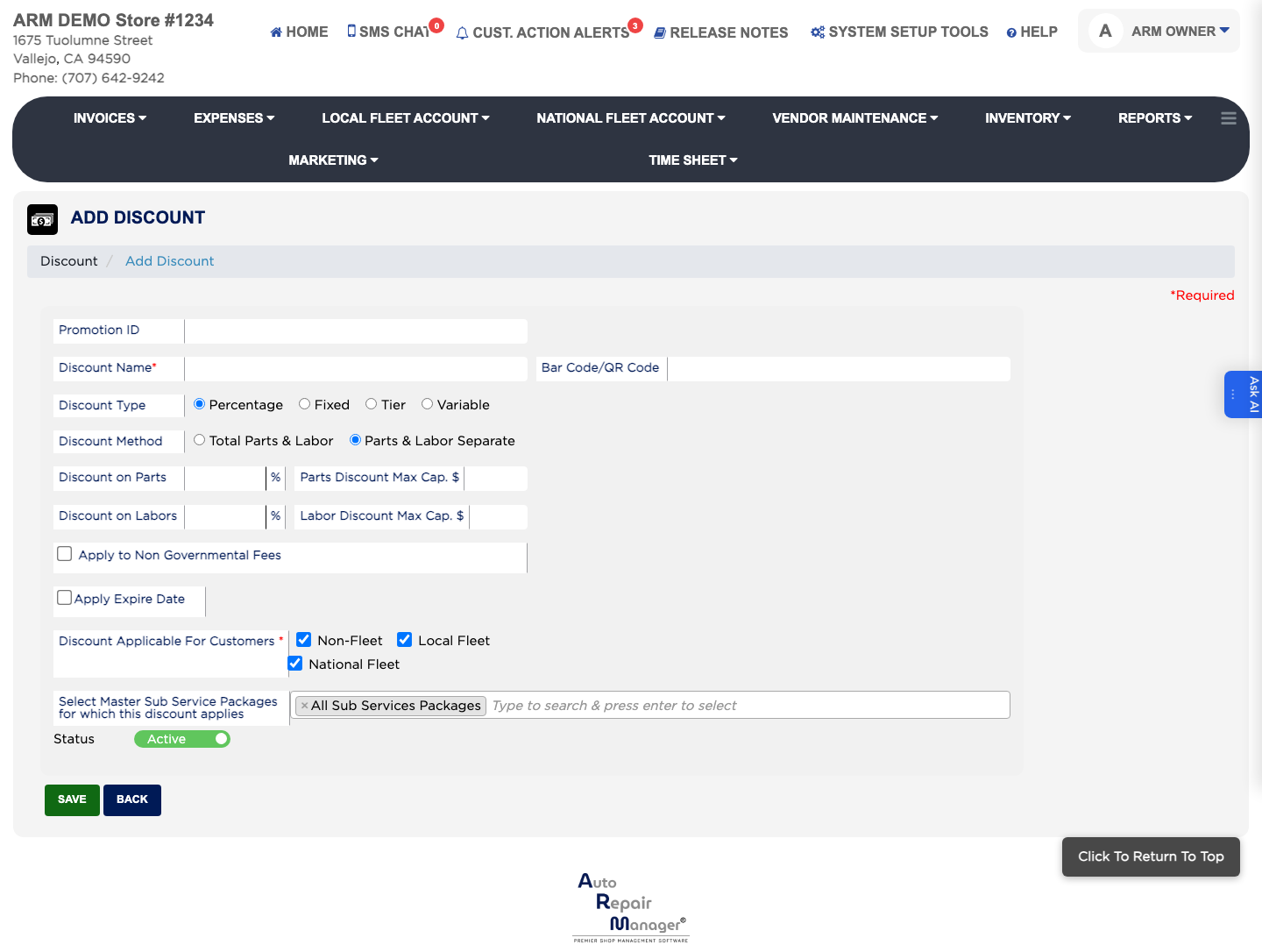
  3. Enter the Discount Name, which is required, and a Promotion ID you will recognise it by.
  4. Set Discount Type to Percentage.
  5. Choose the Discount Method — whether it comes off parts, labor, or the total of both.
  6. Enter Discount on Parts % and Discount on Labors %, or Discount on Parts & Labor % if you chose the combined method.
  7. Enter a Max Cap. $ against each so a large bill cannot give away more than you intend.
  8. Click Save.
Add New Discount form

How do I create a fixed-amount or tiered discount? #

  1. From the Home Screen, click System Setup Tools → Add / Edit Discounts.
  2. Click ADD NEW DISCOUNT and enter the Discount Name.
  3. For a flat reduction, set Discount Type to Fixed and enter the Fixed Discount Amount $.
  4. For a discount that grows with the size of the bill, set Discount Type to Tier and enter the Tier 1 Discount Amount $, Tier 2 Discount Amount $ and Tier 3 Discount Amount $.
  5. Tick Apply to Non Governmental Fees if the discount should come off your own fees as well as parts and labor.
  6. Click Save.

How do I print a discount as a scannable coupon? #

  1. From the Home Screen, click System Setup Tools → Add / Edit Discounts.
  2. Open the discount and enter or check its Bar Code/QR Code value, then click Save.
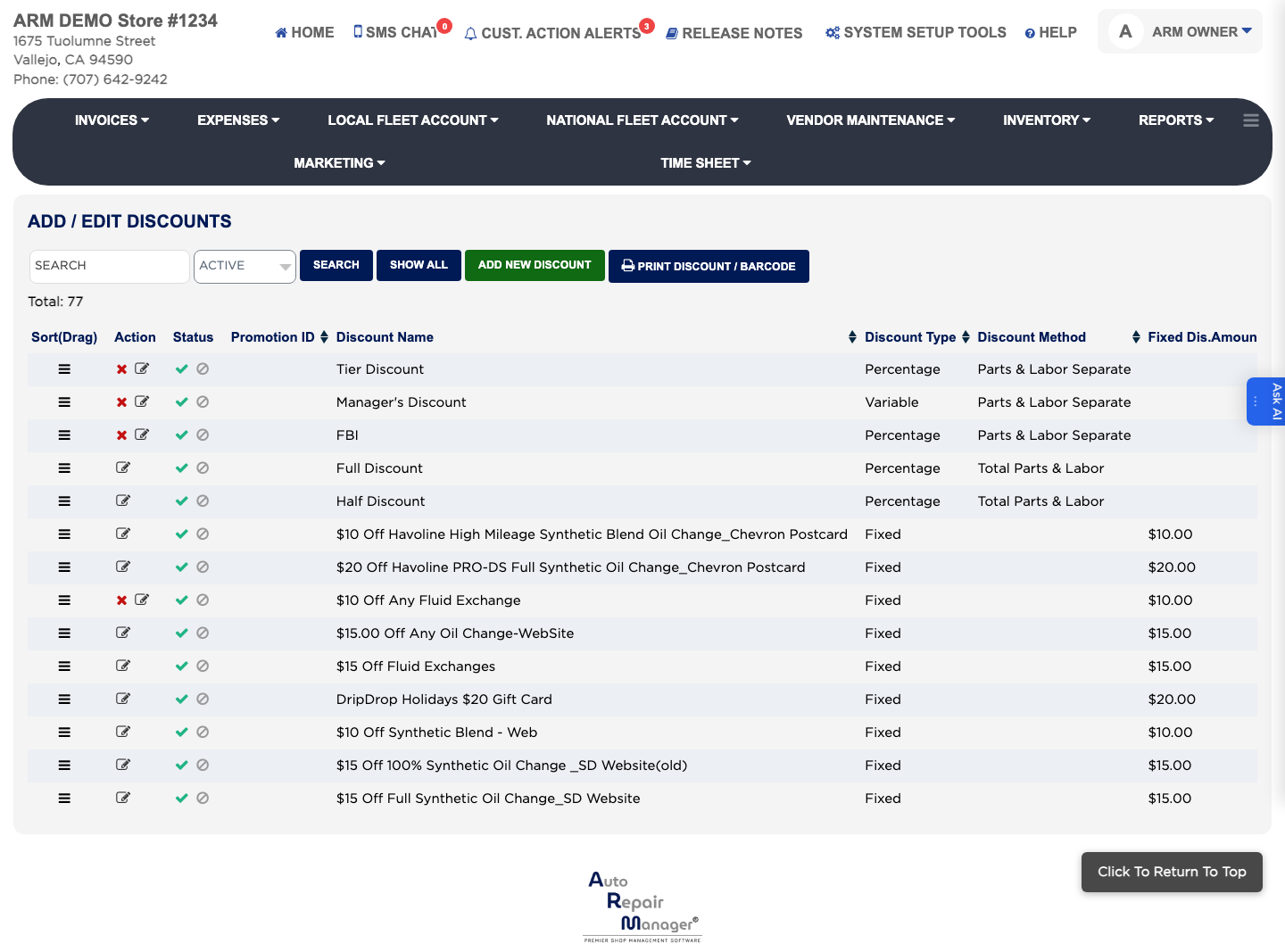
  3. Back on the list, select the discount and click Print Discount / Barcode.
Discounts list
Discounts list

How do I stop a discount being offered? #

  1. From the Home Screen, click System Setup Tools → Add / Edit Discounts.
  2. Type part of the name in the Search box, or set the status list to ALL, Active, Deactivate or Expire, and click Search.
  3. Click the edit icon in the Action column.
  4. Set the status to Deactivate rather than deleting it, so invoices that already used it keep their history.
  5. Click Save.

People also ask

  • asked 1×

Ask AI