ARM Help

Set Up Customer Review Feature

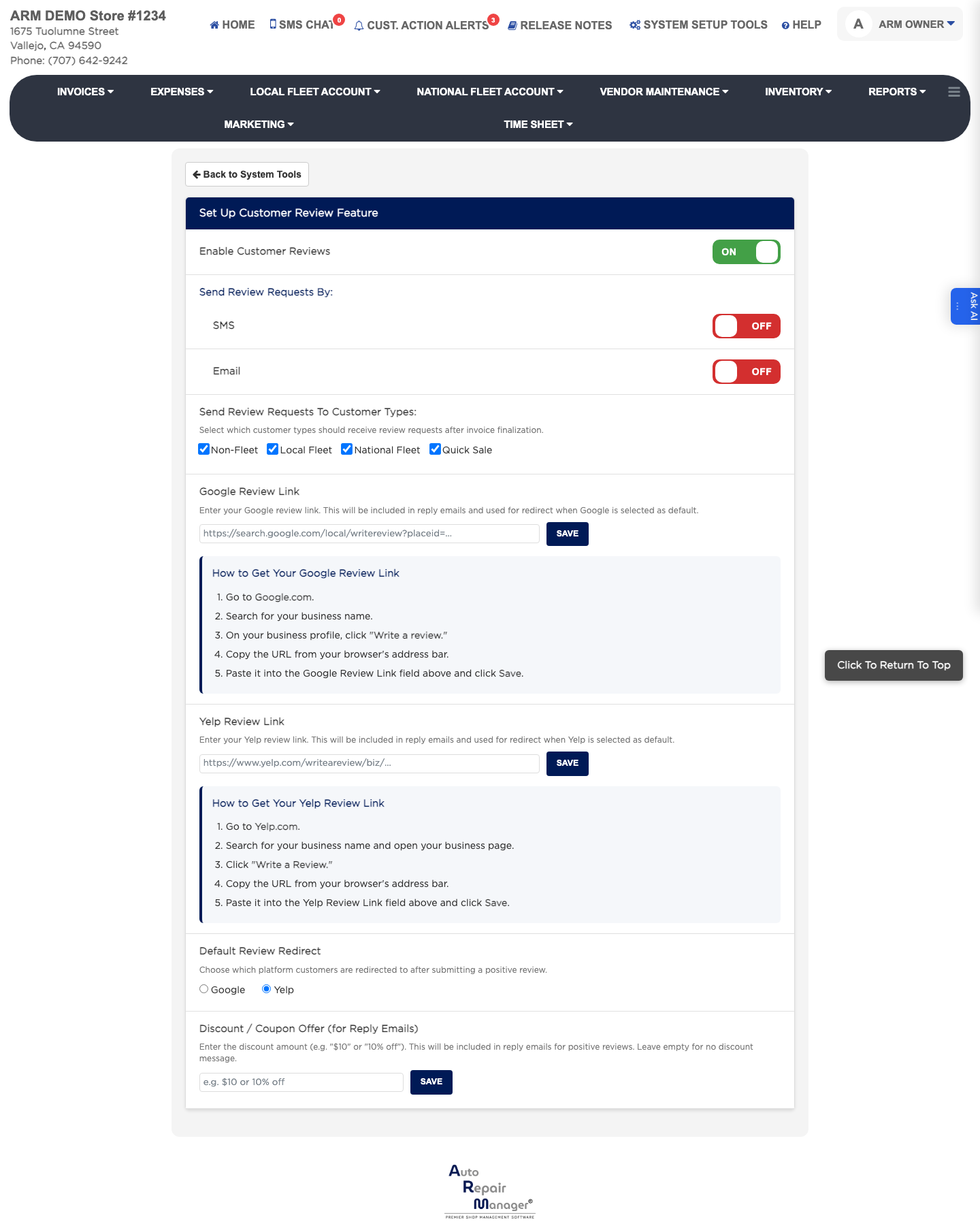
This feature asks customers for a public review after their work is done, and points them at the review page you choose. You pick how the request is sent, which kinds of customer receive it, and whether it goes to Google or Yelp. You can also offer an incentive, such as a fixed amount or a percentage off their next visit.

3 how-to answers 1 screenshot Open in ARM Markdown

How do I turn customer review requests on? #

  1. From the Home Screen, click System Setup Tools → Set Up Customer Review Feature.
  2. Tick Enable Customer Reviews.
  3. Tick SMS, Email, or both, depending on how the request should reach the customer.
  4. Tick which customer types should be asked — Non-Fleet, Local Fleet, National Fleet or Quick Service.
  5. Click Save.
Customer review setup

How do I point reviews at my Google or Yelp page? #

  1. From the Home Screen, click System Setup Tools → Set Up Customer Review Feature.
  2. Paste your Google review link into the Google field, and your Yelp review link into the Yelp field.
  3. Choose Google or Yelp as the one customers are sent to.
  4. Click Save. Test the link yourself before you switch the feature on, so customers are not sent to the wrong page.

How do I offer a reward for leaving a review? #

  1. From the Home Screen, click System Setup Tools → Set Up Customer Review Feature.
  2. Enter what you are offering in the incentive box, for example $10 or 10% off.
  3. Click Save.

People also ask

  • asked 1×
  • asked 1×
  • asked 1×

Ask AI