ARM Help

Edit Customer Payment Options

These are the ways your customers can pay you, and they are what staff choose when taking payment on an invoice. A payment type can be marked as running through a card terminal, as a credit card, as a fleet card, or as available to fleet customers only. The list shows each type's Payment Method, Name, whether it is For Fleet Customers only, and whether it is a Fleet Card.

3 how-to answers 2 screenshots Open in ARM Markdown

How do I add a customer payment option? #

  1. From the Home Screen, click System Setup Tools → Edit Customer Payment Options.
  2. Click Add Payment Type.
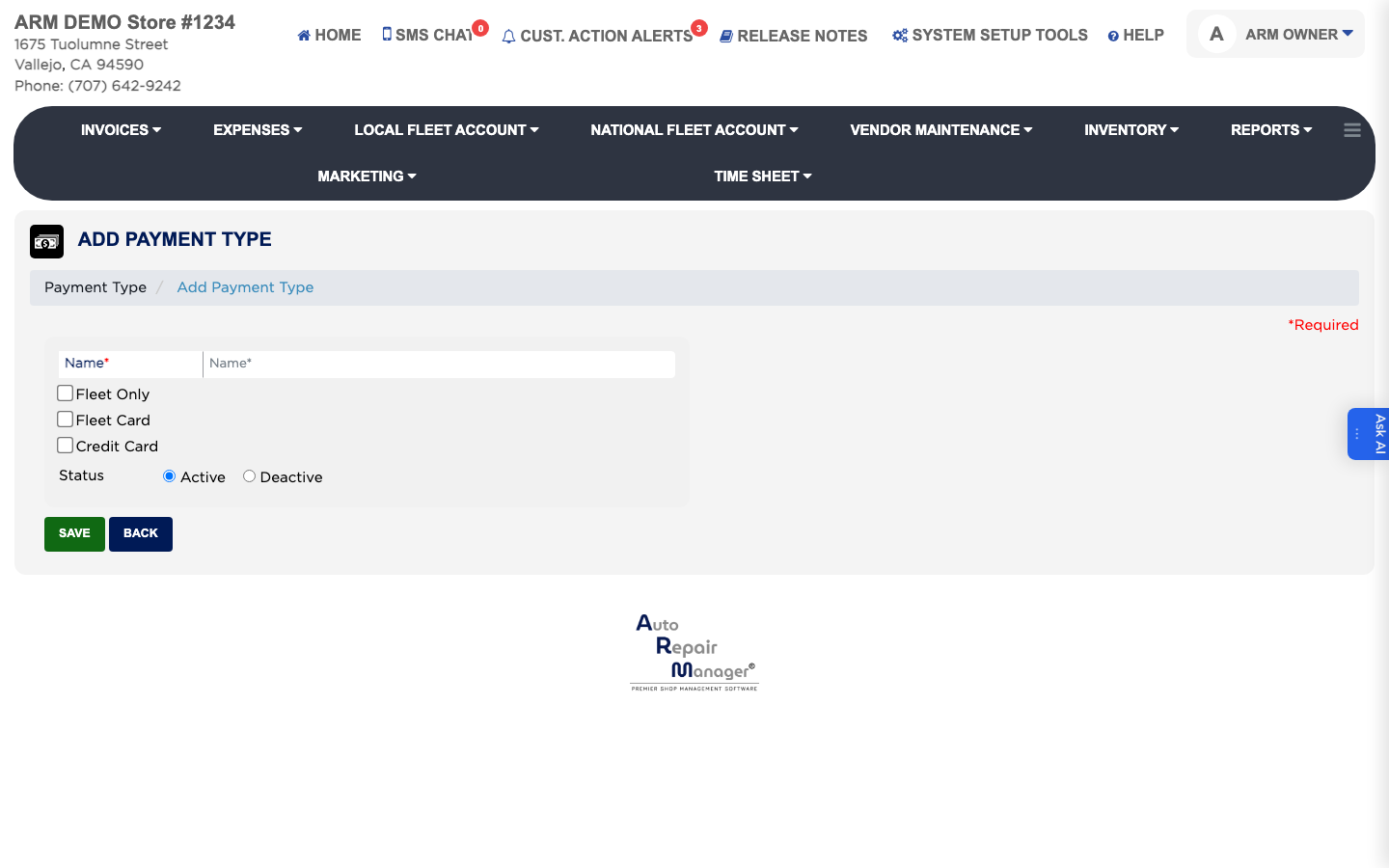
  3. Enter the Name staff will see, such as Cash or Check. This is required.
  4. Set the Payment Method to say how it is processed.
  5. Tick Credit Card if it is a card, Fleet Card if it is a fleet fuel card, and Fleet Only if only fleet customers may use it.
  6. Leave the status set to Active and click Save.
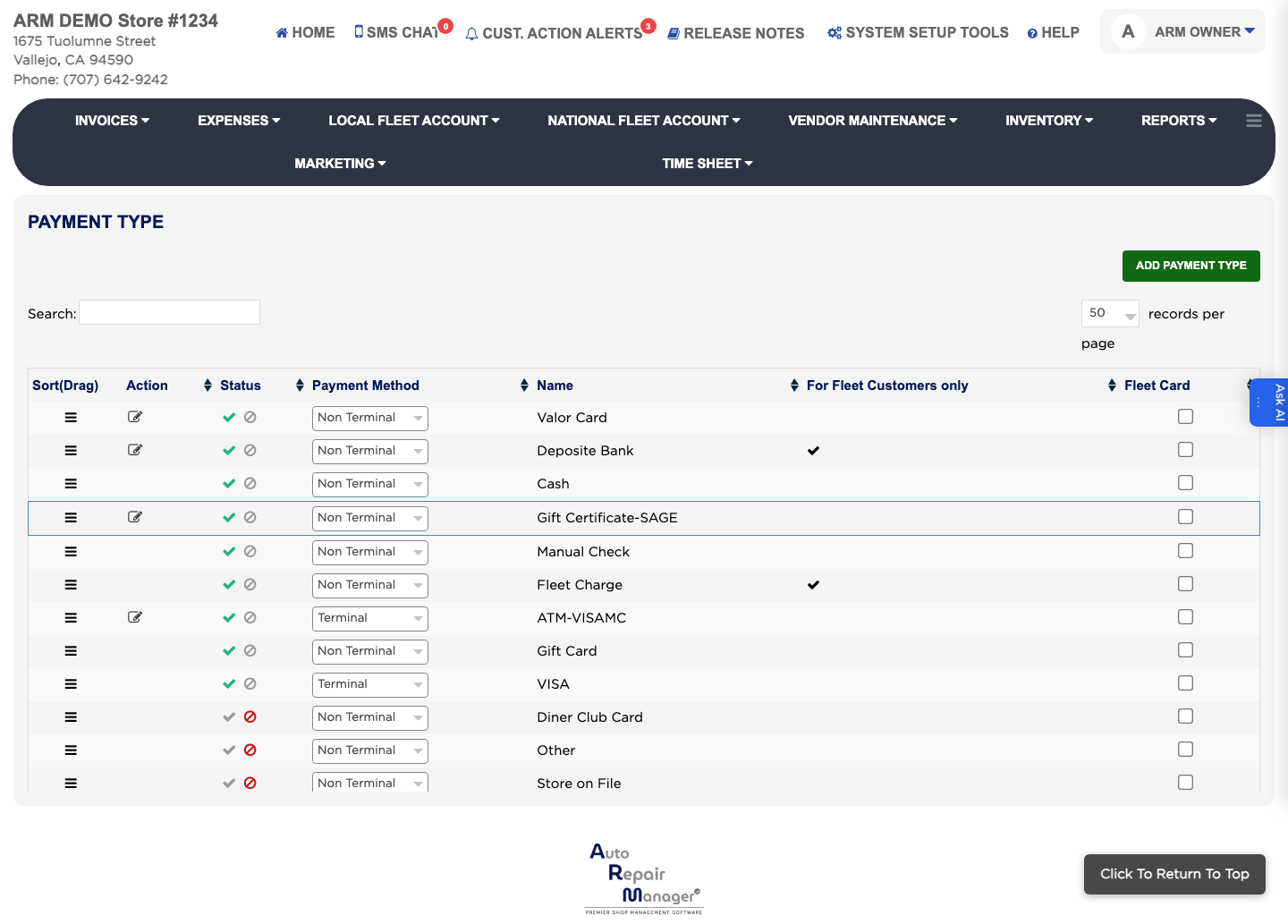
Customer payment options
Add Payment Type form

How do I stop offering a payment option? #

  1. From the Home Screen, click System Setup Tools → Edit Customer Payment Options.
  2. Find it in the list — type in the Search box, or set the records-per-page list to All.
  3. Click the edit icon in the Action column.
  4. Set the status to Deactive rather than deleting it, so paid invoices keep the method they were settled with.
  5. Click Save.

How do I change the order payment options appear in? #

  1. From the Home Screen, click System Setup Tools → Edit Customer Payment Options.
  2. Drag the handle in the Sort(Drag) column so the methods you take most often are at the top.

People also ask

  • asked 1×
  • asked 1×

Ask AI