ARM Help

Add / Edit Referral

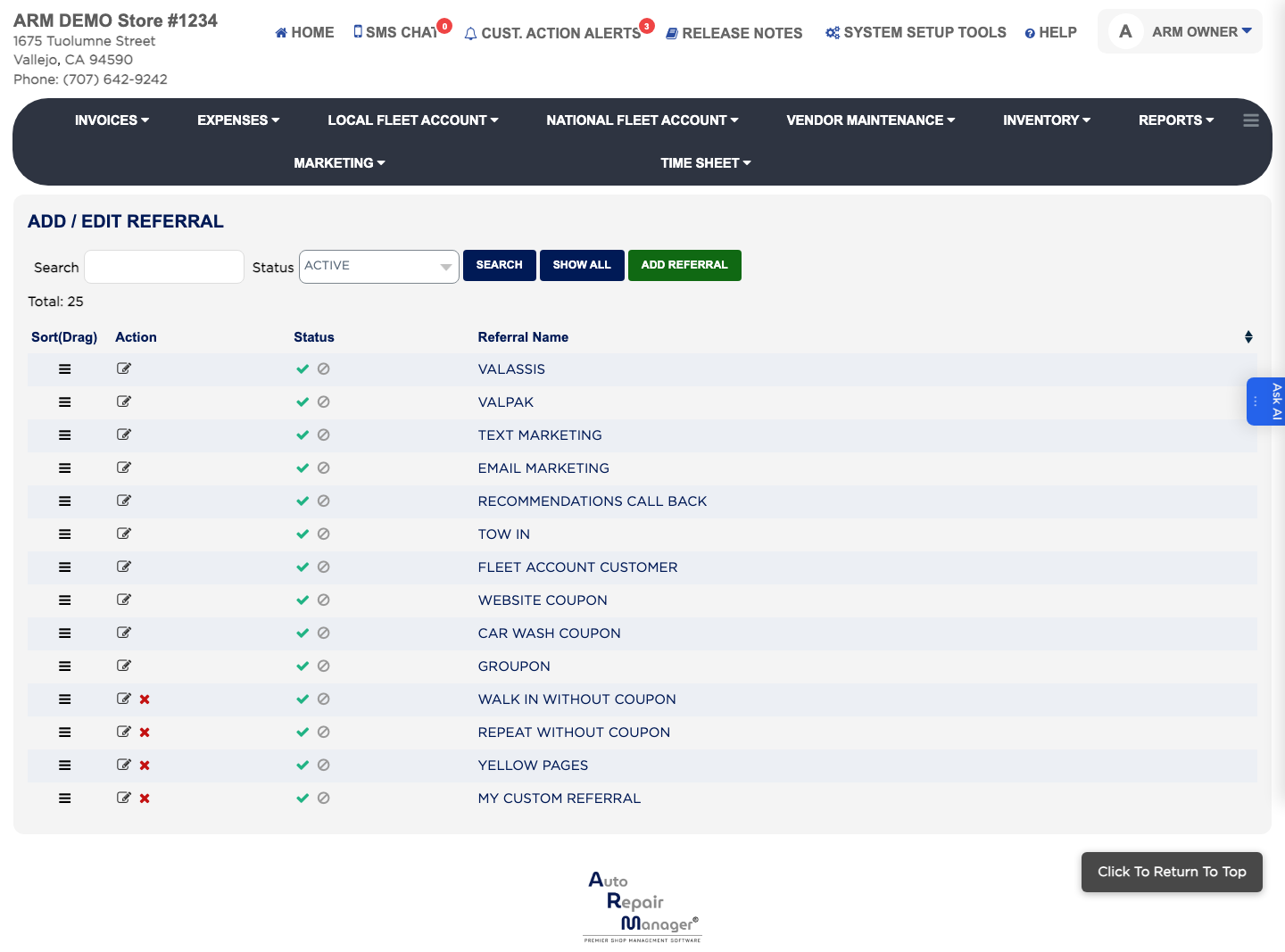
A Referral records how a customer found you — a web search, a recommendation, a local advert — so you can tell which sources bring in work. Staff pick from this list when they create a customer. The list shows each Referral Name and its Status.

2 how-to answers 2 screenshots Open in ARM Markdown

How do I add a referral source? #

  1. From the Home Screen, click System Setup Tools → Add / Edit Referral.
  2. Click ADD Referral.
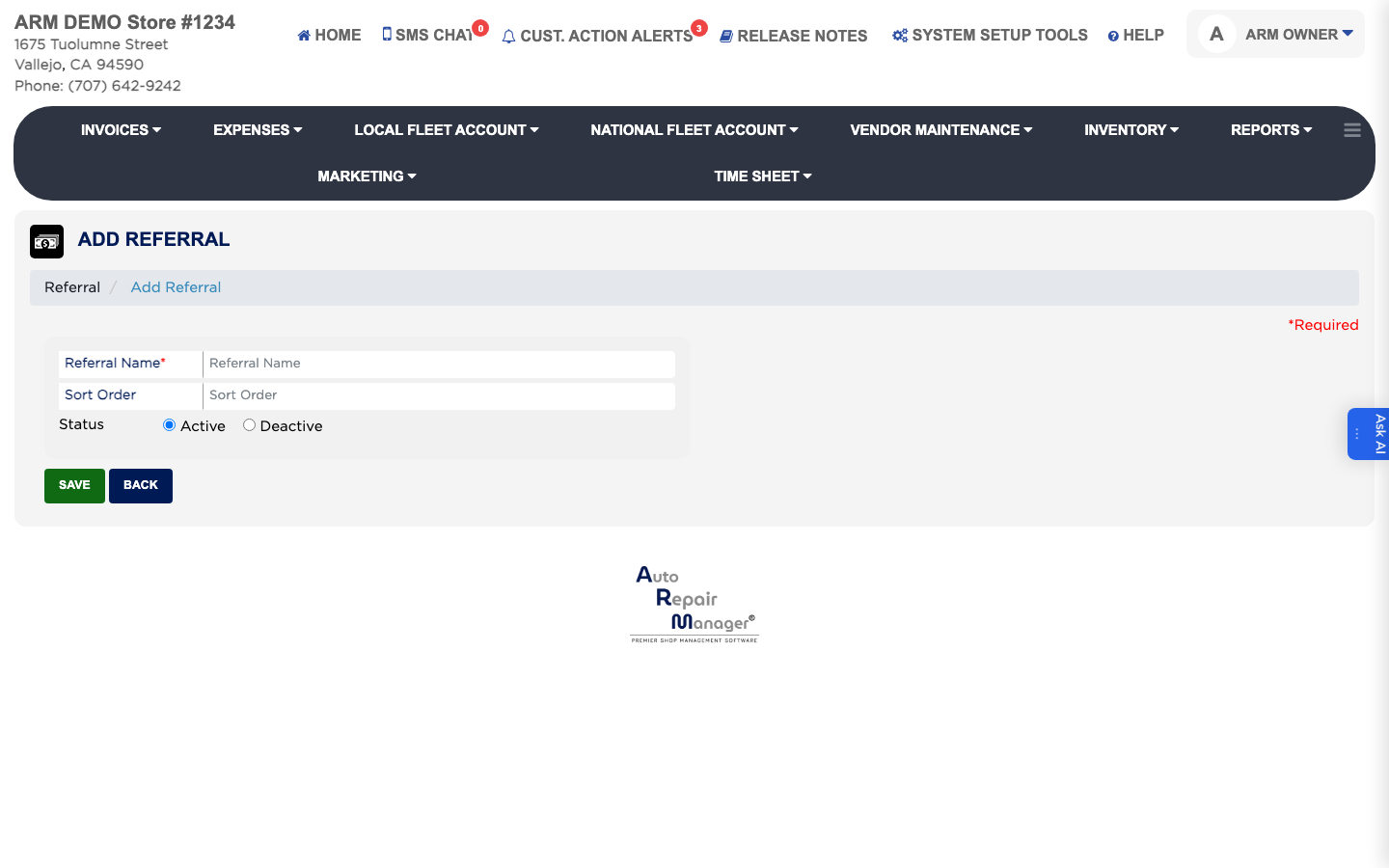
  3. Enter the Referral Name as staff should see it.
  4. Enter a Sort Order to control where it appears in the list — lower numbers come first.
  5. Leave Status set to Active.
  6. Click Save.
Referral list
Referral list
Add Referral form
Add Referral form

How do I retire a referral source? #

  1. From the Home Screen, click System Setup Tools → Add / Edit Referral.
  2. Type part of the name in the Search box, or set Status to Active or Deactive and click Search. Click Show All to list every referral.
  3. Click the edit icon in the Action column.
  4. Set Status to Deactive so it stops being offered but past customers keep the source they were recorded with.
  5. Click Save.

Ask AI