ARM Help

Setup Third-Party Merchant Cross-Merchandising Program

Cross-merchandising lets you attach another local business's offer to the work you sell — a glass firm, a detailer, a tire shop — so the customer gets a deal and you earn from the referral. Set the merchants up first, then the offers each one provides, because an offer has to belong to a merchant. Offers you create here become selectable when you build a sub service package.

3 how-to answers 2 screenshots Open in ARM Markdown

How do I add a third-party merchant? #

  1. From the Home Screen, click System Setup Tools → Setup Third-Party Merchant Cross-Merchandising Program.
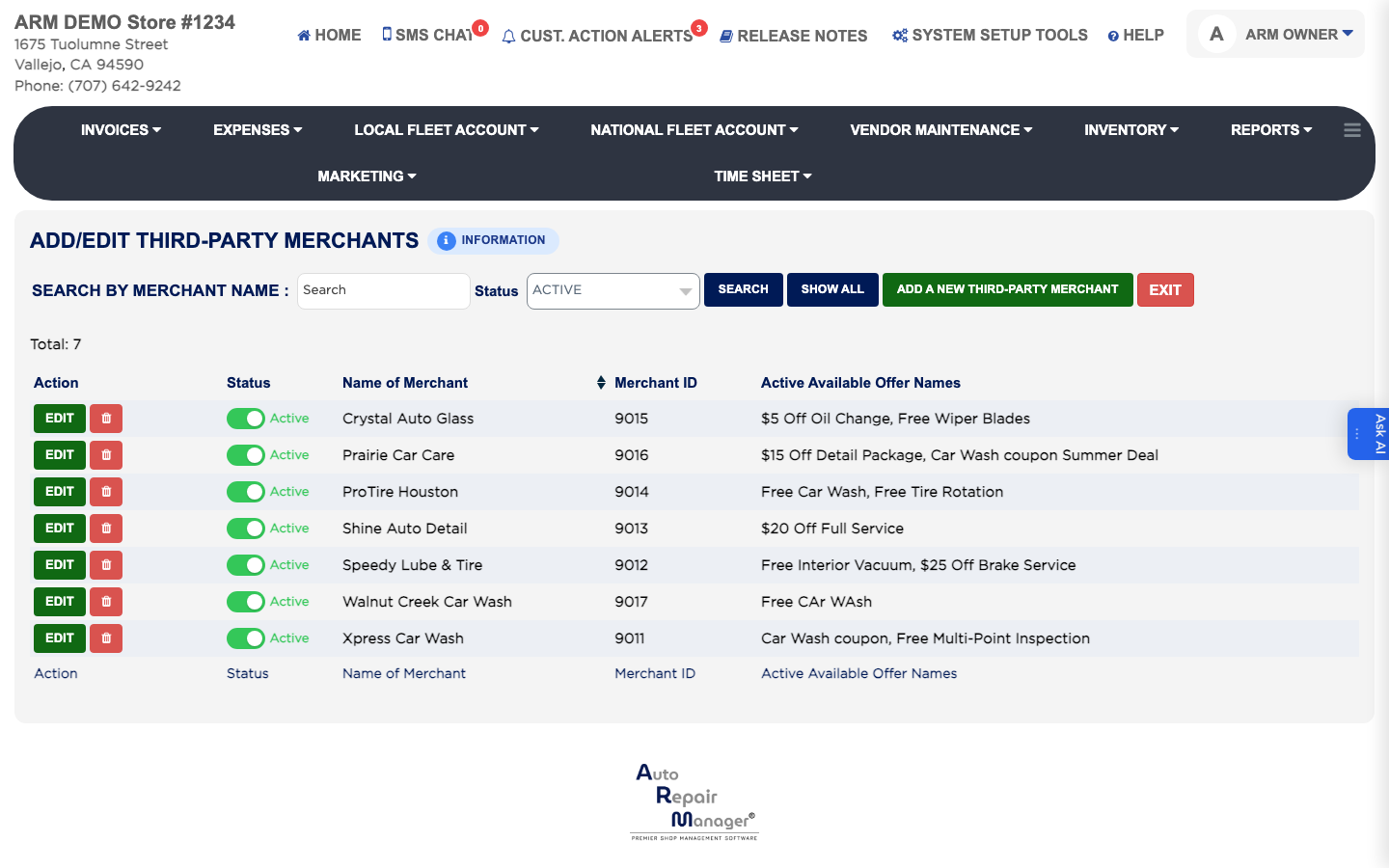
  2. Open the merchants list and click Add A New Third-Party Merchant.
  3. Enter the Name of Merchant and the Merchant ID they gave you.
  4. Set Status to Active.
  5. Click Save, then EXIT.
Third-party merchants list

How do I add an offer from a merchant? #

  1. From the Home Screen, click System Setup Tools → Setup Third-Party Merchant Cross-Merchandising Program.
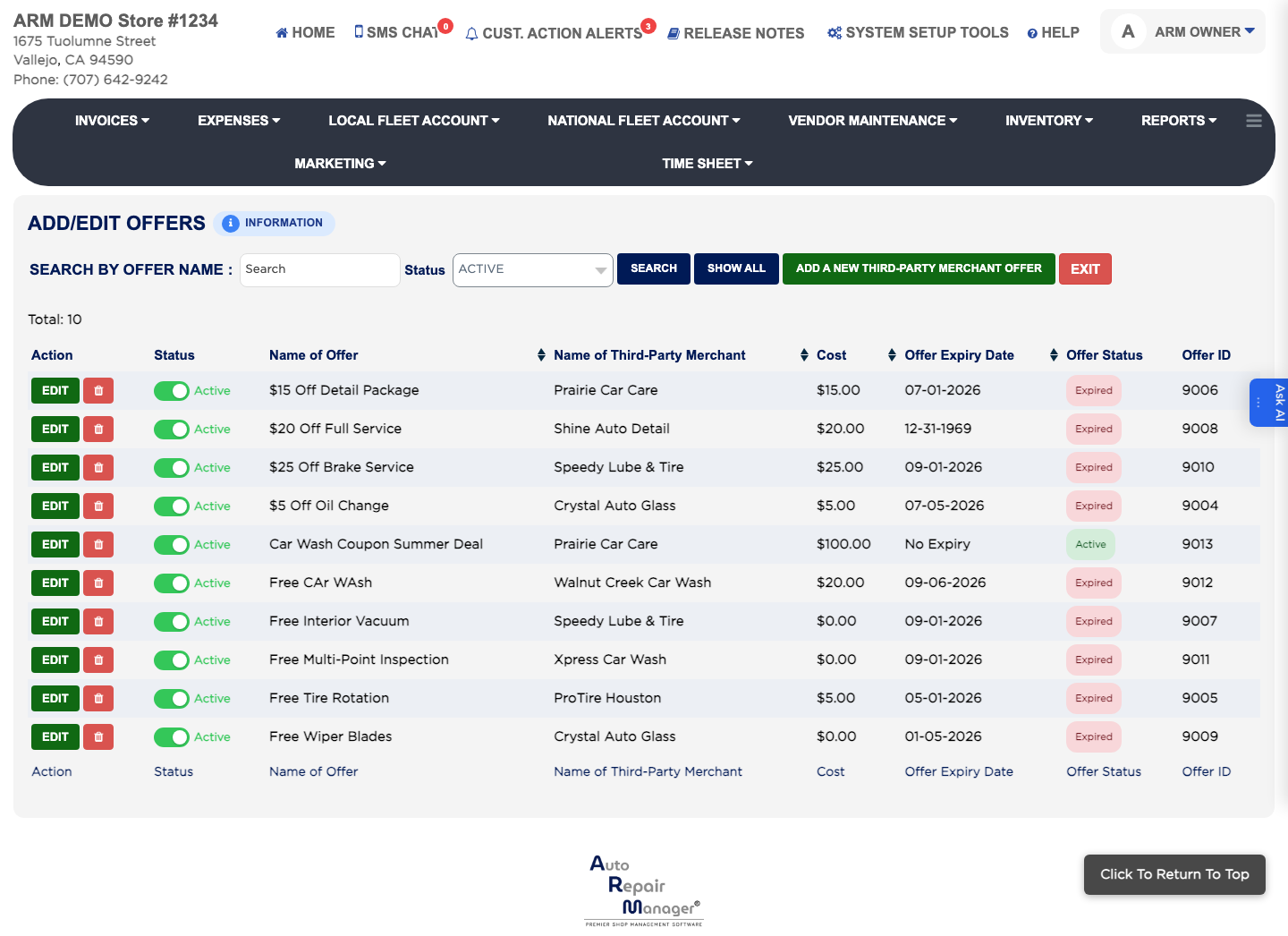
  2. Open the offers list and click Add A New Third-Party Merchant Offer.
  3. Enter the Name of Offer and choose the Name of Third-Party Merchant it belongs to.
  4. Enter the Cost, the Offer Expiry Date and the Offer ID.
  5. Set Offer Status to Active and click Save.
Third-party merchant offers list

How do I find a merchant or an offer? #

  1. From the Home Screen, click System Setup Tools → Setup Third-Party Merchant Cross-Merchandising Program.
  2. Open the merchants or the offers list.
  3. Type into SEARCH BY MERCHANT NAME or SEARCH BY OFFER NAME, set Status to All, Active or Deactive, and click Search. Click Show All to list everything.
  4. Click EDIT in the Action column to open a record, or Delete to remove one that has never been used.

People also ask

  • asked 1×

Ask AI