ARM Help

Customize Manufacturer's Service Intervals

Manufacturers publish their own service schedules, and this screen lets you add your own intervals alongside them — the extras your shop recommends that the manufacturer does not list. The feature has to be switched on before your intervals are used. The list shows each Customized Service Interval and its Sort Order.

3 how-to answers 1 screenshot Open in ARM Markdown

How do I turn customized service intervals on? #

  1. From the Home Screen, click System Setup Tools → Customize Manufacturer's Service Intervals.
  2. Tick Edit Customized Service Intervals to enable the feature.
  3. Your intervals are now offered alongside the manufacturer's schedule.
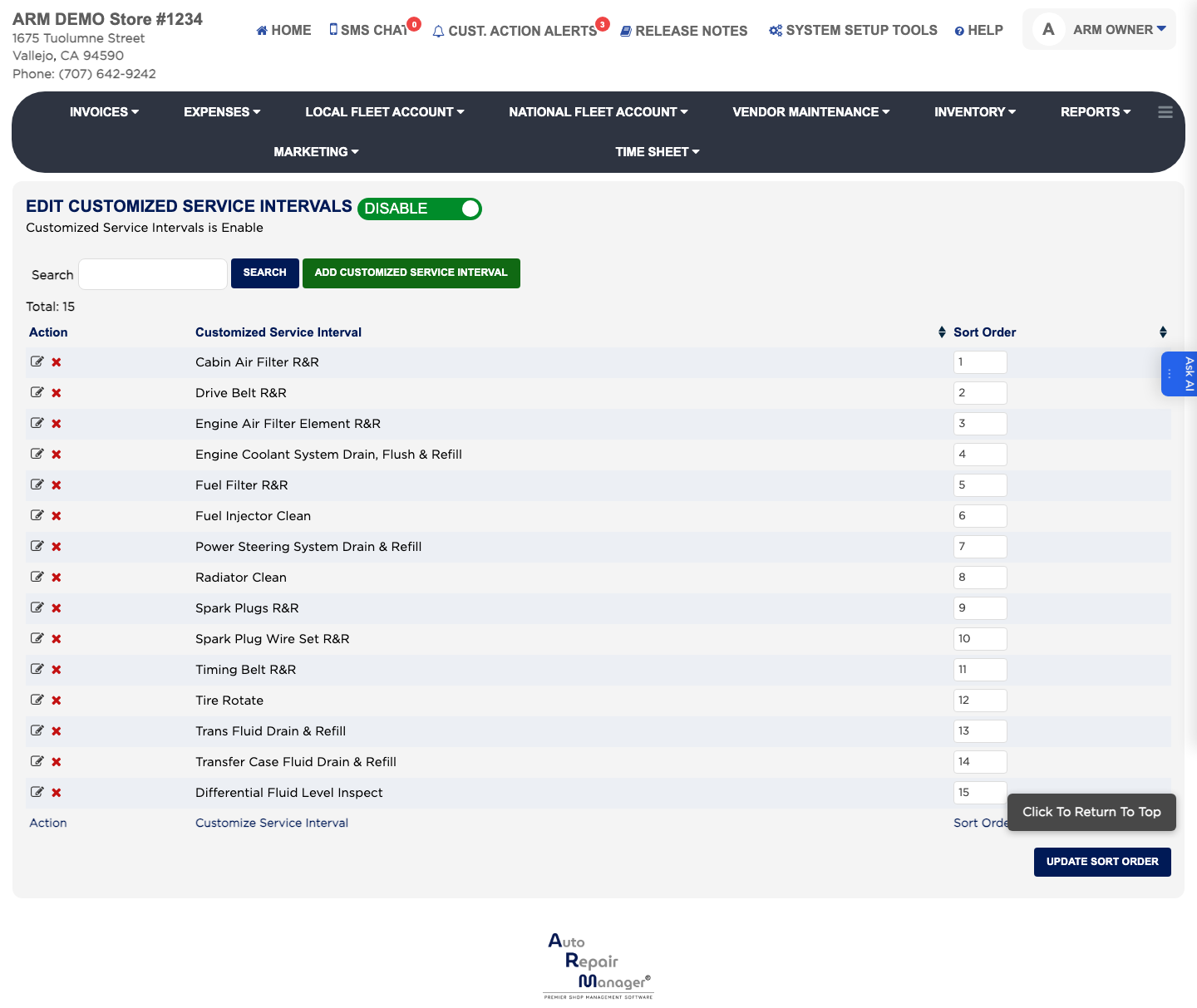
Customized service intervals

How do I add a customized service interval? #

  1. From the Home Screen, click System Setup Tools → Customize Manufacturer's Service Intervals.
  2. Click ADD Customized Service Interval.
  3. Enter the interval's name and the mileage or time it is due at.
  4. Click Save.

How do I change the order the intervals appear in? #

  1. From the Home Screen, click System Setup Tools → Customize Manufacturer's Service Intervals.
  2. Change the number in the Sort Order column beside each interval — lower numbers appear first.
  3. Click Update Sort Order.

Ask AI