ARM Help

Enable Low Inventory Alert

The low inventory alert warns you when a stocked part drops to the level you set, so you reorder before you run out. It works from the stocking level and alert quantity held against each part, which is why the categories and parts have to be set up before the alert is useful.

2 how-to answers 2 screenshots Open in ARM Markdown

How do I turn the low inventory alert on? #

  1. From the Home Screen, click System Setup Tools → Enable Low Inventory Alert.
  2. Tick Enable Low Inventory Alert.
  3. If your parts are not yet organised, click Go to Category Setup and set the categories up first.
  4. Click Back to System Tools when you are finished.
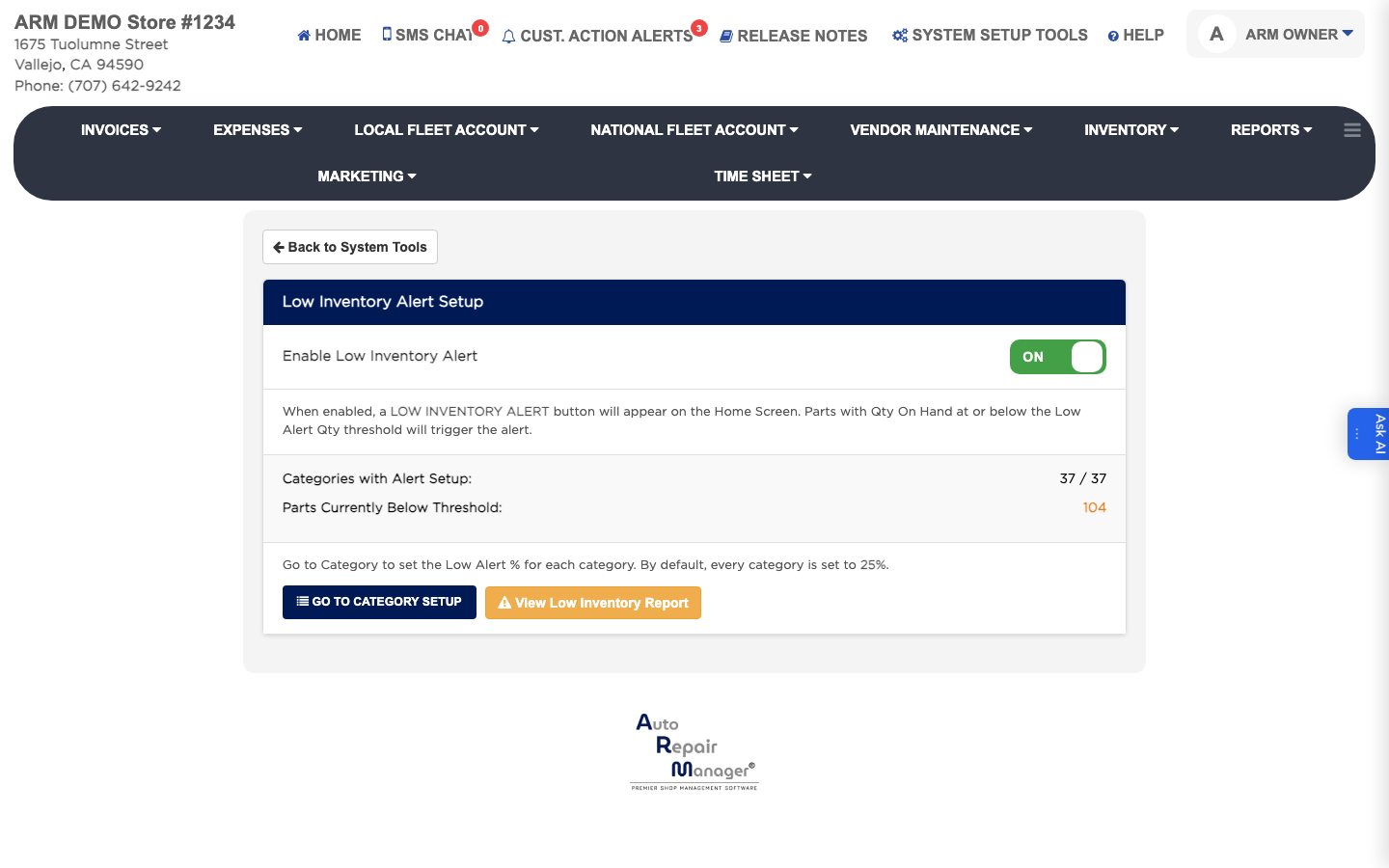
Enable Low Inventory Alert

How do I see which parts are running low? #

  1. From the Home Screen, click System Setup Tools → Enable Low Inventory Alert.
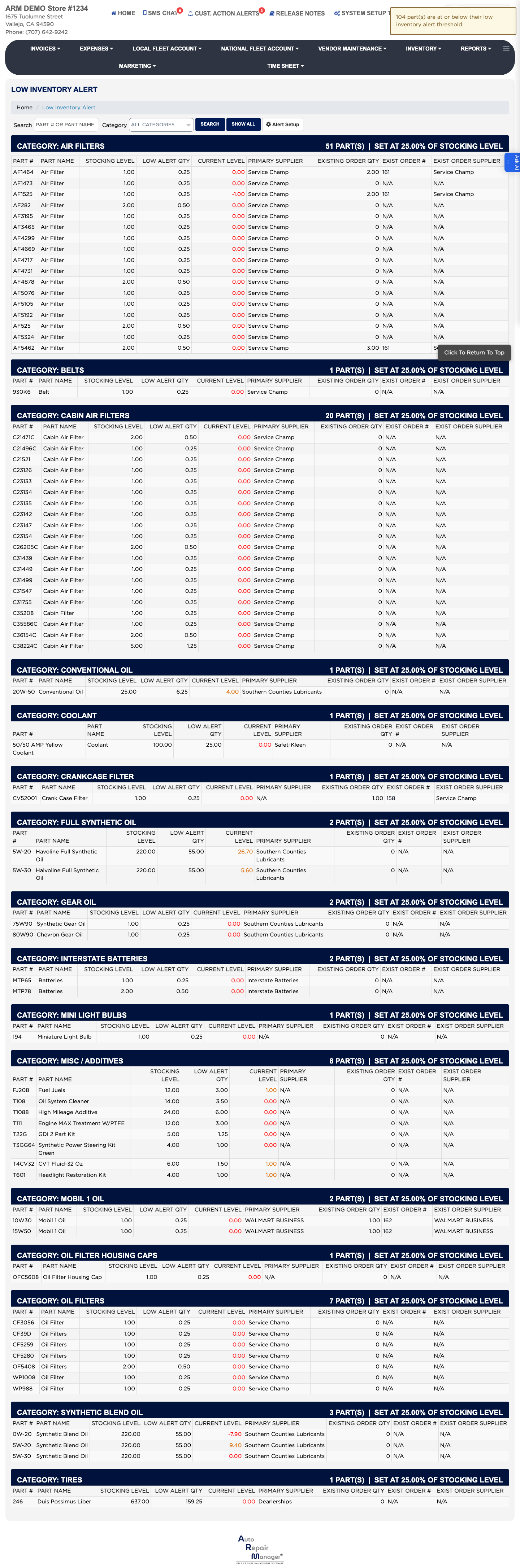
  2. Click View Low Inventory Report.
  3. Choose a Category to narrow the list, or leave it on All Categories, and click Search. Click Show All to list every part.
  4. Each line shows the PART #, PART NAME, STOCKING LEVEL, LOW ALERT QTY, CURRENT LEVEL and PRIMARY SUPPLIER, plus any EXISTING ORDER QTY already on its way.
  5. Click Alert Setup to change the alert quantity held against a part.
Low Inventory Report

People also ask

  • asked 1×
  • asked 1×
  • asked 1×

Ask AI