ARM Help

Edit Your Payment Options for Purchases From Your Vendors

These are the ways you pay your own suppliers, and they appear when you record an expense or settle a parts order. They are kept separate from customer payment options because the two lists rarely match. A type can ask for an extra detail when it is used — a cheque number, for example — and you choose the wording of that prompt. The list shows each type's Name, Caption, Status and which is the Default.

2 how-to answers 2 screenshots Open in ARM Markdown

How do I add a way of paying a vendor? #

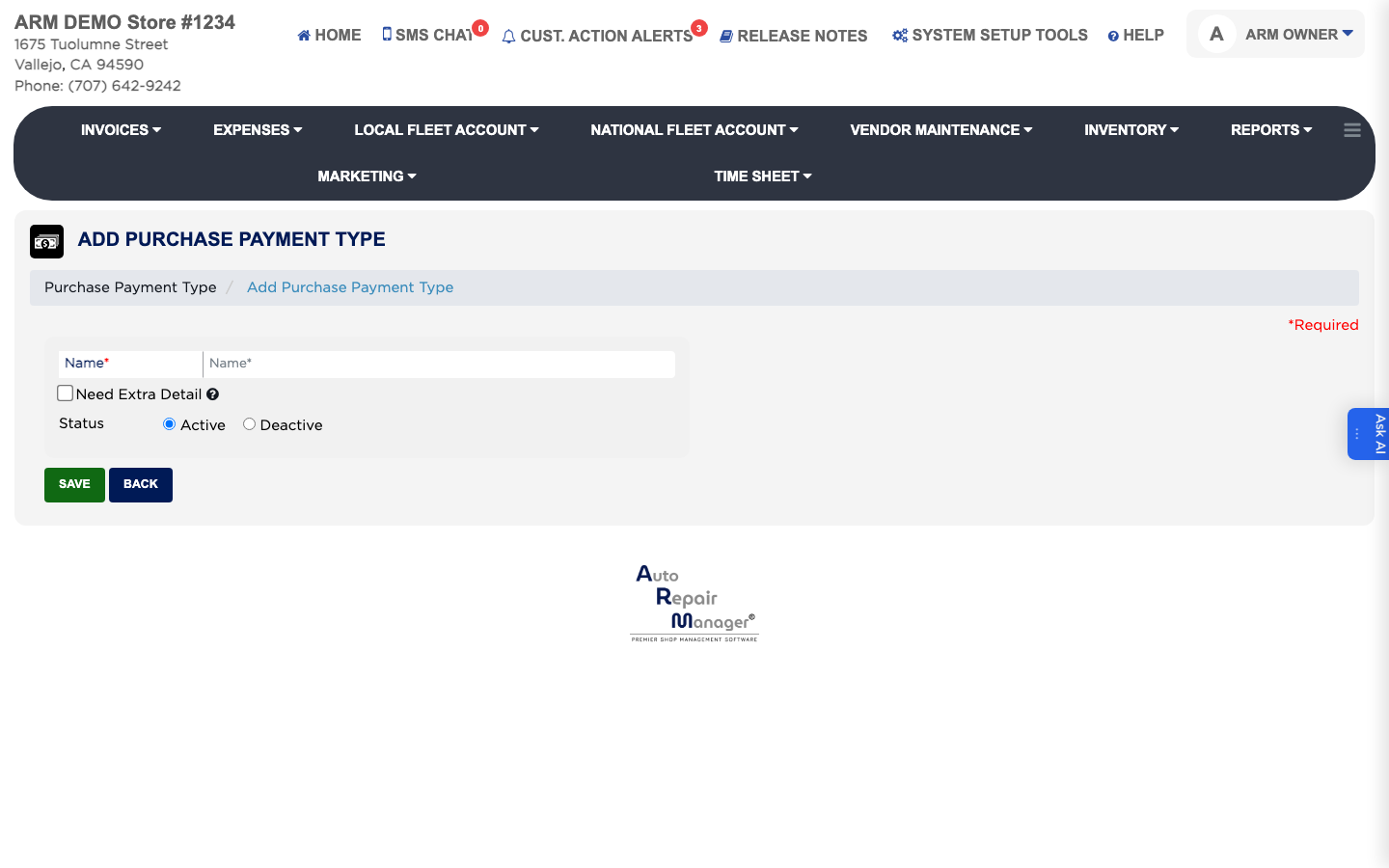
  1. From the Home Screen, click System Setup Tools → Edit Your Payment Options for Purchases From Your Vendors.
  2. Click Add Purchase Payment Type.
  3. Enter the Name, such as Shop Credit Card or Check. This is required.
  4. To make staff record something extra when they use it, tick Need Extra Detail and type the prompt in Enter Caption — for example Check Number.
  5. Leave the status set to Active and click Save.
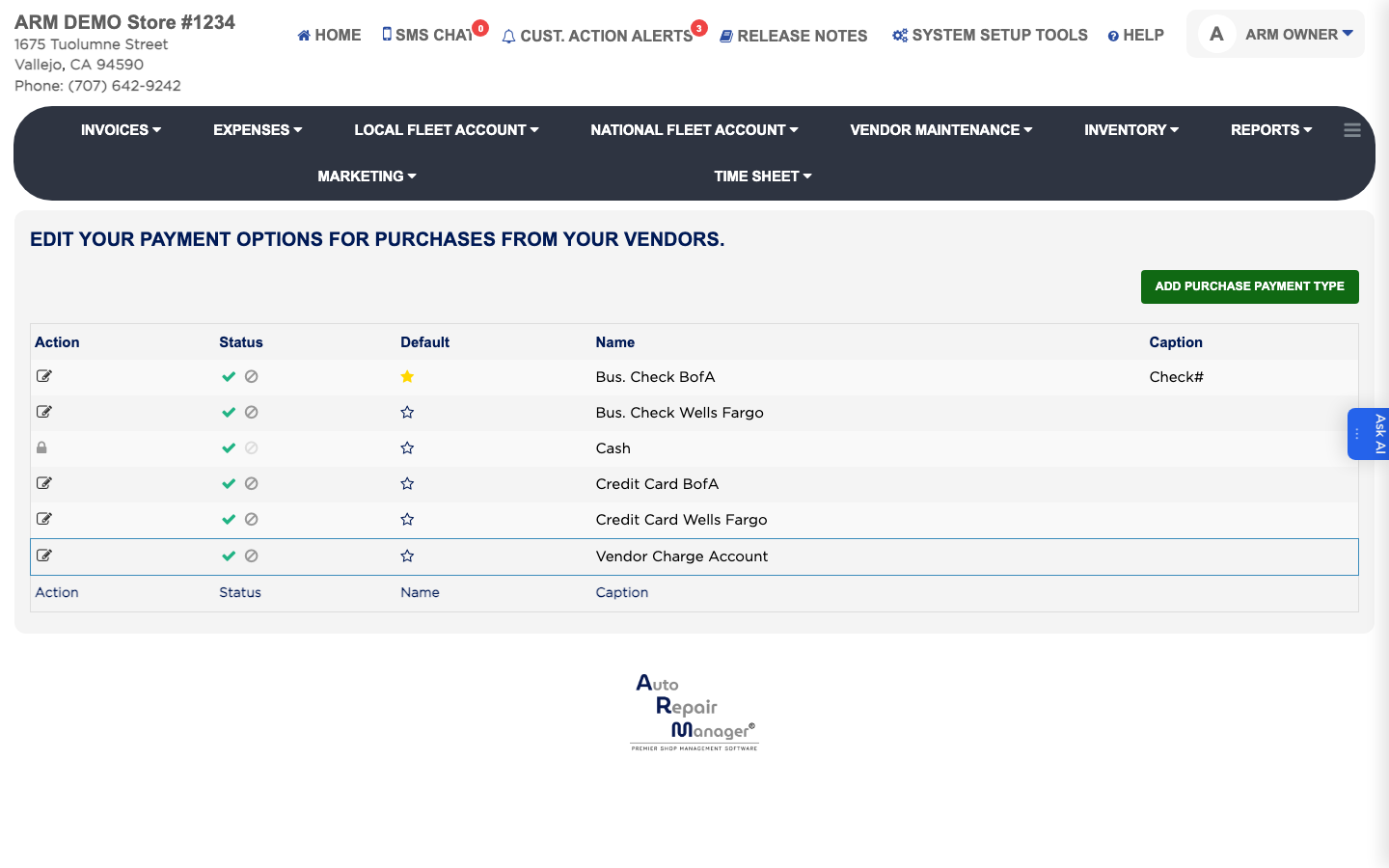
Vendor payment options
Add Purchase Payment Type form

How do I stop offering a vendor payment option? #

  1. From the Home Screen, click System Setup Tools → Edit Your Payment Options for Purchases From Your Vendors.
  2. Click the edit icon beside it in the Action column.
  3. Set the status to Deactive rather than deleting it, so recorded expenses keep their method.
  4. Click Save.

People also ask

  • asked 1×

Ask AI