ARM Help

Password Management

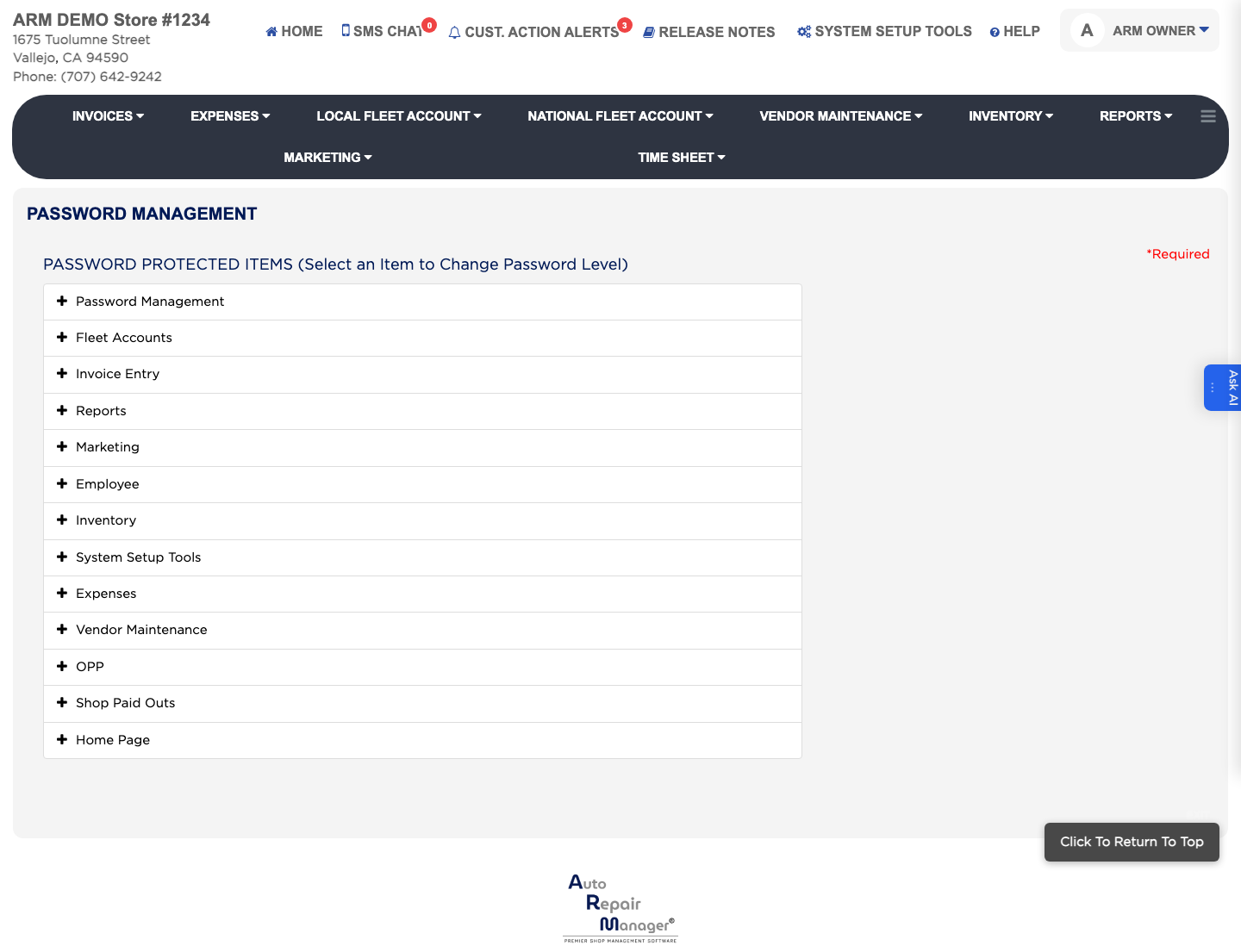
Password Management puts a password prompt in front of individual actions in ARM, so a sensitive action can be protected even for someone whose group lets them open the screen. It is a second layer on top of Groups: Groups decide what a role can reach, and Password Management decides which of those actions additionally demand a password. Protected items are grouped under the ARM areas they belong to, such as Invoice Entry, Reports, Employee, Inventory and System Setup Tools.

3 how-to answers 2 screenshots Open in ARM Markdown

How do I password-protect an action in ARM? #

  1. From the Home Screen, click System Setup Tools → Password Management.
  2. Under Password Protected Items, click the + beside the area that holds the action, for example Invoice Entry or Reports.
  3. Click the item you want to protect.
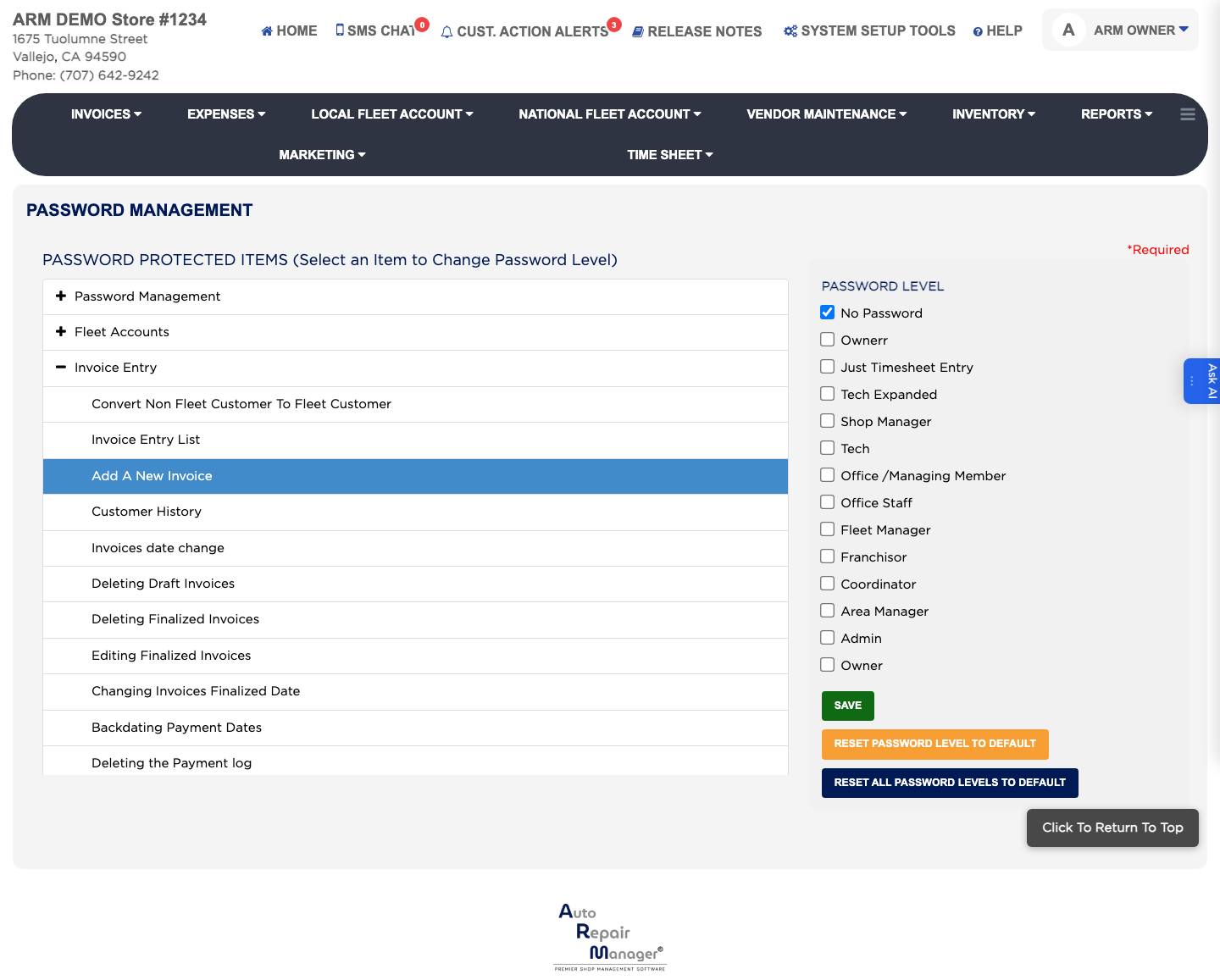
  4. Tick the password levels that should be allowed to perform it. Anyone whose level is not ticked is refused.
  5. Click Save.
Password Management — Password Protected Items
Password levels for an expanded protected item

How do I put one action back to its default protection? #

  1. From the Home Screen, click System Setup Tools → Password Management.
  2. Click the + beside the area, then click the item.
  3. Click Reset Password Level to Default.
  4. Click Save.

How do I put every action back to its default protection? #

  1. From the Home Screen, click System Setup Tools → Password Management.
  2. Click Reset All Password Levels to Default. This clears every change you have made on this screen, so use it only when you want to start over.
  3. Click Save.
  4. Click Exit to leave without making further changes.

Ask AI