ARM Help

Customer Email Report

Customer Email Report answers one question: of the invoices you finalized in a period, how many were actually emailed to the customer. It is not a list — there are no customer names or addresses on it. It is three figures: how many invoices were finalized, how many emails went out, and the second as a percentage of the first. Use it to check that your staff are emailing invoices rather than just printing them, to see whether a push on email capture has worked, and to keep an eye on the habit month by month.
2 how-to answers 3 screenshots Open in ARM Markdown

How do I run the Customer Email Report? #

  1. From the Home Screen, click Reports → Fleet & Customer Reports → Customer Email Report.
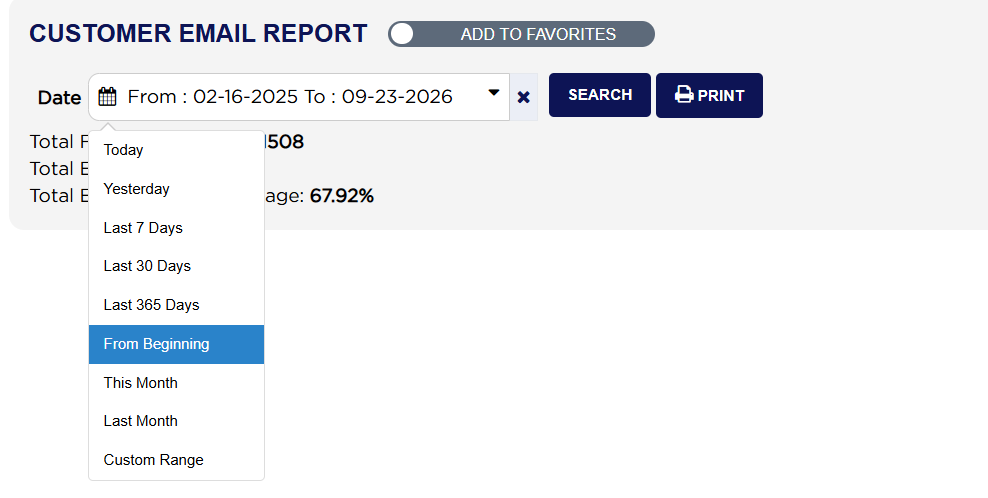
  2. Click the From : … To : … date box. As well as picking dates yourself, the list offers Today, Yesterday, Last 7 Days, Last 30 Days, Last 365 Days, From Beginning, This Month, Last Month and Custom Range. From Beginning covers everything the store has ever done.
  3. Click SEARCH. The three figures are worked out for the period you chose.
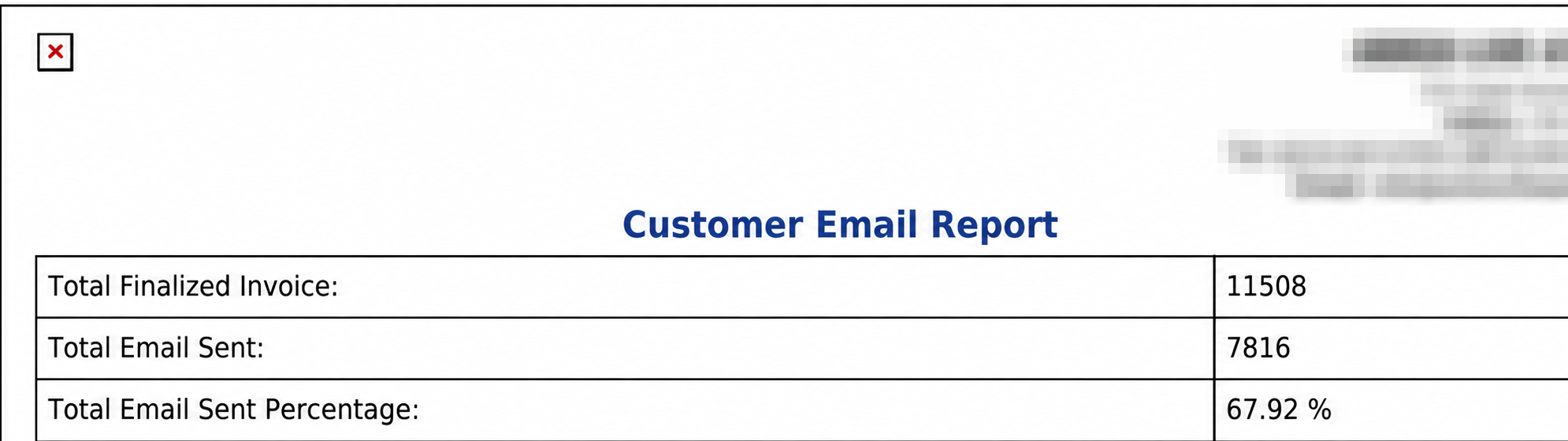
  4. Click PRINT for a PDF copy. There is no spreadsheet export on this report.
Customer Email Report date choices
Customer Email Report print output

How do I work out the email percentage? #

  1. From the Home Screen, click Reports → Fleet & Customer Reports → Customer Email Report, choose your period and click SEARCH.
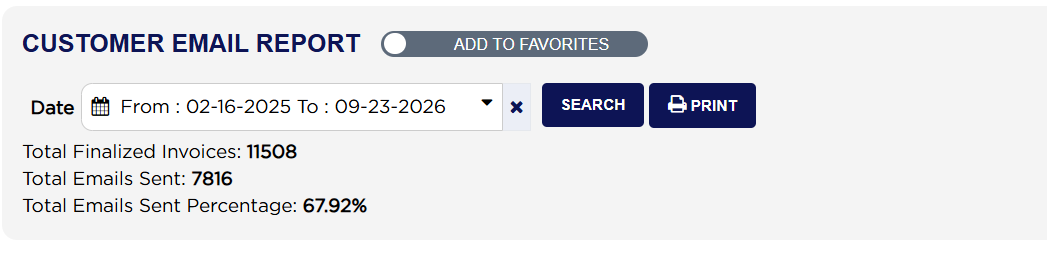
  2. Read Total Finalized Invoices. Example: 11508 over the whole life of the store.
  3. Read Total Emails Sent. Example: 7816.
  4. Total Emails Sent Percentage is the emails divided by the invoices, as a percentage: 7816 ÷ 11508 × 100 = 67.92%.
  5. The shortfall is the part worth acting on. Here 11508 − 7816 = 3692 finalized invoices were never emailed — either because no address was held for the customer, or because whoever closed the invoice did not send it.
Customer Email Report totals
About this screen

Total Finalized Invoices is how many invoices were finalized in the period. Total Emails Sent is how many of those were emailed to the customer. Total Emails Sent Percentage is the second as a share of the first. Drafts, voided and deleted invoices are not counted, so the figure describes completed work only.

Run the same report over Last 30 Days and then Last 365 Days to see whether the percentage is moving. A figure that is low across the whole life of the store but high over the last month means the habit has taken hold recently.

The printed PDF carries the same three figures under slightly shorter labels — Total Finalized Invoice, Total Email Sent and Total Email Sent Percentage — with your store details at the top.

Ask AI