ARM Help

Drawer Count Log Report

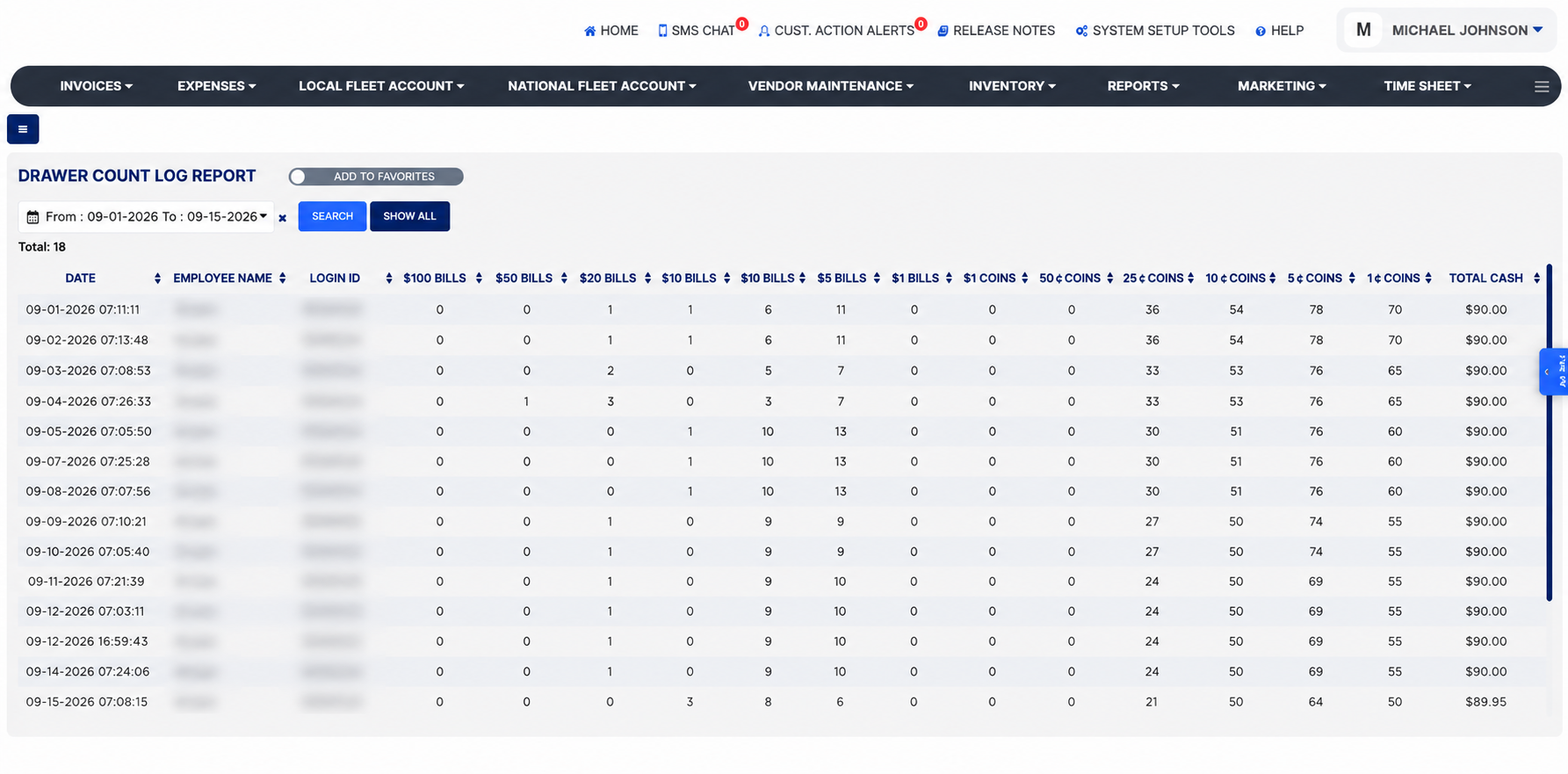
The Drawer Count Log Report lists every cash drawer count that was recorded, one line per count, with the date and time, the employee who counted, the number of bills and coins of each denomination they entered, and the total cash those add up to. Counts are entered from the Drawer Count button on the Home Screen, where the employee types how many of each bill and coin are in the drawer. Use the report to see the drawer's starting cash for each day, to check that counts were done and by whom, and to compare the counted cash with what the sales and drawer reports say should be there.

3 how-to answers 1 screenshot Open in ARM Markdown

How do I run the Drawer Count Log Report? #

  1. From the Home Screen, click Reports → Sales & Financial Reports → Drawer Count Log Report.
  2. Click the From : … To : … date box and pick the first and last day. The report opens on the first day of the current month through today and selects counts by the date and time they were recorded. The × beside the box clears the dates.
  3. Click Search to load the report, or Show All to reload it for the same dates.
  4. Read Total, the number of counts listed.
  5. Click any column heading to sort by it; click it again to reverse the order.
Drawer Count Log Report with filters and results

How do I check the starting cash in the drawer for a day? #

  1. From the Home Screen, click Reports → Sales & Financial Reports → Drawer Count Log Report.
  2. Set From : … To : … to the day, or to the week, and click Search.
  3. Find the morning count for the day; Total Cash is the float the day started with, and the denomination columns show how it was made up. Compare it with the closing count and with the cash payments on the Detailed Sales / Payment Method Report for the same day.

How do I see who counted the drawer and when? #

  1. From the Home Screen, click Reports → Sales & Financial Reports → Drawer Count Log Report, and set the date range.
  2. Read Employee Name and Login ID on each line with its Date and time. Click the Employee Name heading to group counts by employee, or the Date heading to put them in time order.
  3. A day with no line means no count was recorded that day.
About this screen

Each line shows the Date and time the count was saved, the Employee Name of the person who counted and their Login ID, then one column per denomination with the number of pieces counted: $100 Bills, $50 Bills, $20 Bills, $10 Bills, $5 Bills, $1 Bills, $1 Coins, 50 ¢ Coins, 25 ¢ Coins, 10 ¢ Coins, 5 ¢ Coins and 1 ¢ Coins. Total Cash is the value of the drawer from those counts, each quantity multiplied by its denomination and summed. Two counts on the same day, for example one in the morning and one at closing, appear as two lines.

The Add To Favorites switch beside the heading saves the report under Favorites on the Reports page. Which reports you see depends on your admin group permissions.
Ask AI