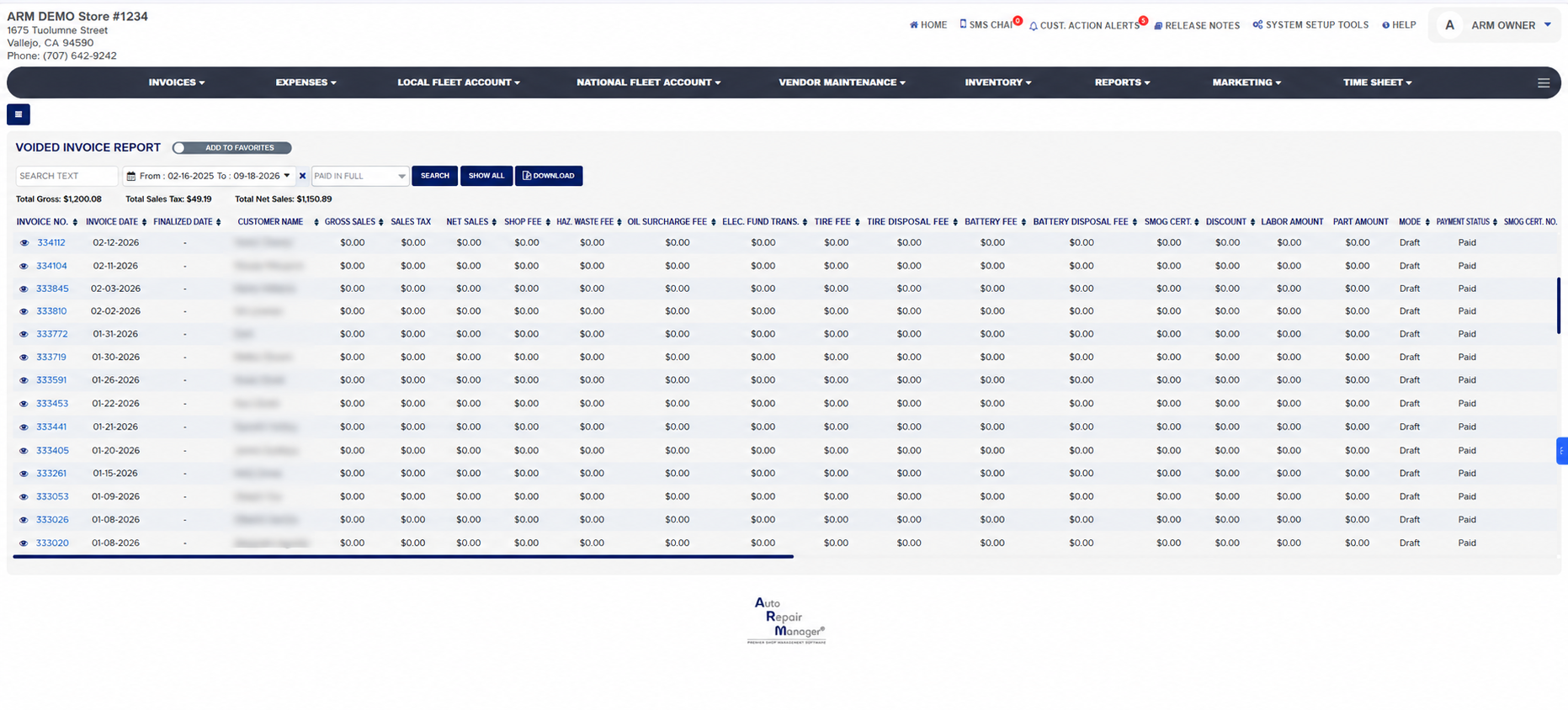
Each line starts with an eye icon that opens a print view of the voided invoice in a new tab, then the Invoice No. (a link that opens the invoice), the Invoice Date, the Finalized Date (a dash for an invoice voided while still a draft), and the Customer Name. The money columns follow: Gross Sales, Sales Tax, Net Sales, then the fees the invoice carried, Shop Fee, Haz. Waste Fee, Oil Surcharge Fee, Elec. Fund Trans., Tire Fee, Tire Disposal Fee, Battery Fee, Battery Disposal Fee and Smog Cert., the Discount, and Labor Amount and Part Amount. An invoice voided as a draft shows $0.00 in every money column because nothing was ever charged; a finalized invoice that was voided keeps the amounts it had. The TOTAL row at the foot sums every money column for the invoices listed.
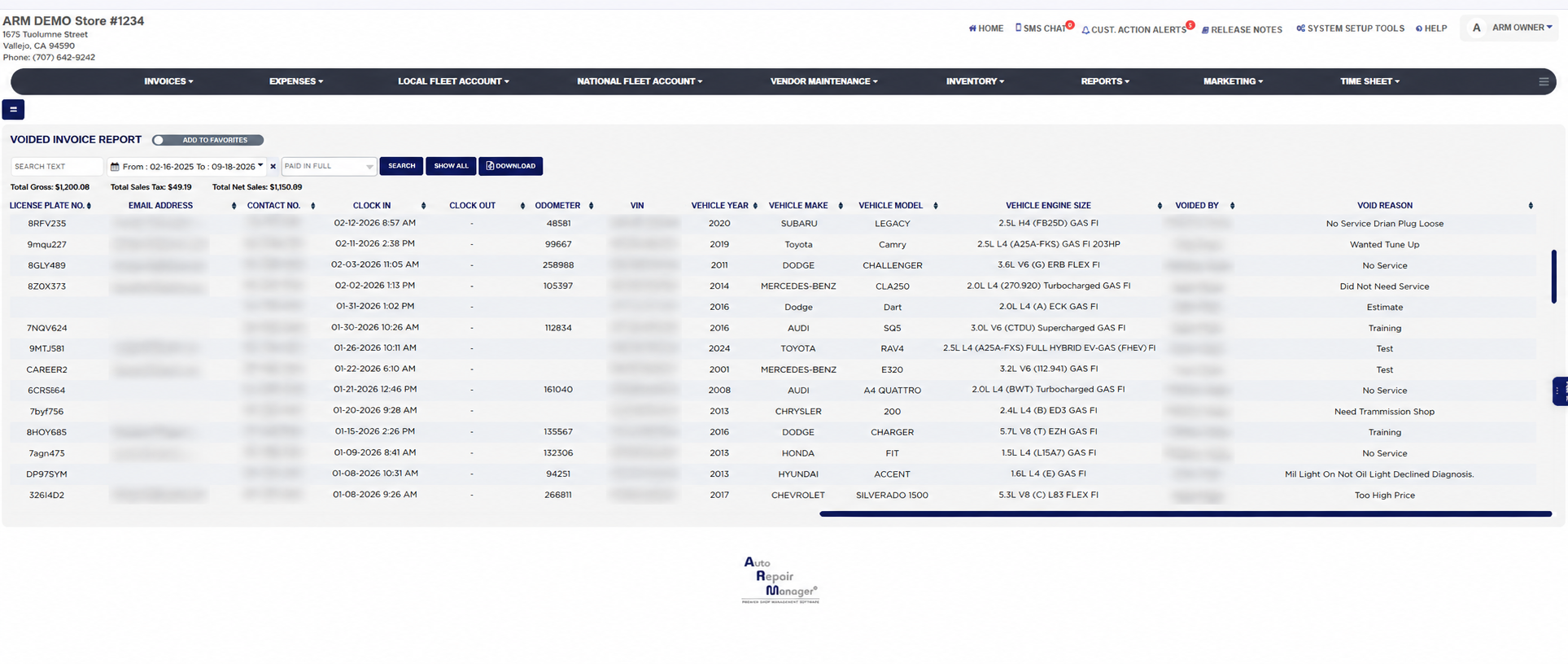
The line continues with the Mode the invoice was in when voided, Draft or Finalize, the Payment Status, Paid or UnPaid, the Smog Cert. No., the vehicle's License Plate No., the customer's Email Address and Contact No., the technician's Clock In and Clock Out times, the Odometer, the VIN, the Vehicle Year, Vehicle Make, Vehicle Model and Vehicle Engine Size, and finally Voided By, the ARM user who voided the invoice, and Void Reason, the reason typed when it was voided.
Payments taken on an invoice before it was voided are listed on the Void Invoice Payment Report. Because the report shows the customer's name, email address, contact number, license plate and VIN, keep exports in a safe place. The Add To Favorites switch beside the heading saves the report under Favorites on the Reports page. Which reports you see depends on your admin group permissions.