ARM Help

Employee Exceptions Report

Employee Exceptions Report lists the end-of-day answers your staff had to explain, one line per explained answer. When somebody clocks out, ARM asks them the questions set up under End of Day Employee Representations; answer one of them differently from the expected answer and you must type an explanation before you can finish clocking out. Those explanations, and only those, come through to this report. Use it to see the same day what your staff have raised — a problem with a vehicle, a missing tool, an incident at work — without having to read every clock-out.

3 how-to answers 3 screenshots Open in ARM Markdown

How do I run the Employee Exceptions Report? #

  1. From the Home Screen, click Reports → Employee & Payroll Reports → Employee Exceptions Report.
  2. Click the Date box and pick the period. It opens with today in both halves, so a quiet day shows nothing until you widen it. Entries are picked up by the date and time the answer was saved, which for a day keyed in later through Past Attendance Data is the day it was keyed in.
  3. Type a name into SEARCH EMPLOYEE to follow one person, or leave it empty for everybody.
  4. Click SEARCH to load the report. SHOW ALL clears the filters, but it also puts the dates back to today — set your range again after using it.
  5. Click PRINT for a PDF copy.
Employee Exceptions Report date range and employee search
Employee Exceptions Report questions and answers
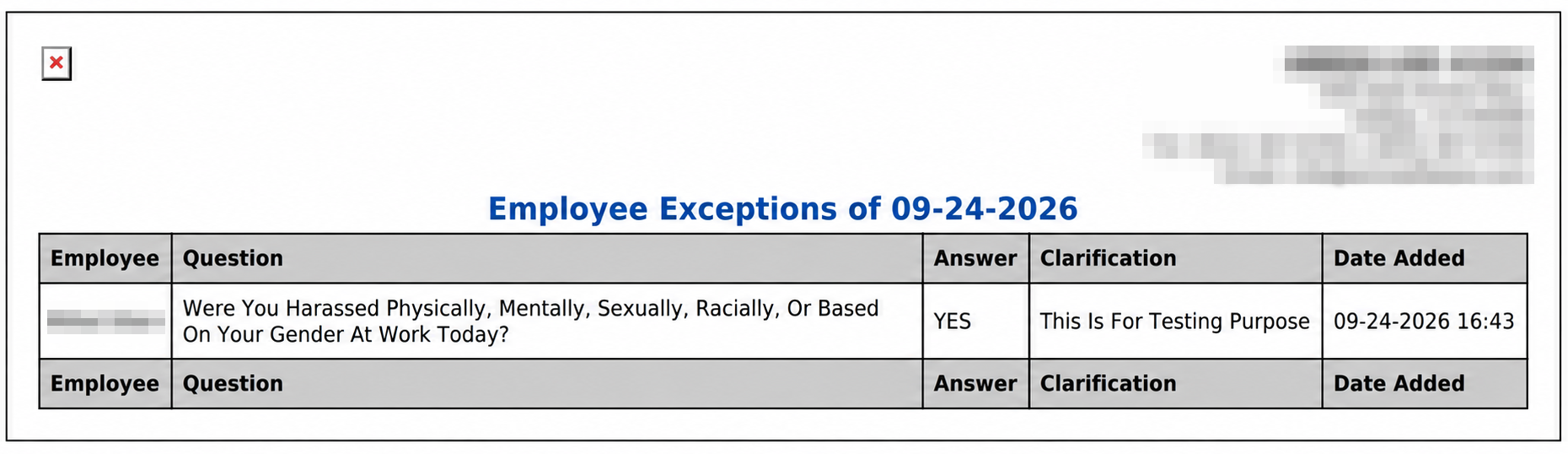
Employee Exceptions Report print output

Where do these entries come from? #

  1. Under End of Day Employee Representations, each question has a list of options, a Default Option — the answer you expect — and a Clarification Required tick.
  2. When an employee clocks out, ARM shows them every question with the default already selected.
  3. If they choose anything other than the default on a question that has Clarification Required ticked, a box appears and they cannot finish clocking out until they type something into it.
  4. That explanation is saved against their time sheet and appears here.
  5. It follows that if no question has Clarification Required ticked, nothing can ever reach this report. If the report is always empty, check that tick first.

How do I print the day's exceptions? #

  1. From the Home Screen, click Reports → Employee & Payroll Reports → Employee Exceptions Report, and set the date range.
  2. Click PRINT. The PDF opens in a new tab, carrying your store details and the same five columns.
  3. The heading follows the dates you chose: a single day prints as Employee Exceptions of ‹date›, and a range prints as Employee Exceptions From ‹date› TO ‹date›.
About this screen

Each line shows the EMPLOYEE who answered, the QUESTION exactly as it was worded when they answered it, the ANSWER they chose, their CLARIFICATION, and the DATE ADDED with the time. The row at the foot repeats the column headings; there is nothing to total on this report.

The report shows explained answers only. An answer that matched the expected one is not an exception and never appears, and neither does an answer on a question that was not set up to ask for an explanation. So an empty report is the normal state on a good day — it means nobody had anything to flag — and it is not a sign that the questions were skipped.

The wording of a question is stored with the answer, so changing a question later does not rewrite what was already recorded — an old line keeps the words the employee actually saw. The ADD TO FAVORITES switch beside the report title saves a shortcut to the report under your favourites in the main Reports menu.


Ask AI