ARM Help

Third-Party Merchant Redemption Report

Third-Party Merchant Redemption Report lists the partner offer codes that customers have redeemed, one line per code, with what each offer is worth. It is the redeemed half of Third-Party Merchant Offer Report, with a money column added. Use it to see how many partner offers were used and what they came to, merchant by merchant, when you settle up with a partner business.

2 how-to answers 4 screenshots Open in ARM Markdown

How do I run the Third-Party Merchant Redemption Report? #

  1. From the Home Screen, click Reports → Coupon, Discount & Promotional Reports → Third-Party Merchant Redemption Report.
  2. Set the date range in the From / To selector. It opens on the whole of the current month. The range picks codes by the date they were issued, not the date they were redeemed (see below).
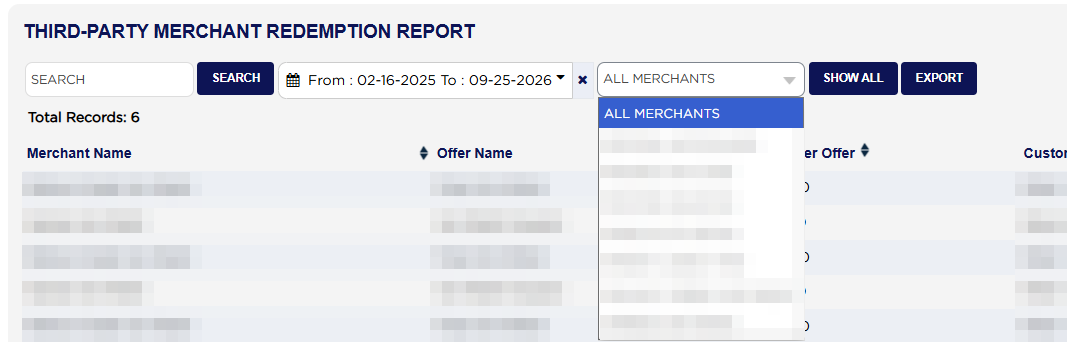
  3. To see one partner, choose it in the merchant list, or leave ALL MERCHANTS.
  4. To find a particular code, offer or customer, type part of it in SEARCH and click SEARCH. SHOW ALL clears the filters.
  5. Click EXPORT to download the list as a spreadsheet. This report has no Print button.
Third-Party Merchant Redemption Report merchant dropdown
Third-Party Merchant Redemption Report filters
Third-Party Merchant Redemption Report filtered to one merchant

How do I total the redemptions for one merchant? #

  1. From the Home Screen, click Reports → Coupon, Discount & Promotional Reports → Third-Party Merchant Redemption Report.
  2. Set the date range so that it covers the issue dates of the codes you want. A code issued in one month and redeemed the next only appears when the range includes the month it was issued. To be sure of catching a month's redemptions, start the range well before that month and read the Redemption Date column.
  3. Choose the merchant in the merchant list. Example: one car wash partner, 3 redeemed codes.
  4. Add up Cost Per Offer. Example: $10.00 + $10.00 + $10.00 = $30.00, the figure in the Grand Total: row.
  5. Grand Total: covers the lines on the page you are looking at. When the list runs to more than one page, add the page totals together or use EXPORT and total the spreadsheet.
Third-Party Merchant Redemption Report list with grand total
About this screen

Total Records: above the table counts the redeemed codes. Each line shows the Merchant Name, the Offer Name, the Cost Per Offer (the value of the offer as set up for that merchant), the Customer Name, the Invoice # (ARM's internal reference, not the customer's invoice number), the Issue Date, the Redemption Date and the Offer Code, with all but its last four characters hidden. The list opens with the most recent redemption first. The Grand Total: row under the table adds up Cost Per Offer.

The figures on this report agree with Third-Party Merchant Offer Report filtered to REDEEMED for the same dates and merchant: the same codes appear on both. Cost Per Offer is the offer's value; the amount the merchant reimburses the shop is not shown on either report.

Ask AI

