ARM Help

OPP & Shop Paid Outs Report

OPP & Shop Paid Outs Report lists the outside part purchases (OPP) and the daily shop paid outs for a period, one line per purchase or paid out. For each part bought in for a job it shows what you paid for the part next to what the customer was charged for it, and how each purchase was paid. Use it to check the mark-up on bought-in parts, to see how much cash went out of the drawer on paid outs, and to match purchases against a supplier's statement or your bank and card accounts.

2 how-to answers 7 screenshots Open in ARM Markdown

How do I run the OPP & Shop Paid Outs Report? #

  1. From the Home Screen, click Reports → Shop Expenses & Vendor Reports → OPP & Shop Paid Outs Report. The page is headed DAILY OPP AND SHOP PAID OUTS REPORT.
  2. Set the date range in the From / To selector. It opens on today only, so choose a wider range for a week or a month.
  3. To see one supplier, type in Supplier Name, or leave it empty for all suppliers.
  4. To see one part, type its name in Part Name, for example Cabin Air Filter, or leave it empty for all parts.
  5. Click SEARCH to load the report. SHOW ALL clears the supplier and part and reloads for the same dates.
  6. Click PRINT for a PDF copy. This report has no Download.
OPP and Shop Paid Outs Report filters
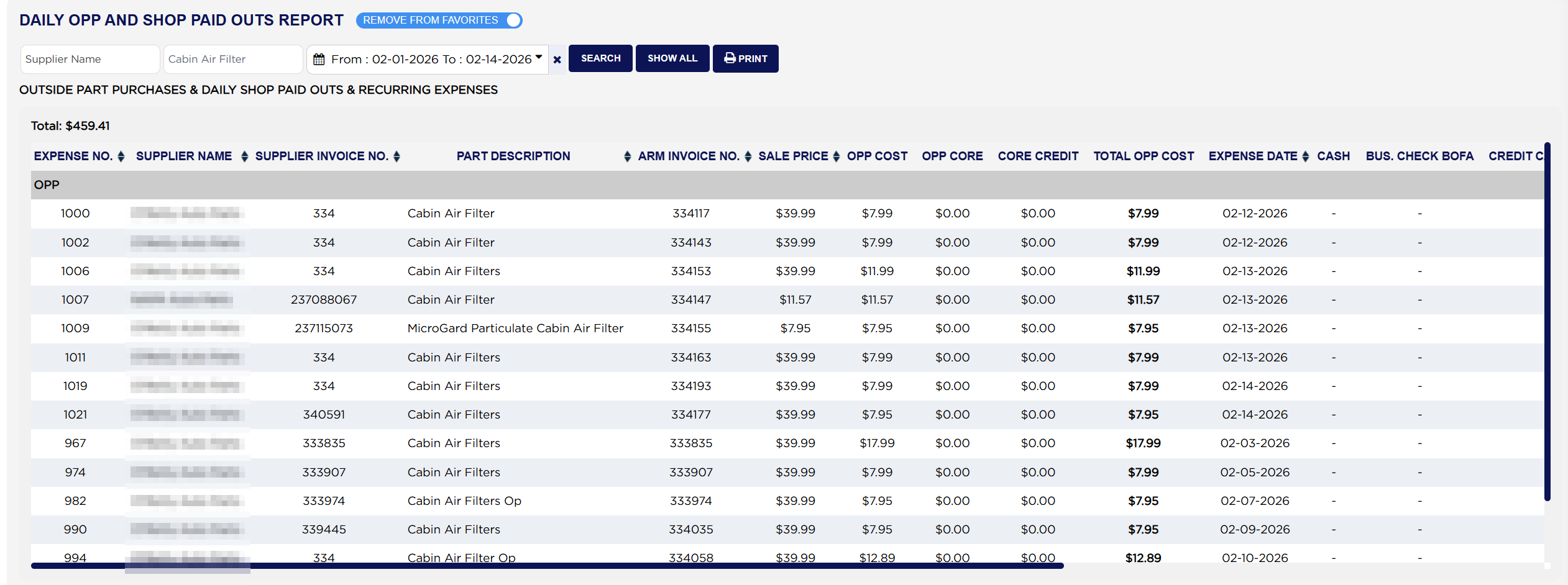
OPP and Shop Paid Outs Report filtered by part name
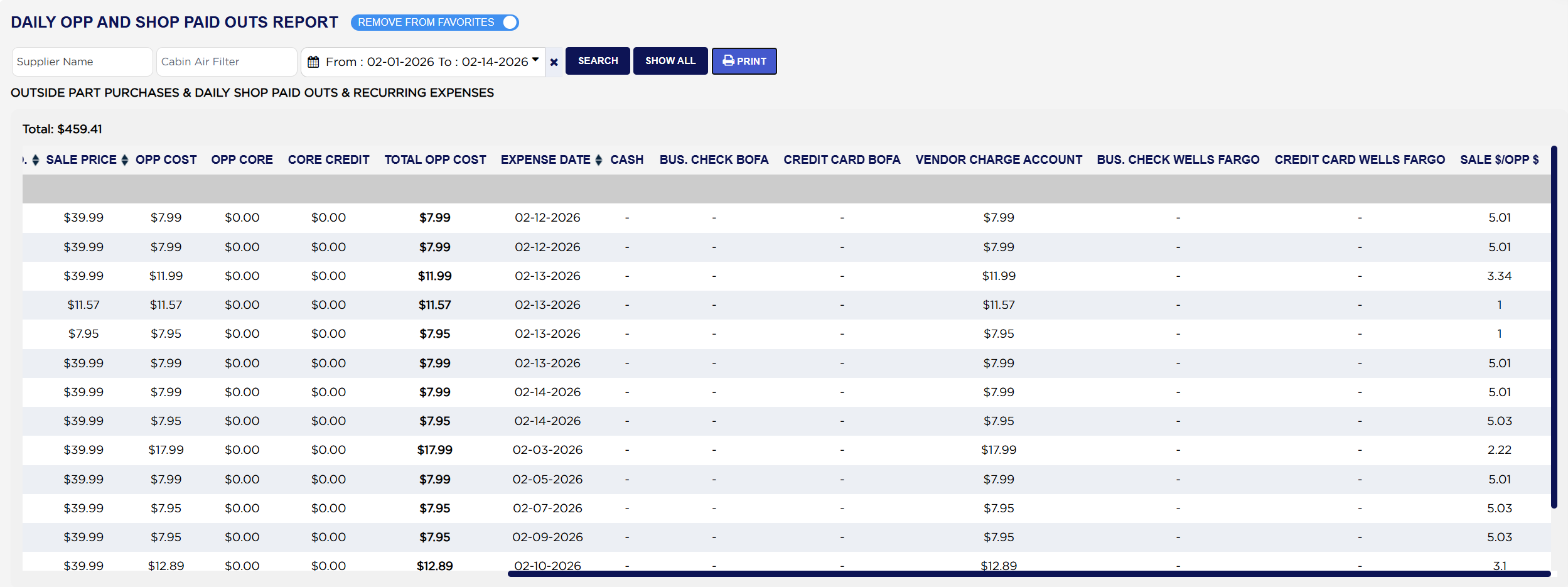
OPP and Shop Paid Outs Report payment method columns
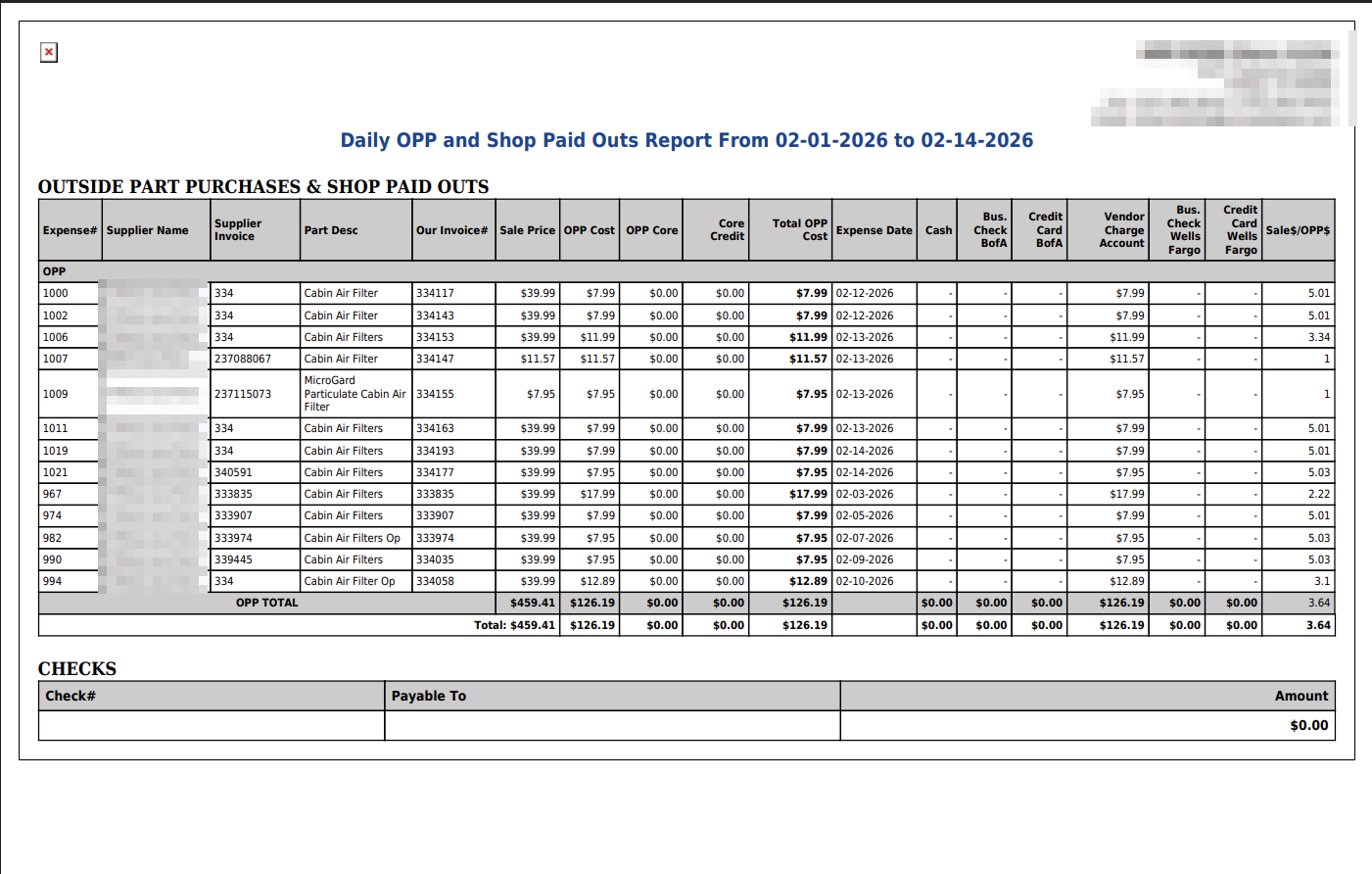
OPP and Shop Paid Outs Report printout

How do I work out the mark-up on an outside part purchase? #

  1. From the Home Screen, click Reports → Shop Expenses & Vendor Reports → OPP & Shop Paid Outs Report, run it for your date range and pick one line in the OPP group.
  2. Take the SALE PRICE: what the customer was charged for the part on the invoice shown in ARM INVOICE NO. Example: $39.99.
  3. Take the OPP COST: what you paid the supplier for the part. Example: $7.99.
  4. TOTAL OPP COST is OPP COST + OPP CORE − CORE CREDIT. The core charge stays on show after the old part goes back; CORE CREDIT is what records that it came back. Example: $7.99 + $0.00 − $0.00 = $7.99.
  5. SALE $/OPP $ is SALE PRICE ÷ OPP COST. Example: $39.99 ÷ $7.99 = 5.01. A 1 means the part was sold at what it cost you, as with a filter bought at $11.57 and sold at $11.57.
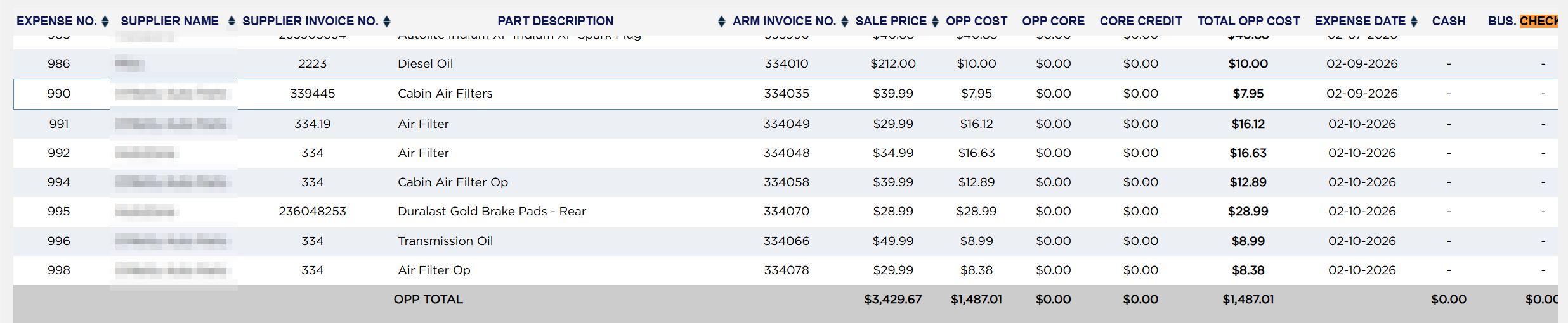
  6. The OPP TOTAL row does the same over the whole group. Example: the Cabin Air Filter run totals $459.41 in sale price against $126.19 in cost, and $459.41 ÷ $126.19 = 3.64. For the whole run's outlay add the TOTAL OPP COST of the OPP group to the SHOP PAID TOTAL: over 02-01-2026 to 02-14-2026 unfiltered, $1,487.01 of outside parts plus $125.50 of paid outs = $1,612.51 spent, against a Total: at the top of $3,429.67.
OPP and Shop Paid Outs Report OPP purchases
OPP and Shop Paid Outs Report OPP total row
OPP and Shop Paid Outs Report shop paid outs and grand total
About this screen

The table is split into groups, each with its own band and subtotal row: OPP for outside part purchases, then Daily Shop Paid Outs. Each OPP line shows the EXPENSE NO., SUPPLIER NAME, SUPPLIER INVOICE NO., the PART DESCRIPTION, the ARM INVOICE NO. of the job the part was bought for, the SALE PRICE the customer was charged for the part, the OPP COST you paid for it, the OPP CORE charge, any CORE CREDIT for a core returned, the TOTAL OPP COST in bold, and the EXPENSE DATE.

The OPP TOTAL row closes the OPP group. It adds up the sale prices, the OPP costs, the cores, the core credits and the total OPP costs of every OPP line, and it carries a total under each payment column.

Under the Daily Shop Paid Outs band come the paid outs: money paid out of the shop for things such as lunches or supplies. They have no sale price or OPP cost, so those columns show -, and the amount sits in the column for the way it was paid. SHOP PAID TOTAL closes the group. The final Total: row adds the groups together.

The figure above the table is the total SALE PRICE, not what the shop spent. Check which column you are reading before you quote a figure from this report. What the shop paid is in the OPP COST and TOTAL OPP COST columns, and in the payment columns for the paid outs. Example: filtering on Cabin Air Filter for 02-01-2026 to 02-14-2026 shows Total: $459.41 at the top, but the shop paid $126.19 for those filters. $459.41 is what the customers were charged.

Scroll right past EXPENSE DATE and there is one column for each way your store pays for purchases, such as CASH, BUS. CHECK BOFA, CREDIT CARD BOFA, VENDOR CHARGE ACCOUNT, BUS. CHECK WELLS FARGO and CREDIT CARD WELLS FARGO. These are the payment accounts set up on your store, so your columns may differ. Each purchase's cost appears under the method used to pay for it. The last column, SALE $/OPP $, is the sale price divided by the OPP cost: how many times over the customer paid what the part cost you.

Every figure on this page, including the total rows, covers only the lines on the page you are looking at. There is no report-wide cost figure. To total a long period, set a range that fits on one page or add the pages together.

The printout is headed Daily OPP and Shop Paid Outs Report From with your dates, with a section titled OUTSIDE PART PURCHASES & SHOP PAID OUTS. It carries the same columns and totals as the screen. Shop paid outs are printed underneath in a separate CHECKS table with Check#, Payable To and Amount. When the run has no paid outs, the CHECKS table still prints, with an empty line and $0.00.

To see every expense, not just outside part purchases and paid outs, run All Expense Report. For the paid outs on their own, with their expense accounts, run Shop Paid Outs Expense Report.

People also ask

  • asked 1×

Ask AI