ARM Help

Salesperson & Technician Commission Report

Salesperson & Technician Commission Report shows what each person earned in commission, one line per service sold on a finalized invoice. It keeps the two kinds of commission apart — what somebody earned as the technician who did the work, and what they earned as the salesperson who sold it — because one person can earn both on the same job. Use it to work out commission for a pay run, to check a disputed figure back to the invoice it came from, and to compare what a service sold for against what it paid out.

3 how-to answers 5 screenshots Open in ARM Markdown

How do I run the Salesperson & Technician Commission Report? #

  1. From the Home Screen, click Reports → Employee & Payroll Reports → Salesperson & Technician Commission Report. The screen is headed SALESPERSON & TECHNICIAN COMMISSION REPORT (DETAILS AND COMMISSIONS).
  2. Click the Date box and pick the period. It opens on the current month. Lines are picked up by the date the invoice was finalized.
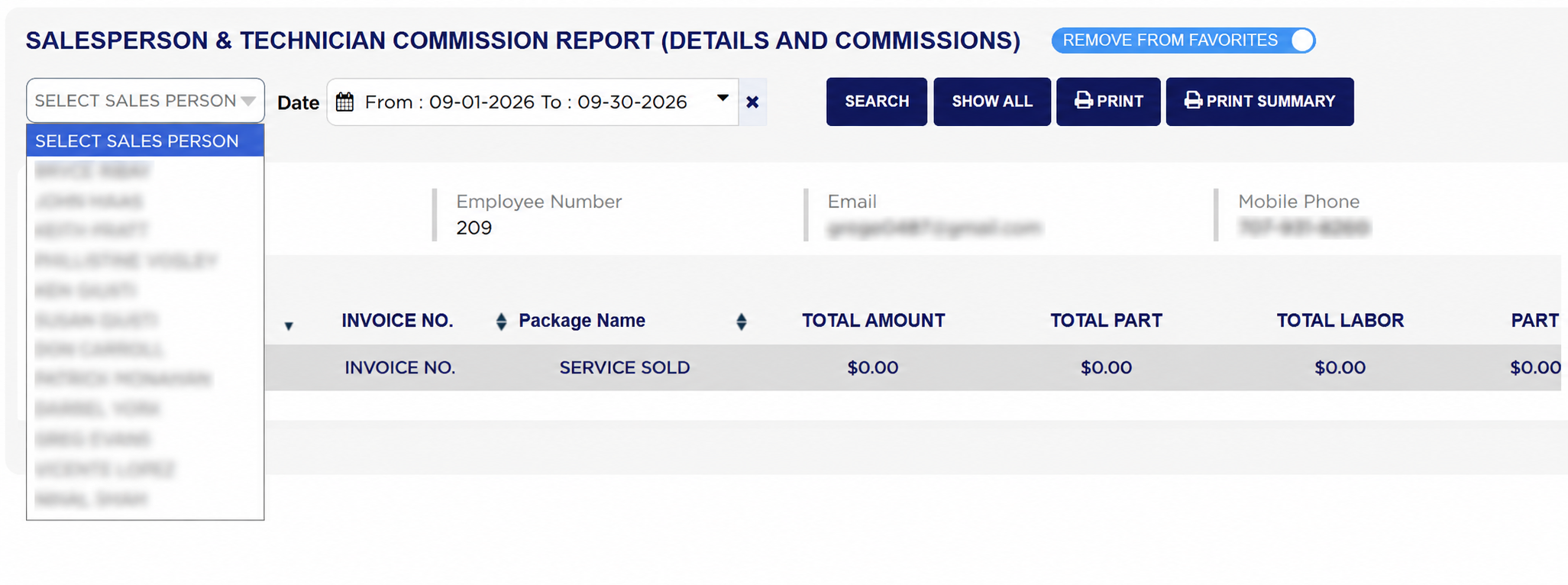
  3. Pick a name in SELECT SALES PERSON for one person, or leave it unset for everybody.
  4. Click SEARCH to load the report. SHOW ALL reloads it without the name filter.
  5. Click PRINT for the full invoice-by-invoice PDF, or PRINT SUMMARY for one line per person.
Salesperson and Technician Commission Report filters
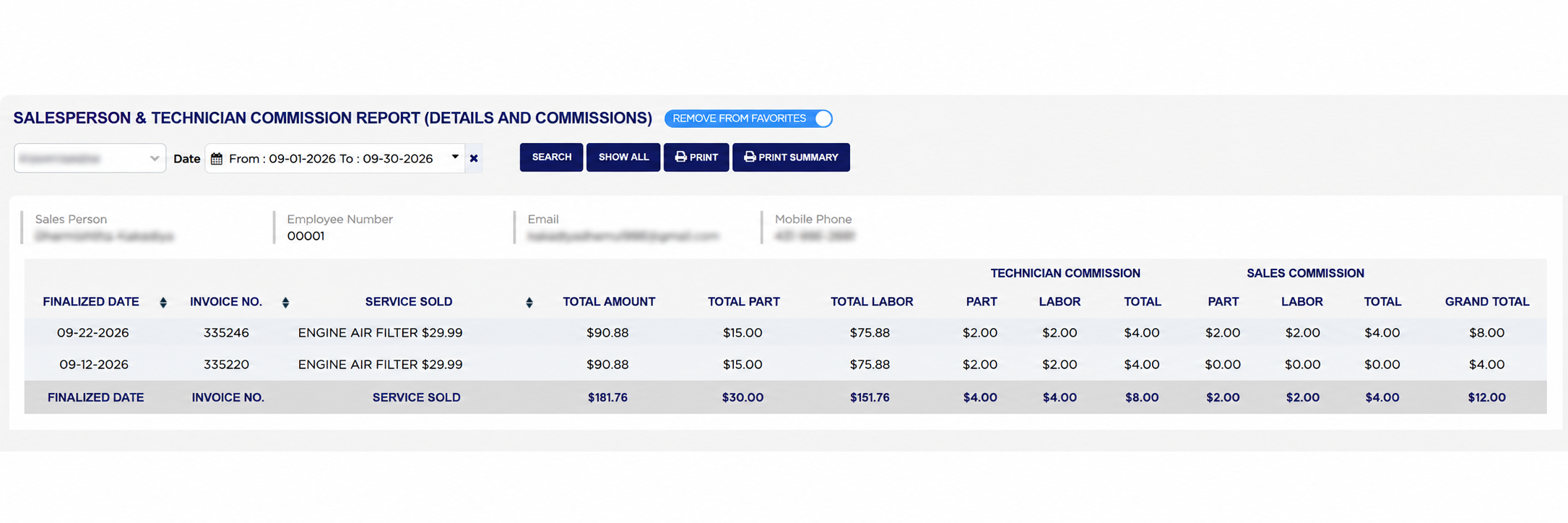
Salesperson and Technician Commission Report commission by invoice
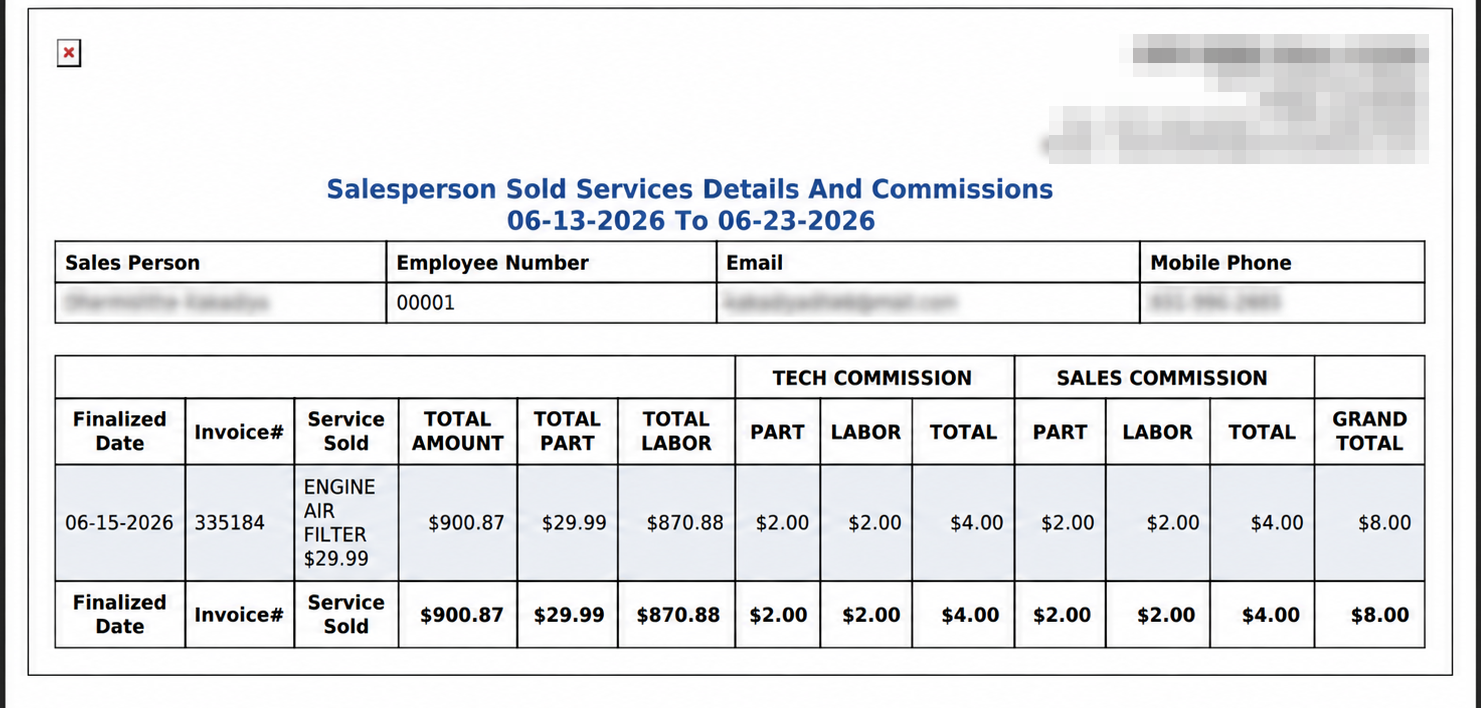
Salesperson and Technician Commission Report print output
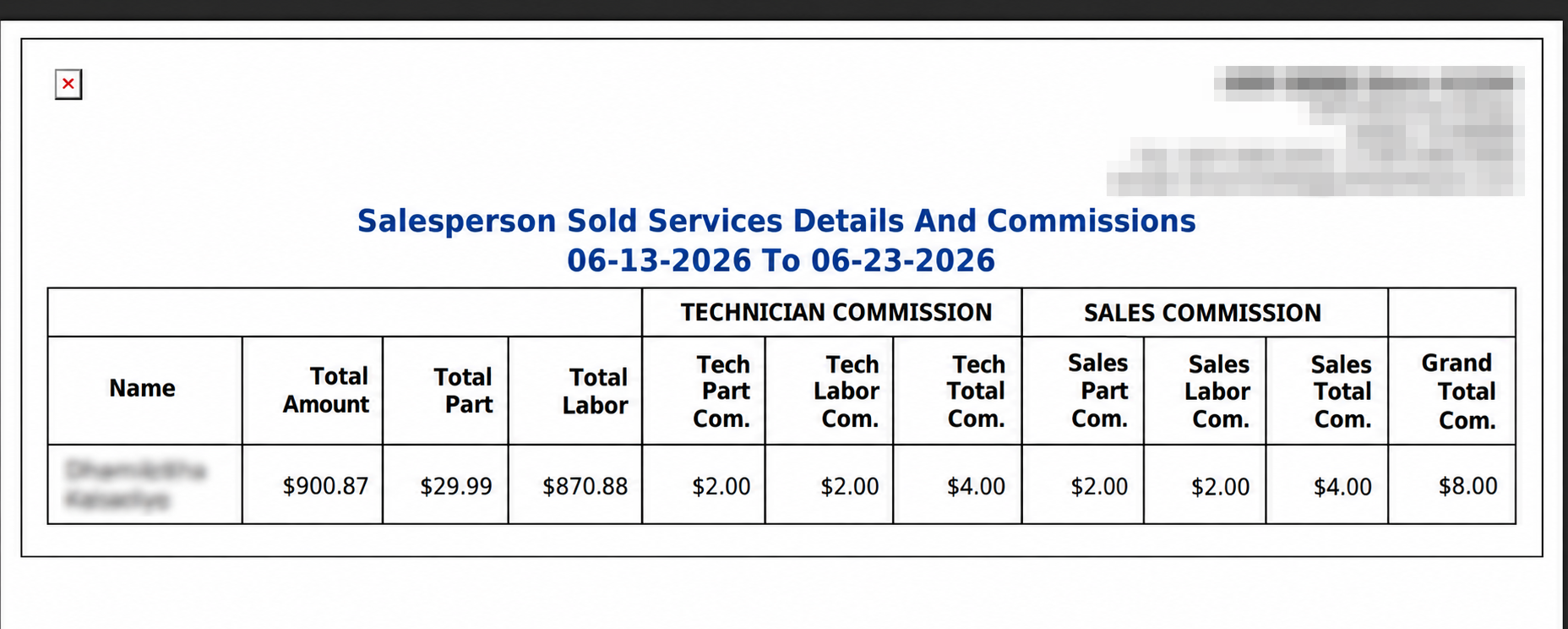
Salesperson and Technician Commission Report print summary output

How do I work out a line's commission from the report? #

  1. From the Home Screen, click Reports → Employee & Payroll Reports → Salesperson & Technician Commission Report, run it for your date range and pick one line.
  2. Start with what the service sold for. TOTAL PART and TOTAL LABOR are the two halves of it, and TOTAL AMOUNT is the two added together. Example: invoice 335246, an engine air filter, $15.00 of parts and $75.88 of labor, giving $90.88. Query any line where those three do not reconcile.
  3. Read the TECHNICIAN COMMISSION group for what the person earned doing the work: PART is the commission on the parts, LABOR the commission on the labor, and TOTAL the two added. Example: $2.00 + $2.00 = $4.00.
  4. Read the SALES COMMISSION group the same way, for what they earned selling it. Example: $2.00 + $2.00 = $4.00.
  5. GRAND TOTAL is the two group totals added. Example: $4.00 + $4.00 = $8.00 on that line.
  6. Where the person did the work but somebody else sold it, the sales group is zero and the grand total is the technician figure alone. Example: invoice 335220 on the same table earns $4.00 of technician commission, nothing in sales, and a $4.00 grand total.
  7. The footer sums every money column down the page. Example: $30.00 of parts and $151.76 of labor, $181.76 of services sold, $8.00 of technician commission and $4.00 of sales commission, $12.00 in total.
Salesperson and Technician Commission Report rows used in the calculation example

How do I print commission for a pay run? #

  1. From the Home Screen, click Reports → Employee & Payroll Reports → Salesperson & Technician Commission Report, and set the date range.
  2. Pick a name for one person, or leave it unset for everybody, and click SEARCH.
  3. Click PRINT. The PDF is headed Salesperson Sold Services Details And Commissions with the date range under it, and carries the same details table and the same columns as the screen, a page per person. The printout shortens the first commission heading to TECH COMMISSION.
  4. Click PRINT SUMMARY instead for the short version: the same heading and date range, then one line per person — their Name, the Total Amount, Total Part and Total Labor they sold, and their Tech Part Com., Tech Labor Com., Tech Total Com., Sales Part Com., Sales Labor Com., Sales Total Com. and Grand Total Com. It is the figure to pay, without the invoices behind it.
About this screen

Choosing a name gives you one table; leaving it unset gives you a table for every salesperson, one after another. The two views are otherwise the same, except that the single-person view heads the third column SERVICE SOLD and the all-people view heads it Package Name. Both mean the service that was sold.

Above each table, Sales Person, Employee Number, Email and Mobile Phone are the details ARM holds for the person that table belongs to. They are not filters.

Each line shows the FINALIZED DATE and INVOICE NO. the commission came from, the SERVICE SOLD with its price in the name, the TOTAL AMOUNT that service came to on the invoice, and the TOTAL PART and TOTAL LABOR that amount is made of — parts after any premium charge and discount, labor after any discount. Then come the two commission groups, each with a PART, a LABOR and a TOTAL column, and a GRAND TOTAL at the end.

TECHNICIAN COMMISSION is what the person earned for doing the work, as either the top or the bottom technician on the job. SALES COMMISSION is what they earned for selling it. GRAND TOTAL adds the two together. A line where somebody both sold the job and worked on it carries figures under both headings; a line where they only did one carries zeros under the other.

A service only appears if the person earned commission on it. Work they did that paid no commission is left off entirely, so this is a commission report and not a record of everything they touched.

The row at the foot of each table is the totals row, though it repeats the column headings rather than saying "Total": the three headings on the left stay as words and every money column beneath carries its sum for the period.

Both printouts carry the same heading, so label them as you save them or you will not tell one from the other later. The ADD TO FAVORITES switch beside the report title saves a shortcut to the report under your favourites in the main Reports menu.
Ask AI