ARM Help

Email Opt In/Out History

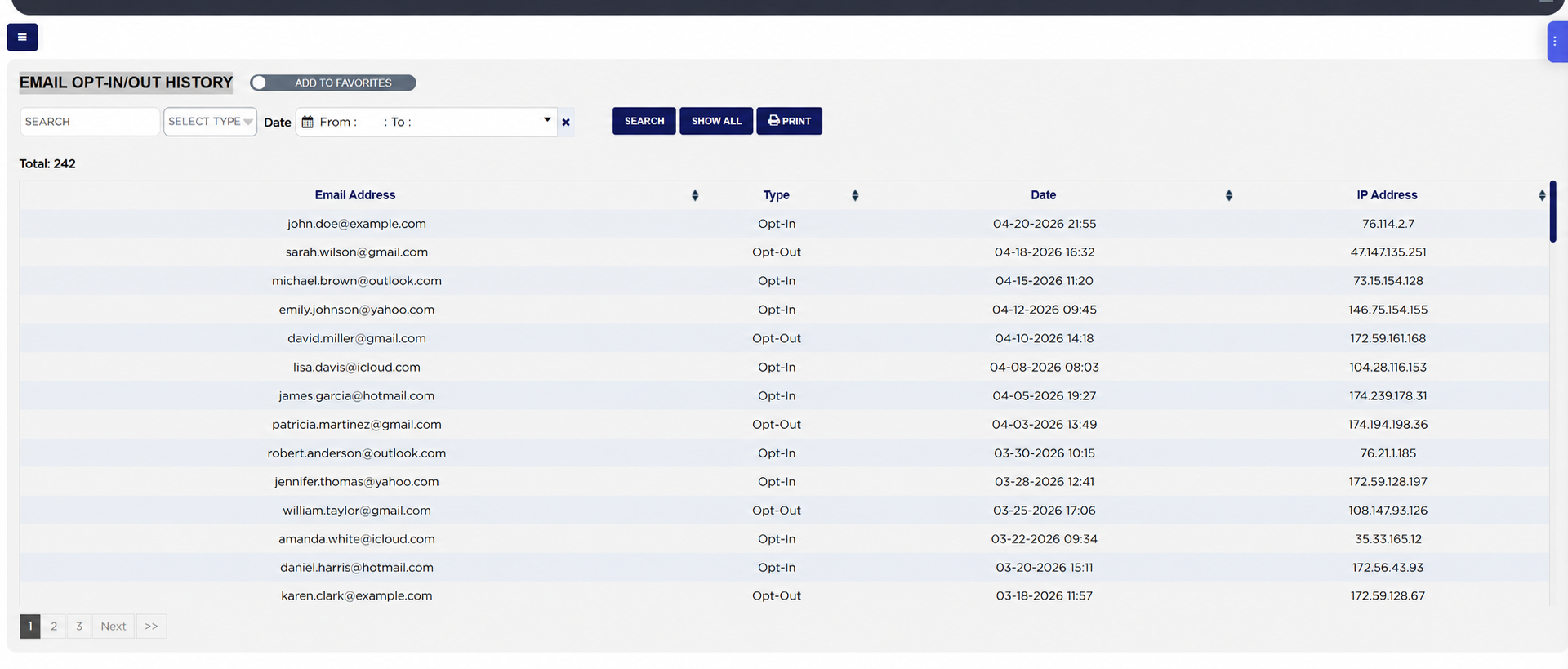
The Email Opt In/Out History (its heading reads EMAIL OPT-IN/OUT HISTORY) is the record of every customer who has confirmed or withdrawn permission to receive marketing e-mail from the shop, one line per event with the address, whether it was an opt-in or an opt-out, the date and time, and the internet address the click came from. An opt-in is written when the customer clicks the confirmation link in the verification e-mail the shop sends from the Opt-In Email box on the Home Screen; an opt-out is written when a customer clicks UNSUBSCRIBE at the foot of any shop e-mail and confirms. Use it to prove consent when a customer questions an e-mail, to see how many customers have confirmed since a campaign, and to check that a customer who asked to stop has been taken off.
2 how-to answers 1 screenshot Open in ARM Markdown

How do I run the Email Opt In/Out History? #

  1. From the Home Screen, click Reports → Management & Operational Reports → Email Opt In/Out History.
  2. To find one customer, type the start of the e-mail address into Search; the search matches the beginning of the address, not the customer's name.
  3. In Select Type, choose Opt-In or Opt-Out to see one kind of event, or leave Select Type for both.
  4. Click the From : … To : … box beside Date and pick a range, then Apply; the report reloads at once. With no range chosen the report lists every event since the store's beginning date. The × clears the dates.
  5. Click Search to apply a typed search, or Show All to clear every filter and start again.
  6. Click any column heading to sort by it; click it again to reverse the order. Total: above the table is the number of events listed, and long lists are split into pages with page links under the table.
  7. Click Print for a PDF copy in a new tab; the button appears only when the list has rows.
Email Opt In Out History with filters and results

How do I check whether a customer has agreed to receive e-mail? #

  1. From the Home Screen, click Reports → Management & Operational Reports → Email Opt In/Out History.
  2. Type the start of the customer's e-mail address into Search and click Search.
  3. Read the newest line for that address: Opt-In means the customer confirmed, Opt-Out means the customer unsubscribed and must not be e-mailed for marketing. No line means the customer has never clicked either link; send the verification request again from the Opt-In Email box on the Home Screen.
About this screen

Each line shows the Email Address as it was on the customer record when the event happened, the Type (Opt-In when the customer confirmed the verification link, Opt-Out when the customer unsubscribed), the Date with the time, and the IP Address of the device or service that clicked the link. Newest events are listed first. When a customer opts in, ARM also marks every customer record with that e-mail address as opted in; when a customer opts out, those records are marked as unsubscribed and the shop's e-mails stop going to that address. Changes made directly on a customer's record are not listed here; only the customer's own clicks are.

The Add To Favorites switch beside the heading saves the report under Favorites on the Reports page. The same list opens from the View Opt-Ins button in the Opt-In Email box on the Home Screen. Which reports you see depends on your admin group permissions.

Ask AI