ARM Help

Detailed Sales Report

The Detailed Sales Report lists every finalized invoice in the date range, one line per invoice, with its gross sale, sales tax, each state fee and certificate charge, net sales, the cost of the parts sold and the gross profit made on the ticket. Gift card sales in the same period are listed as their own lines, and invoices refunded in the period appear in a red REFUND INVOICES block so a GRAND TOTAL can show what the store actually kept. Use it to hand a period's taxable sales and state fees to your accountant, to check the margin on individual invoices, and to reconcile gross, tax and net sales for a day, week or month.

4 how-to answers 3 screenshots Open in ARM Markdown

How do I run the Detailed Sales Report? #

  1. From the Home Screen, click Reports → Sales & Financial Reports → Detailed Sales Report.
  2. Click the From : … To : … date box and pick the date range. The report opens on today only. Sales invoices are selected by their Finalized Date; refunded invoices by their Refund Date. The × beside the box clears both dates.
  3. Click Search to load the report. Show All reloads the same date range with the default order (newest invoice number first) and the first page.
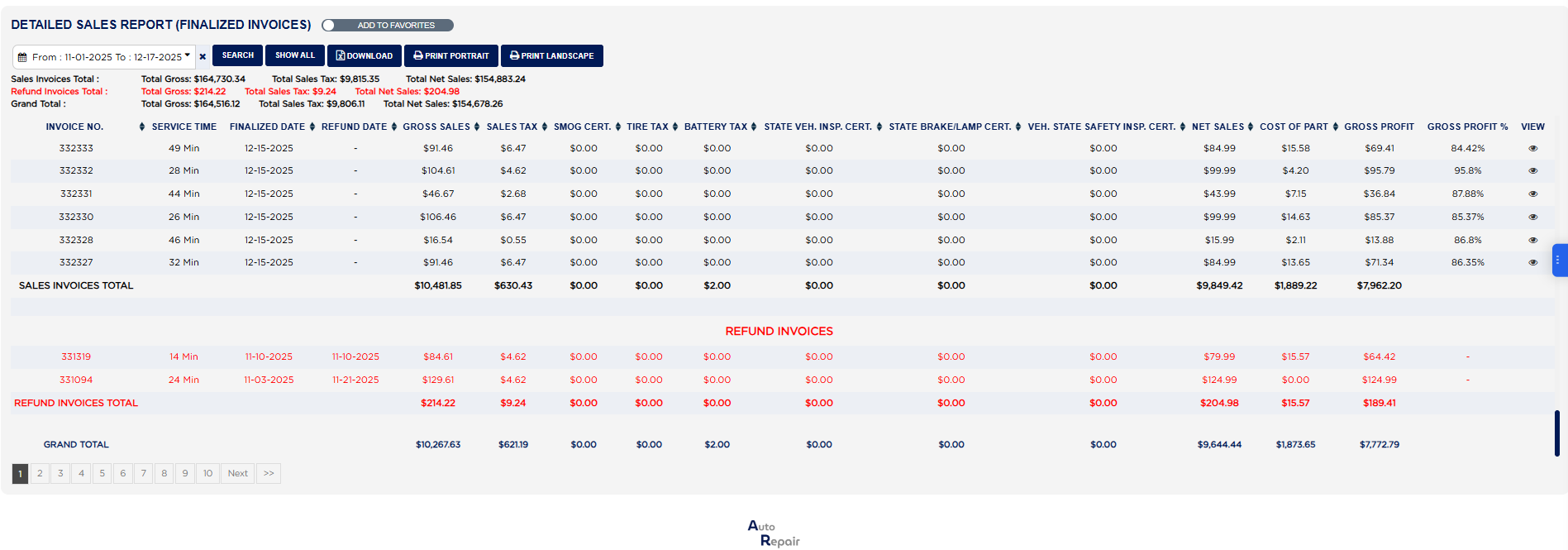
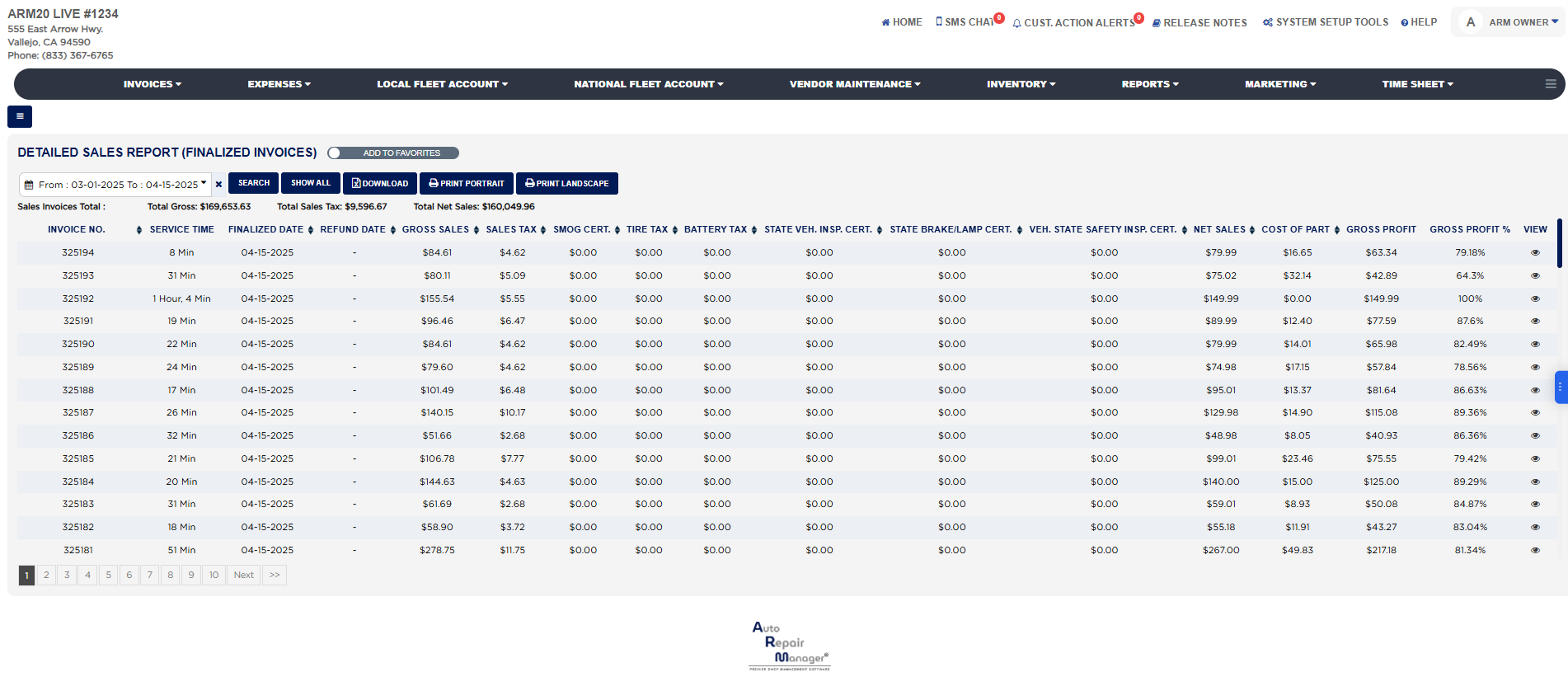
  4. Read the summary lines above the table: Sales Invoices Total gives Total Gross, Total Sales Tax and Total Net Sales for every invoice in the range. When the range contains refunds, a red Refund Invoices Total line and a Grand Total line (sales less refunds) follow.
  5. Click a column heading to sort by it; click it again to reverse the order. Long lists are split into pages; use the page numbers under the table.
  6. Click Download to export the list to a spreadsheet, or Print Portrait or Print Landscape for a PDF copy in a new tab. These three buttons appear only when the range has invoices.
Detailed Sales Report with the summary lines and the Sales Invoices block

How do I see how the Cost of Part and Gross Profit on an invoice were calculated? #

  1. From the Home Screen, click Reports → Sales & Financial Reports → Detailed Sales Report, and run it for the date range.
  2. On the invoice line, click the eye icon in the VIEW column.
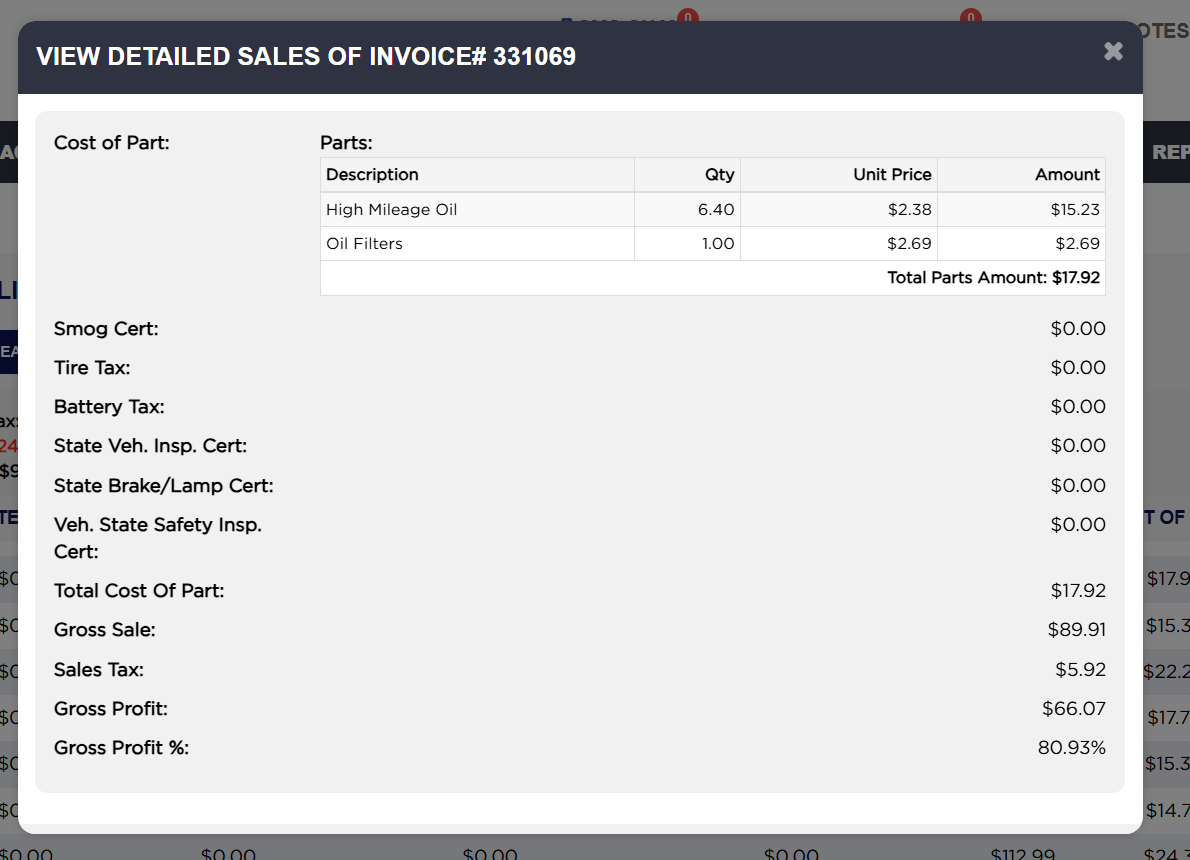
  3. The View Detailed Sales of Invoice# popup opens. Under Cost of Part it lists any Outside Part Purchase (OPP) with its Description, Qty, Unit Price and Amount and a Total OSP Amount, then the Parts taken from inventory with the same columns and a Total Parts Amount.
  4. Below the tables the popup shows the invoice's Smog Cert, Tire Tax, Battery Tax, State Veh. Insp. Cert, State Brake/Lamp Cert and Veh. State Safety Insp. Cert, then Total Cost Of Part (parts plus outside purchases plus the smog certificate), Gross Sale, Sales Tax, Gross Profit (Gross Sale less Sales Tax less Total Cost Of Part) and Gross Profit % (that profit divided by Gross Sale less Sales Tax).
  5. Click the × in the corner to close the popup and return to the report.
View Detailed Sales of Invoice popup showing the Cost of Part breakdown

How do I print or download the Detailed Sales Report? #

  1. From the Home Screen, click Reports → Sales & Financial Reports → Detailed Sales Report, set the date range and click Search.
  2. Click Print Portrait for an upright page or Print Landscape for a wide page. The PDF opens in a new tab headed Detailed Sales Report (FINALIZED INVOICES) From … to … with your store name and address, the same columns and the same SALES INVOICES TOTAL, REFUND INVOICES TOTAL and GRAND TOTAL rows, in the sort order you chose on screen.
  3. Click Download to save the report as a spreadsheet named Detailed_Sales_Report. It contains the sales invoices, the gift card lines and the refunded invoices for the range with the same columns. When your store protects downloads, a permission password prompt appears first.
Refund Invoices block and GRAND TOTAL row

How do I check a month's taxable sales and state fees for the accountant? #

  1. From the Home Screen, click Reports → Sales & Financial Reports → Detailed Sales Report.
  2. Set the From : … To : … box to the first and last day of the month and click Search.
  3. Read the GRAND TOTAL row (or the SALES INVOICES TOTAL row when there are no refunds): GROSS SALES is what was invoiced including tax, SALES TAX is the tax collected, and SMOG CERT., TIRE TAX, BATTERY TAX and the certificate columns are the state fees collected, each summed for the month. NET SALES is the taxable sale before tax and fees.
  4. Compare the SALES TAX total with the Sales Tax Summary Report (May 28th Onward) in the same section if the two need to agree, then click Print Landscape to keep a copy.
About this screen

Each invoice line shows the INVOICE NO., the SERVICE TIME (the time the vehicle was clocked in on the invoice's service timer, shown as hours and minutes; blank when no time was recorded), the FINALIZED DATE and, for a refunded invoice, the REFUND DATE (a dash otherwise). The money columns follow: GROSS SALES (the invoice total including tax), SALES TAX, then the state fees and certificates charged on the invoice: SMOG CERT., TIRE TAX, BATTERY TAX, STATE VEH. INSP. CERT., STATE BRAKE/LAMP CERT. and VEH. STATE SAFETY INSP. CERT.; then NET SALES, COST OF PART (the quantity of each part on the invoice multiplied by its purchase cost in your inventory, plus the smog certificate fee), GROSS PROFIT (Gross Sales less Sales Tax less Cost of Part) and GROSS PROFIT % (the margin on the parts and labor sold after discounts, as a percentage of that parts-and-labor sale, costing any outside-purchased part at what you actually paid for it). The VIEW column holds an eye icon that opens the cost calculation for that invoice. A gift card sold in the period is listed by its number with a black G badge: only its date and GROSS SALES (the card amount) are filled, the other columns show a dash and it has no eye icon. The SALES INVOICES TOTAL row sums every money column for the invoices shown on the current page; the summary lines above the table are the totals for the whole date range.

When the range contains refunds the first block is headed SALES INVOICES and a second block, headed REFUND INVOICES in red, lists every invoice refunded in the range with the same columns and its REFUND DATE, ending with a REFUND INVOICES TOTAL row; refund lines show a dash under GROSS PROFIT %. The GRAND TOTAL row underneath is the Sales Invoices total less the Refund Invoices total for every column. An invoice finalized in an earlier period but refunded in this one appears only in the refund block, so the grand total shows the net effect on this period.

The report ignores deleted and voided invoices and estimates that were never finalized. Which reports you see depends on your admin group permissions, and a date restriction on your login limits how far back the report can look. The Add To Favorite switch beside the title pins the report to your Favorites list on the Reports page.
Ask AI