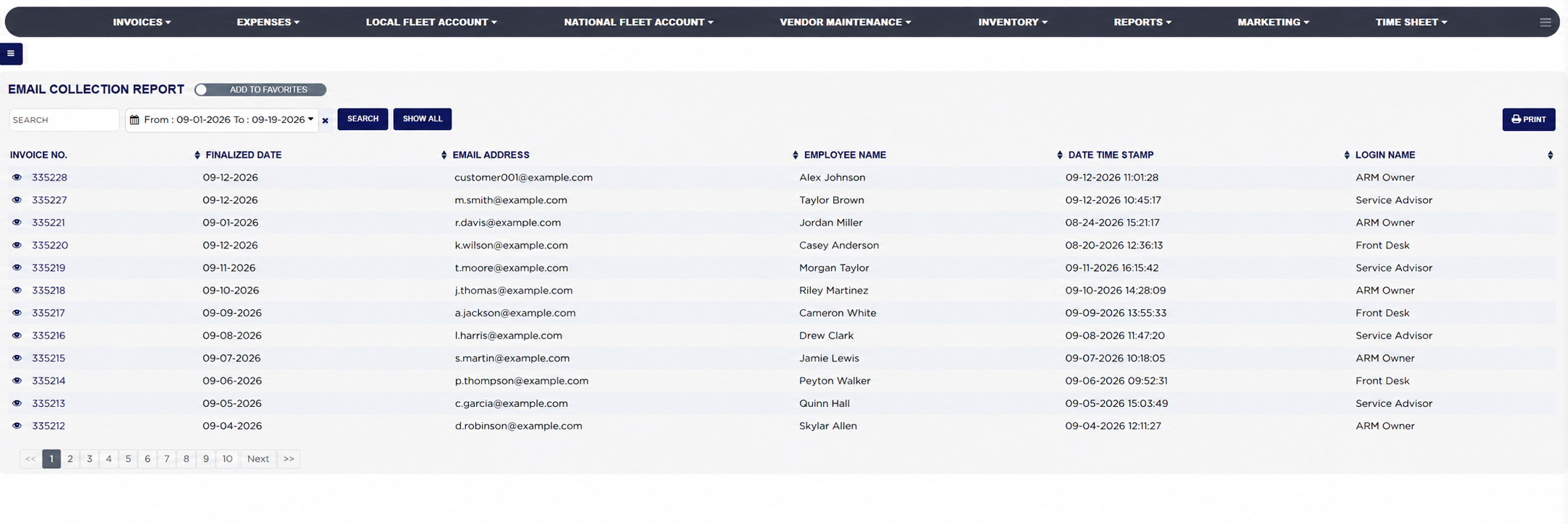
The Email Collection Report lists every invoice finalized in a date range with the e-mail address that was collected on it and who collected it, one line per invoice. When a store requires an e-mail address on every estimate, the counter can instead click No Customer Email on the invoice and type a name to record why none was taken; this report shows those cases too, with the name that was typed, when, and which user typed it. Use it to check how well the counter is collecting e-mail addresses, to see which employees are skipping the step, and to find the invoices where the customer's address is missing.
From the Home Screen, click Reports → Management & Operational Reports → Email Collection Report.
To find one invoice, type the customer's name and pick it from the suggestions, or type the phone number or invoice number, into Search.
Click the From : … To : … date box and pick the first and last finalized date to include, then click Apply; the report reloads at once. It opens on the current month, from the 1st to today. The × clears the dates.
Click Search to apply a typed search.
Click any column heading to sort by it; click it again to reverse the order. Long lists are split into pages with page links under the table.
Click Print for a PDF copy in a new tab; the button appears only when the list has rows.
Email Collection Report with filters and resultsInvoice PDF opened from the Email Collection Report
From the Home Screen, click Reports → Management & Operational Reports → Email Collection Report, and run it for your date range.
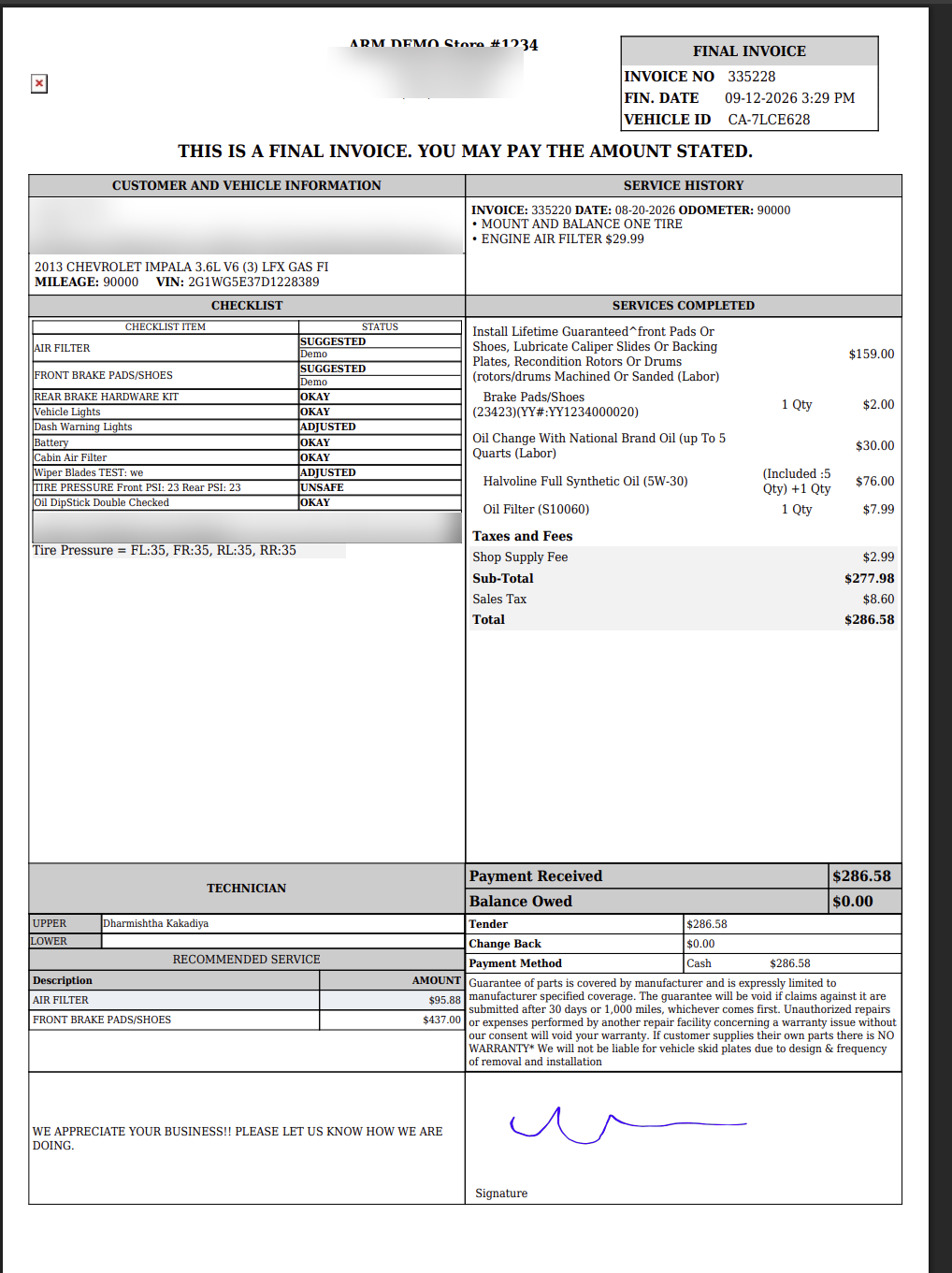
Click the eye icon in front of the INVOICE NO.. The finalized invoice opens as a PDF in a new tab, with the customer and vehicle block, the checklist, the services completed and the payment. The icon is shown to master administrators.
Close the tab to return to the report. To change the invoice itself, click the invoice number instead, which opens it in the invoice screen.
About this screen
Each line shows the INVOICE NO., the FINALIZED DATE, the EMAIL ADDRESS on the invoice, the EMPLOYEE NAME typed into the No Customer Email box when the address was waived (blank when an address was taken), the DATE TIME STAMP and the LOGIN NAME. When a name was typed, the stamp and login are the moment and the user who recorded the waiver; otherwise they are when the invoice was created and the user who created it. Only finalized invoices are listed; drafts, voided and deleted invoices are left out. Clicking the invoice number opens the invoice.
The Add To Favorites switch beside the heading saves the report under Favorites on the Reports page. Whether an e-mail address is required on an estimate is set in the store's invoice settings. Which reports you see depends on your admin group permissions.