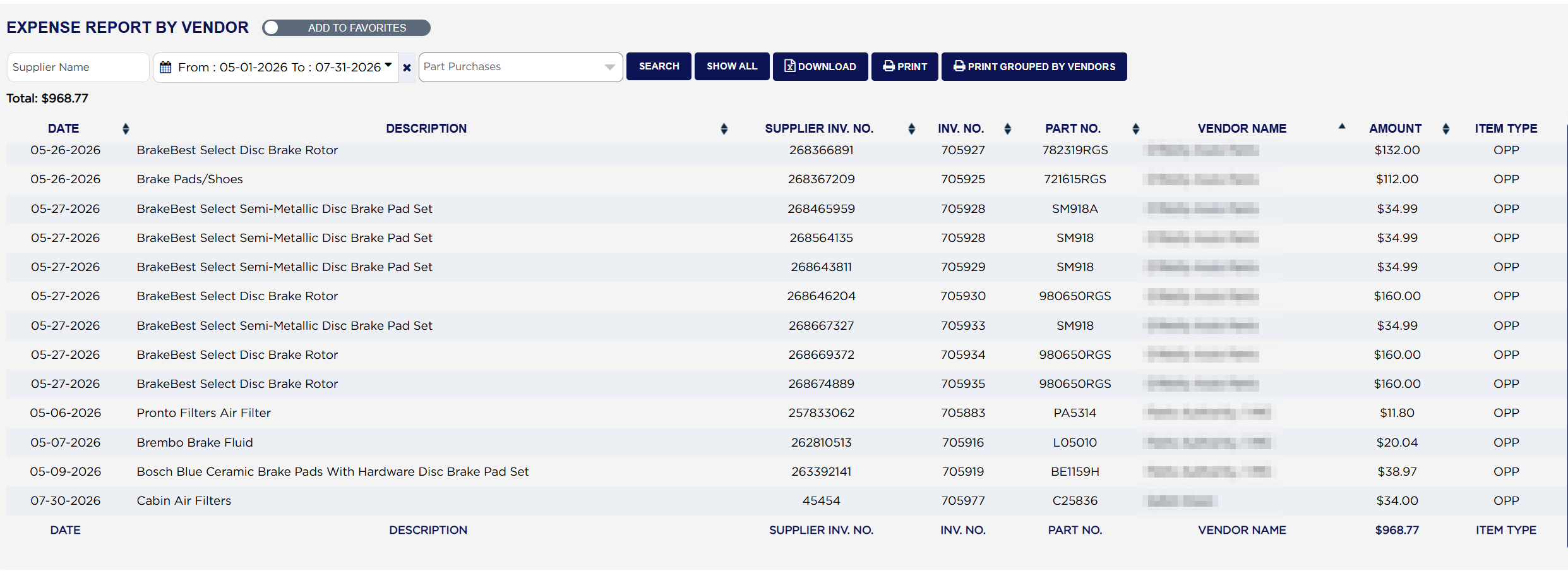
Total: above the table is the amount of every purchase the report found, on every page. Each line shows the DATE of the purchase, the DESCRIPTION of the part, the SUPPLIER INV. NO. from the supplier's invoice or order, the INV. NO., the PART NO., the VENDOR NAME, the AMOUNT and the ITEM TYPE: OPP for an outside part purchase, SHOP for a shop expense, OIL for an oil purchase and PART for a part purchase. Click any heading with arrows to sort by it.
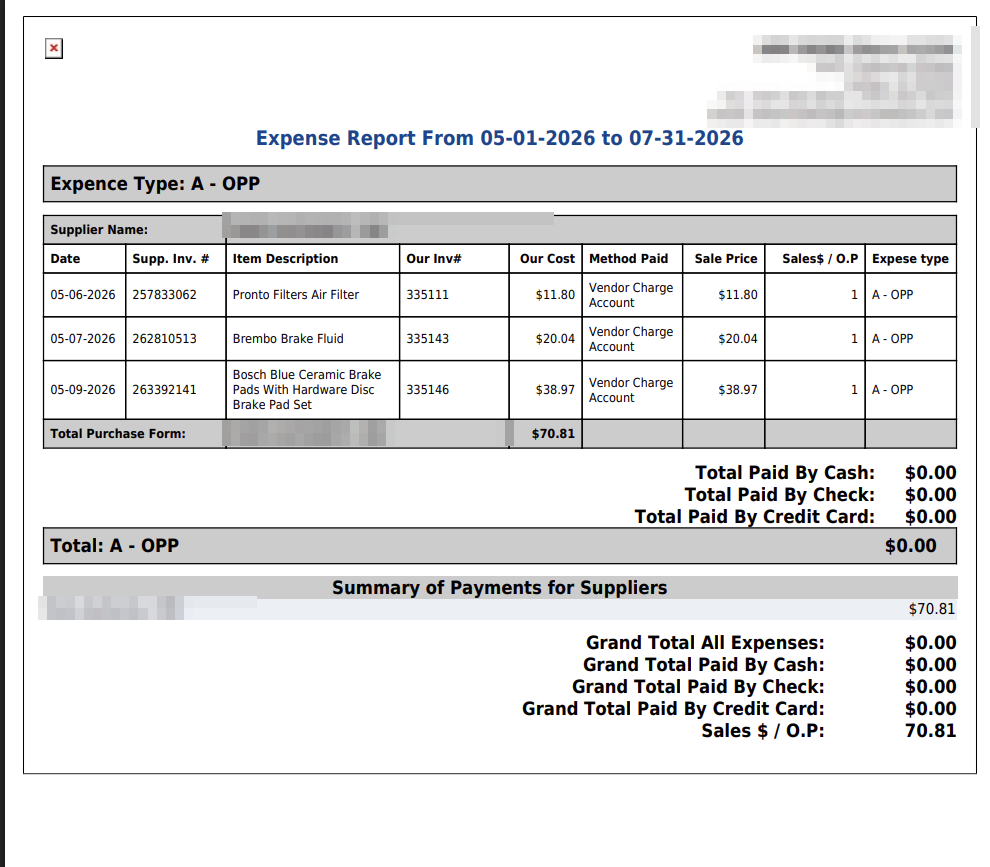
INV. NO. on the screen is ARM's internal reference for the invoice, not the invoice number the customer sees. To find the job a part was bought for, use PRINT GROUPED BY VENDORS: its Our Inv# column prints the real invoice number. Example: a purchase showing 705883 on screen is invoice 335111.
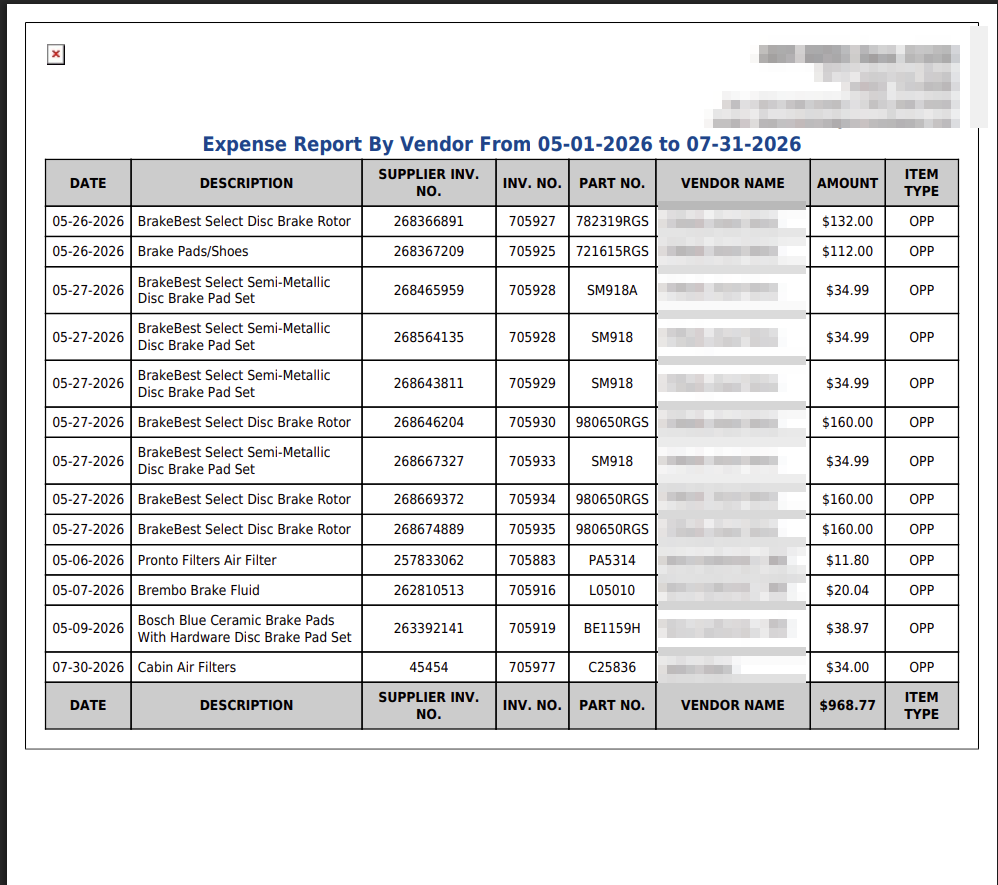
The row at the foot of the table repeats the column names and shows one figure under AMOUNT: the total of the lines on the page you are looking at. When the whole report fits on one page, as here, it matches the Total: above the table. On a longer report, use Total: above the table for the period's figure.
Choosing an account in Select Account limits the list to that account. Here Part Purchases for May to July 2026 returns 13 purchases totalling $968.77.
Choosing one name in Supplier Name lists only that supplier's purchases, and Total: becomes what you spent with them. Example: three purchases at $11.80, $20.04 and $38.97, a total of $70.81.
PRINT gives the same table as the screen, headed Expense Report By Vendor From with your dates, with the total in the foot row.
To list every expense for a period, not just supplier purchases, run All Expense Report. To see outside part purchases next to what the customer paid for them, run OPP & Shop Paid Outs Report.