Manage Favorite is where you set the order of your favourite reports and remove the ones you no longer need. Favourites are the reports listed under Favorites at the top of the Reports page, so the reports you open every day are one click away instead of being spread across the sections. Use this page to put the most-used reports first, to tidy up the list, or to see every report that has been marked as a favourite.
Find the report in its section and click the empty heart beside its name (Add To Favorites). The heart fills in red and the report is added at once; no message is shown.
You can also open the report itself and turn on the ADD TO FAVORITES switch beside its title.
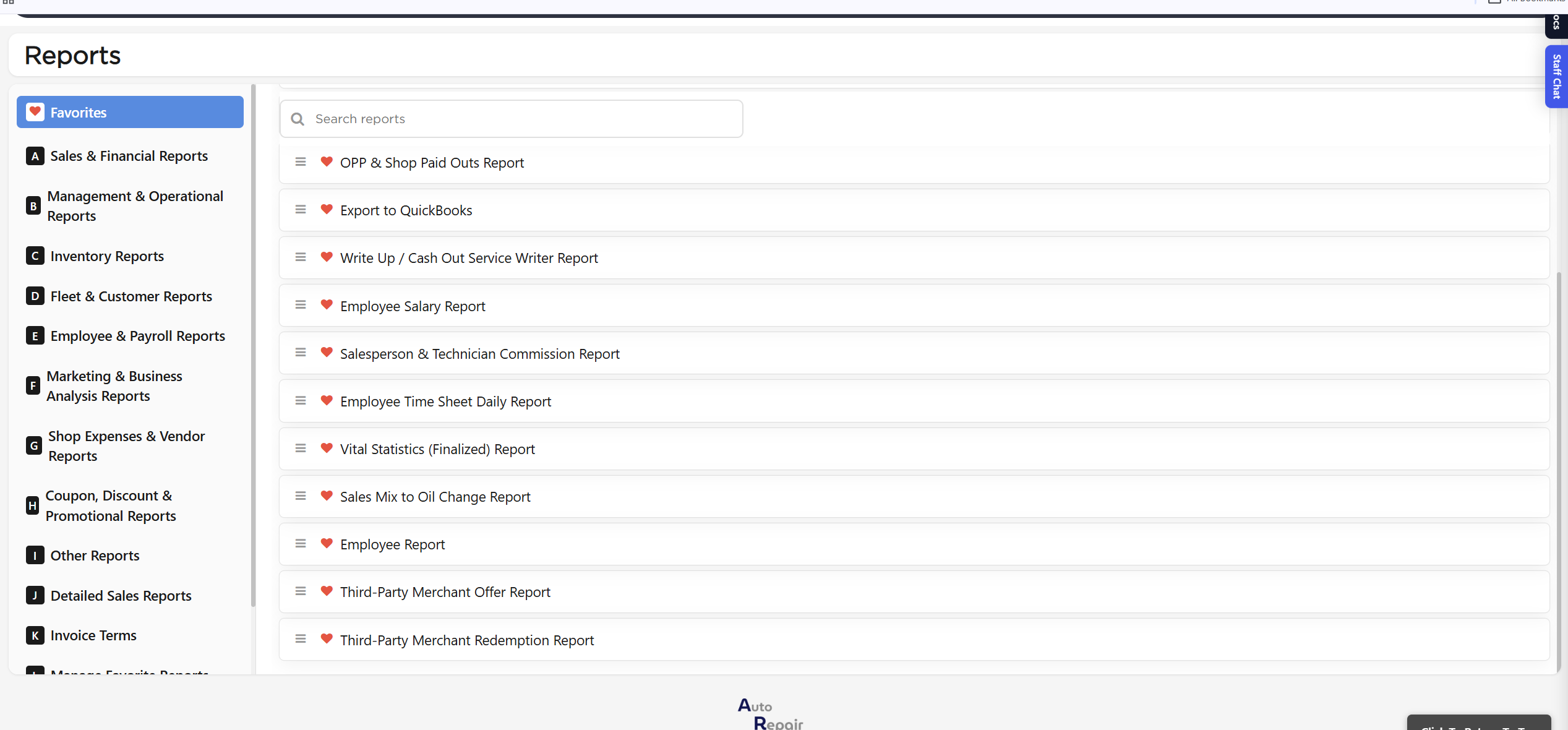
Click Favorites at the top of the section list to see it. Each favourite has a drag handle (≡) and a red heart; click the red heart to take the report out of your favourites.
Manage Favorite a favourite on the Reports page with drag handle and heart
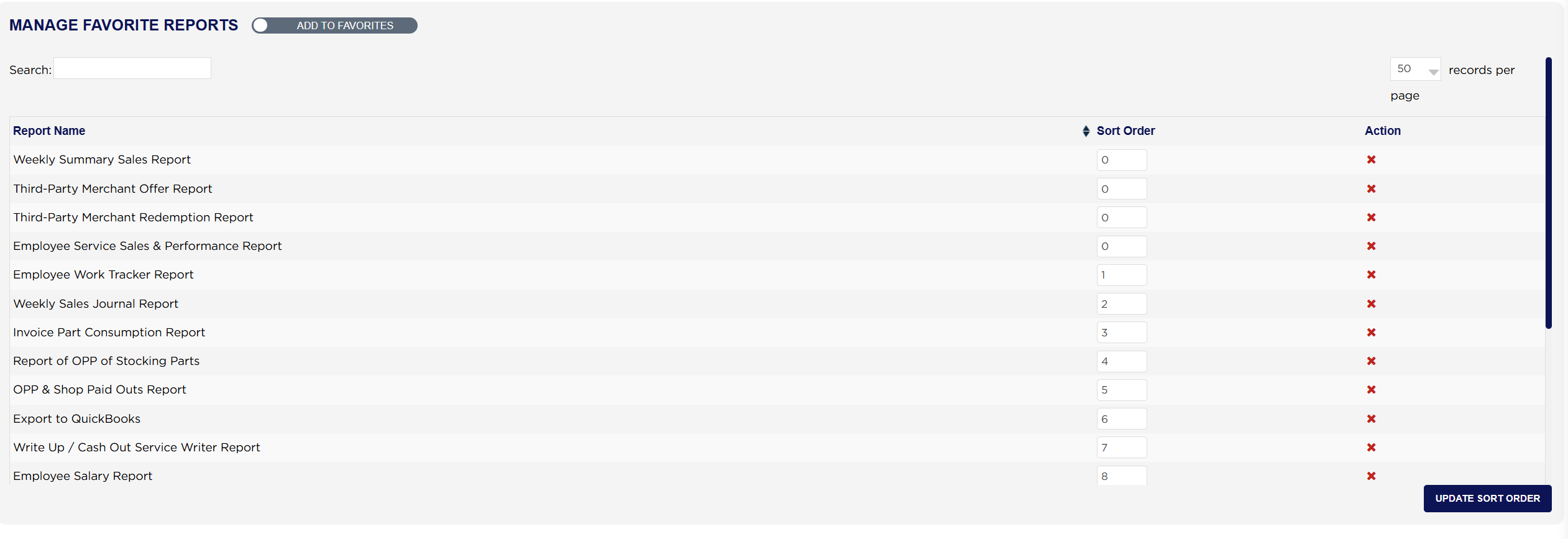
The page lists every favourite with its Report Name, its Sort Order number and an Action column with a red ✕. Use Search to find a report in a long list, and the records-per-page box to show more rows.
Type a new number in Sort Order for each report you want to move. Lower numbers come first; reports with the same number are listed alphabetically.
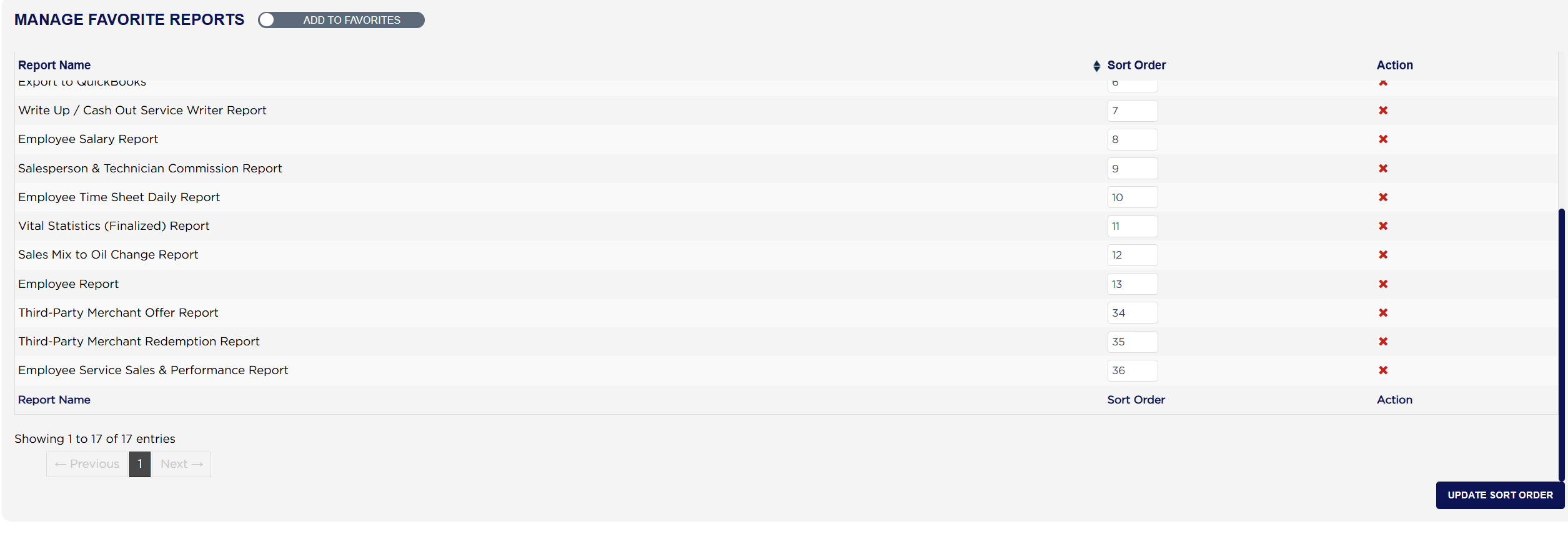
Click Update Sort Order. The page reloads with the list in the new order. No confirmation message is shown, so check the order on the reloaded page.
The Favorites section on the Reports page now follows the same order.
Manage Favorite Reports list with sort ordersManage Favorite Reports after Update Sort OrderManage Favorite Reports page Favorites in the new orderManage Favorite delete confirmation prompt
From the Home Screen, click Reports → Manage Favorite Reports → Manage Favorite.
Click the red ✕ in the Action column of the report you want to remove.
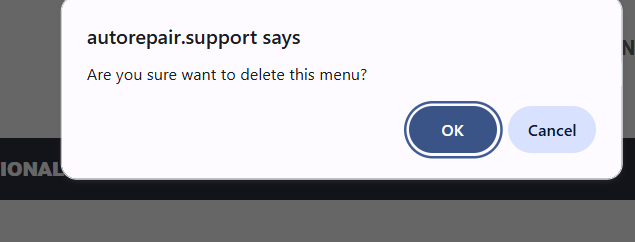
The browser asks "Are you sure want to delete this menu?". Click OK to remove it, or Cancel to keep it. There is no undo.
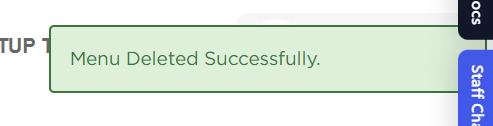
The page reloads and shows "Menu Deleted Successfully." for a few seconds. Only the favourite is removed; the report itself stays in its section and can be added again with its heart.
Manage Favorite Menu Deleted Successfully message
About this screen
You can also reorder straight from the Reports page: open Favorites and drag a report by its handle (≡). The new order is saved as soon as you drop it, and ARM renumbers the whole list 1, 2, 3 and so on, replacing any numbers typed on the Manage Favorite page.
Favourites belong to the store, not to each user. Every user sees the same Favorites list in the same order, so adding, reordering or removing a favourite changes it for everyone who logs in to the store. The Manage Favorite page lists every favourite, while the Favorites section on the Reports page shows only the reports that are switched on for the store and that the logged-in user has permission to open. A report can therefore appear on this page but not on a user's Reports page.