ARM Help

Inventory History By Type

Inventory History By Type is the movement log for your stock. Every part that was sold, received or adjusted in a date range appears as a line, with the quantity that moved, what it was worth and where it came from. The lines are grouped by what happened to the part rather than by date: all the sales first, then everything received from a supplier, then every hand adjustment. Use it to see what a part has done over a period, to check what a supplier delivered, and to hand an accountant a full period of stock movement in a spreadsheet.

3 how-to answers 5 screenshots Open in ARM Markdown

How do I run the Inventory History By Type report? #

  1. From the Home Screen, click Reports → Inventory Reports → Inventory History By Type.
  2. Click the From : … To : … date box and pick the first and last day of the period. The × beside the box clears the dates.
  3. Click Show All to reload the report. It redraws the same date range rather than widening it, so change the dates in the box when you want a different period.
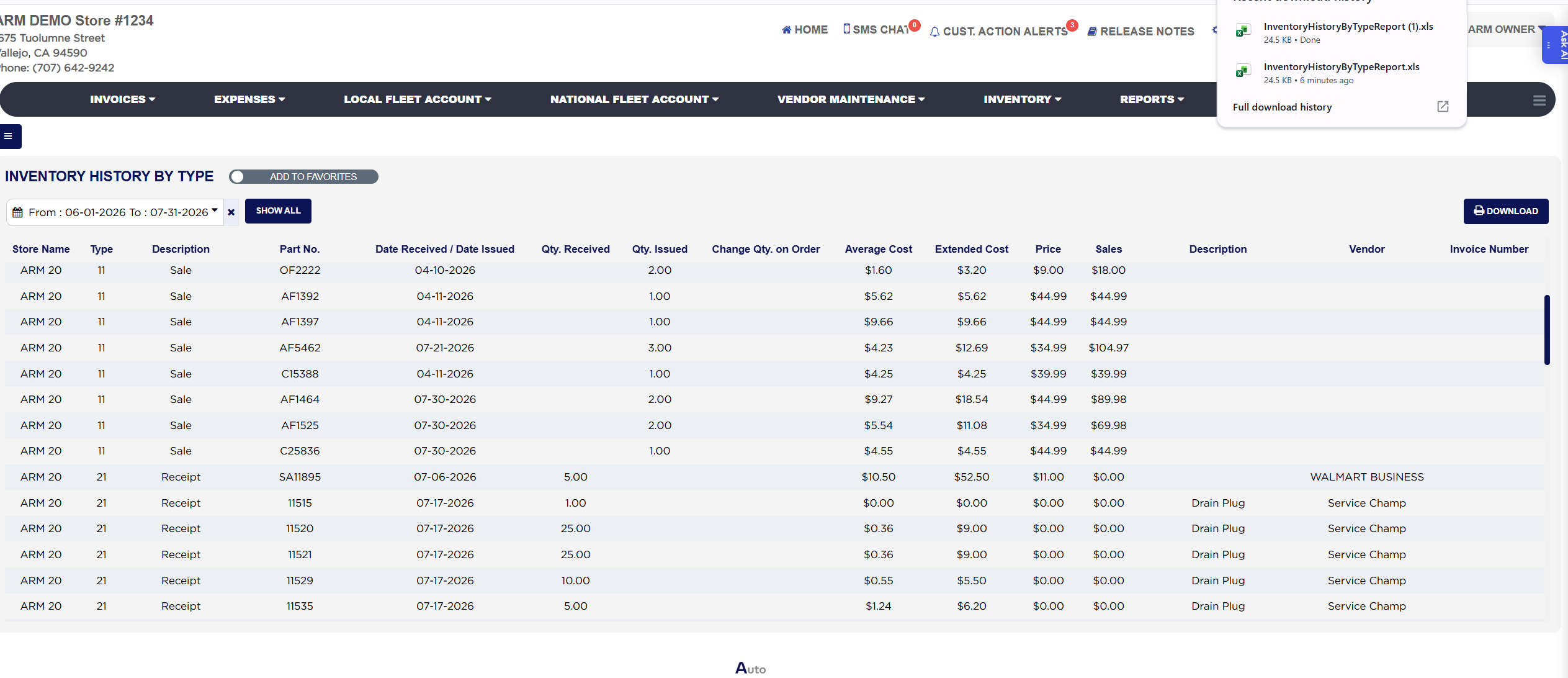
  4. Click DOWNLOAD, top right, to export everything you can see to a spreadsheet.
Inventory History By Type date range and Show All
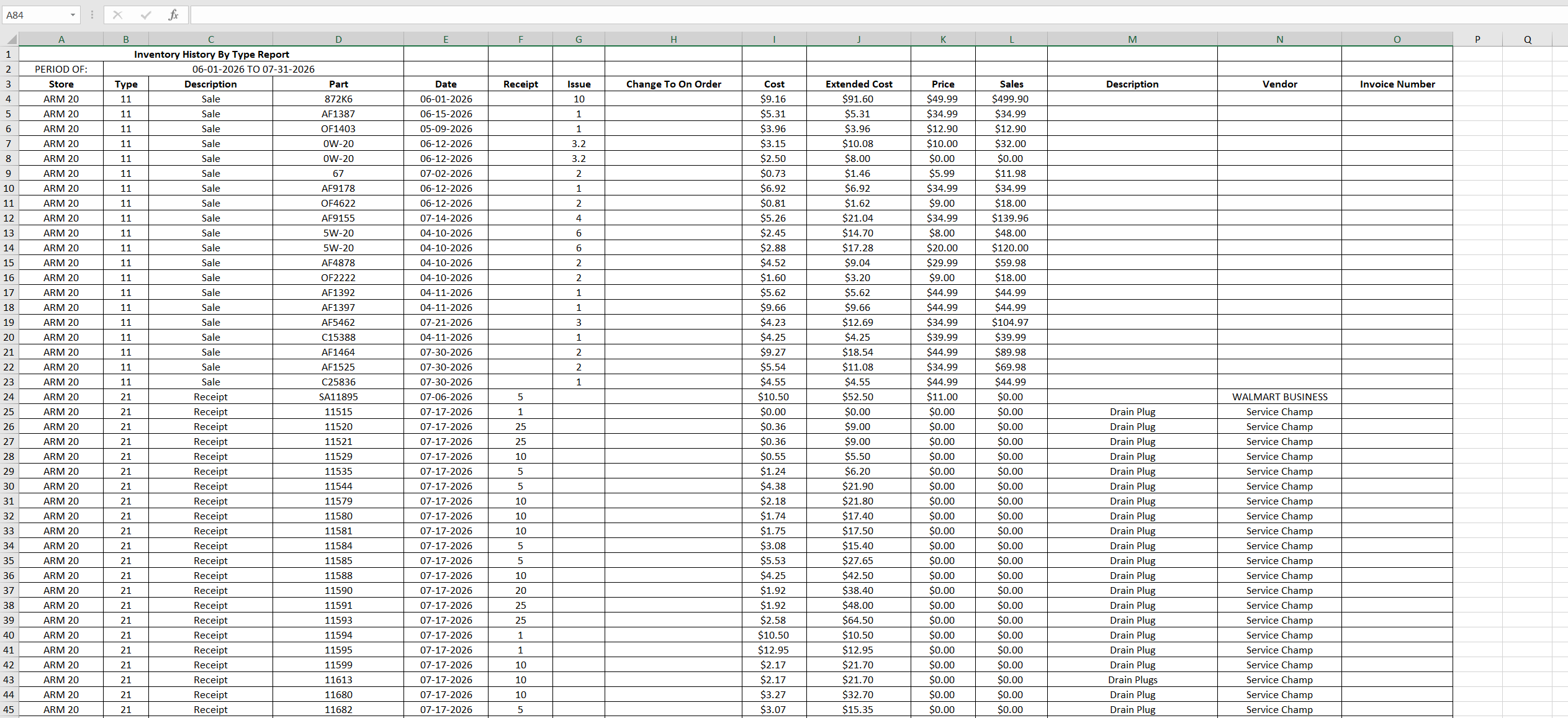
Inventory History By Type exported spreadsheet

How do I work out the extended cost and sales value on one line? #

  1. From the Home Screen, click Reports → Inventory Reports → Inventory History By Type, run it for your date range and pick one line.
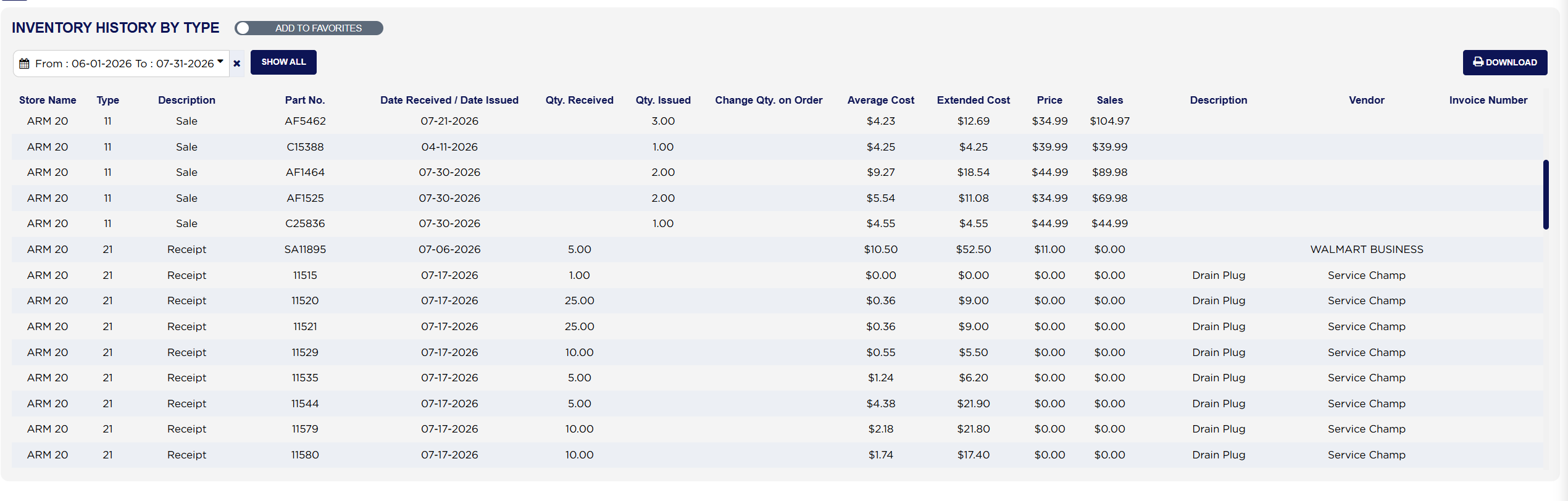
  2. Read the quantity. It is under Qty. Received on a receipt line and under Qty. Issued on a sale line; only one of the two is ever filled. Example: a sale line for part AF5462 shows Qty. Issued 3.00.
  3. Average Cost is the unit cost ARM currently holds for that part. Example: $4.23.
  4. Extended Cost is the quantity multiplied by Average Cost: 3.00 × $4.23 = $12.69.
  5. Price is the part's current selling price. Example: $34.99.
  6. Sales is the quantity multiplied by Price: 3.00 × $34.99 = $104.97. On a receipt or an adjustment line Sales shows $0.00, because nothing was sold.
  7. There is no totals row on this report. To total a period, use DOWNLOAD and sum the columns in the spreadsheet.
Inventory History By Type transaction lines
Inventory History By Type rows used in the calculation example

How do I export the report to a spreadsheet? #

  1. From the Home Screen, click Reports → Inventory Reports → Inventory History By Type, and set your date range.
  2. Click DOWNLOAD, top right. The file `InventoryHistoryByTypeReport.xls` downloads and opens in Excel.
  3. The spreadsheet holds the same lines in the same order, under a PERIOD OF: line giving the dates you ran. Several columns are renamed on the way out: Part for Part No., Date for Date Received / Date Issued, Receipt for Qty. Received, Issue for Qty. Issued, Change To On Order for Change Qty. on Order and Cost for Average Cost. Extended Cost, Price, Sales, Description, Vendor and Invoice Number keep their names, and the part description column is again headed Description.
Inventory History By Type DOWNLOAD button and exported file
About this screen

There is no Print button on this report. DOWNLOAD is the only output, and although it carries a printer icon it produces a spreadsheet file named `InventoryHistoryByTypeReport.xls`, not a printout. Keep the date range tight: the report builds itself day by day and a range of a year or more can take a long time to load.

Each line shows the Store Name, the Type code and its Description, the Part No., and the Date Received / Date Issued the movement is recorded against. Qty. Received carries the quantity that came in and Qty. Issued the quantity that went out, so a line only ever fills one of the two. Change Qty. on Order is reserved for on-order adjustments and stays empty. Average Cost is the unit cost ARM currently holds for the part and Extended Cost is that cost multiplied by the quantity on the line. Price is the part's current selling price and Sales is that price multiplied by the quantity, so it is filled on sales and shows $0.00 on everything else. The second Description column, over towards the right, is the part's own description, not the transaction's — the two columns share a heading but mean different things. Vendor names the supplier a part was received from and is empty on sale lines. Invoice Number is the reference ARM recorded against a receipt or an adjustment.

There are three kinds of line and the Type code tells them apart. 11, described as Sale, is stock issued to a customer's invoice; the quantity appears under Qty. Issued and Sales shows what it sold for. 21, described as Receipt, is stock received from a supplier; the quantity appears under Qty. Received and Vendor names who it came from. 31, described as Adjust On Hand + or Adjust On Hand −, is a hand adjustment or an opening stock figure, with the plus or minus telling you which way the quantity moved. The report prints every sale in the range first, then every receipt, then every adjustment, so the dates restart at the top of each group instead of running straight through the period.

Two things are worth knowing before you read money on this report. Average Cost and Price are the figures ARM holds for the part today, not the cost and price that applied on the day of the movement, so Extended Cost and Sales re-value a past period at today's figures; run the same month twice with a cost change in between and the two runs will differ. And sale lines are grouped by part for each day, so several invoices for the same part on the same date collapse into one line and no invoice number is shown against it. Use the report to see what moved and in what quantity; use Inventory Tracking Summary Report when you need a valuation you can tie back.

The ADD TO FAVORITES switch beside the report title saves a shortcut to the report under your favourites in the main Reports menu. It has no effect on the report itself.

People also ask

  • asked 1×

Ask AI