ARM Help

Gift Cards with Outstanding Balance Report

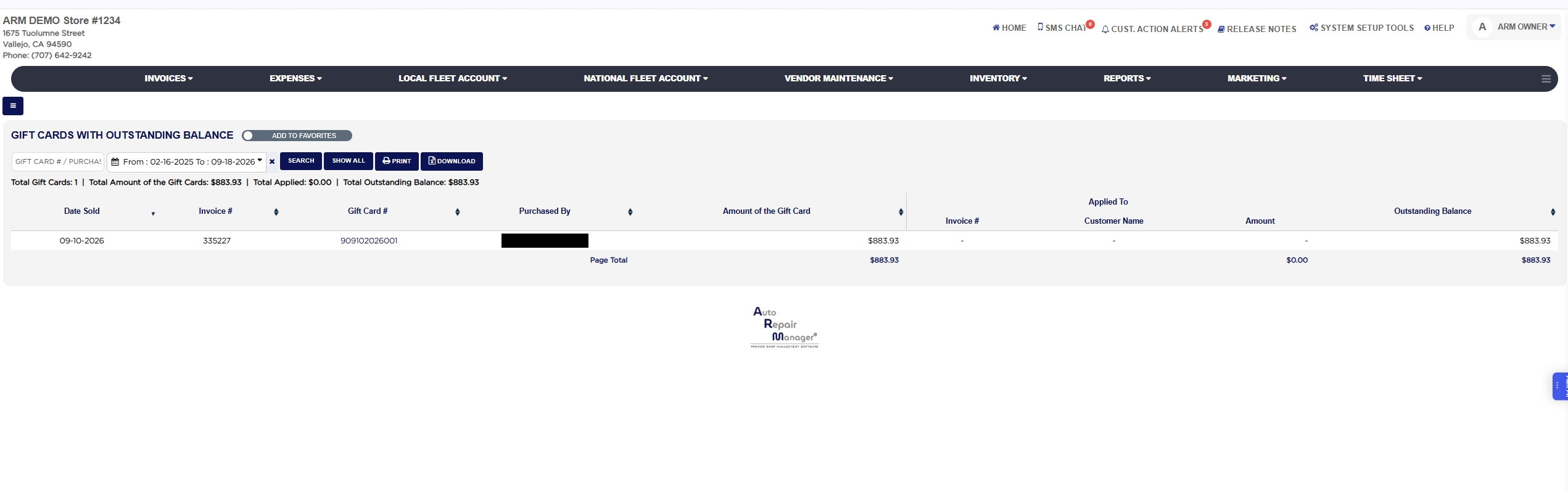
The Gift Cards with Outstanding Balance Report (its heading reads Gift Cards with Outstanding Balance) lists only the gift cards that still have money left on them, one line per card, with the same columns as the Gift Card Details Report: the sale, the buyer, the value, the invoices the card has been applied to and the balance remaining. It answers one question quickly: how much gift card value is still out there that the shop will have to honor. Use it at month end for the gift card liability figure, and when a customer presents a card to confirm its balance.
3 how-to answers 1 screenshot Open in ARM Markdown

How do I run the Gift Cards with Outstanding Balance Report? #

  1. From the Home Screen, click Reports → Sales & Financial Reports → Gift Cards with Outstanding Balance Report.
  2. Click the From : … To : … date box and pick the first and last day of the sale dates to include. The report opens on the whole history of the store, from the store's beginning date through today, so every card with a balance is listed without widening the filter. The × beside the box clears the dates.
  3. To find one card, type its number or part of the buyer's name into Gift Card # / Purchased By.
  4. Click Search. Click Show All to clear the search and list every card with a balance.
  5. Read the summary line: Total Gift Cards is the number of cards with a balance, Total Amount of the Gift Cards their original value, Total Applied what has been spent from them, and Total Outstanding Balance what the shop still owes in gift card value.
  6. Click any column heading to sort by it; click it again to reverse the order.
  7. Click Print for a PDF copy in a new tab, or Download to export the list to a spreadsheet.
Gift Cards with Outstanding Balance Report with filters and results

How do I check the balance on a customer's gift card? #

  1. From the Home Screen, click Reports → Sales & Financial Reports → Gift Cards with Outstanding Balance Report.
  2. Type the card number into Gift Card # / Purchased By and click Search.
  3. Outstanding Balance on the card's line is what the customer can still spend. If the card is not listed, it has been fully used or replaced; look it up on the Gift Card Details Report to see its history.

How do I get the gift card liability for month end? #

  1. From the Home Screen, click Reports → Sales & Financial Reports → Gift Cards with Outstanding Balance Report.
  2. Leave the default dates so every card is included and click Search.
  3. Read Total Outstanding Balance in the summary line; that is the value of work the shop still owes against gift cards. Click Print or Download to keep a copy.
About this screen

Each line shows the Date Sold, the Invoice # the card was sold on, the Gift Card #, Purchased By, and the Amount of the Gift Card. Under Applied To, the Invoice #, Customer Name and Amount show each invoice the card has partly paid, with a dash for a card not yet used. Outstanding Balance is the amount less everything applied, and only cards where this is above zero appear. A card reported lost and replaced is not listed; its remaining value is shown on the replacement card. The Page Total row sums the card amounts, applied amounts and outstanding balances of the cards on the page.

The Add To Favorites switch beside the heading saves the report under Favorites on the Reports page. Which reports you see depends on your admin group permissions.

Ask AI