ARM Help

Invoice Report

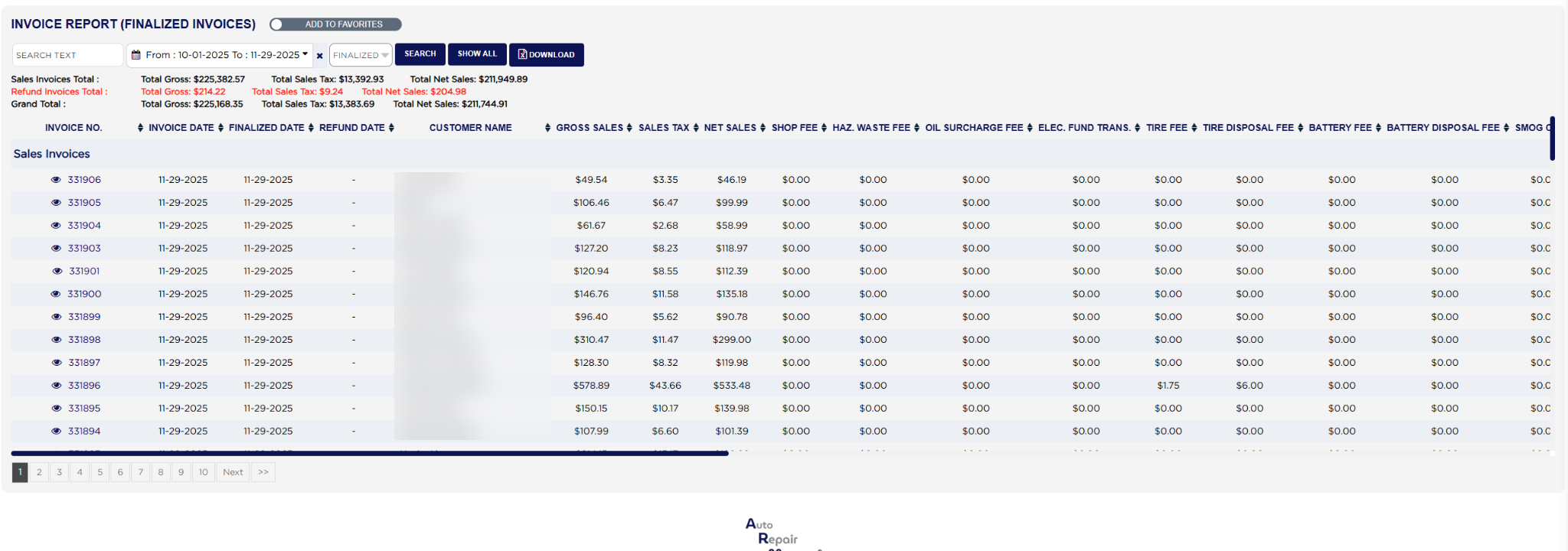
The Invoice Report (its heading reads INVOICE REPORT (FINALIZED INVOICES) when the finalized type is chosen) is the master list of invoices for a date range, one line per invoice, with every money field on the ticket: gross sales, tax, net sales, each fee and certificate, discount, labor and parts, followed by the customer, vehicle and timing details. It can list finalized invoices, drafts, voided invoices or all of them, and when invoices were refunded in the range it shows them in a second red block and nets them off in a grand total. Use it as the period's invoice register for the accountant, to export every invoice with its fees to a spreadsheet, and to find a single invoice by customer, plate, VIN or number.

3 how-to answers 2 screenshots Open in ARM Markdown

How do I run the Invoice Report? #

  1. From the Home Screen, click Reports → Management & Operational Reports → Invoice Report.
  2. Click the From : … To : … date box and pick the first and last date to include; the report reloads as soon as a range is chosen. It opens on the current month, from the 1st to today. For finalized invoices the dates are the finalized dates; for drafts, voids and all invoices they are the invoice dates. The × clears the dates.
  3. In the type dropdown choose Finalized (the default), Draft, Void or All; the report reloads at once.
  4. To find one invoice, type the customer's name, e-mail address, VIN, license plate or invoice number into Search Text and click Search.
  5. Click Show All to keep the dates and clear the search; the type returns to Finalized.
  6. Read the totals lines: Sales Invoices Total : gives Total Gross:, Total Sales Tax: and Total Net Sales: for the whole range; when invoices were refunded in the range, Refund Invoices Total : shows the same three in red and Grand Total : is the sales less the refunds.
  7. Click any column heading to sort by it; click it again to reverse the order. Long lists are split into pages with page links under the table, and the table scrolls sideways to reach the right-hand columns.
  8. Click Download to export every invoice with all its columns to a spreadsheet file; your store may ask for the report download permission password first. The button appears only when the list has rows.
Invoice Report with filters, results and totals

How do I open the printed invoice from the list? #

  1. From the Home Screen, click Reports → Management & Operational Reports → Invoice Report, and run it for your dates.
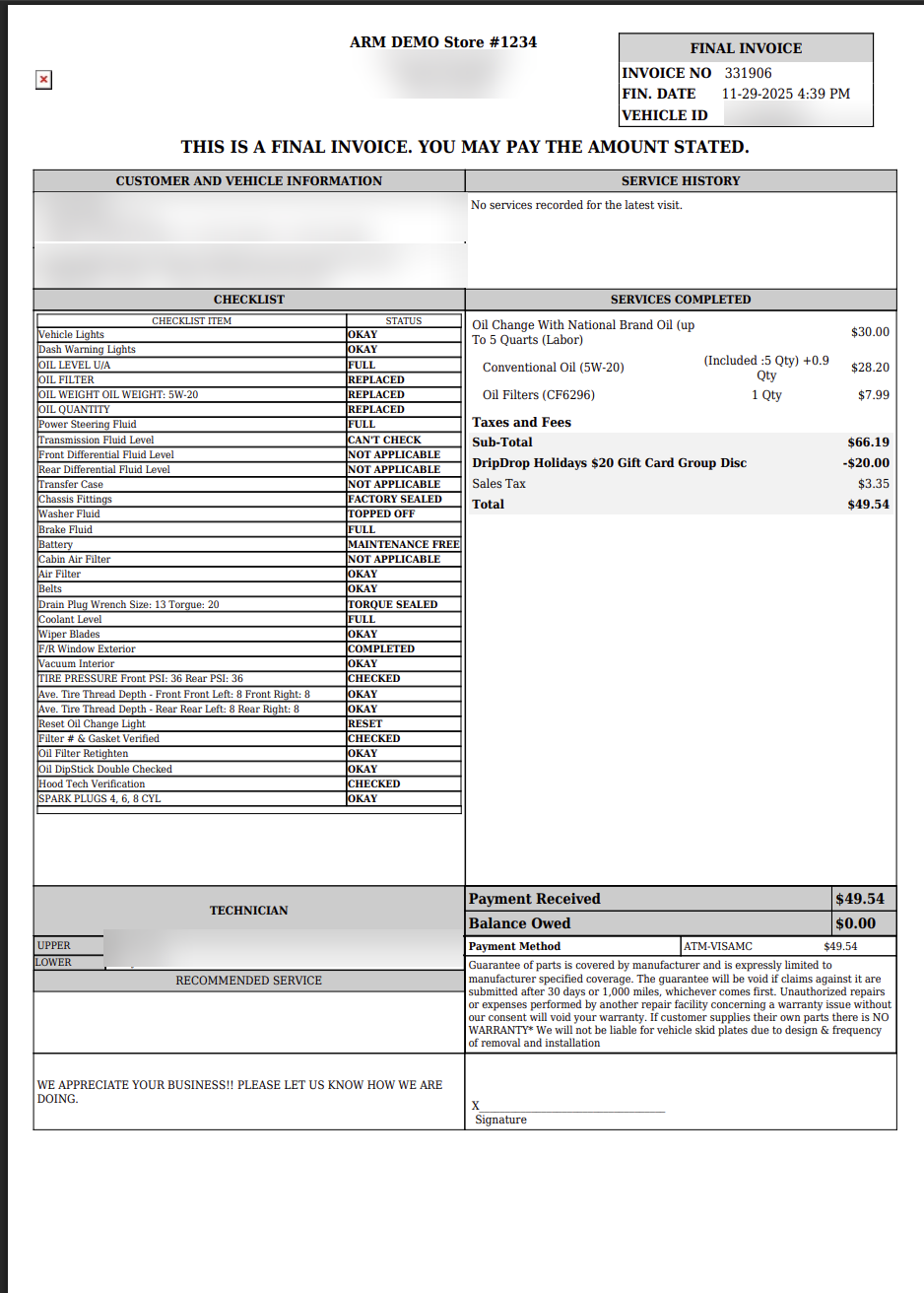
  2. Click the eye icon in front of the INVOICE NO.. The invoice opens as a PDF in a new tab, marked THIS IS A FINAL INVOICE. YOU MAY PAY THE AMOUNT STATED. for a finalized invoice, with the customer and vehicle block, the service history, the checklist, the services completed, the taxes and fees, the total and the payment. The icon is shown to master administrators, and to everyone for quick sale invoices.
  3. Close the tab to return to the list.
Invoice PDF opened from the View icon

How do I work out the grand total for the period? #

  1. From the Home Screen, click Reports → Management & Operational Reports → Invoice Report, set the dates and leave the type on Finalized.
  2. Read Sales Invoices Total : for the invoices finalized in the range. Example: Total Gross: $225,382.57, Total Sales Tax: $13,392.93 and Total Net Sales: $211,949.89, where net sales is the gross less the tax and the pass-through fees and certificates.
  3. Read Refund Invoices Total : for the invoices refunded in the range, whatever their finalized date. Example: Total Gross: $214.22, Total Sales Tax: $9.24, Total Net Sales: $204.98.
  4. Grand Total : is the first less the second for each figure: $225,382.57 − $214.22 = $225,168.35 gross, $13,392.93 − $9.24 = $13,383.69 tax and $211,949.89 − $204.98 = $211,744.91 net sales. These totals cover the whole range; the SALES INVOICES TOTAL and GRAND TOTAL rows inside the table cover the lines on the page you are looking at.
About this screen

The Sales Invoices block lists the invoices of the chosen type. Each line shows the INVOICE NO., INVOICE DATE, FINALIZED DATE (a dash for a draft), REFUND DATE (a dash unless the invoice was refunded) and CUSTOMER NAME, then the money columns GROSS SALES, SALES TAX, NET SALES, SHOP FEE, HAZ. WASTE FEE, OIL SURCHARGE FEE, ELEC. FUND TRANS., TIRE FEE, TIRE DISPOSAL FEE, BATTERY FEE, BATTERY DISPOSAL FEE, SMOG CERT, DISCOUNT, LABOR AMOUNT and PART AMOUNT (labor and parts after discount), then MODE (Draft, Finalize or Estimate), SMOG CERT. NUM., CUSTOMER LICENSE, CUSTOMER EMAIL, CUSTOMER PHONE, CLOCK IN and CLOCK OUT (when the car came in and went out), ODOMETER, VIN, VEHICLE YEAR, VEHICLE MAKE, VEHICLE MODEL and VEHICLE ENGINE SIZE. The SALES INVOICES TOTAL row sums the money columns for the lines on the page. When invoices were refunded in the range, a red Refund Invoices block lists them with the same columns, a REFUND INVOICES TOTAL row sums them, and a GRAND TOTAL row shows the sales less the refunds column by column. Deleted invoices are never listed. Clicking the invoice number opens the invoice in the invoice screen.

The Add To Favorites switch beside the heading saves the report under Favorites on the Reports page. Which reports you see depends on your admin group permissions.
Ask AI