ARM Help

Notification

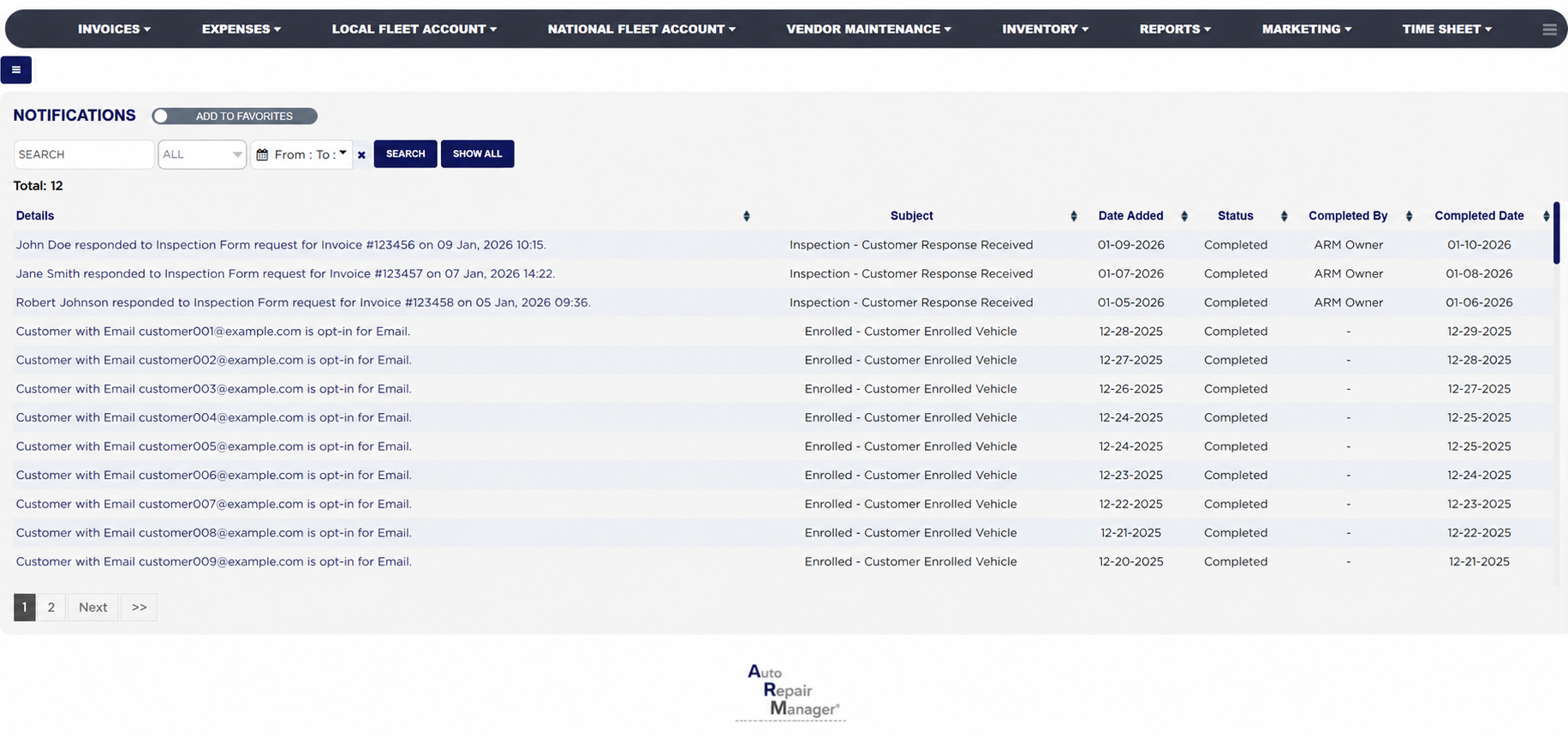
The Notification screen (its heading reads NOTIFICATIONS) is the full list of the customer action alerts that ARM raises when a customer does something the shop should act on: a customer responds to an inspection form or a quote, enrols a vehicle in the rewards program, pays an invoice online, or confirms an e-mail opt-in. The newest alerts show under the bell icon CUST. ACTION ALERTS at the top of every page; this screen keeps all of them, pending and completed, with who dealt with each and when. Use it to work through the alerts still pending, to see who closed an alert, and to look back at what a customer did and when.
2 how-to answers 1 screenshot Open in ARM Markdown

How do I run the Notification list? #

  1. From the Home Screen, click Reports → Management & Operational Reports → Notification.
  2. To find one customer or invoice, type part of the alert text, such as the customer's name or the invoice number, into Search.
  3. In the status dropdown choose Pending for alerts nobody has closed yet, Completed for closed ones, or leave All.
  4. Click the From : … To : … date box to limit the list to the dates the alerts were raised and click Apply. The × clears the dates.
  5. Click Search to load the list, or Show All to clear every filter and start again.
  6. Click any column heading to sort by it; click it again to reverse the order. Total: above the table is the number of alerts listed, and long lists are split into pages with page links under the table.
Notification list with status filter and results

How do I close a pending alert? #

  1. Click the bell icon CUST. ACTION ALERTS at the top of any page. The pending alerts are listed newest first.
  2. Deal with the alert, for example open the invoice and approve the items the customer accepted, then click the × beside the alert. It is marked Completed with your name and the date, and disappears from the bell.
  3. Click Read All Customer Alerts under the bell to open this screen already filtered to Pending and work through the rest.
About this screen

Each line shows the Details of the alert in plain words, such as a customer's response to an inspection form request for an invoice with the date and time, or a customer whose e-mail address is opted in; the Subject, which is the kind of alert (Inspection - Customer Response Received, Enrolled - Customer Enrolled Vehicle, Valor Payment and so on); the Date Added; the Status (Pending or Completed); Completed By, the user who closed it; and the Completed Date. Clicking the details opens the invoice or record the alert is about when one is linked. Newest alerts are listed first.

The Add To Favorites switch beside the heading saves the screen under Favorites on the Reports page. Which reports you see depends on your admin group permissions.

People also ask

  • asked 1×

Ask AI