ARM Help

Customer SMS History

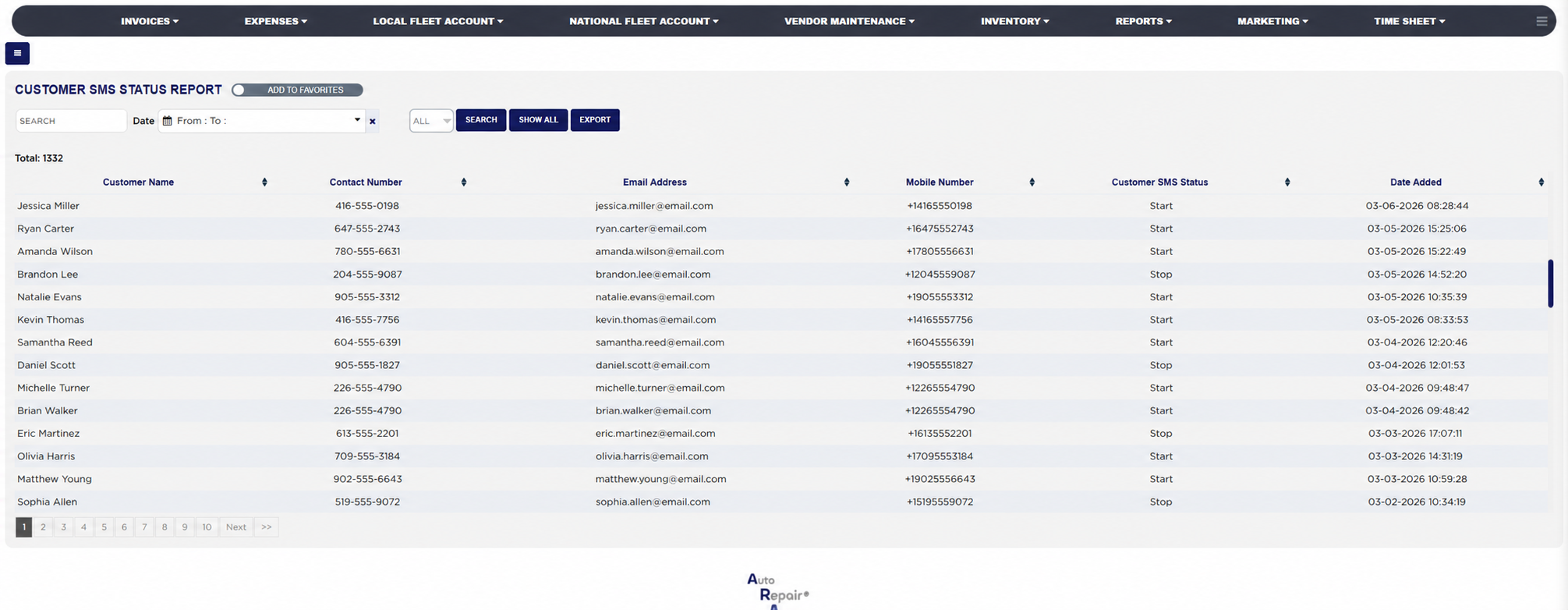
The Customer SMS History (its heading reads CUSTOMER SMS STATUS REPORT) lists every time a customer has texted START or STOP to the shop's number, one line per reply, with the customer the number belongs to, the number the text came from, whether it switched texting on or off, and when. It is the customer-facing side of text consent: a STOP line means ARM has stopped sending texts to that number, and a START line means the customer switched them back on after the shop's opt-in request. Use it when a customer says they never agreed to texts or never asked them to stop, to see who has replied to an opt-in campaign, and to check a number before texting a customer by hand.
2 how-to answers 1 screenshot Open in ARM Markdown

How do I run the Customer SMS History? #

  1. From the Home Screen, click Reports → Management & Operational Reports → Customer SMS History.
  2. To find one customer, type the start of the customer's name, phone number or mobile number into Search.
  3. Click the From : … To : … box beside Date to limit the list to the dates the replies came in, then click Apply. With no dates the report lists every reply since the store's beginning date. The × clears the dates.
  4. In the status dropdown, choose Start for customers who switched texts on, Stop for customers who switched them off, or leave All.
  5. Click Search to load the list, or Show All to clear every filter and start again.
  6. Click any column heading to sort by it; click it again to reverse the order. Total: above the table is the number of replies listed, and long lists are split into pages with page links under the table.
  7. Click Export to download the list as a spreadsheet file. The button appears only when the list has rows.
Customer SMS History with filters and results

How do I check whether a customer has stopped text messages? #

  1. From the Home Screen, click Reports → Management & Operational Reports → Customer SMS History.
  2. Type the start of the customer's name into Search and click Search.
  3. Read the newest line for the customer: Stop means texts to that number are off and must not be sent by hand either; Start means the customer switched them back on. No line means the customer has never replied.
About this screen

Each line shows the Customer Name and the Contact Number and Email Address from the customer record that matches the texting number (blank when no customer record has that number), the Mobile Number the text was actually sent from, written with its country code, the Customer SMS Status (Start when the customer texted START in answer to the shop's opt-in request, Stop when the customer texted STOP) and the Date Added with the time the reply arrived. Newest replies are listed first. A START reply counts only when it answers a text the shop sent asking for permission, such as the marketing opt-in request; a STOP reply is recorded whenever it arrives and ARM marks the customer as stopped until they text START again.

The Add To Favorites switch beside the heading saves the report under Favorites on the Reports page. The SMS Opt In/Out History shows the same replies as opt-in and opt-out events. Which reports you see depends on your admin group permissions.

Ask AI