ARM Help

Royalty Report

Royalty Report works out the franchise royalty for one week of trading. It lists the net sales of finalized invoices for each day of the week, Sunday to Saturday, totals them, and applies the royalty rates to give the amount to pay. Use it at the end of each week to see what royalty is due, and to see how much using the recommended suppliers reduces it.

2 how-to answers 3 screenshots Open in ARM Markdown

How do I run the Royalty Report? #

  1. From the Home Screen, click Reports → Detailed Sales Reports → Royalty Report. The page is headed ROYALTY REPORT (FINALIZE INVOICES).
  2. Pick any date in the week you want in the date box. The report covers the whole week from Sunday to Saturday that contains that date. The box starts on today's date, but the table stays empty until you choose a date.
  3. Choose the option that describes your suppliers: A- I Do Not use Recommended Oil & Stock Part Supplier, B- use Only one of the two Recommended Oil & Part Supplier, or C- I use both Recommended of the Recommended Supplier.
  4. Click SEARCH to work out the report. If you change the option, click SEARCH again.
  5. Click PRINT for a PDF copy.
Royalty Report date and supplier options

How do I work out the royalty from the report? #

  1. From the Home Screen, click Reports → Detailed Sales Reports → Royalty Report, pick a date in the week and choose your supplier option.
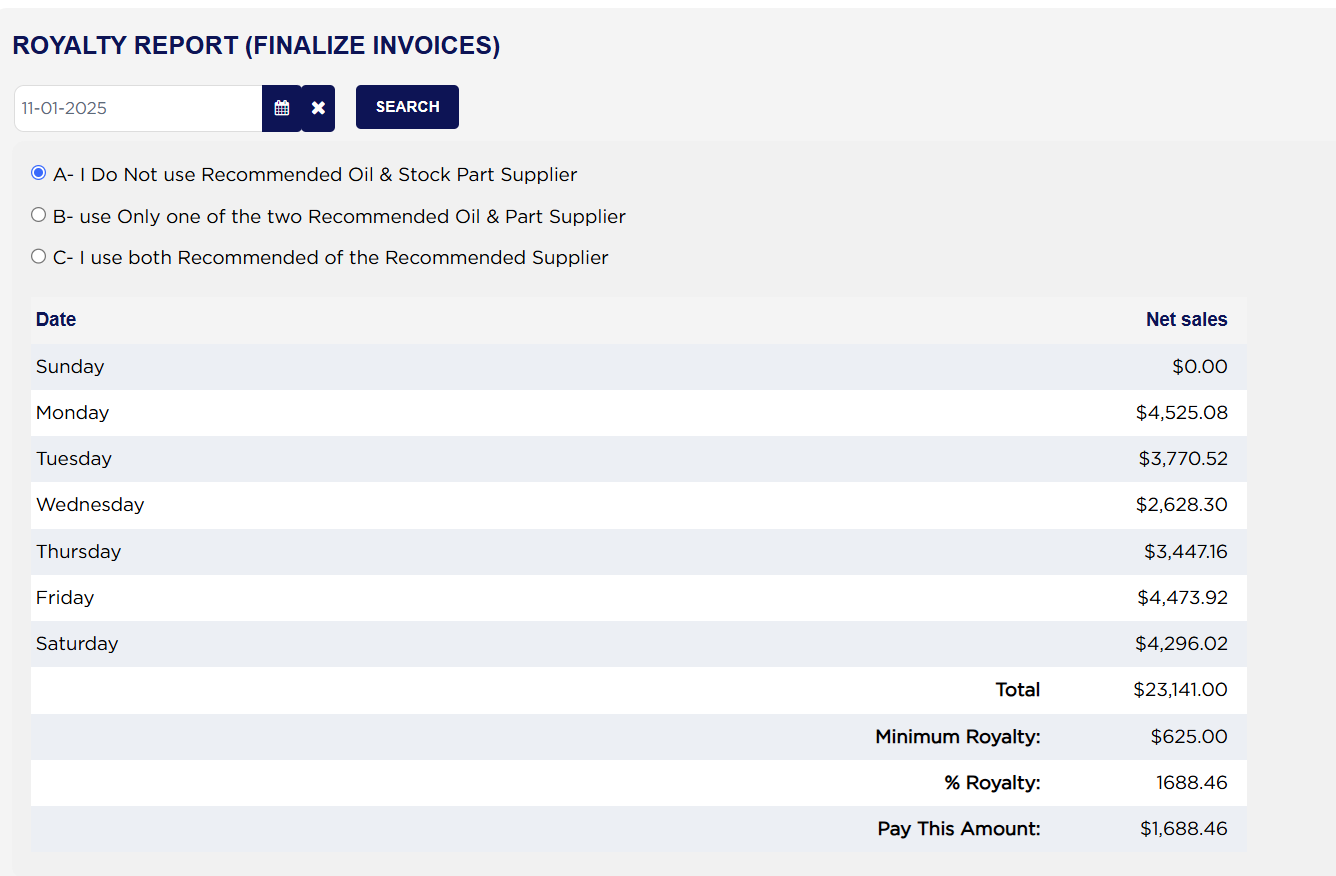
  2. Add up the seven days to get Total. Example: $0.00 + $4,525.08 + $3,770.52 + $2,628.30 + $3,447.16 + $4,473.92 + $4,296.02 = $23,141.00.
  3. The first $12,000.00 of the week is charged at 8 % with option A. Example: $12,000.00 × 8 % = $960.00.
  4. The next $6,000.00, up to $18,000.00, is charged at 7 %. Example: $6,000.00 × 7 % = $420.00.
  5. Everything over $18,000.00 is charged at 6 %. Example: $23,141.00 − $18,000.00 = $5,141.00, and $5,141.00 × 6 % = $308.46.
  6. % Royalty is the three parts added together. Example: $960.00 + $420.00 + $308.46 = $1,688.46, and that is the figure in Pay This Amount.
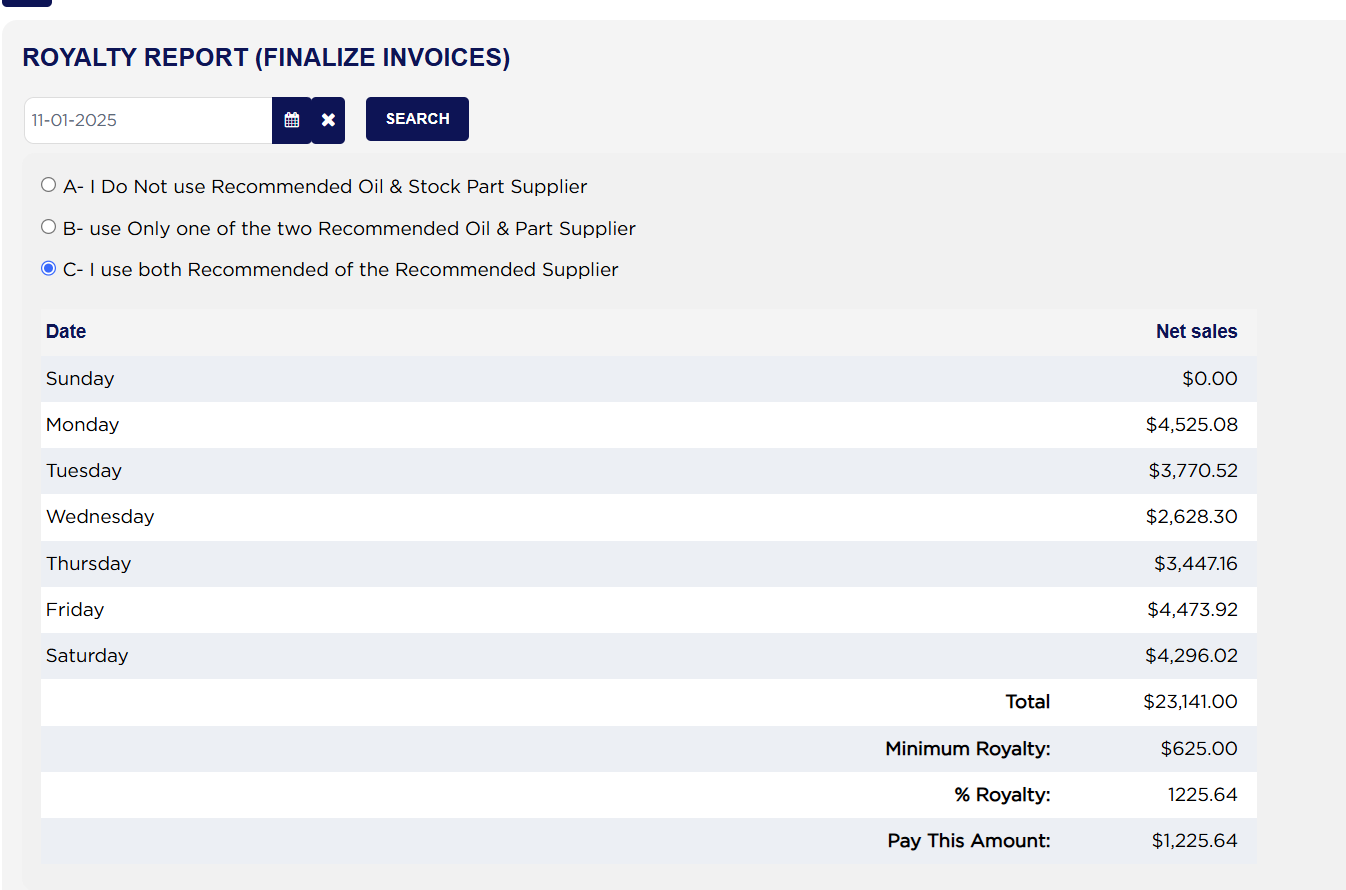
  7. Option B takes one point off each rate (7 %, 6 % and 5 %) and option C takes two points off (6 %, 5 % and 4 %). Example, same week at option C: $12,000.00 × 6 % = $720.00, plus $6,000.00 × 5 % = $300.00, plus $5,141.00 × 4 % = $205.64, which gives $1,225.64. Using both recommended suppliers saves $462.82 on this week.
  8. When the week's Total is $12,000.00 or less, Pay This Amount shows the Minimum Royalty of $625.00. Check this against the rates yourself: from $7,812.50 up to $12,000.00 at option A, 8 % comes to more than $625.00. Example: a $10,000.00 week works out at $800.00 in royalty, while the report shows $625.00 to pay. For such weeks, pay the higher of the two figures, or check with your franchise agreement.
Royalty Report week at option A
Royalty Report same week at option C
About this screen

The table lists Net sales for each day, Sunday to Saturday. Only finalized invoices count, on the day they were finalized. The rows name the days but not the dates, so remember which week you picked: choosing 11-01-2025, a Saturday, gives the week of 10-26-2025 to 11-01-2025. Under the days come Total (the week's net sales), Minimum Royalty (the least royalty payable in any week, $625.00), % Royalty (the royalty worked out from the rates, in dollars, although it is shown without a $ sign) and Pay This Amount.

The rates, the $12,000.00 and $18,000.00 steps and the $625.00 minimum are the same for every store and cannot be changed from ARM's settings. If your franchise agreement sets different terms, work the royalty out from Total using your own rates.

Ask AI