ARM Help

Email History

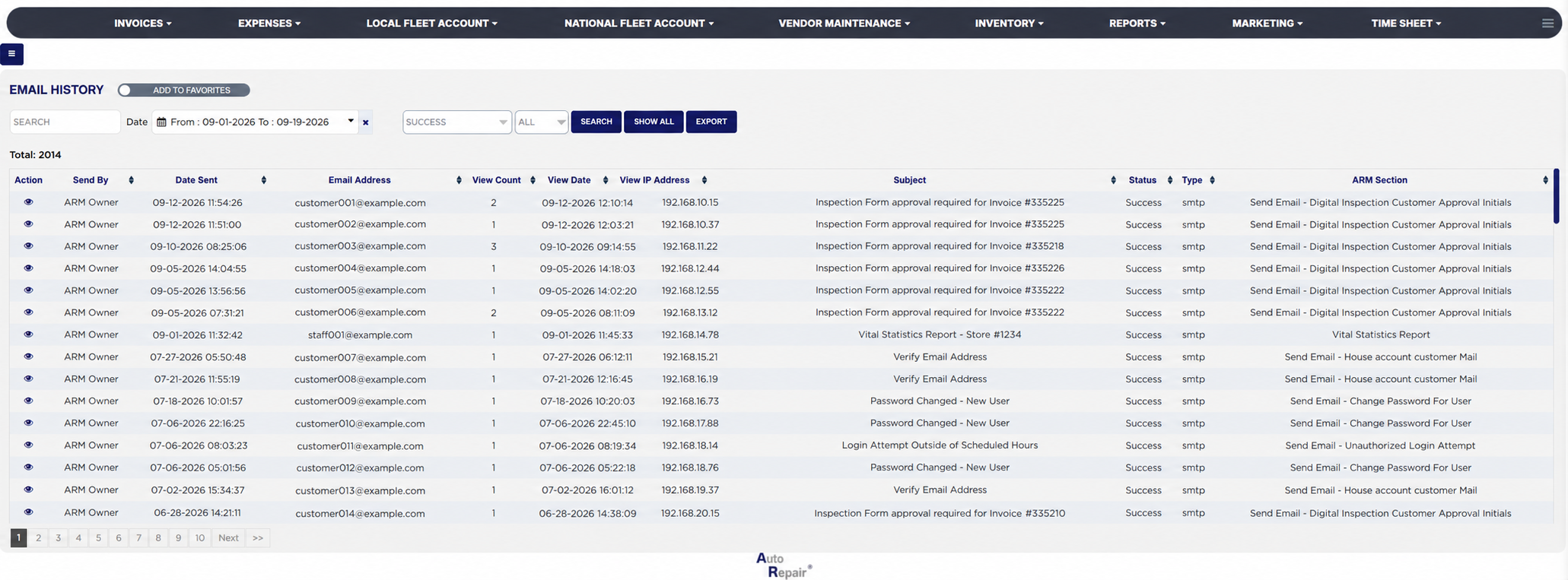
The Email History is the log of every e-mail ARM has sent from the store, one line per message and recipient, with who sent it, when, to which address, the subject, whether it went out successfully, and whether and when the recipient opened it. Every feature that e-mails a customer or a user writes here: invoices and estimates, inspection approval requests, password and login notices, scheduled reports and marketing messages. Use it to confirm that a customer really was sent an invoice or an approval link, to see whether it was opened, to find messages that failed and why, and to review what the shop is sending.

2 how-to answers 2 screenshots Open in ARM Markdown

How do I run the Email History? #

  1. From the Home Screen, click Reports → Management & Operational Reports → Email History.
  2. To find messages to one person, type the start of the e-mail address, the sender's name, the subject or the ARM section into Search.
  3. Click the From : … To : … box beside Date and pick the sending dates to include, then click Apply; the report reloads at once. With no dates the report lists every message since the store's beginning date. The × clears the dates.
  4. In the first dropdown choose Success, Fail or All; the report opens on Success. Choosing Fail or All adds an Error column with the mail server's reason for each failure.
  5. In the second dropdown choose Read for messages the recipient has opened, UnRead for those not opened, or All.
  6. Click Search to apply a typed search, or Show All to clear the search and dropdowns.
  7. Click any column heading to sort by it; click it again to reverse the order. Total: above the table is the number of messages listed, and long lists are split into pages with page links under the table.
  8. Click Export to download the list as a spreadsheet file. The button appears only when the list has rows, and your store may ask for the report download permission password first.
Email History with filters and results

How do I see what was sent to a customer? #

  1. From the Home Screen, click Reports → Management & Operational Reports → Email History, type the start of the customer's e-mail address into Search and click Search.
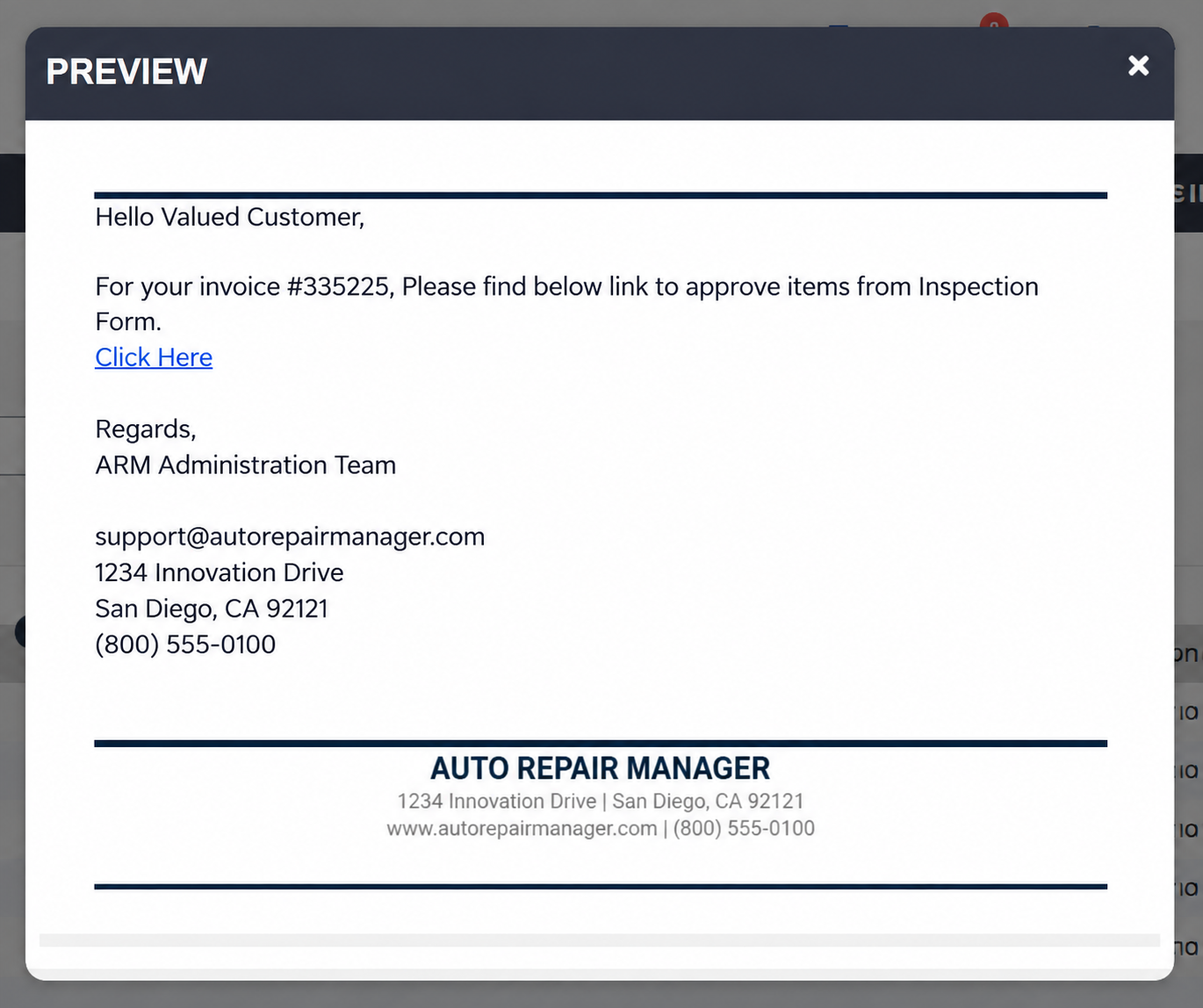
  2. Click the eye icon under Action on the message. The PREVIEW popup shows the message as it was sent, with the store's branding, the text and any link the customer was given.
  3. Close the popup with the × in its corner. View Count on the line tells you whether the customer opened it.
Email History email detail popup
About this screen

Each line shows the Action eye icon, Send By (the user who triggered the message, blank for messages ARM sent on its own), the Date Sent with the time, the recipient's Email Address, the View Count, View Date and View IP Address (how many times the message has been opened, when it was last opened and from which internet address, tracked by a tiny image in the message, so a recipient whose mail program blocks images shows no view), the Subject, the Status (Success or Fail), the Type (smtp when sent through the store's mail server settings, mail when sent by the web server) and the ARM Section, the feature that sent it, such as Send Email - Digital Inspection Customer Approval Initials or Vital Statistics Report. Newest messages are listed first.

The Add To Favorites switch beside the heading saves the report under Favorites on the Reports page. The report is shown only in stores where e-mail sending is enabled. Which reports you see depends on your admin group permissions.
Ask AI