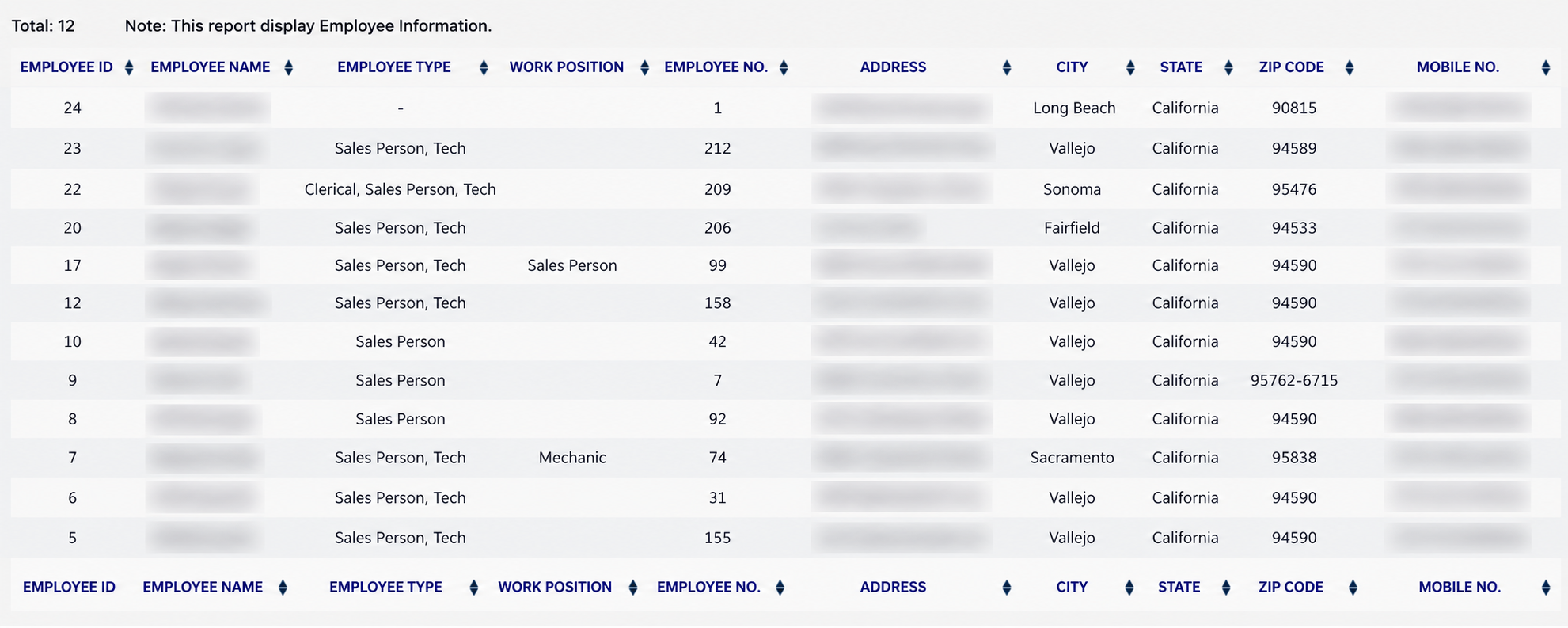
Beside the row count sits the line *Note: This report display Employee Information.*
The table is sixteen columns wide, so it scrolls sideways. Working from the left, each line shows the EMPLOYEE ID ARM gave the record, the EMPLOYEE NAME, the EMPLOYEE TYPE, the WORK POSITION, the EMPLOYEE NO. you gave them, and their ADDRESS, CITY, STATE and ZIP CODE.
EMPLOYEE TYPE and WORK POSITION are not the same thing. Type is what the person is set up to do in ARM and can hold more than one value at once — a line reading *Sales Person, Tech* means both, and *Clerical, Sales Person, Tech* means all three. It shows a dash where none has been set. Work position is a free description of the job they actually do, such as *Mechanic*, and is often left empty.
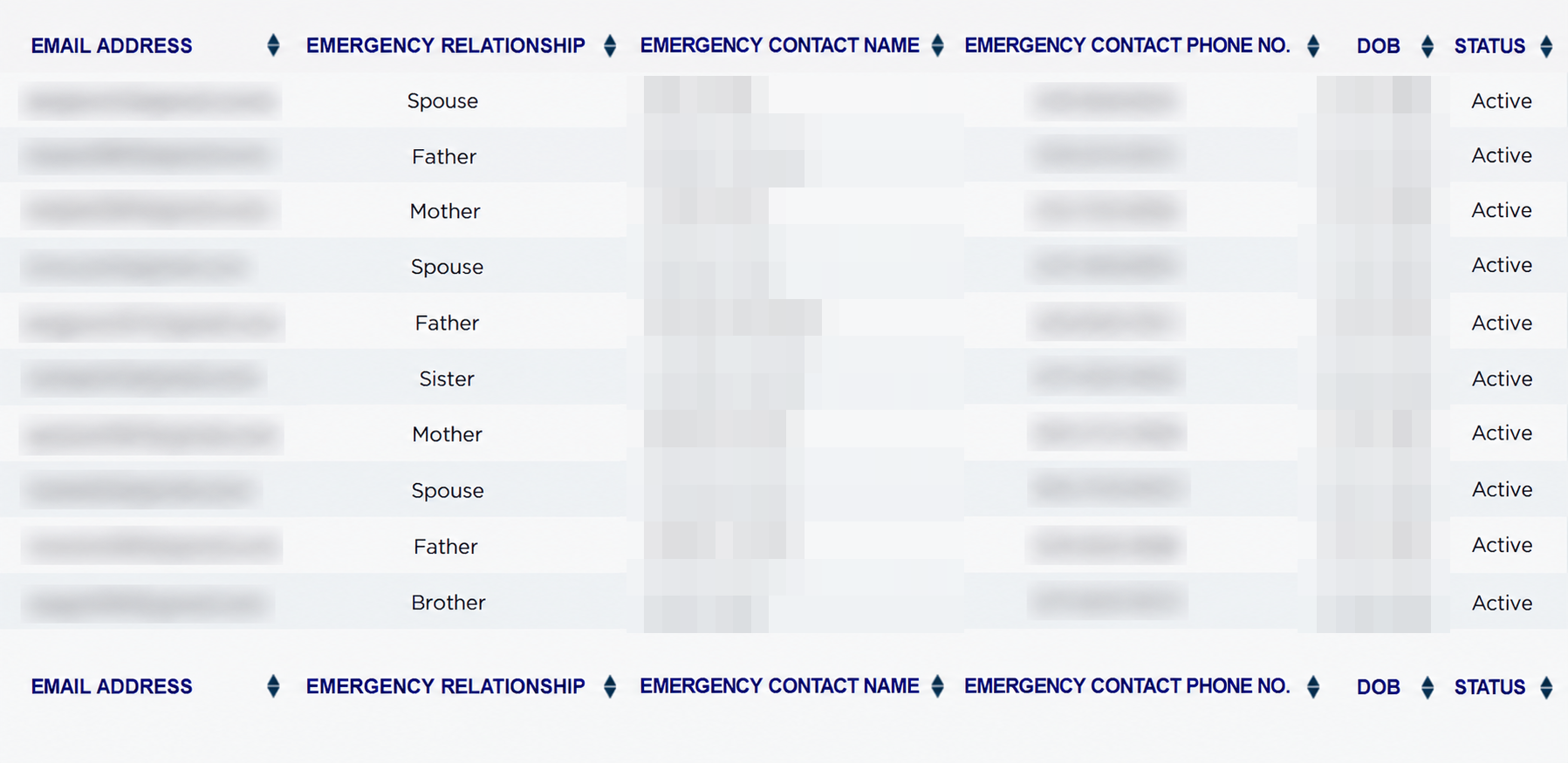
Carrying on to the right, the same lines show the MOBILE NO., EMAIL ADDRESS, then the emergency block — EMERGENCY RELATIONSHIP, EMERGENCY CONTACT NAME and EMERGENCY CONTACT PHONE NO. — followed by the DOB and the STATUS, which reads Active or InActive. The row at the foot of the table repeats the column headings; there is nothing to total on this report.
This report carries more personal data than anything else in the Reports menu — home addresses, dates of birth and next-of-kin details for your whole team. Treat a printed or exported copy the way you would a personnel file, and think before sending the spreadsheet on.
An employee who has been given no type at all shows a dash in EMPLOYEE TYPE and will not be found by any of the three Type filters, so run the report with Type on All if somebody seems to be missing. The ADD TO FAVORITES switch beside the report title saves a shortcut to the report under your favourites in the main Reports menu.