ARM Help

Invoice Part Consumption Report

The Invoice Part Consumption Report (its heading reads INVOICE PART CONSUMPTION REPORT (FINALIZED INVOICES)) lists every part line on the finalized invoices in a date range, one line per part item, with the invoice, the part name and number, the amount charged, the quantity and the employee it was assigned to. It is the part-by-part record of what left the shop on invoices. Use it to see which parts are being sold and in what quantities, to find every invoice a part number went out on, and to check the parts charged on a single invoice.

2 how-to answers 1 screenshot Open in ARM Markdown

How do I run the Invoice Part Consumption Report? #

  1. From the Home Screen, click Reports → Management & Operational Reports → Invoice Part Consumption Report.
  2. Click the From : … To : … box beside Finalize Date and pick the first and last finalized date to include; the report reloads as soon as a range is chosen. With no dates it lists every finalized invoice since the store's beginning date. The × clears the dates.
  3. To limit the list to one employee, type the employee's first or last name into Employee Name.
  4. To find one part, type the start of its name, its full part number, or an invoice number, into Search Text.
  5. Click Search to load the list, or Show All to keep the dates and clear the search and employee.
  6. Read Total: for the number of part lines and Total Part Amount: for the parts charged across the whole list.
  7. Click any column heading to sort by it; click it again to reverse the order. Long lists are split into pages with page links under the table.
  8. Click Print for a PDF copy in a new tab, or Download to export the list to a spreadsheet file; your store may ask for the report download permission password first. Both buttons appear only when the list has rows.
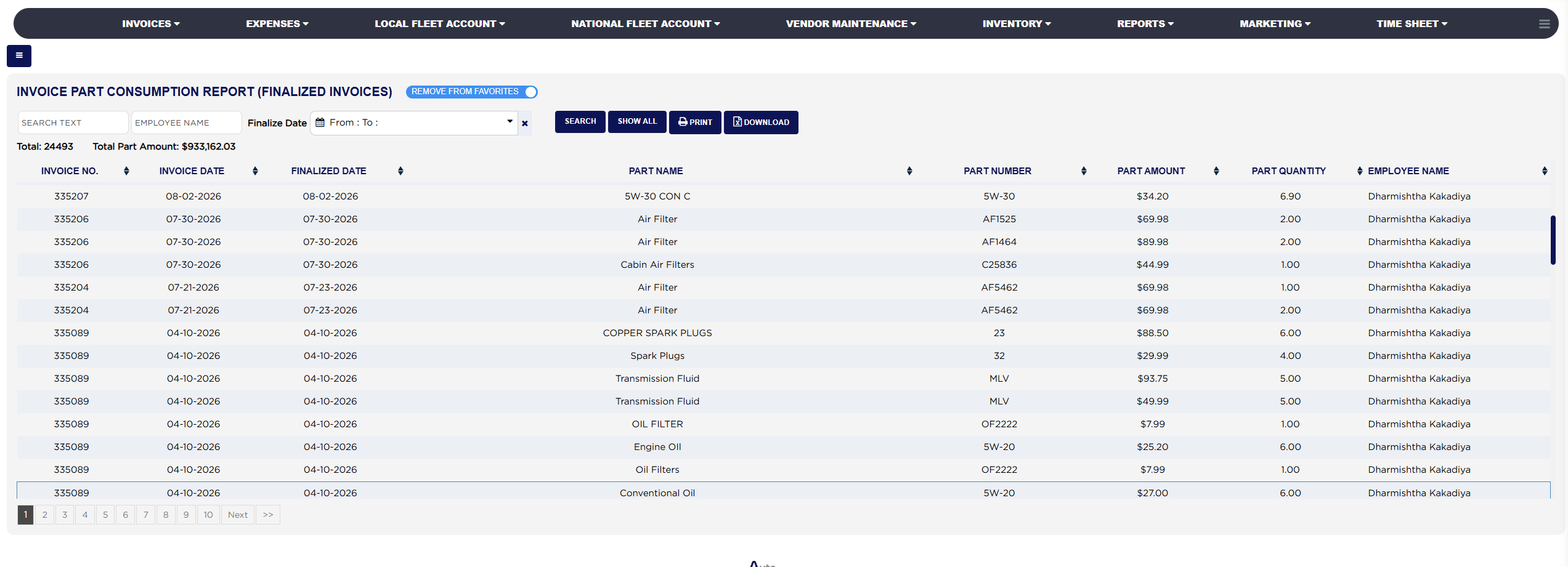
Invoice Part Consumption Report with filters and results

How do I find every invoice a part number was sold on? #

  1. From the Home Screen, click Reports → Management & Operational Reports → Invoice Part Consumption Report.
  2. Set Finalize Date to the period to check, type the full part number into Search Text and click Search.
  3. Read Total: for how many times it was sold and the lines for the invoices, quantities and amounts. Click Download to keep the list.
About this screen

Each line shows the INVOICE NO., the INVOICE DATE, the FINALIZED DATE, the PART NAME as written on the invoice, the PART NUMBER, the PART AMOUNT charged for the line, the PART QUANTITY sold, which can be a fraction for oil and fluids sold by the quart, and the EMPLOYEE NAME the part line was assigned to. Only finalized invoices count; drafts, voided and deleted invoices are left out. The foot row repeats the headings and sums the part amount of the lines on the page. The PDF adds a gross sales column for each invoice.

The Add To Favorites switch beside the heading saves the report under Favorites on the Reports page. The Invoice Labor Performed Report gives the same view for labor. Which reports you see depends on your admin group permissions.

Ask AI