ARM Help

Employee Salary Report

Employee Salary Report is what an employee costs you over a period, one line per working day, taking the hours from their time sheet and pricing them at their own rates. It carries the day through from hours worked to regular and overtime pay, adds any commission earned, and closes each Sunday-to-Saturday week with its own line. Use it to prepare a pay run, to see what a week of overtime actually cost, and to hand an employee a priced record of their hours to sign.

3 how-to answers 5 screenshots Open in ARM Markdown

How do I run the Employee Salary Report? #

  1. From the Home Screen, click Reports → Employee & Payroll Reports → Employee Salary Report. The screen is headed TIME SHEET / SALARY REPORT.
  2. Click the From : … To : … date box and pick the period. Start the range on a Sunday — see the warning about week lines below.
  3. Pick a name in the employee list on the left, or leave it on ALL to run every active employee one after another.
  4. Click SEARCH to load it. This report has no Show All button; to start again, set ALL and reset the dates yourself.
  5. Click DOWNLOAD or PRINT for the full day-by-day report, or DOWNLOAD SUMMARY or PRINT SUMMARY for the shorter version. All four appear when ALL is selected; picking one employee leaves DOWNLOAD and PRINT.
Employee Salary Report filters
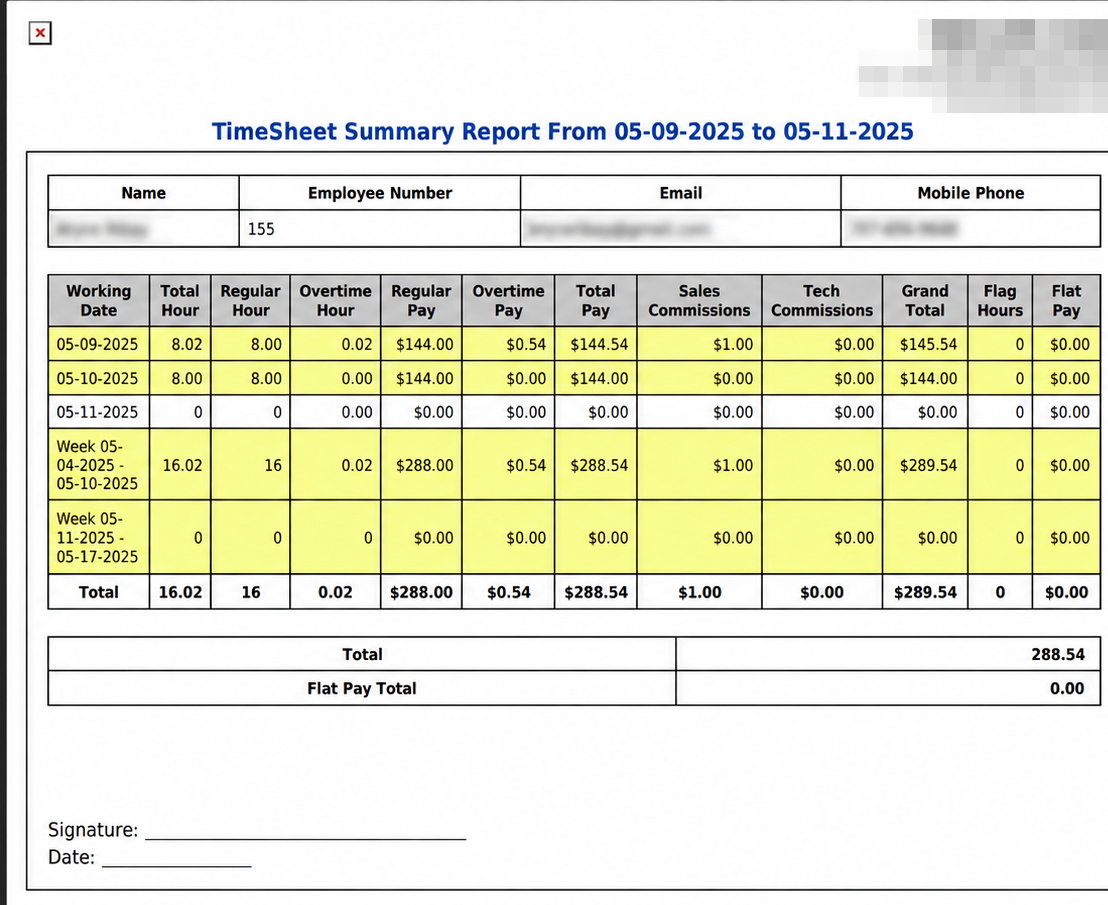
Employee Salary Report print output

How do I work out a day's pay from the report line? #

  1. From the Home Screen, click Reports → Employee & Payroll Reports → Employee Salary Report, run it for your date range and pick one line.
  2. Start with Total Hour, the hours worked that day, taken from the employee's time sheet. Example: 05-09-2025, 8.02 hours.
  3. Regular Hour is the part of that within the daily limit, with the employee's hourly rate in brackets under it. Example: 8.00 ($18.00).
  4. Overtime Hour is the rest, with the overtime rate under it — one and a half times the regular rate. Example: 0.02 ($27.00).
  5. Regular Pay is regular hours × the regular rate. Example: 8.00 × $18.00 = $144.00.
  6. Overtime Pay is overtime hours × the overtime rate. Example: 0.02 × $27.00 = $0.54.
  7. Total Pay adds the two. Example: $144.00 + $0.54 = $144.54.
  8. Grand Total adds the day's commission on top of Total Pay. Example: $144.54 + $1.00 of Sales Commissions + $0.00 of Tech Commissions = 145.54.
  9. Flag Hours and Flat Pay stand apart from all of this: they are flat-rate work, priced per job rather than per hour, and they are not included in Total Pay or Grand Total. Their own total is the Flat Pay Total line at the foot.
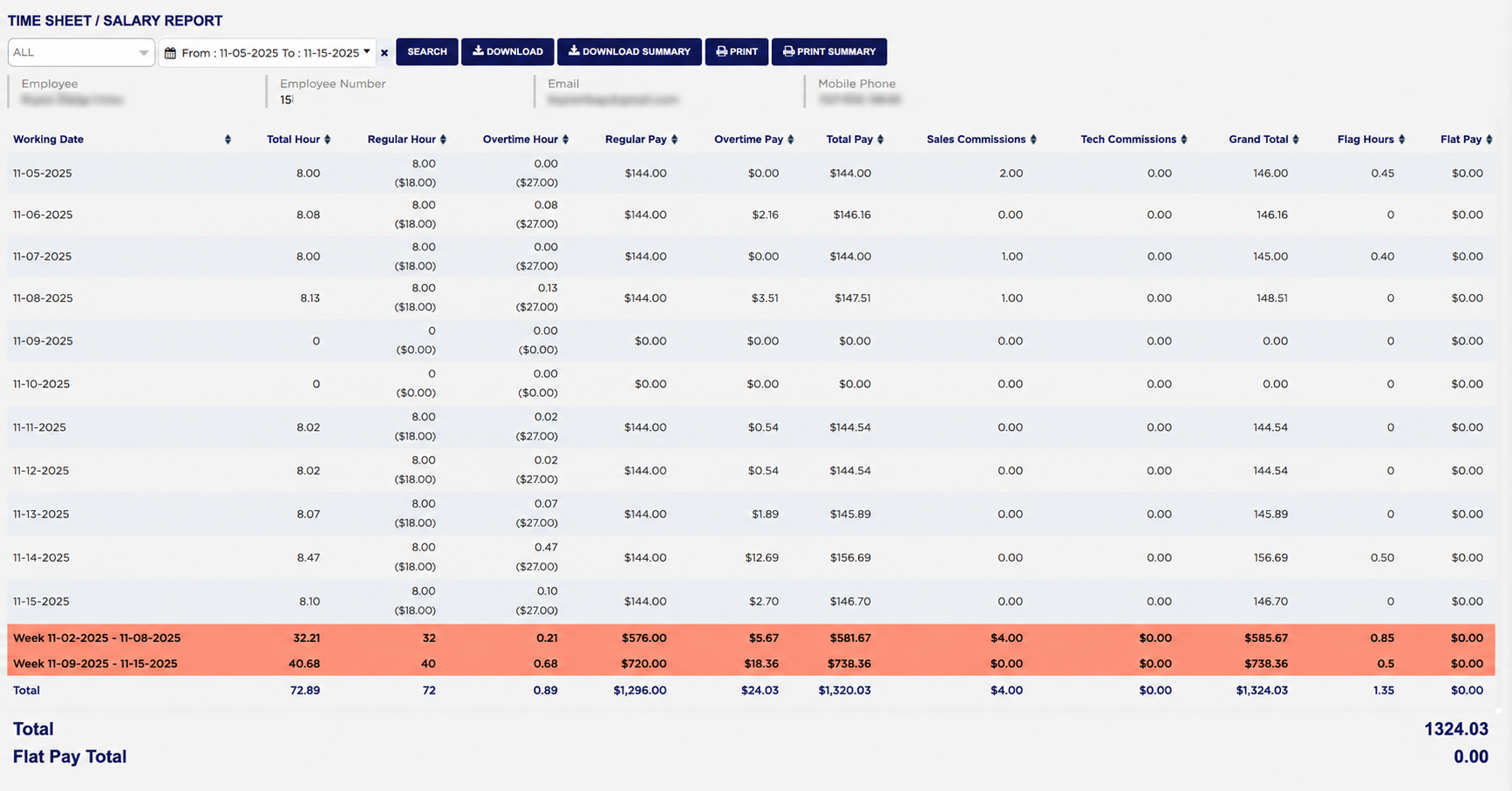
Employee Salary Report hours, pay and commission by week
Employee Salary Report rows used in the calculation example

How do I print a priced time sheet for an employee to sign? #

  1. From the Home Screen, click Reports → Employee & Payroll Reports → Employee Salary Report.
  2. Set the date range to the pay period, pick the employee, and click PRINT. The PDF opens in a new tab, one employee per page.
  3. The page is headed TimeSheet Summary Report with the date range in the title, over a table of the employee's Name, Employee Number, Email and Mobile Phone.
  4. Under it are the same twelve columns as the screen, with the days ARM has priced shaded yellow, the same week lines, and the same Total row, Total and Flat Pay Total.
  5. At the foot are a Signature and a Date line, so the priced record can be signed off.
Employee Salary Report totals rows
About this screen

Above each employee's table, Employee, Employee Number, Email and Mobile Phone are the details ARM holds for the person the table belongs to. They are not filters — there is nothing to type into them.

Each line shows the Working Date; the Total Hour worked; the Regular Hour and Overtime Hour that split into, each with the employee's rate in brackets beneath it, so a line reads 8.00 ($18.00) against regular and 0.02 ($27.00) against overtime; the Regular Pay and Overtime Pay those hours come to; the Total Pay of the two together; the Sales Commissions and Tech Commissions earned that day; the Grand Total of pay and commission; and the Flag Hours and Flat Pay for any flat-rate work. The overtime rate is one and a half times the regular rate.

On the day lines the commission and Grand Total figures print without a dollar sign, so a Grand Total of 146.00 is $146.00 and not a count of anything. The week lines and the Total line below them do show the dollar sign.

The orange week lines need care. Each is labelled with a whole Sunday-to-Saturday week — *Week 11-02-2025 - 11-08-2025* — but it only adds the days inside the range you asked for. Set the range to start on the 5th and that line still says it covers the 2nd onward while totalling four days, not seven. Start your range on a Sunday and end it on a Saturday and the labels and the figures agree. The printed report behaves the same way.

Under the week lines, a Total row adds every column for the whole period. Below the table two further lines repeat the headline figures in large type: Total, which is the same figure as the Total row's Grand Total — pay and commission together for that employee — and Flat Pay Total, the flat-rate pay on its own. With ALL selected these appear once per employee; the report never adds the employees together, so a whole payroll run has to be totalled outside ARM.

PRINT SUMMARY and DOWNLOAD SUMMARY produce the shorter version of the same period, without the day-by-day detail. A day the employee did not work still appears, with zeros across it, so a period always shows every date in the range. The ADD TO FAVORITES switch beside the report title saves a shortcut to the report under your favourites in the main Reports menu.

Ask AI