ARM Help

Employee Work Tracker Report

Employee Work Tracker Report shows what each employee turned over on finalized invoices, a table per employee and one line per day worked, with the labor and parts they were credited with. Where a job names two people — one working the top of the vehicle and one the bottom — the report keeps the two apart, so you can see which side of the work each person was on. Use it to see what an employee is bringing in day by day, to compare one against another, and to open the invoices behind any day's figure.

3 how-to answers 5 screenshots Open in ARM Markdown

How do I run the Employee Work Tracker Report? #

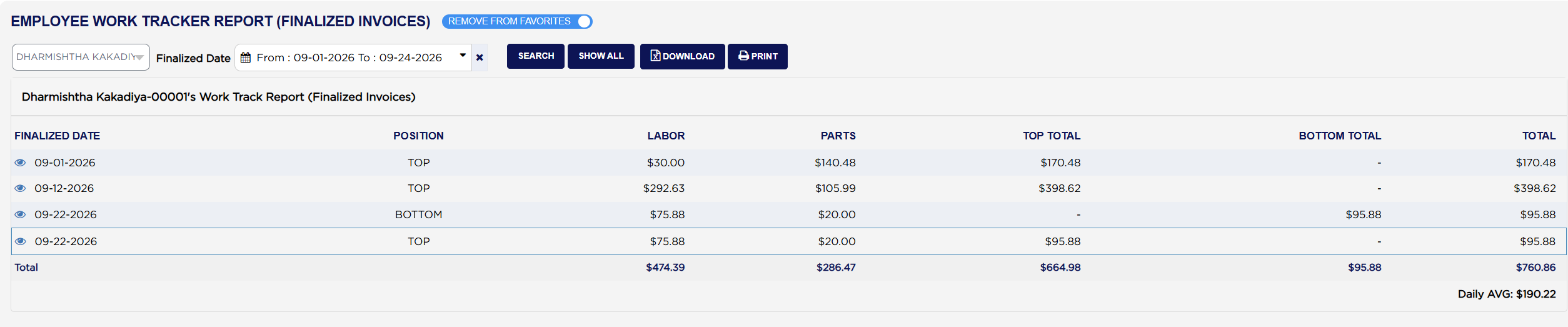
  1. From the Home Screen, click Reports → Employee & Payroll Reports → Employee Work Tracker Report. The screen is headed EMPLOYEE WORK TRACKER REPORT (FINALIZED INVOICES), and only invoices that have been finalized appear on it.
  2. Click the Finalized Date box and pick the period. Lines are picked up by the date the invoice was finalized.
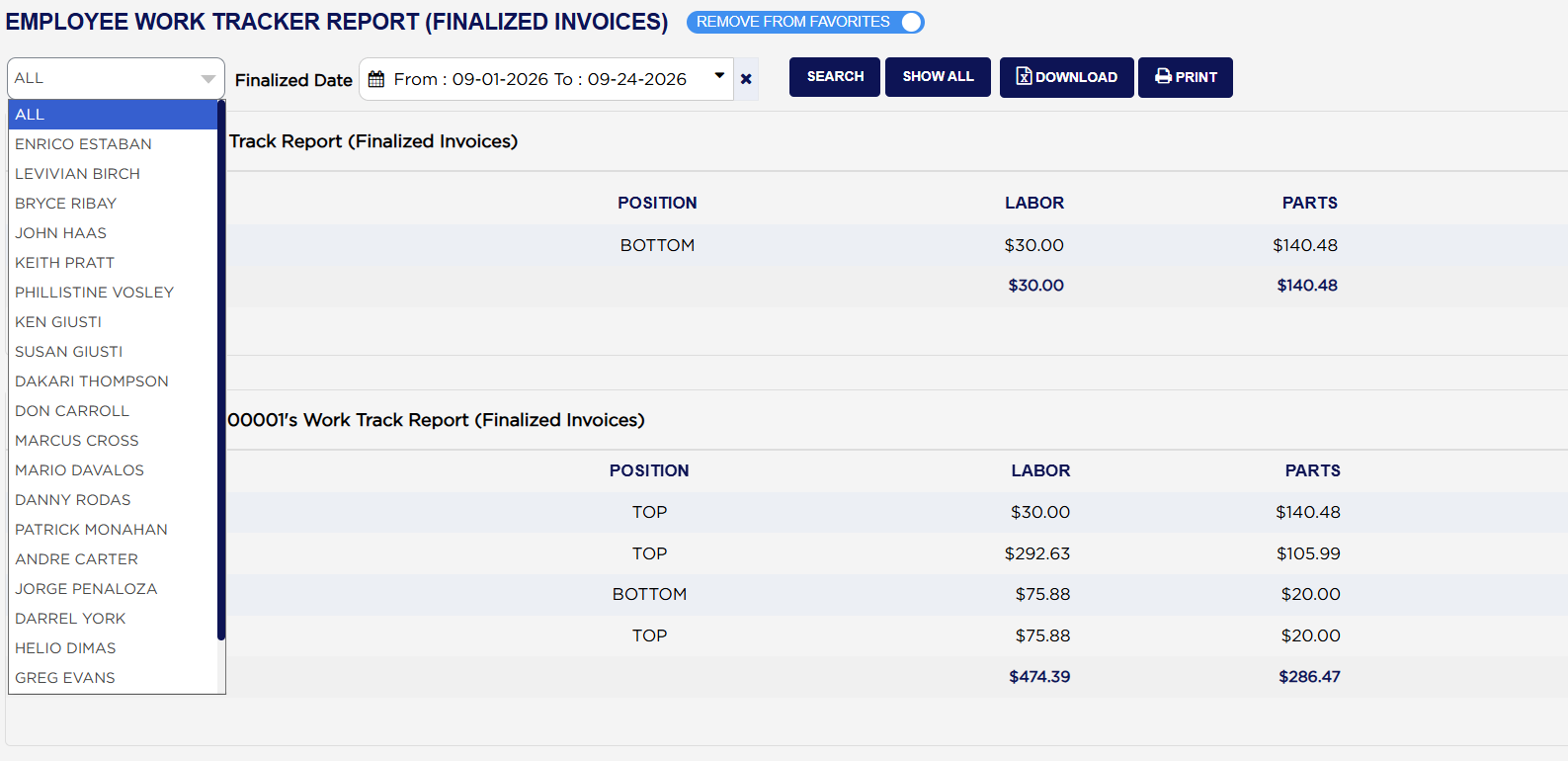
  3. Pick a name in the employee list on the left for one person, or leave it on ALL to get everybody. Changing the name reloads the report on its own. Names are shown with the employee number after them, as in *Dharmishtha Kakadiya-00001*.
  4. Click SEARCH to load it. SHOW ALL clears the employee filter and reloads on the same dates.
  5. Click PRINT for a PDF copy or DOWNLOAD to export to a spreadsheet.
Employee Work Tracker Report finalized date range and filters
Employee Work Tracker Report grand total for all employees
Employee Work Tracker Report print output

How do I see the invoices behind a day's figure? #

  1. From the Home Screen, click Reports → Employee & Payroll Reports → Employee Work Tracker Report, and run it for your date range.
  2. Click the eye icon to the left of the date you want.
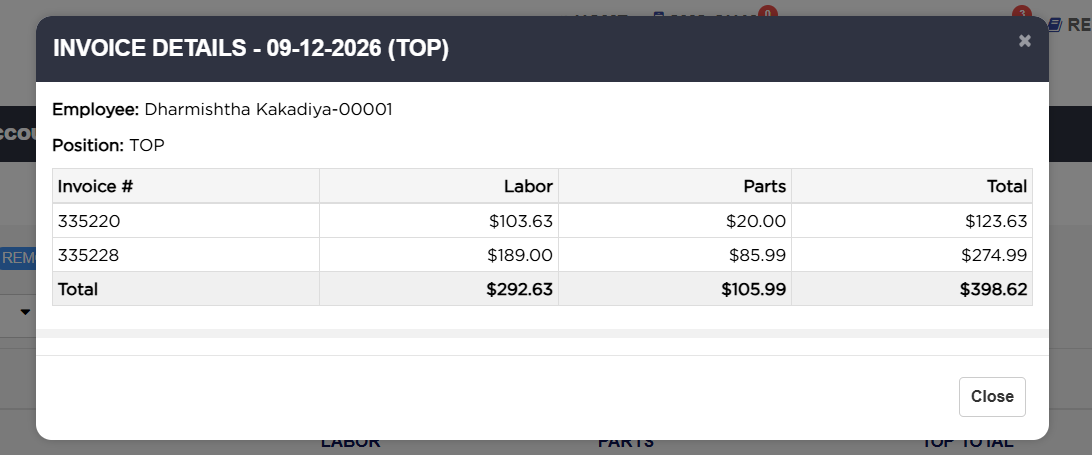
  3. INVOICE DETAILS - ‹date› (TOP) or (BOTTOM) opens, naming the Employee and the Position, and listing every invoice that made up the figure under Invoice #, Labor, Parts and Total, with a Total row that matches the line you clicked. Example: 09-12-2026 TOP is two invoices, 335220 at $123.63 and 335228 at $274.99, adding to $398.62.
  4. Click Close, or the × at the top right, to return to the report.
Employee Work Tracker Report work by position with totals
Employee Work Tracker Report invoice details for a day

How do I print the period for an employee? #

  1. From the Home Screen, click Reports → Employee & Payroll Reports → Employee Work Tracker Report.
  2. Set the Finalized Date range, pick the employee if you want one person, and click PRINT. The PDF opens in a new tab.
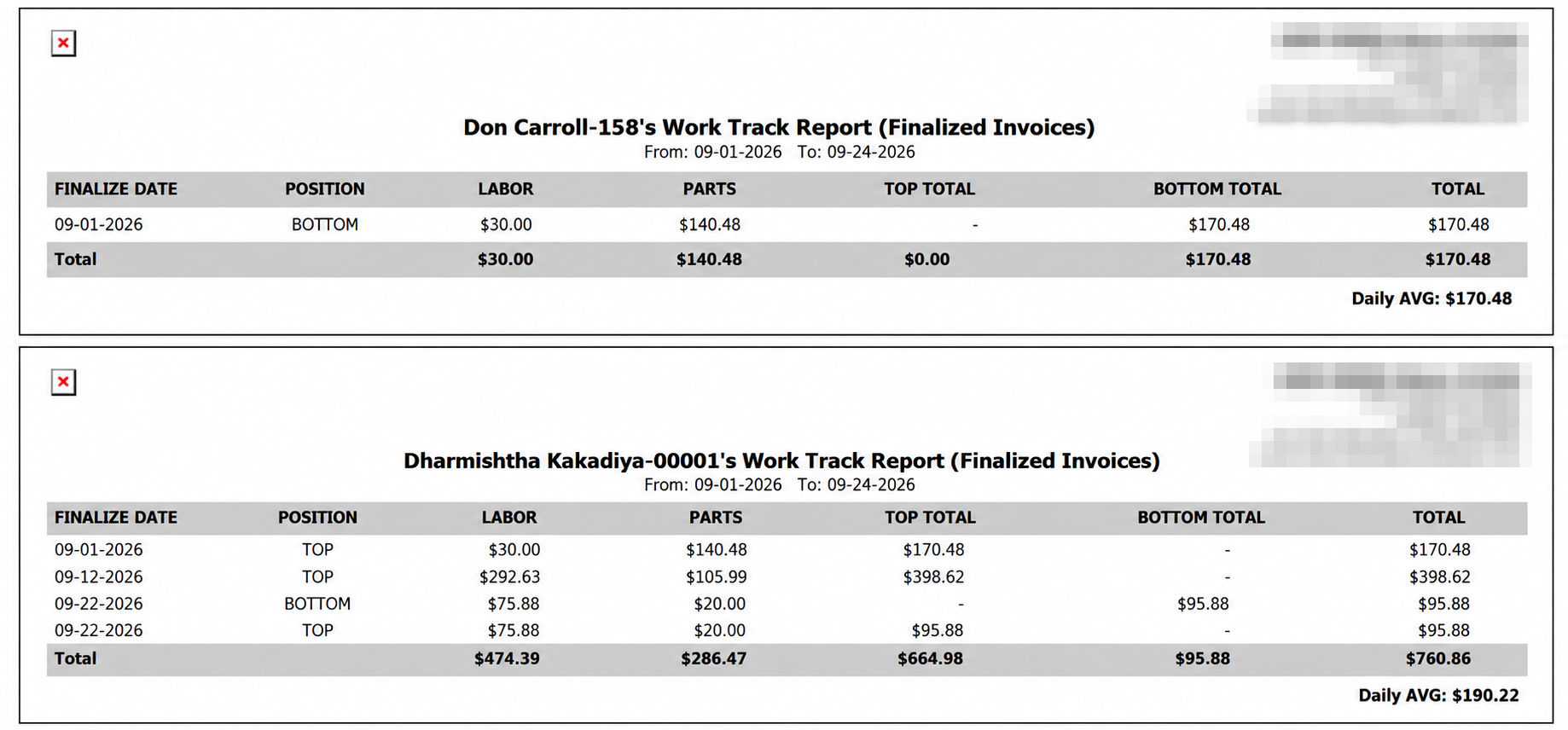
  3. Each employee gets their own boxed block, carrying your store details, the same heading as on screen, the date range under it, and the same seven columns — the printout calls the first one FINALIZE DATE rather than FINALIZED DATE.
  4. Each block closes with its Total row and its Daily AVG, exactly as on screen.
About this screen

What do TOP and BOTTOM mean on this report?

Every labor and parts line on an ARM invoice can credit two employees — a top employee and a bottom employee — which is how a shop records two people working one vehicle, one above it and one below. POSITION says which of the two the employee was on that day's work, and the two money columns follow from it: TOP TOTAL is filled only on a TOP line, BOTTOM TOTAL only on a BOTTOM line, and the other shows a dash. The same person can appear as TOP on one day and BOTTOM on another, or as both on the same day — those are two separate lines.

The report gives each employee their own table, headed *‹Name›-‹number›'s Work Track Report (Finalized Invoices)*. Each line shows the FINALIZED DATE, the POSITION, the LABOR and PARTS credited to them that day in that position, then TOP TOTAL, BOTTOM TOTAL and TOTAL. On a line, TOTAL is simply LABOR plus PARTS, which is the same figure as whichever of TOP TOTAL or BOTTOM TOTAL is filled. In the Total row underneath, TOP TOTAL and BOTTOM TOTAL are separate sums and TOTAL is the two added together.

Under the Total row sits Daily AVG, the employee's total divided by the number of lines in their table. Where somebody worked both positions on one day that day counts twice, so on a shop that runs top-and-bottom pairs the figure is an average per line rather than per day. Read it alongside the dates in the table rather than on its own.

Below every employee's table, a GRAND TOTAL (All Employees) panel adds the same six figures across everyone in the report, with an Overall Daily AVG worked out the same way as each employee's. Where a job was shared between a top and a bottom employee it is counted once for each of them, so the grand total is the sum of what the employees were credited with and not the value of the work your shop did. In the example, 09-01-2026 shows as $170.48 of BOTTOM work for Don Carroll and the same $170.48 of TOP work for Dharmishtha Kakadiya — one job, credited to both, counted twice in the grand total.

An employee with no finalized work in the range gets no table at all rather than an empty one, so a name missing from the report means no finalized invoices credited to them in those dates, not a fault. The ADD TO FAVORITES switch beside the report title saves a shortcut to the report under your favourites in the main Reports menu.

People also ask

  • asked 1×

Ask AI