ARM Help

Order Details Report

Order Details Report lists what you ordered from your suppliers, line by line: one row for every part on every order in a date range, with the quantity, the cost and which order it belonged to. Where Order History gives you one line per order, this gives you the parts inside them. Use it to check what a supplier was asked for, to see what you have been spending on a category of parts, and to look up the cost you were charged for a particular part last time.

3 how-to answers 4 screenshots Open in ARM Markdown

How do I run the Order Details Report? #

  1. From the Home Screen, click Inventory → Inventory Reports → Order Details Report, or click Reports → Inventory Reports → Order Details Report.
  2. Click the From : … To : … date box and pick the first and last day of the period. Orders are counted by their ORDER DATE.
  3. Type into Supplier Name, Product Category or Products to narrow the list. Leave them empty to see everything.
  4. Click SEARCH to load the report. SHOW ALL clears the filters and reloads.
  5. Click any column heading to sort by it; click it again to reverse the order. Longer lists are split into pages with page links under the table.
  6. Click PRINT for a PDF copy or DOWNLOAD to export to a spreadsheet. Both appear only when the search returns rows.
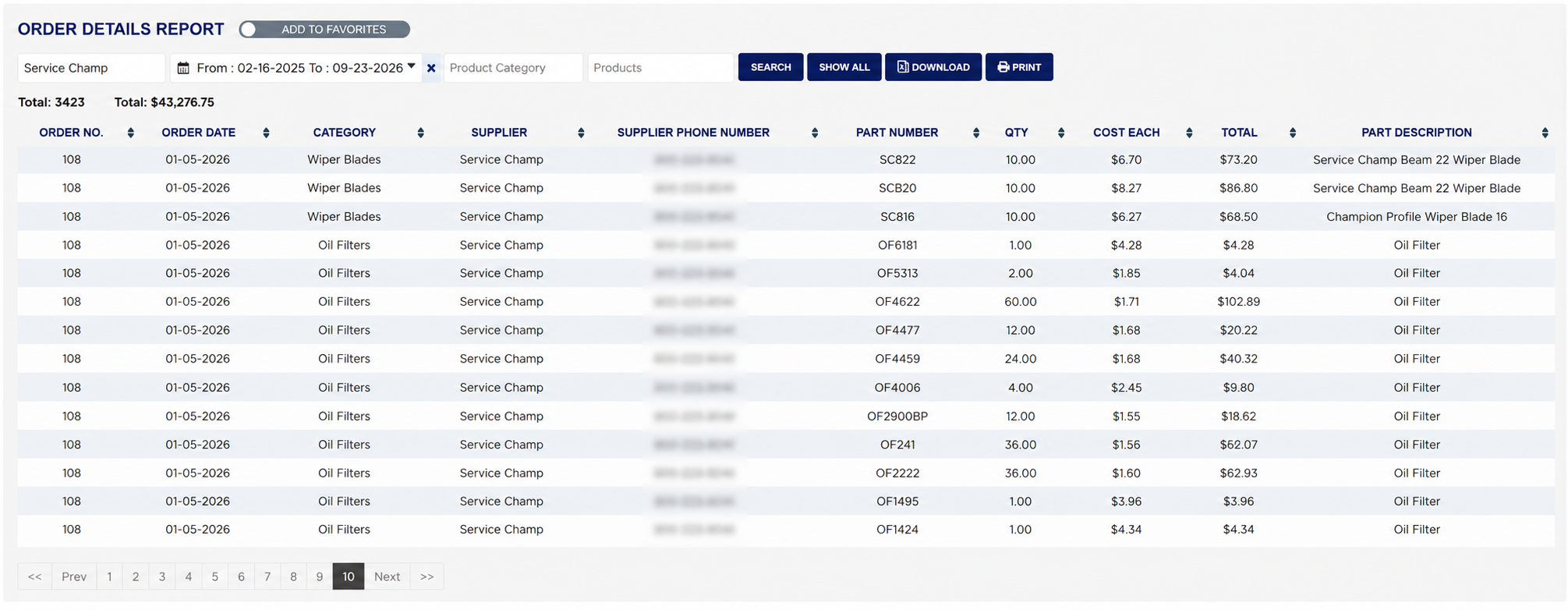
Order Details Report date range and supplier, category and product filters
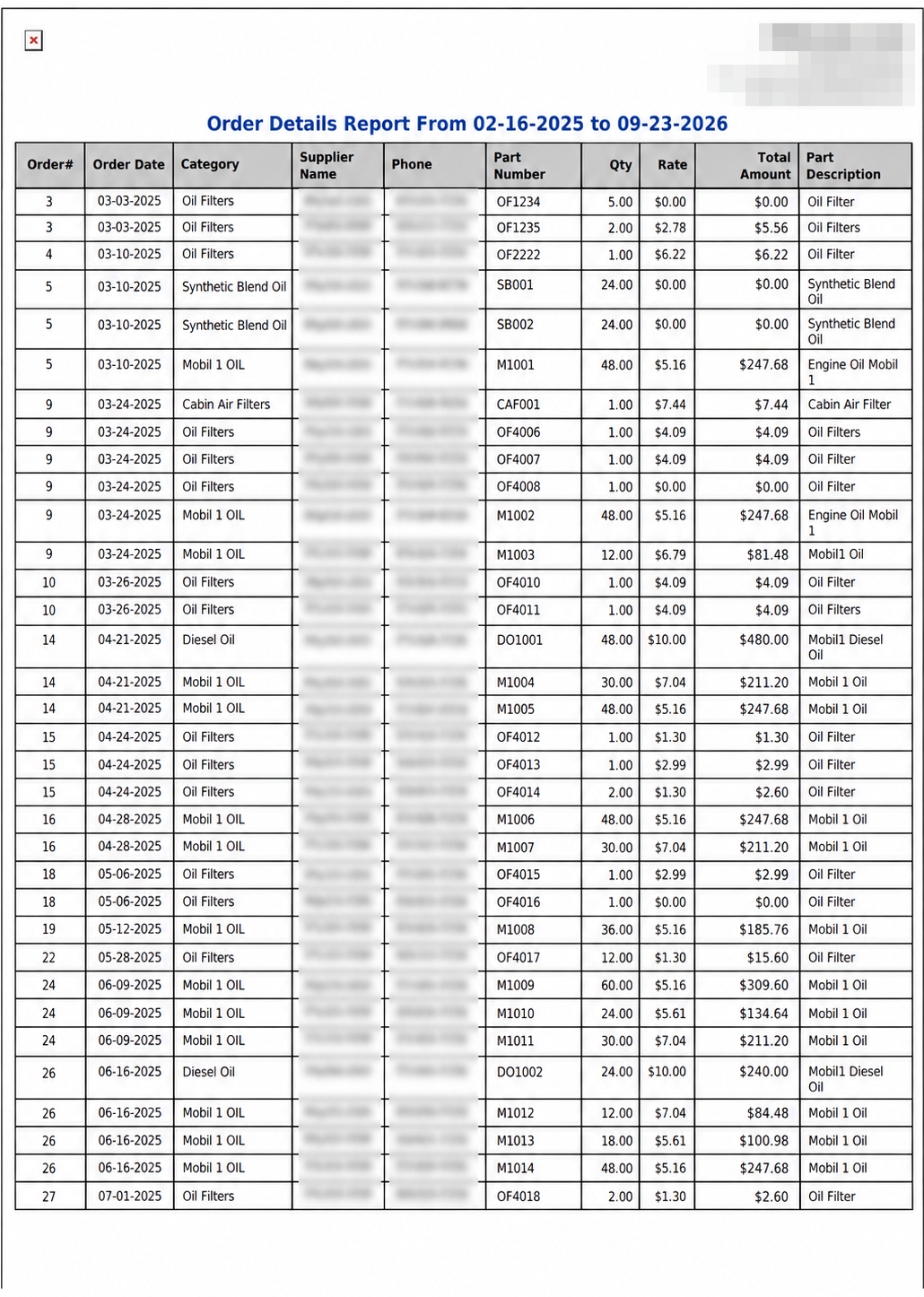
Order Details Report print output

How do I see everything I ordered from one supplier? #

  1. From the Home Screen, click Reports → Inventory Reports → Order Details Report.
  2. Set the date range you want.
  3. Type the supplier's name into Supplier Name and click SEARCH.
  4. Read the money Total: above the table for what those orders came to, and sort by PART NUMBER if you want to group what you bought.
  5. Click PRINT or DOWNLOAD to take the list into a supplier review.
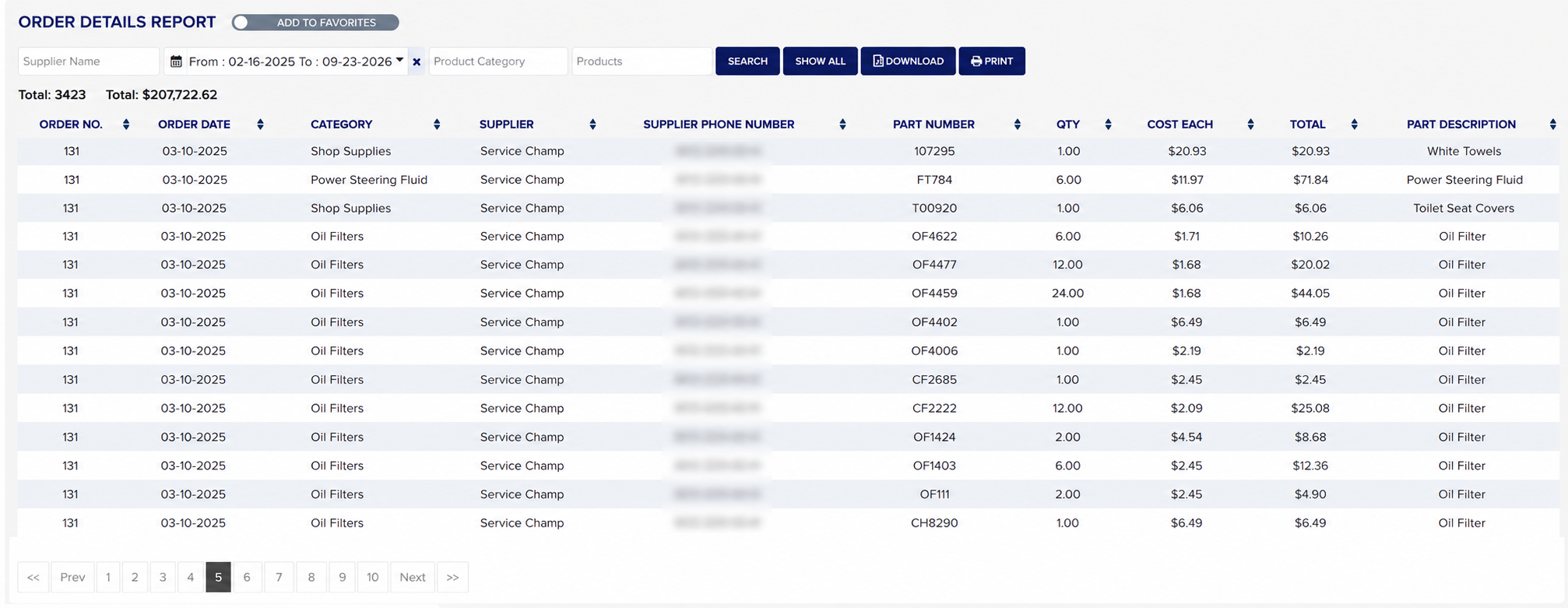
Order Details Report for one supplier

How do I read the quantity, cost and total on one line? #

  1. From the Home Screen, click Reports → Inventory Reports → Order Details Report, run it for your date range and pick one line, which is one part on one order.
  2. QTY is how many of that part the order asked for. Example: 6.00.
  3. COST EACH is the unit cost ARM currently holds for the part. Example: $11.97.
  4. TOTAL is the value recorded against that order line when the order was raised. Example: $71.84.
  5. TOTAL is not QTY multiplied by COST EACH. The two are stored separately: TOTAL is what the line was worth at the time of the order, while COST EACH is the cost ARM holds for the part now. On many lines the two agree, and on others they do not — in the example, 6.00 × $11.97 comes to $71.82 against a recorded TOTAL of $71.84. Take TOTAL as the value of the line and COST EACH as today's unit cost, and do not expect one to prove the other.
  6. The money Total: above the table adds up the TOTAL column for every line the filters returned, so that is the figure to use for what a period's ordering came to.
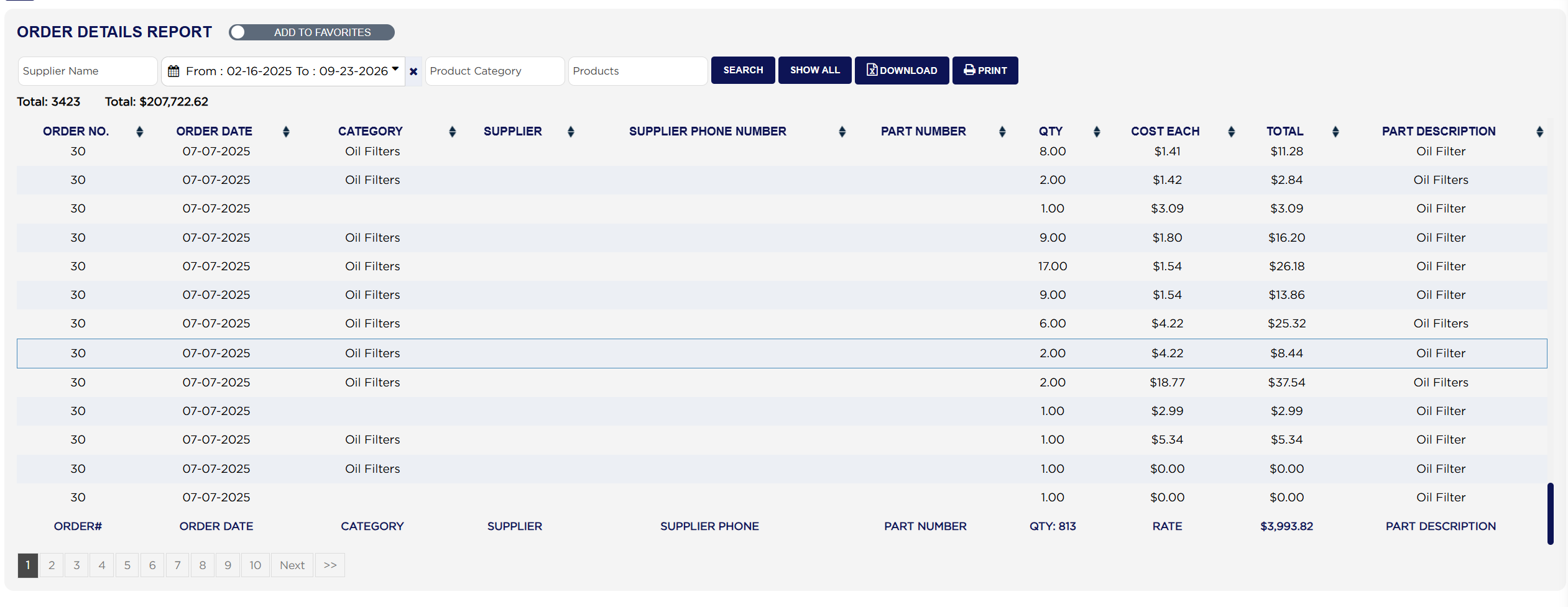
Order Details Report order lines
About this screen

Each line shows the ORDER NO. it belongs to and the ORDER DATE it was raised, the CATEGORY of the part, the SUPPLIER and their SUPPLIER PHONE NUMBER, the PART NUMBER, the QTY ordered, the COST EACH ARM holds for the part, the TOTAL recorded for the line, and the PART DESCRIPTION. Because one order usually covers several parts, the same ORDER NO. and ORDER DATE repeat down the page for as many lines as that order had.

Two figures sit above the table, both labelled Total:. The first is the number of lines listed. The second is the money value of them. The row under the table repeats the column names with the page's own QTY and money subtotal, so it describes the page you are looking at rather than the whole report. That footer row also renames two columns as it goes: ORDER# for ORDER NO. and RATE for COST EACH.

The PDF names some columns differently again: Order#, Phone, Rate for COST EACH and Total Amount for TOTAL.

On the oldest orders the SUPPLIER, SUPPLIER PHONE NUMBER and PART NUMBER cells can be empty, where the order was raised before those details were being recorded against it. The order and its costs are still listed; only the supplier and part references are missing.
Ask AI