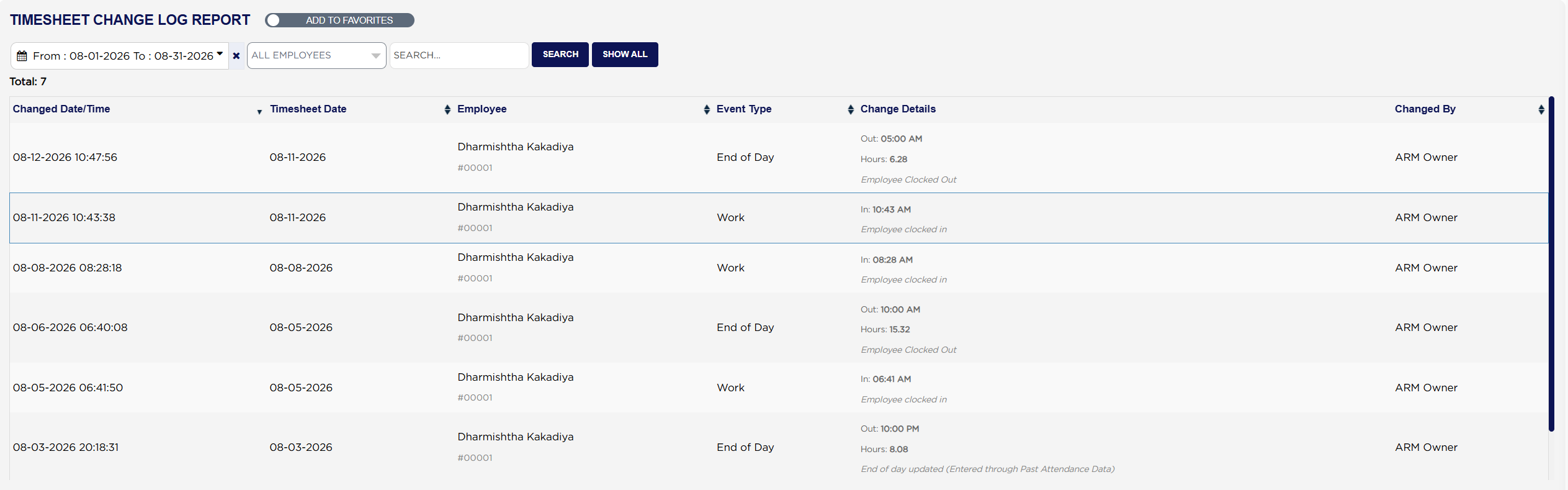
Each line shows the Changed Date/Time the entry was written, to the second; the Timesheet Date it belongs to, which is the day being worked and is often earlier; the Employee it is about, with their employee number underneath; the Event Type; the Change Details; and Changed By, the person signed in when it was recorded, or System where ARM wrote it itself.
Event Type is one of five: Work, Lunch Break, Rest Break, Clock-Out Temporarily and End of Day. They are the same events that make up a day in the Clock In/Out History popup on the Employee Time Sheet Daily Report, so a day's line-up there can be traced entry by entry here.
Change Details is written differently depending on whether something was set or something was altered. When a value is recorded for the first time it appears in bold after In:, Out: or Hours: — `In: 10:43 AM`, or `Out: 05:00 AM` with `Hours: 6.28` under it. When a value that was already stored is changed to a different one, the old and the new are shown either side of an arrow — `In: 08:00 AM → 08:15 AM` — so an amendment is visible at a glance rather than having to be worked out. The arrow only appears on a genuine amendment; a day that was clocked normally and never touched again shows plain values all the way down. Under either, in grey italics, ARM adds a short note of what happened: *Employee clocked in*, *Employee Clocked Out*, or on an edited day something like *End of day updated (Entered through Past Attendance Data)*.
The date box will not let you start earlier than the day your store's records begin. Where a day was entered through Past Attendance Data rather than clocked live, the log still carries a full set of entries for it, with the note in grey italics saying so — the log records what ARM was told, not only what was clocked at the time. The ADD TO FAVORITES switch beside the report title saves a shortcut to the report under your favourites in the main Reports menu.