ARM Help

Detailed Sales / Payment Method Report

The Detailed Sales / Payment Method Report (its heading reads Detailed Sales / Payment Method Report (Finalized Invoices)) lists every finalized invoice in the date range, one line per invoice, and splits what was collected across the payment methods your store uses, with the gross sale, tax, state fees, net sales, cost of parts and gross profit beside it. Refunded invoices are listed in a second block so you can see exactly what was given back, and a GRAND TOTAL nets the two. Use it to balance a day or a week against the cash drawer and card settlements, to see how much came in by cash, card, check or fleet charge, and to check the profit on each ticket.

3 how-to answers 3 screenshots Open in ARM Markdown

How do I run the Detailed Sales / Payment Method Report? #

  1. From the Home Screen, click Reports → Sales & Financial Reports → Detailed Sales / Payment Method Report.
  2. Click the From : … To : … date box and pick the first and last day. The report opens on today only; the range applies to the finalized date of the invoice. The × beside the box clears the dates.
  3. To look up one ticket, type its invoice number into the ID box.
  4. Click Search. Click Show All to clear the invoice number and list every invoice in the date range. The table is wider than the screen; use the scroll bar under it to reach the right-hand columns.
  5. Click any column heading to sort by it; click it again to reverse the order.
  6. Click Print Portrait or Print Landscape to open a PDF copy in a new tab, or Download to export the list to a spreadsheet.
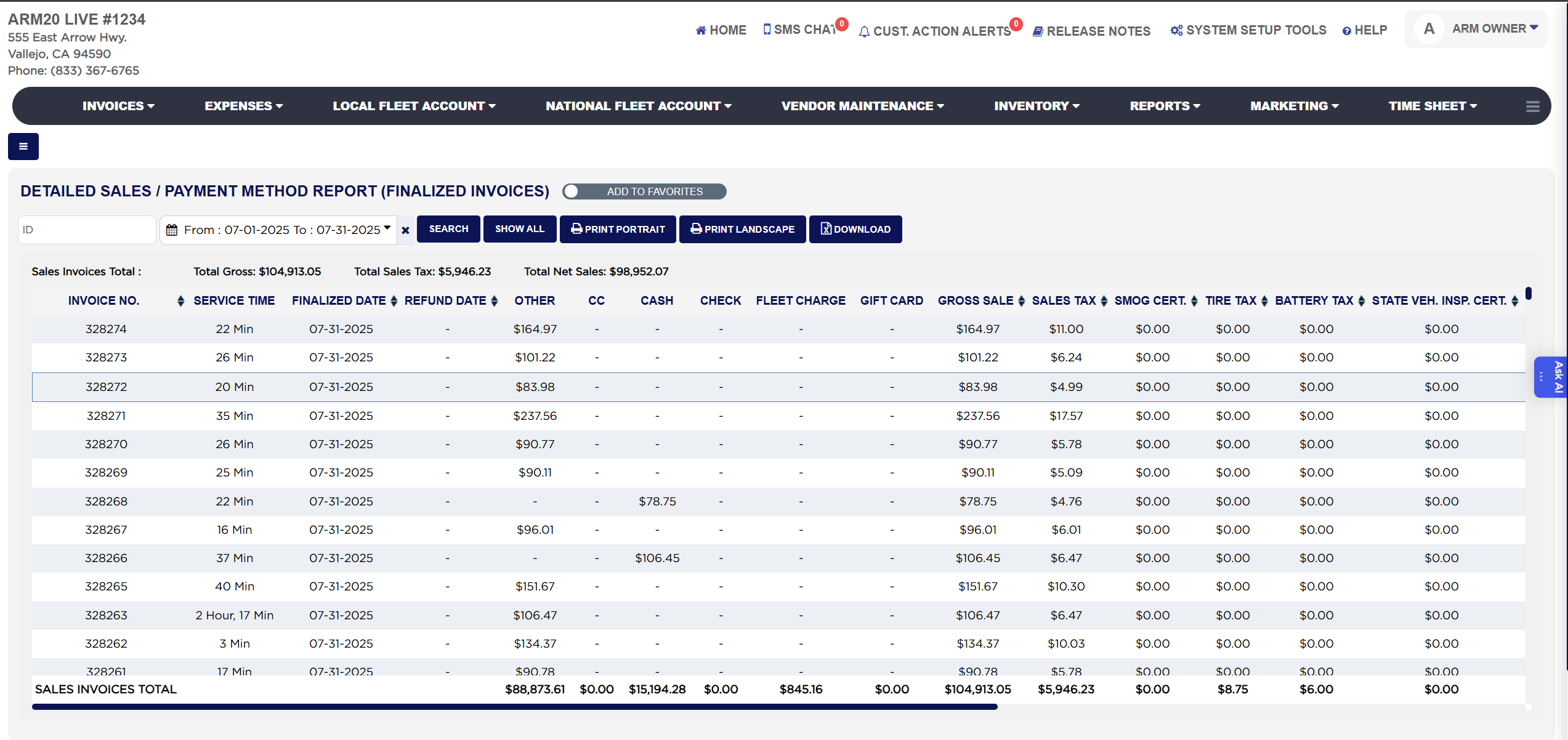
Detailed Sales by Payment Method with the Sales Invoices block

How do I see the detailed sales and cost behind one invoice? #

  1. From the Home Screen, click Reports → Sales & Financial Reports → Detailed Sales / Payment Method Report, and run it for the date range.
  2. On the invoice line, click the eye icon in the View column.
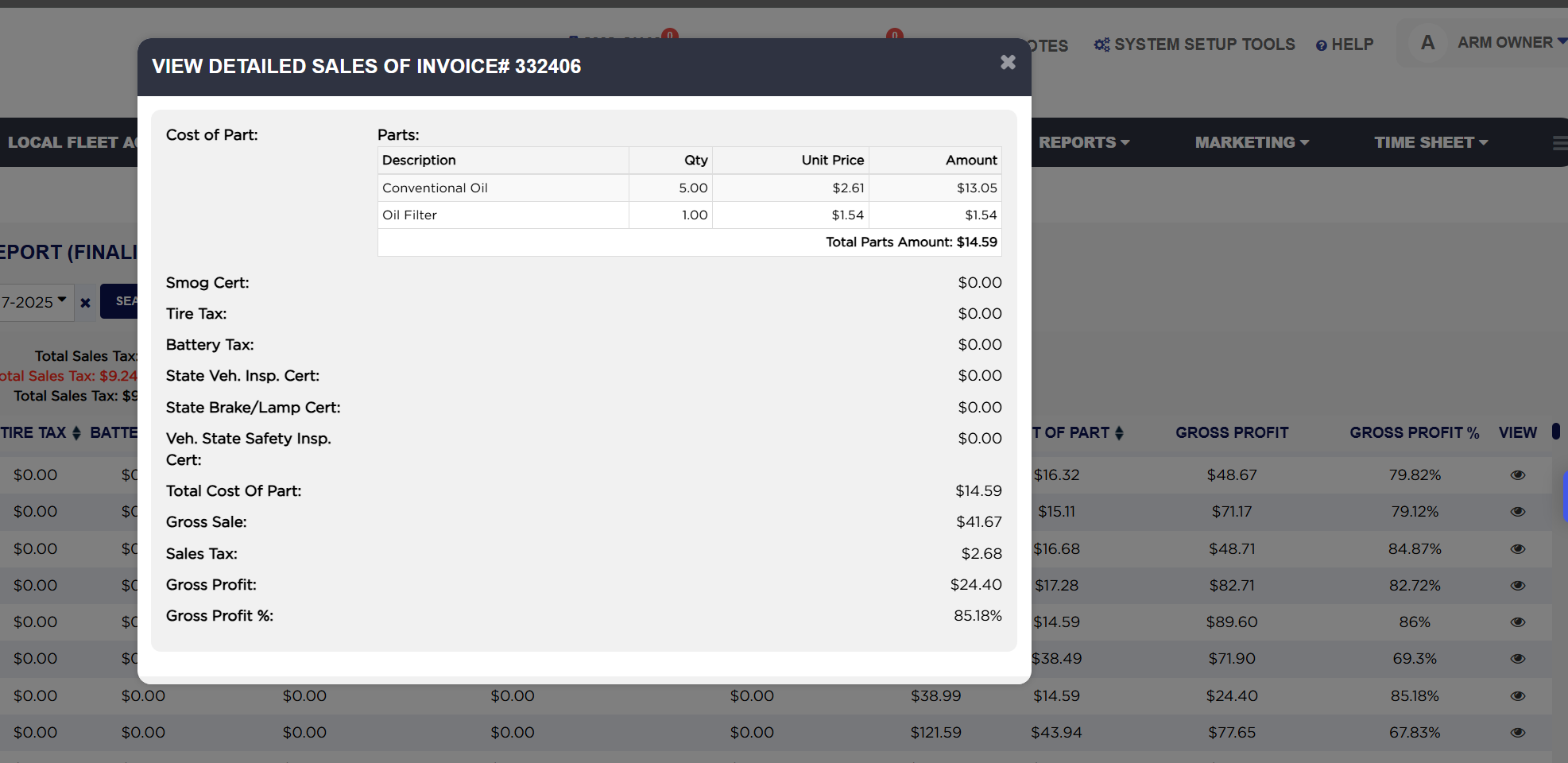
  3. The View Detailed Sales of Invoice# popup opens. Under Cost of Part it lists each part on the invoice with its Description, Qty, Unit Price and Amount and a Total Parts Amount; below that it shows the Smog Cert., Tire Tax, Battery Tax, State Veh. Insp. Cert., State Brake/Lamp Cert and Veh. State Safety Insp. Cert. charged, then Total Cost Of Part, Gross Sale, Sales Tax, Gross Profit and Gross Profit % for that invoice.
  4. Click the × in the popup's corner to return to the report.
View Detailed Sales popup for one invoice

How do I balance a day's takings by payment method? #

  1. From the Home Screen, click Reports → Sales & Financial Reports → Detailed Sales / Payment Method Report.
  2. Set From and To to the same day and click Search.
  3. Read the GRAND TOTAL row: the figure under CC is what your card settlement should show, the cash column is what should be in the drawer after the starting float, and Check and Gift Card cover the rest.
  4. Compare with the Cash Drawer Detail Report and the Payment Receive Report in the same section if a figure does not match.
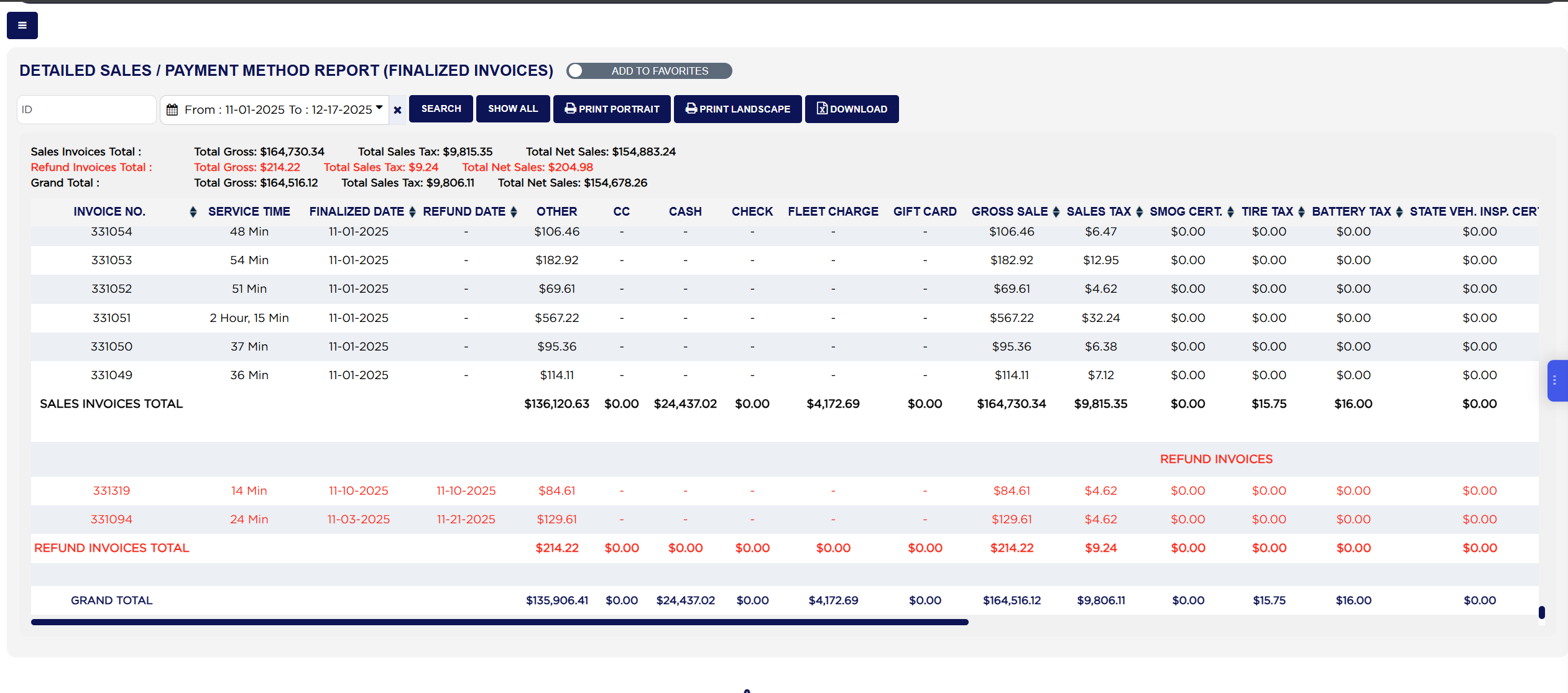
Refund Invoices block and GRAND TOTAL row
About this screen

Above the table three summary lines give the Sales Invoices Total, the Refund Invoices Total in red and the Grand Total, each as Total Gross, Total Sales Tax and Total Net Sales for the date range. The first block is headed SALES INVOICES. Each line shows the Invoice No., the Service Time, the Finalized Date and, for a refunded invoice, the Refund Date. Next come one column per payment method, in the order your store's payment types are set up, for example Other, CC (all card types combined), Cash, Check, Fleet Charge and Gift Card, each showing the amount collected by that method on that invoice; a dash means nothing was taken that way. The money columns follow: Gross Sale (the invoice total including tax), Sales Tax, Smog Cert., Tire Tax, Battery Tax, State Veh. Insp. Cert., State Brake/Lamp Cert and Veh. State Safety Insp. Cert. (the state fees charged on the invoice), Net Sales, Cost of Part (what the parts on the invoice cost you), Gross Profit and Gross Profit %. Gross Profit is Gross Sale less Sales Tax less Cost of Part. Gross Profit % is the margin on the work itself: labor and parts sales less the cost of parts, divided by labor and parts sales, so fees and tax do not affect it. The SALES INVOICES TOTAL row sums every payment-method and money column for the block.

The second block, headed REFUND INVOICES and printed in red, lists the invoices refunded in the date range with the same columns and their Refund Date filled in, and ends with a REFUND INVOICES TOTAL row. The GRAND TOTAL row underneath is the Sales Invoices total less the Refund Invoices total for every column, so it shows what the store actually kept by payment method and in net sales, cost and profit for the period.

The Add To Favorites switch beside the heading saves the report under Favorites on the Reports page. Download asks for the permission password before the spreadsheet is created, when your store has that protection turned on. Which reports you see depends on your admin group permissions.
Ask AI