ARM Help

Penny Rounding Report

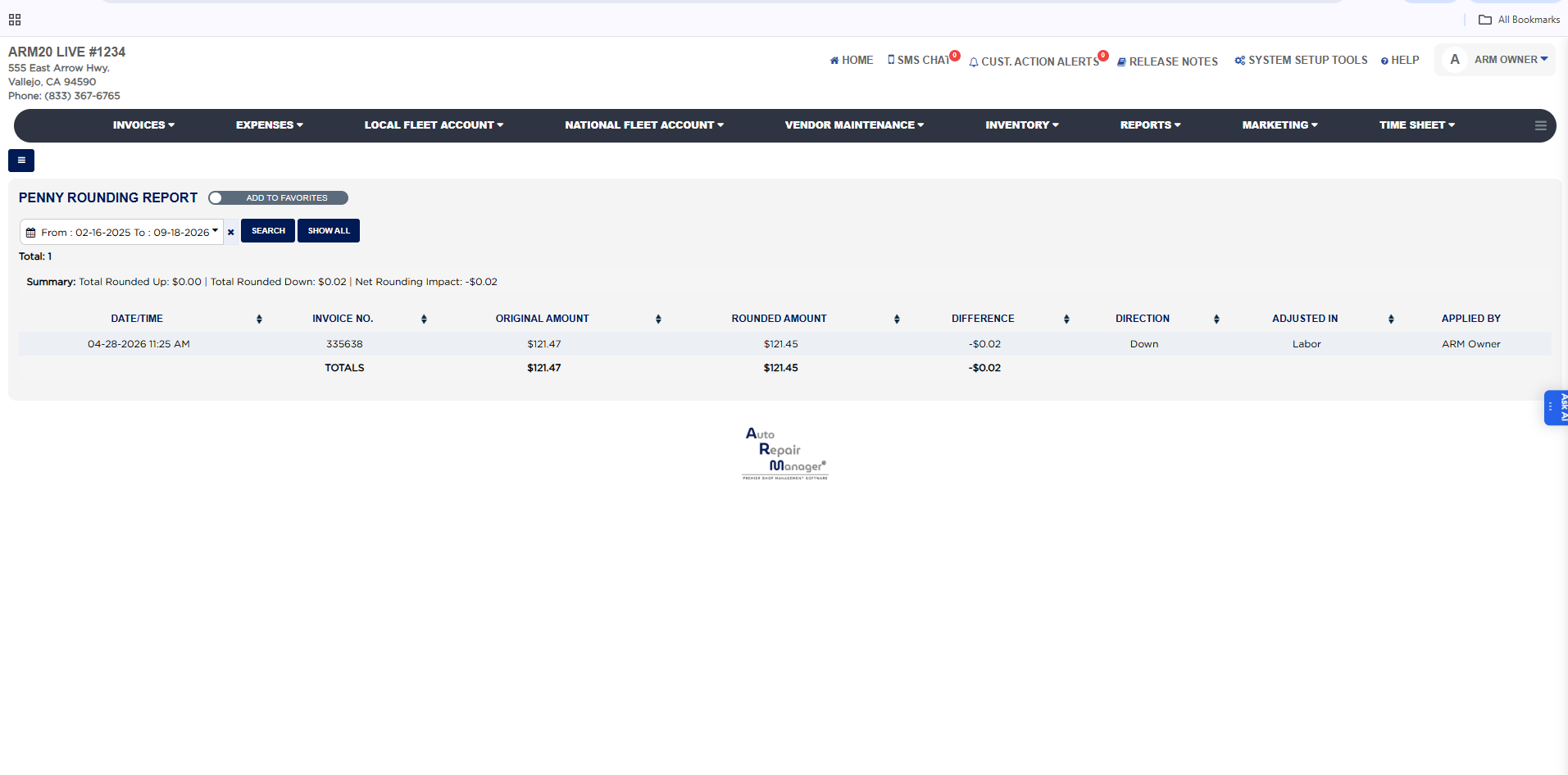
The Penny Rounding Report lists every cash payment that ARM rounded to the nearest five cents, one line per rounding, with the invoice, the amount before and after rounding, the cents gained or lost, and who took the payment. Penny rounding applies only to cash payments and only when the store's cash penny rounding setting is turned on in the master configuration; when a cash payment ends in 1, 2, 6 or 7 cents it is rounded down, and when it ends in 3, 4, 8 or 9 cents it is rounded up, so the customer pays an amount that can be made with nickels. Use it to see how much the rounding cost or earned the store over a period, to explain a one or two cent difference between an invoice and the cash taken, and to reconcile the cash drawer to the penny.

3 how-to answers 1 screenshot Open in ARM Markdown

How do I run the Penny Rounding Report? #

  1. From the Home Screen, click Reports → Sales & Financial Reports → Penny Rounding Report.
  2. Click the From : … To : … date box and pick the first and last day. The report opens on the first day of the current month through today and selects roundings by the date and time they were applied. The × beside the box clears the dates.
  3. Click Search to load the report, or Show All to reload it for the same dates.
  4. Read Total, the number of roundings listed, and the Summary line: Total Rounded Up is the cents the store gained where payments were rounded up, Total Rounded Down is the cents it gave away where payments were rounded down, and Net Rounding Impact is the difference, shown as a negative amount when the store gave away more than it gained.
  5. Click any column heading to sort by it; click it again to reverse the order.
Penny Rounding Report with filters and results

How do I see how much penny rounding cost or earned the store in a period? #

  1. From the Home Screen, click Reports → Sales & Financial Reports → Penny Rounding Report.
  2. Set the From : … To : … box to the period and click Search.
  3. Read Net Rounding Impact in the Summary line: a negative figure is what the store gave away in rounding, a positive figure is what it gained. Total Rounded Up and Total Rounded Down show the two sides.

How do I explain a few cents difference between an invoice and the cash taken? #

  1. From the Home Screen, click Reports → Sales & Financial Reports → Penny Rounding Report, and set the dates to cover the day of the payment.
  2. Find the Invoice No. in the list. Original Amount is what the invoice called for, Rounded Amount is what was collected in cash, and Difference is the cents between them.
  3. Adjusted In shows where the cents were absorbed on the invoice, so the invoice total still matches the cash taken and the invoice shows the rounding as a Penny Adjustment line for information.
About this screen

Each line shows the Date/Time the rounding was applied, which is the moment the cash payment was taken, the Invoice No. it was applied to, the Original Amount of the cash payment as calculated, the Rounded Amount the customer actually paid, the Difference between them (negative when rounded down, positive when rounded up), the Direction, Up or Down, Adjusted In, which tells you whether ARM absorbed the cents in the invoice's Labor or Parts total (labor when the invoice has labor, otherwise parts), and Applied By, the ARM user who took the payment. The TOTALS row sums the Original Amount, Rounded Amount and Difference columns for the lines listed. If a rounded cash payment is later deleted, ARM reverses the rounding and removes its line from this report.

Penny rounding is switched on or off for the store in System Setup Tools under the master configuration; when it is off, no lines are written and this report stays empty. The Add To Favorites switch beside the heading saves the report under Favorites on the Reports page. Which reports you see depends on your admin group permissions.
Ask AI