ARM Help

Part Barcode Report

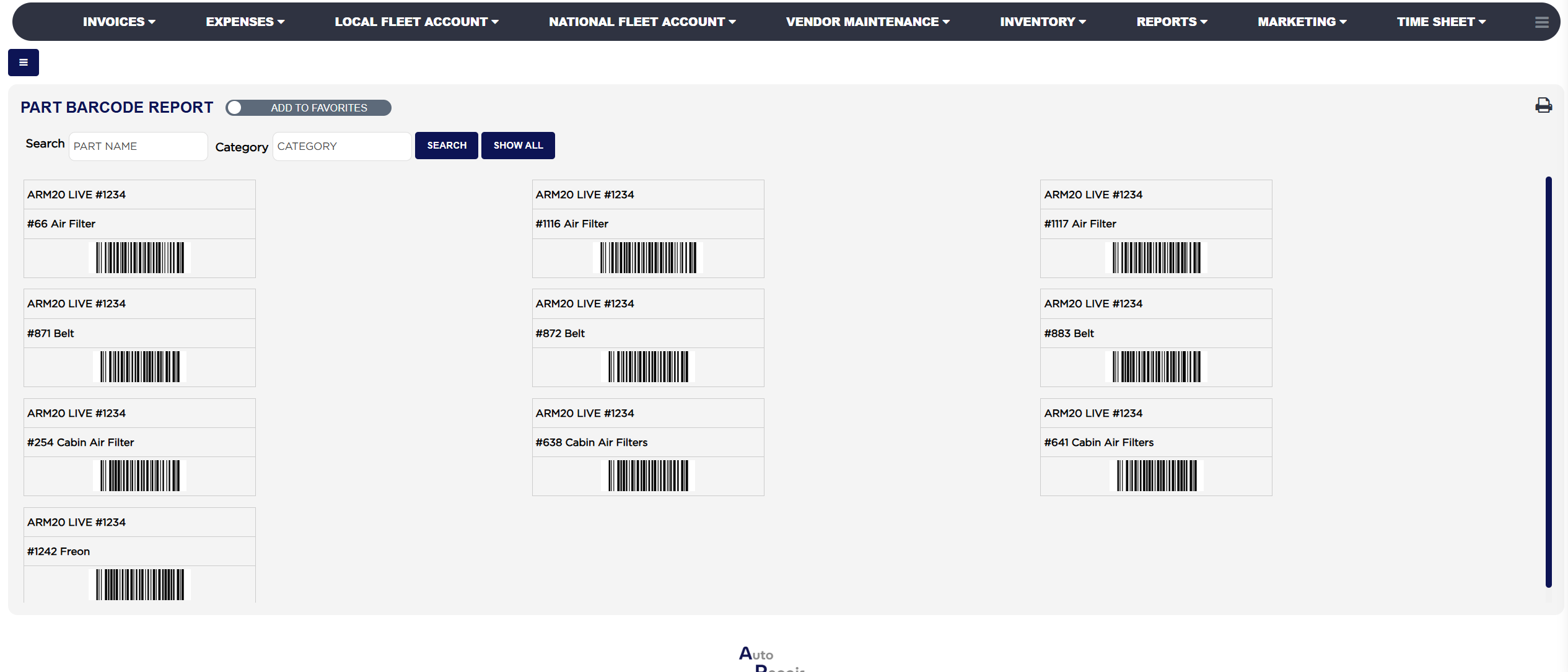
Part Barcode Report prints the barcode labels for the parts you hold. It is not a table of figures like the rest of this section: it is a sheet of labels, three across, each carrying your store name, the part's number and name, and its barcode. Use it to label a delivery as it comes in, to replace labels that have worn off the shelf, and to produce a scannable list your staff can use at the counter and on a manual count.

2 how-to answers 3 screenshots Open in ARM Markdown

How do I print barcode labels? #

  1. From the Home Screen, click Inventory → Inventory Reports → Part Barcode Report, or click Reports → Inventory Reports → Part Barcode Report.
  2. Type part of a name into Search or part of a category into Category to pick out the parts you want labels for. Leave both empty for everything.
  3. Click SEARCH. SHOW ALL clears the filters and lists every part that has a barcode.
  4. Click the printer icon at the top right of the panel. It has no wording beside it, and it appears only when the search has found at least one part.
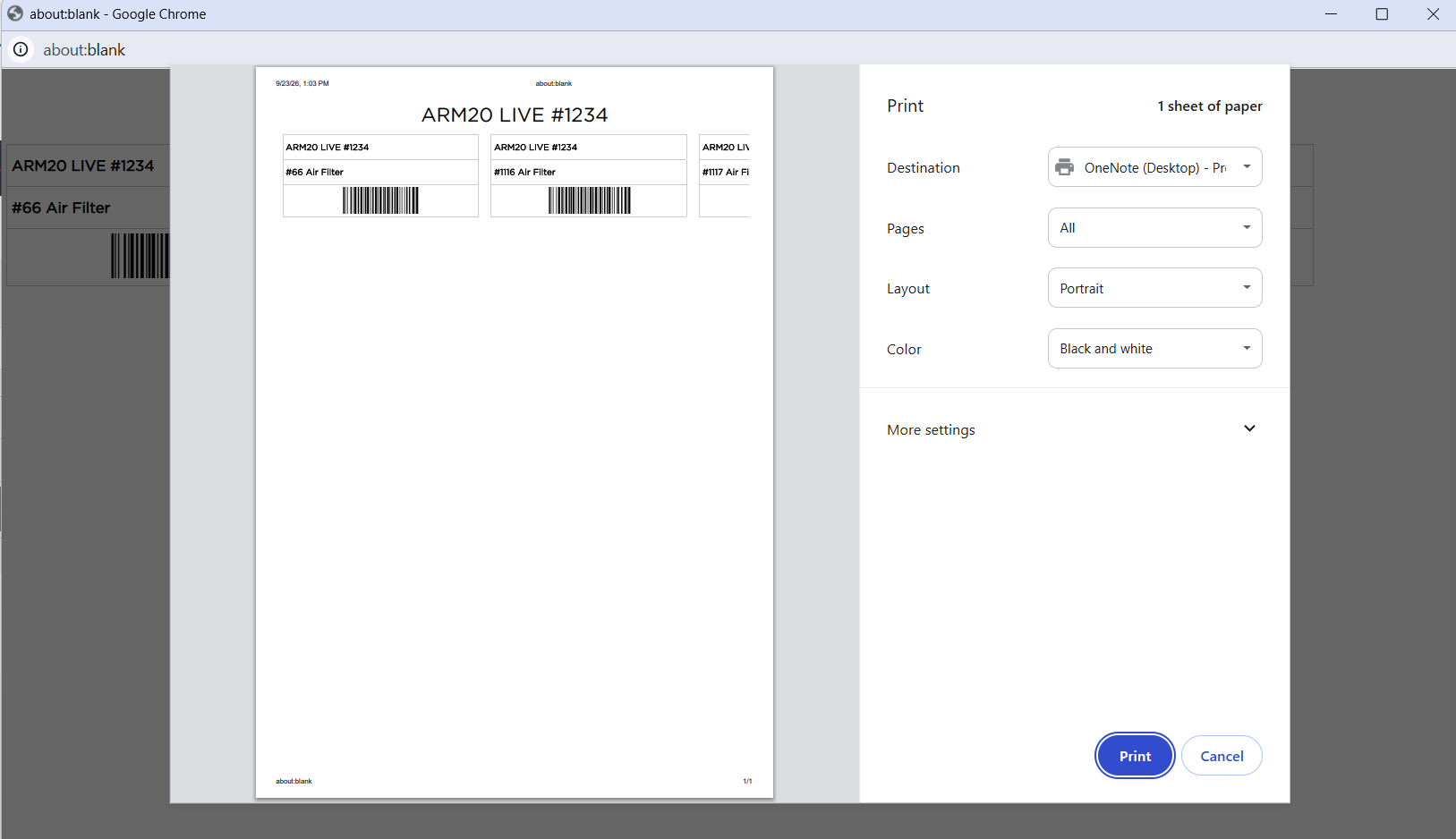
  5. A print window opens showing the labels laid out for printing. Choose your printer and click Print.
Part Barcode Report filter bar and barcode label grid
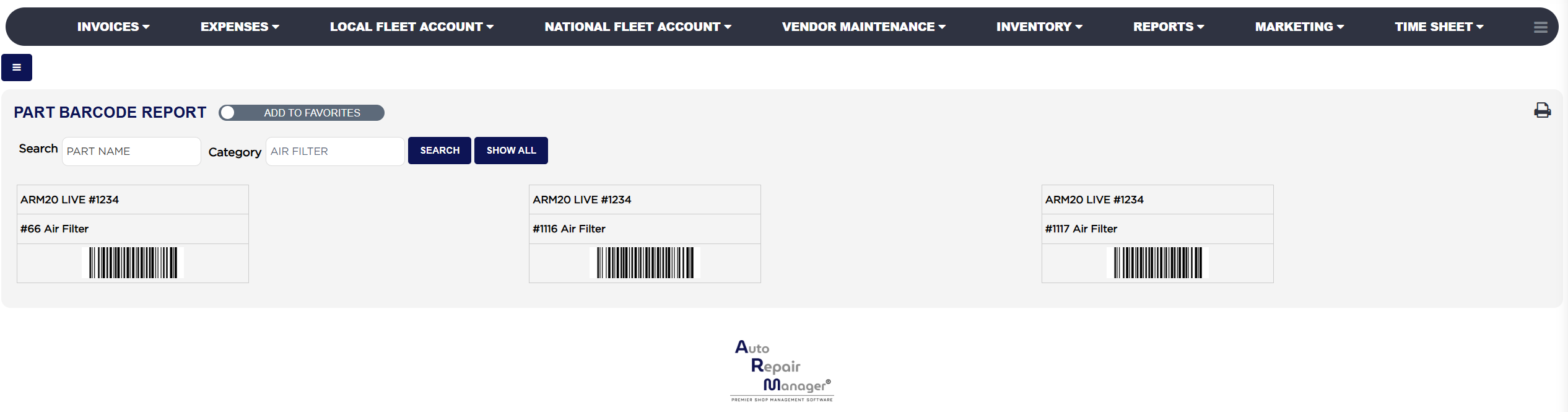
Part Barcode Report filtered to one category
Part Barcode Report print view

How do I print labels for one category only? #

  1. From the Home Screen, click Reports → Inventory Reports → Part Barcode Report.
  2. Type the category into Category — for example AIR FILTER — and click SEARCH. The sheet reduces to the labels for that category.
  3. Click the printer icon and print as before.
About this screen

The Inventory Reports menu carries two entries for this report, Part Barcode Report and Product Barcode Report. Both open the same screen.

Only parts that actually have a barcode recorded against them appear here, so the list is usually much shorter than your full parts list. A part that has never been given a barcode will not show up, however you search for it — add the barcode to the part first, in Inventory, and it will then appear.

Each label carries three lines: your store name at the top, the part's identifier and name in the middle in the form #66 Air Filter, and the barcode image itself underneath. ARM allows a part to hold up to three barcodes, a primary and two alternatives, and each barcode gets a label of its own, so a part with more than one appears more than once on the sheet.

The labels are laid out three across, which is wider than a portrait page, so the third label in each row is cut off when you print in portrait. Set the print window to landscape before printing, or print a narrower selection by filtering to one category at a time. Because the labels print through your browser rather than as a PDF, the browser also adds its own date and page details around the edge of the sheet; those are your browser's, not ARM's, and can be turned off in the print window's own settings.

This report has no date range, no totals and no spreadsheet export. It describes the parts you hold now, and its only output is the printed sheet.
People also ask

  • asked 1×

Ask AI