ARM Help

Detailed invoice Log Report

The Detailed invoice Log Report is the audit trail of what happened to each invoice on its way to being finalized: when it was written up, how long it stayed open, when it was revised, printed, paid and finalized, and by whom. Its special purpose is the potential loss, the amount by which an invoice's final total fell below the highest total it had while it was being worked on; the report can be limited to invoices where that reduction is above zero or above a dollar amount you choose. Use it to see how much value was written off invoices before finalizing, to find who reduced a ticket and when, and to trace the history of a single invoice when a customer or an employee questions it.

2 how-to answers 1 screenshot Open in ARM Markdown

How do I run the Detailed invoice Log Report? #

  1. From the Home Screen, click Reports → Management & Operational Reports → Detailed invoice Log Report.
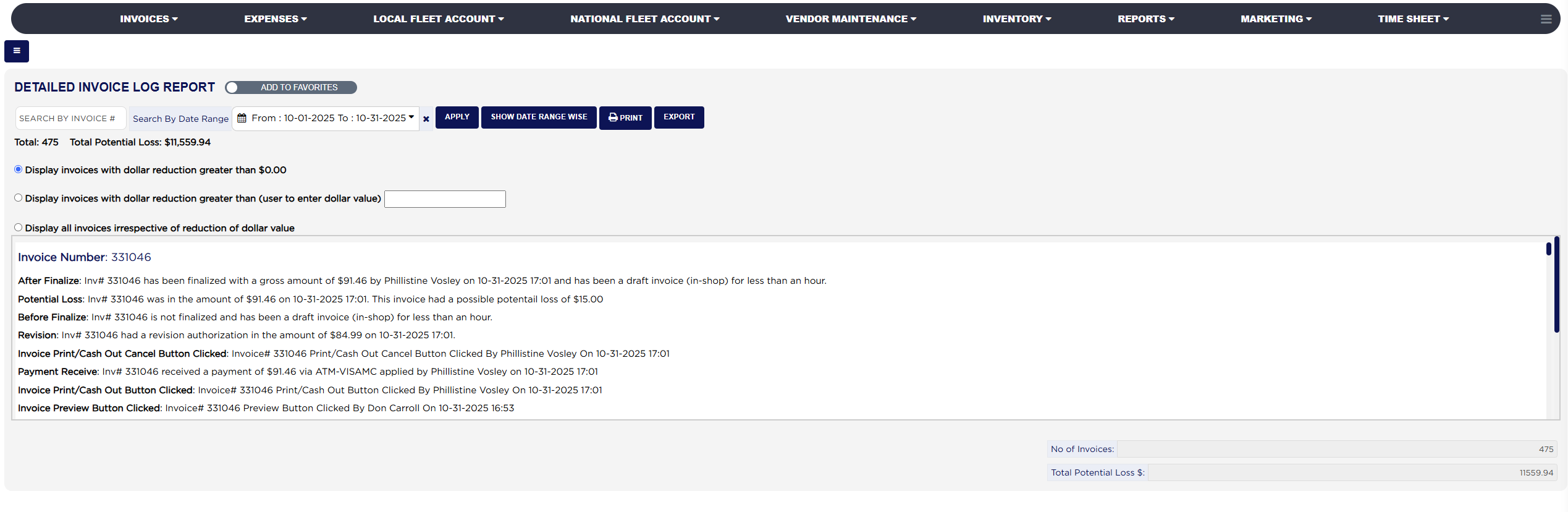
  2. Click the From : … To : … box beside Search By Date Range and pick the dates; the report lists the log entries written in that range and reloads as soon as a range is chosen. It opens on the current month, from the 1st to today. The × clears the dates.
  3. Choose which invoices to list: Display invoices with dollar reduction greater than $0.00 (the default) for every invoice whose total was reduced, Display invoices with dollar reduction greater than (user to enter dollar value) with the amount typed in the box beside it, or Display all invoices irrespective of reduction of dollar value for every invoice with log entries in the range.
  4. To trace one invoice, type its number into SEARCH BY INVOICE #.
  5. Click Apply to load the report, or Show Date Range Wise to keep the dates and clear the search and the reduction choice.
  6. Read the line Total: and Total Potential Loss: above the log, and the boxes No of Invoices: and Total Potential Loss $: below it.
  7. Click Print for a PDF copy in a new tab, or Export to download the log lines as a spreadsheet file. Both appear only when the report has entries.
Detailed invoice Log Report with date range, reduction options and results

How do I work out an invoice's potential loss? #

  1. From the Home Screen, click Reports → Management & Operational Reports → Detailed invoice Log Report, type the invoice number into SEARCH BY INVOICE # and click Apply.
  2. Find the highest total the invoice reached while it was open. ARM keeps this as the invoice is saved: each time the total goes up, the high mark is raised; it is never lowered. Example: the write-up came to $106.46.
  3. Read the After Finalize line for the gross amount the invoice was finalized at. Example: $91.46, after a discount was applied at cash-out.
  4. The potential loss is the high mark less the final amount when the final amount is lower, otherwise zero: $106.46 − $91.46 = $15.00. It is written to the Potential Loss line at finalizing and is what the reduction filter and Total Potential Loss: use.
  5. Total Potential Loss: adds the potential loss of every listed invoice, so a shop that wants the figure for the month sets the range to the month and leaves the default reduction choice.
About this screen

Total: is the number of invoices with log entries in the range that match the reduction choice, and Total Potential Loss: is the sum of their reductions. The log box below lists the entries newest first, grouped under Invoice Number: with the invoice number, one line per event in the form of the event name followed by what happened, who did it and when. The events include Before Finalize (how long the invoice had been a draft in the shop), After Finalize (the gross amount it was finalized at, by whom, and how long it had been open), Potential Loss (the amount the invoice was worth at its highest and the possible loss against the final amount), Revision (a revision authorization and its amount), Payment Receive (a payment, its method and who applied it), and the button events Invoice Preview Button Clicked, Invoice Print/Cash Out Button Clicked and Invoice Print/Cash Out Cancel Button Clicked, each with the user and time. Fee changes, discount changes, package changes, voids, refunds and notes are logged in the same way when they happen. The names in the entries are the employees who did each action.

The Add To Favorites switch beside the heading saves the report under Favorites on the Reports page. The Daily Deposit Report can print this log for a single day after its own pages. Which reports you see depends on your admin group permissions.
Ask AI