ARM Help

Final Co-Brand SpeeDee/Midas Royalty Marketing Report

Final Co-Brand SpeeDee/Midas Royalty Marketing Report is the weekly royalty and marketing fee worksheet for a co-branded SpeeDee/Midas location. It starts from the week's gross receipts, takes off the items that are not subject to fees, splits what is left into Midas revenues (brake, exhaust, alignment, suspension and tire work) and SpeeDee revenues (everything else), and works out the royalty and marketing fees due to each brand, line by line, with the formula for each line shown beside it. A second page lists the national fleet accounts and the discounts they received. Use it each week to see what you owe Midas and SpeeDee and to check how each figure was reached.

3 how-to answers 10 screenshots Open in ARM Markdown

How do I run the Final Co-Brand SpeeDee/Midas Royalty Marketing Report? #

  1. From the Home Screen, click Reports → Management & Marketing Reports → Final Co-Brand SpeeDee/Midas Royalty Marketing Report. The report appears only on stores set up as SpeeDee/Midas co-brand locations.
  2. Choose a date in the date box. The report covers the week from its Sunday up to the date you choose. Choose a Saturday for the full week; choose a weekday for the week so far. It opens on today, and reloads as soon as a date is chosen.
  3. SHOW ALL returns to today.
  4. Click PRINT for a PDF copy or DOWNLOAD to export to a spreadsheet.
Co-Brand SpeeDee Midas Royalty Marketing Report date and buttons

How do I work out the royalty and marketing fees from the report? #

  1. From the Home Screen, click Reports → Management & Marketing Reports → Final Co-Brand SpeeDee/Midas Royalty Marketing Report, choose the date and check the tire discount box.
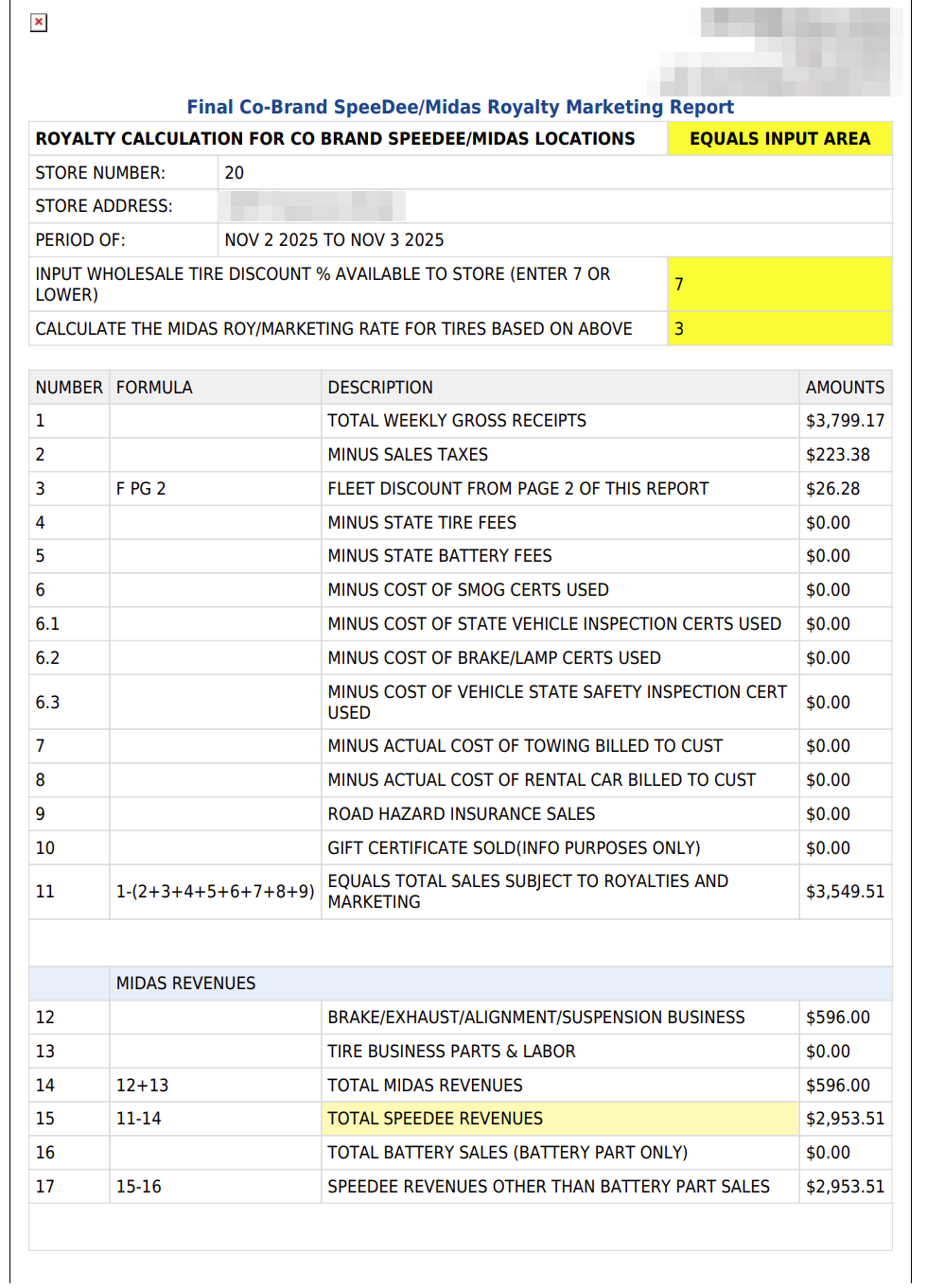
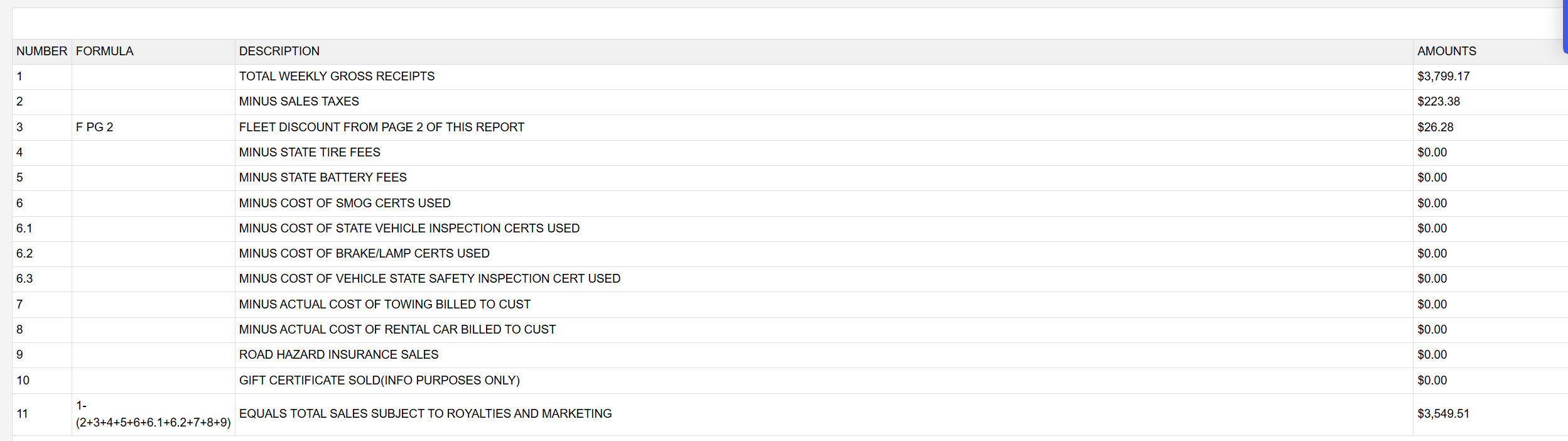
  2. Start with line 1, TOTAL WEEKLY GROSS RECEIPTS. Example: NOV 2 2025 TO NOV 3 2025, $3,799.17.
  3. Take off lines 2 to 9, including 6.1, 6.2 and 6.3. Example: sales taxes $223.38 and the fleet discount $26.28; everything else is $0.00.
  4. Line 11, EQUALS TOTAL SALES SUBJECT TO ROYALTIES AND MARKETING, is what is left: $3,799.17 − $223.38 − $26.28 = $3,549.51. The formula printed beside line 11 does not list every line it takes off (the screen leaves out 6.3, the printout leaves out 6.1, 6.2 and 6.3), but the amount does take them all off.
  5. Under MIDAS REVENUES, line 12 is the week's brake, exhaust, alignment and suspension work and line 13 the tire work, parts and labor. Line 14, TOTAL MIDAS REVENUES, is 12 + 13. Example: $596.00 + $0.00 = $596.00.
  6. Line 15, TOTAL SPEEDEE REVENUES, is line 11 − line 14: $3,549.51 − $596.00 = $2,953.51. Line 16 is battery sales, the battery part only, and line 17 is line 15 − line 16. Example: no battery sales, so line 17 is $2,953.51.
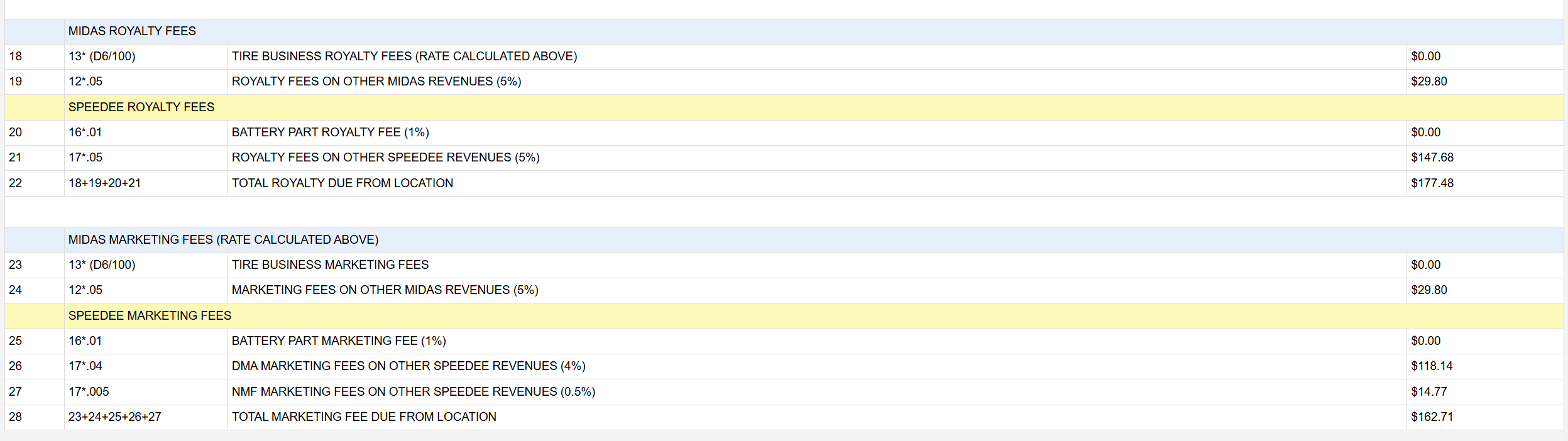
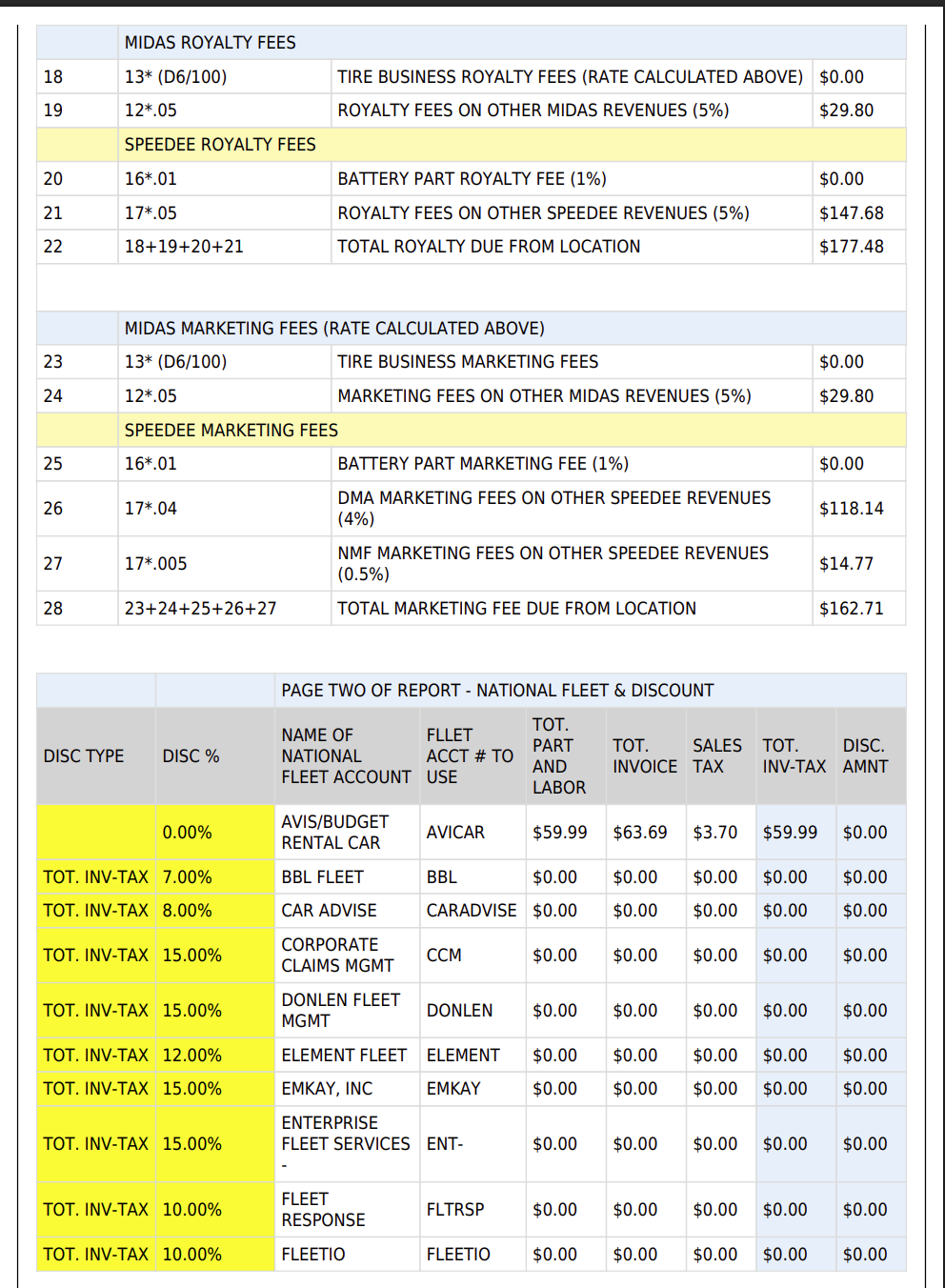
  7. The royalty due is four lines. MIDAS ROYALTY FEES: line 18 is line 13 × the tire rate from the yellow box, and line 19 is 5 % of line 12. SPEEDEE ROYALTY FEES: line 20 is 1 % of line 16, and line 21 is 5 % of line 17. Example: $0.00 + ($596.00 × 5 % = $29.80) + $0.00 + ($2,953.51 × 5 % = $147.68). Line 22, TOTAL ROYALTY DUE FROM LOCATION, is 18 + 19 + 20 + 21 = $177.48.
  8. The marketing fee is five lines. MIDAS MARKETING FEES: line 23 is line 13 × the tire rate again, and line 24 is 5 % of line 12. SPEEDEE MARKETING FEES: line 25 is 1 % of line 16, line 26 is 4 % of line 17 for the DMA and line 27 is 0.5 % of line 17 for the NMF. Example: $0.00 + $29.80 + $0.00 + $118.14 + $14.77. Line 28, TOTAL MARKETING FEE DUE FROM LOCATION, is 23 + 24 + 25 + 26 + 27 = $162.71. ARM adds the unrounded amounts, so a total can be one cent different from adding the printed figures.
Co-Brand SpeeDee Midas Royalty Marketing Report lines 1 to 11
Co-Brand SpeeDee Midas Royalty Marketing Report Midas and SpeeDee revenues lines 12 to 17
Co-Brand SpeeDee Midas Royalty Marketing Report royalty and marketing fees lines 18 to 28
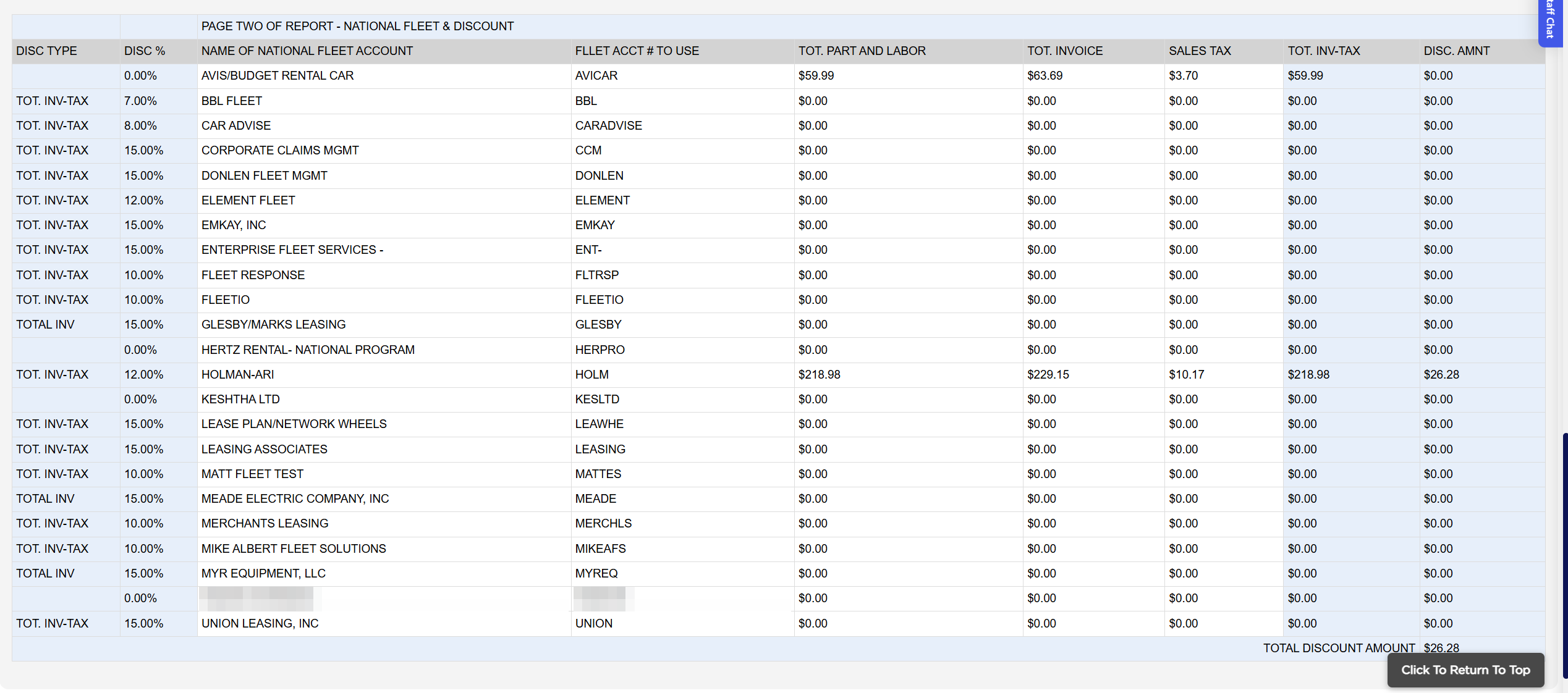
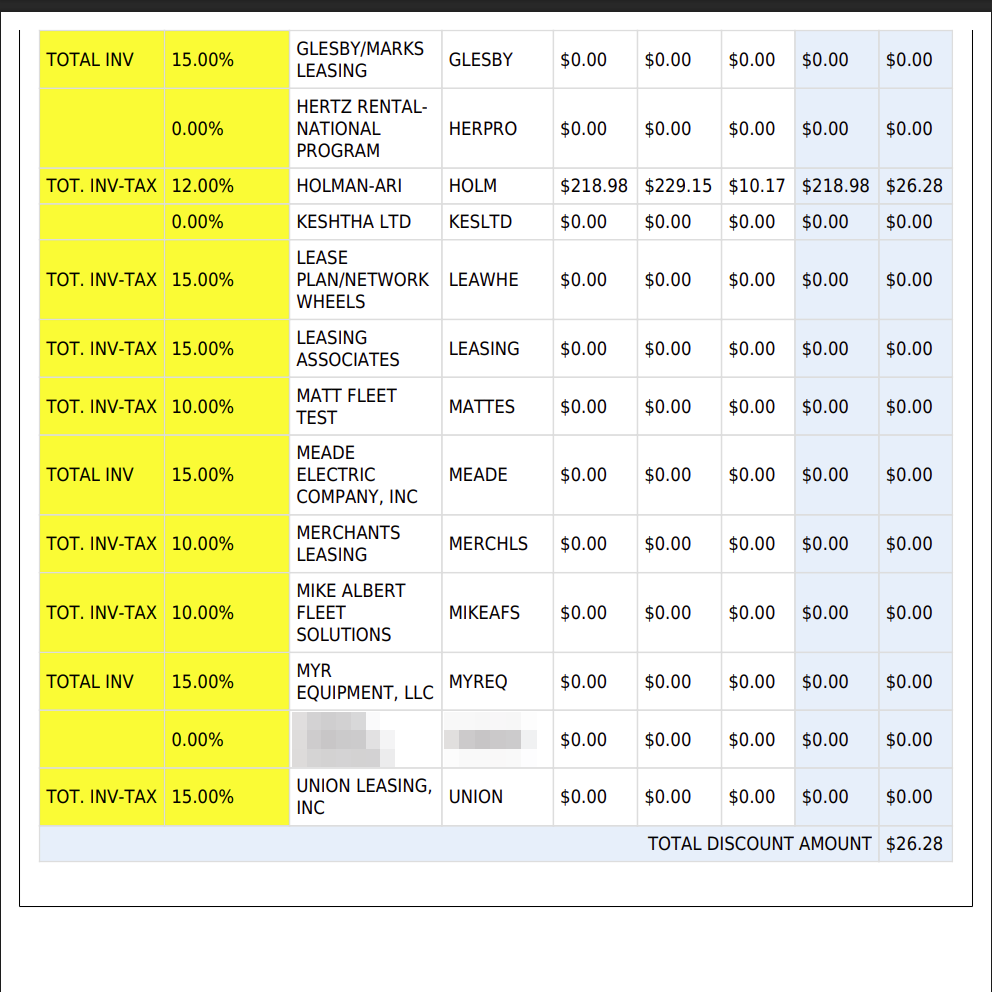
Co-Brand SpeeDee Midas Royalty Marketing Report national fleet and discount page
Co-Brand SpeeDee Midas Royalty Marketing Report printout page 1
Co-Brand SpeeDee Midas Royalty Marketing Report printout page 2
Co-Brand SpeeDee Midas Royalty Marketing Report printout page 3

How do I change the tire discount? #

  1. From the Home Screen, click Reports → Management & Marketing Reports → Final Co-Brand SpeeDee/Midas Royalty Marketing Report, and choose the date.
  2. Type your wholesale tire discount in the yellow INPUT WHOLESALE TIRE DISCOUNT % box. The Midas tire rate beside it and every line that uses it (lines 18 and 23, and the totals 22 and 28) update as you type. Example: 5 gives a rate of 2.50.
  3. The figure is not saved. It goes back to 7 each time the report is opened, so enter it again each week before printing; the printout uses the figure in the box when you click PRINT. In a week with no tire sales, as in the example, lines 18 and 23 stay at $0.00 whatever the rate.
Co-Brand SpeeDee Midas Royalty Marketing Report header and tire discount input at 7
Co-Brand SpeeDee Midas Royalty Marketing Report tire discount input changed to 5
About this screen

The report opens with STORE NUMBER (the store's account number), STORE ADDRESS and PERIOD OF, the dates covered. Below them, in yellow, is the one figure you enter: INPUT WHOLESALE TIRE DISCOUNT % AVAILABLE TO STORE (ENTER 7 OR LOWER). It starts at 7. From it ARM works out CALCULATE THE MIDAS ROY/MARKETING RATE FOR TIRES BASED ON ABOVE: 3 − (7 − your discount) × 0.25, so 7 gives 3.00 %, 6 gives 2.75 % and 5 gives 2.50 %. Enter the figure your Midas agreement gives; ARM does not stop you entering more than 7, and an empty box counts as 0 (1.25 %).

Each line then shows its NUMBER, the FORMULA used, a DESCRIPTION and the AMOUNTS. Lines 1 to 10 are taken from the week's finalized invoices: 1 TOTAL WEEKLY GROSS RECEIPTS, then the amounts that come off it, 2 sales taxes, 3 the fleet discount from page two, 4 state tire fees, 5 state battery fees, 6 smog certificates, 6.1 state vehicle inspection certificates, 6.2 brake/lamp certificates, 6.3 vehicle state safety inspection certificates, 7 towing and 8 rental cars billed to customers, and 9 road hazard insurance sales. Line 10, gift certificates sold, is shown for information only and is not taken off. When the week has refunds, REFUND AMOUNTS and NET columns appear beside the amounts.

Line 12 should match your brake, exhaust, alignment and suspension sales for the week, and line 13 your tire sales. If either looks low, compare it with the same week on the Summary of Revenue by Service Types Report before paying.

Page two, NATIONAL FLEET & DISCOUNT, lists every national fleet account with its DISC TYPE (what the discount is worked on: TOT. INV-TAX or TOTAL INV), its DISC %, the NAME OF NATIONAL FLEET ACCOUNT, the FLEET ACCT # TO USE, and for the week its TOT. PART AND LABOR, TOT. INVOICE, SALES TAX, TOT. INV-TAX and DISC. AMNT. TOTAL DISCOUNT AMOUNT at the foot is the figure used on line 3. Example: HOLMAN-ARI, TOT. INV-TAX $218.98 × 12.00 % = $26.28, the only discount that week, so TOTAL DISCOUNT AMOUNT and line 3 are both $26.28. The discount type and percentage come from each national fleet account's settings and cannot be changed on the report.

The printout is headed Final Co-Brand SpeeDee/Midas Royalty Marketing Report and carries the same lines and amounts over three pages: the header, the tire discount and lines 1 to 17 on the first page, lines 18 to 28 and the start of page two on the second, and the rest of the national fleet list on the third. The tire rate prints without decimals, for example 3.

In a week with refunds, take the REFUND AMOUNTS and NET figures for lines 14, 20 and 25 from the printout: on the screen, line 14 can leave out refunded tire work and lines 20 and 25 can show the battery fee without the refund taken off. The percentages are the same for every store and cannot be changed from ARM's settings. A date earlier than the store's restriction date in ARM is not allowed.

Ask AI